When your manager publishes the rota, you can add your shifts directly to your calendar. If shift reminders are enabled, you will also receive a reminder before each shift.
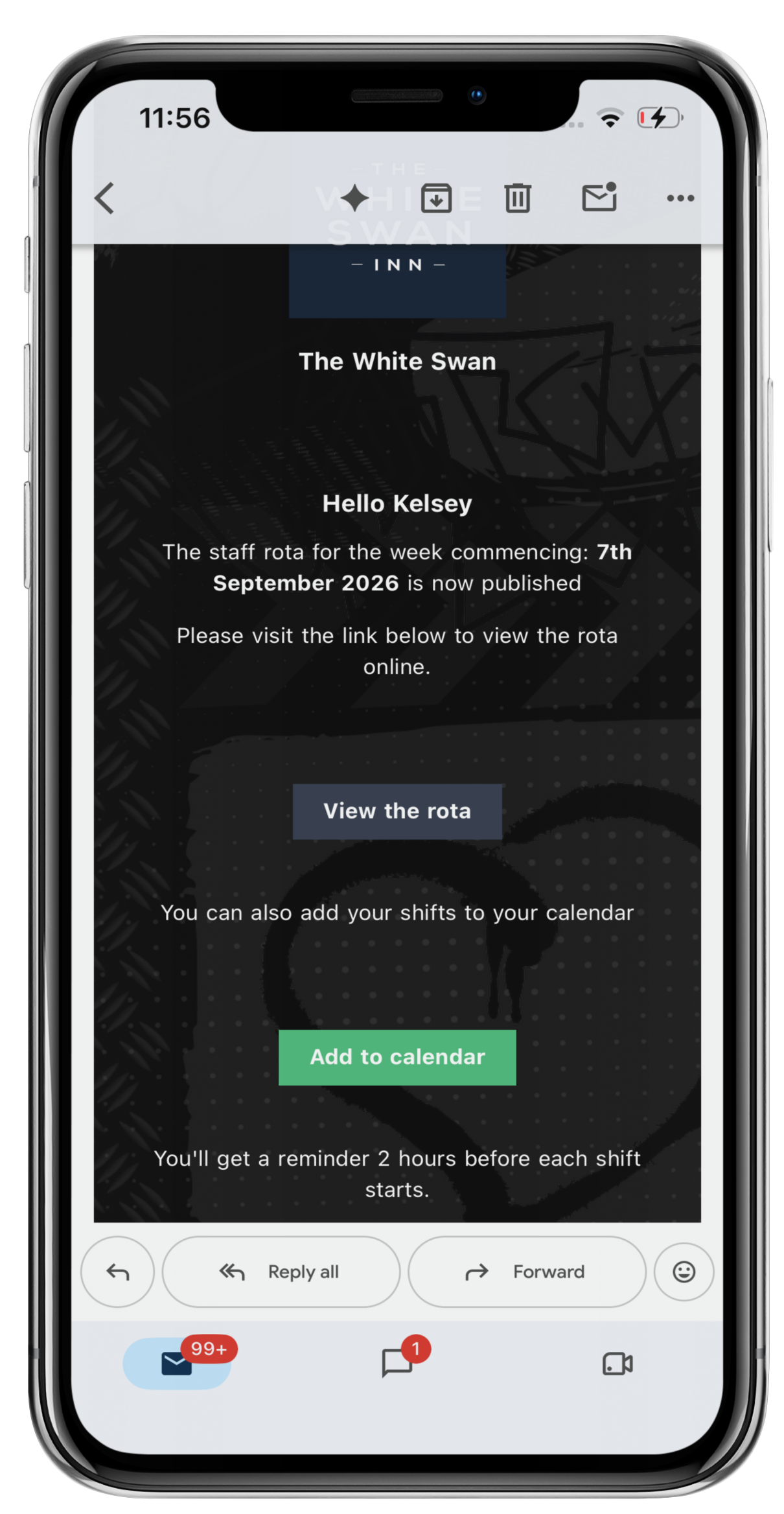
To add rota shifts to your calendar, click the green Add to calendar button in your new rota email.
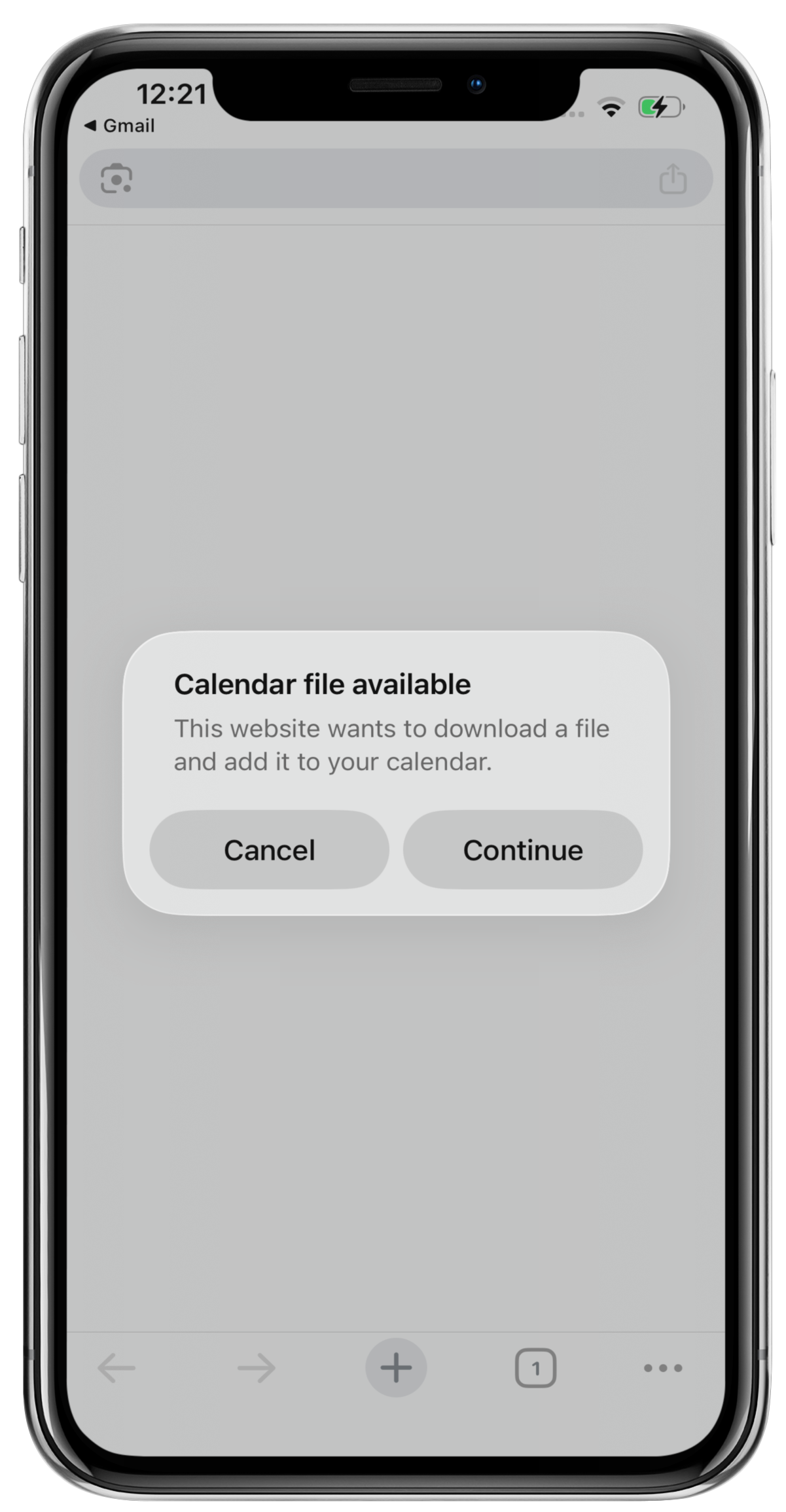
Download the calendar file, then click the Continue button.
If you have multiple calendar apps, you will be prompted to select the required calendar app.
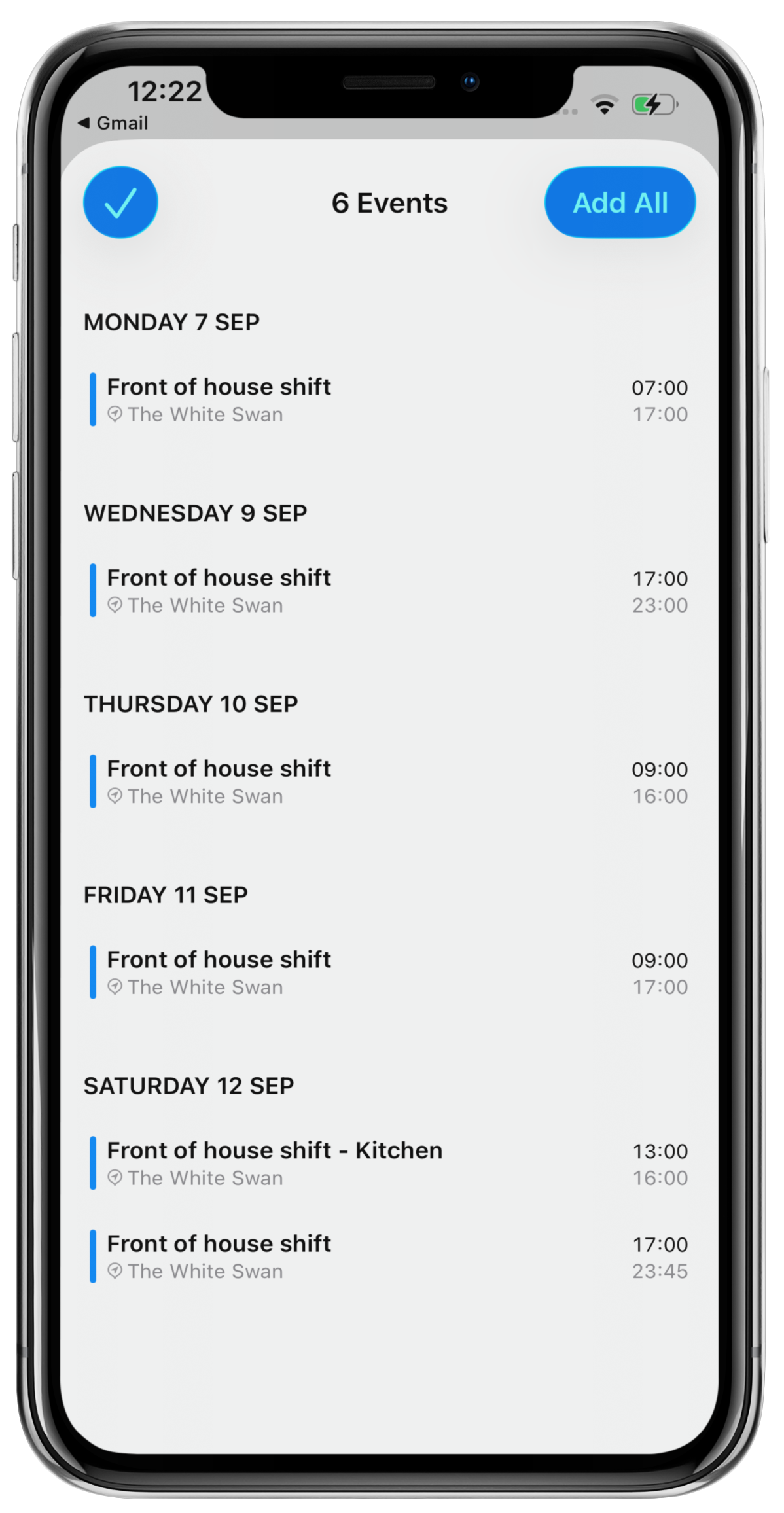
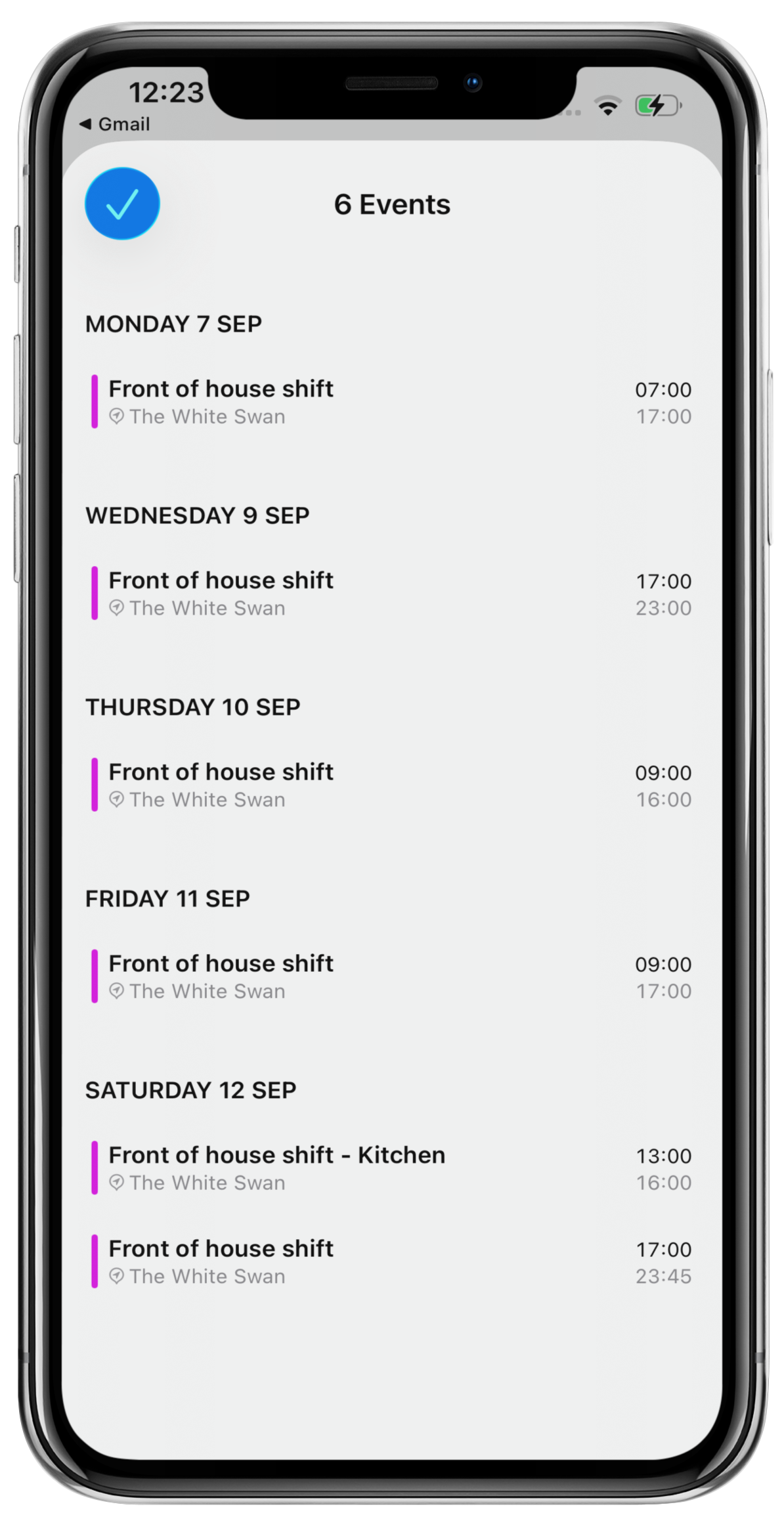
You will see a preview of the shifts that will be added to your calendar, with:
- Date and shift times
- Rota department
- Venue location
To confirm, click the blue Add all button, followed by the blue Tick button.
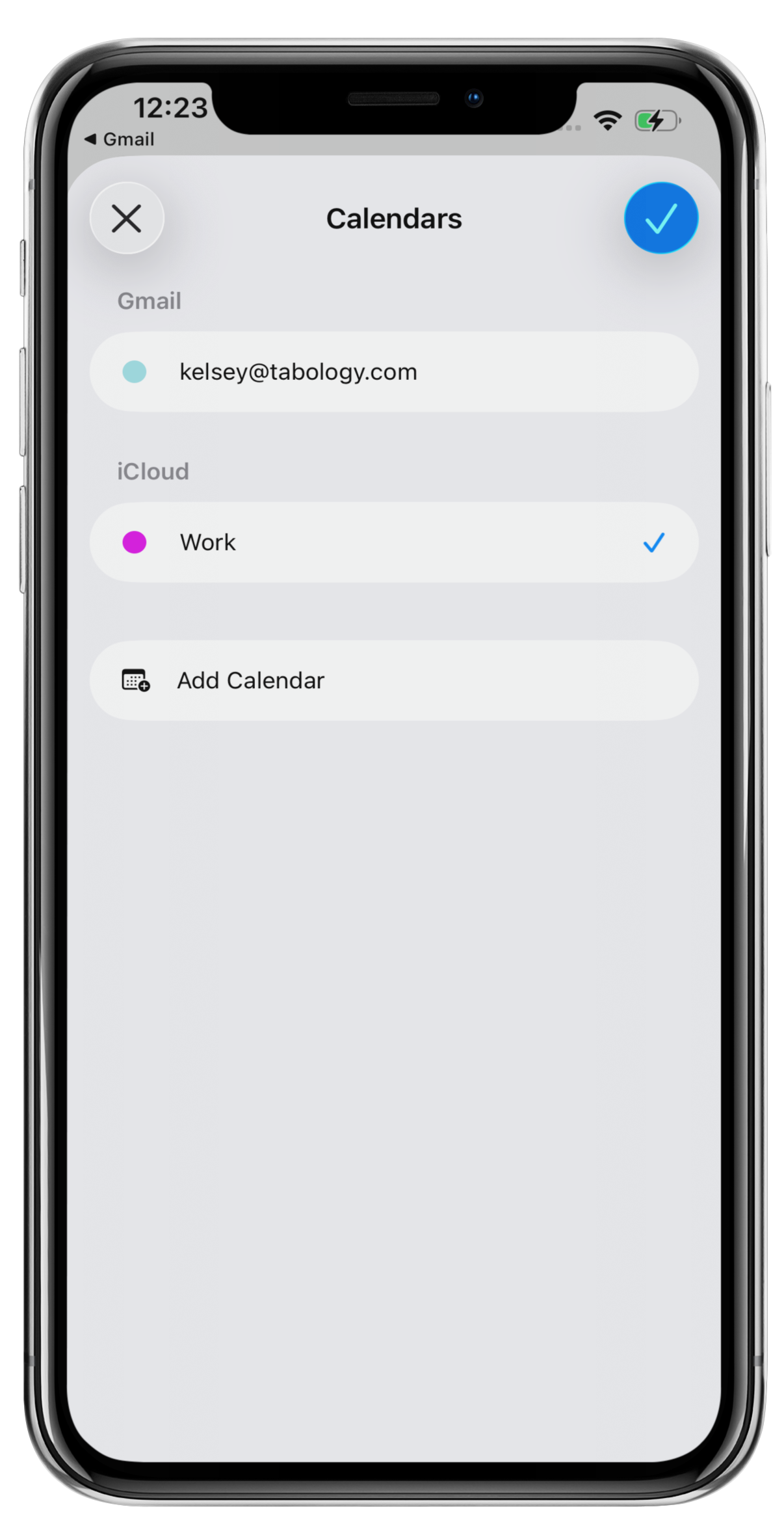
Select the Calendar account from your accounts list, then click the blue Tick button.
Click the blue Tick button.
Click the grey X to close the screen.
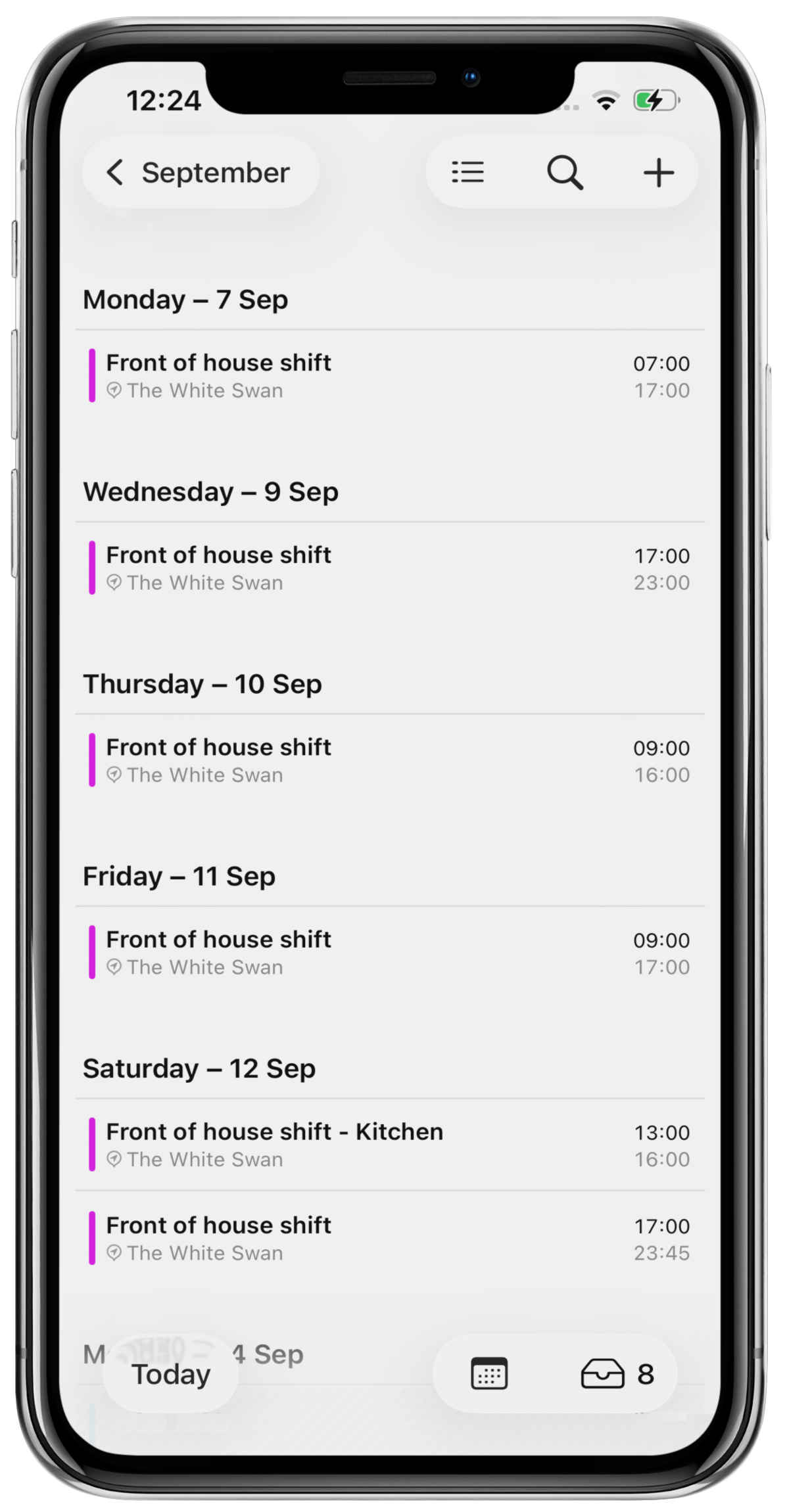
You can now open the calendar app on your phone to view all your shifts for the week.
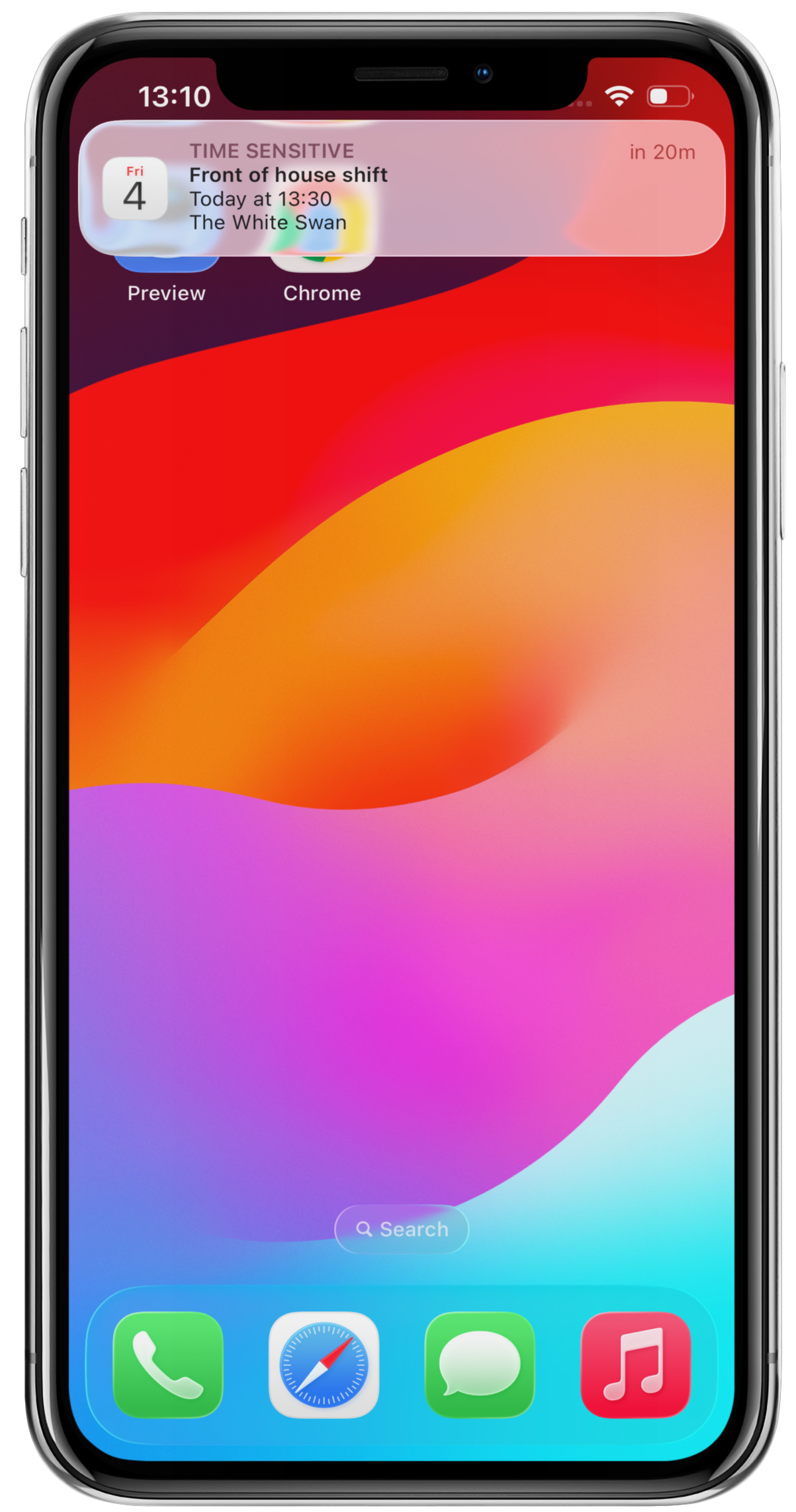
If a rota reminder has been set, you will receive a notification before your shift is due to start.
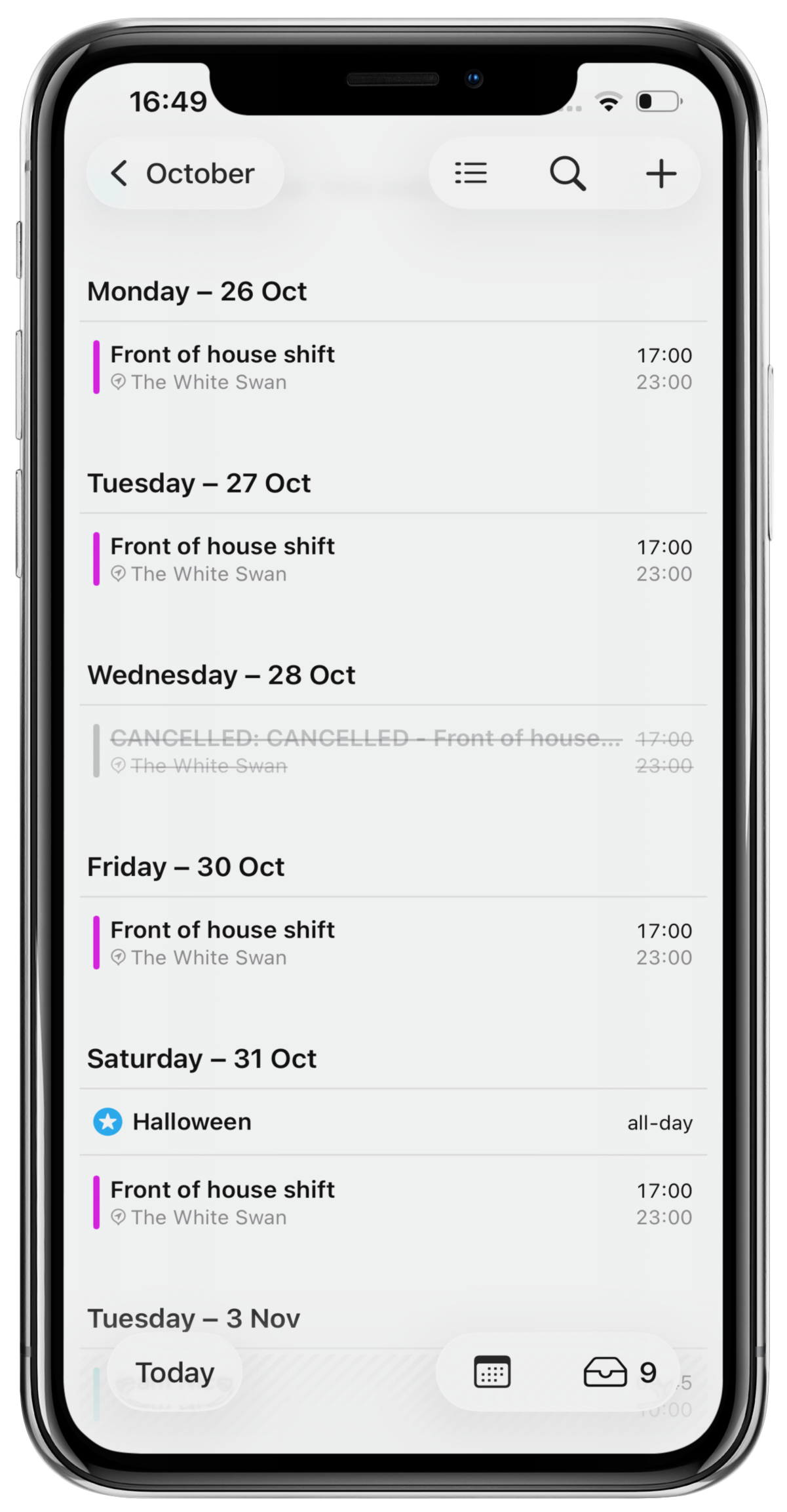
If your manager updates your rota and re-publishes it, you will need to re-download the calendar, which will update on your phone.
Note: Any cancelled shifts will display in grey with a strikethrough and 'cancelled' as the prefix to the shift.
Was this article helpful?
That’s Great!
Thank you for your feedback
Sorry! We couldn't be helpful
Thank you for your feedback
Feedback sent
We appreciate your effort and will try to fix the article