Job roles let you differentiate staff on your rota by role. By allocating staff to a role, you can identify managers, bar backs, kitchen staff, etc, on your rotas through colour coding.
Alternatively, you can configure Departments, which lets you split your rota and wage costs by team.
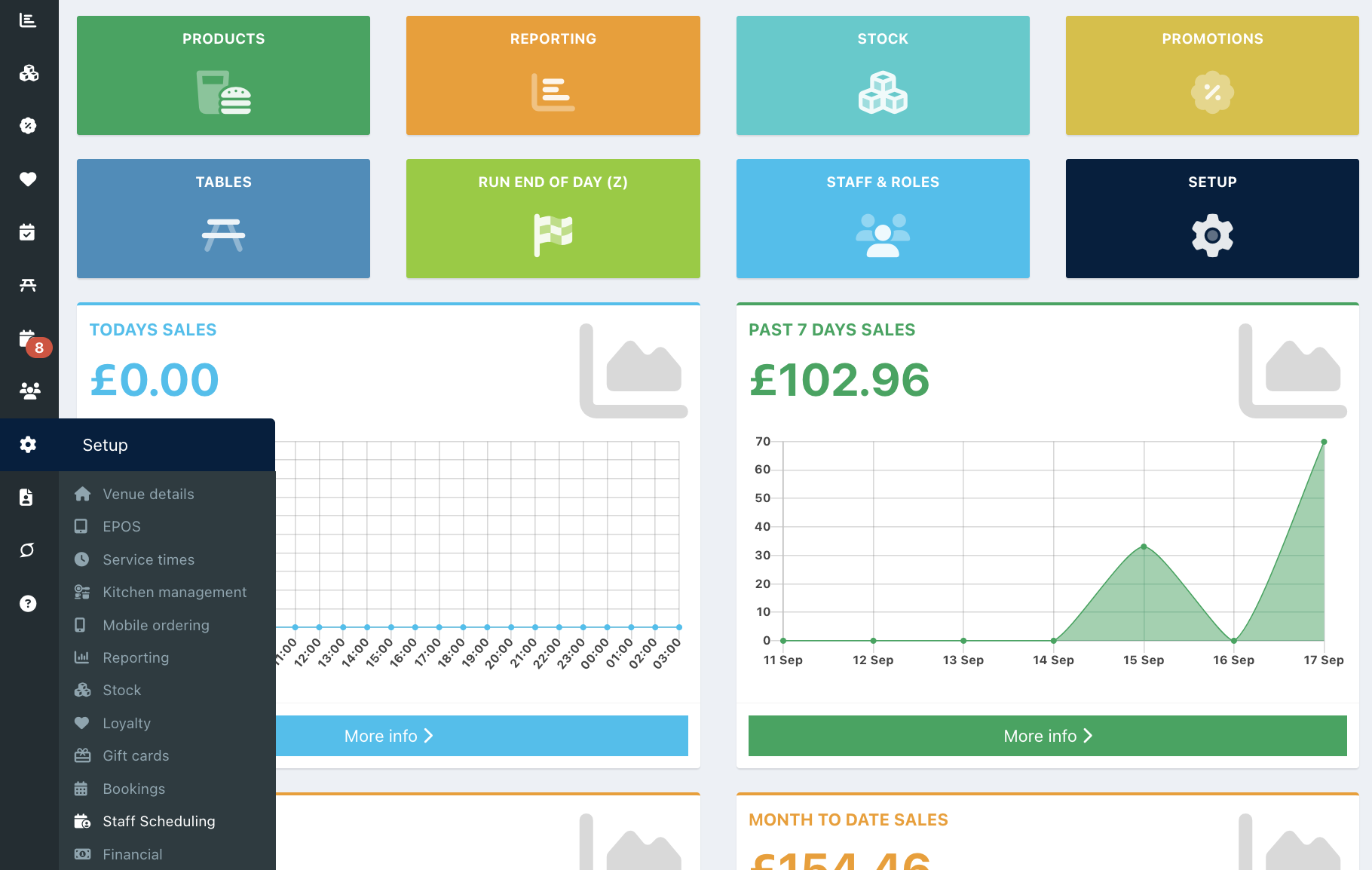
To add or update Job roles, go into the back office and select Setup > Staff scheduling from the left-hand navigation.
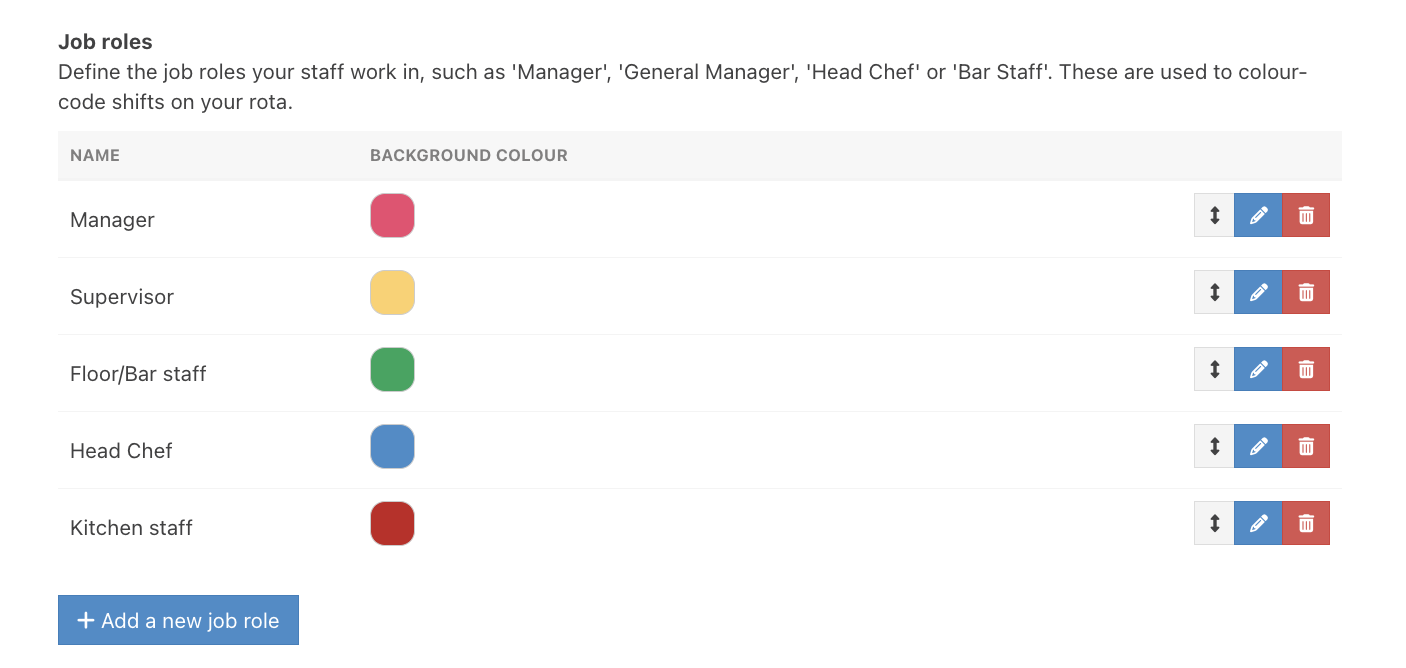
Locate the section Job roles. Click the blue Add a new job role button. A text field will display for you to enter your new role. Then select a background colour, which will appear on your rota to help you identify the role.
Click the blue Tick at the end of the role row.
Note: The order that you create your roles will be reflected on the Sort by job role option on your rota.
To reorder your job roles so they display in the order you want to see them on your rota, use the drag-and-drop icons to move your roles.
Click the blue Save button.

You can now allocate a default role to your staff members and override it on individual shifts if needed.
Was this article helpful?
That’s Great!
Thank you for your feedback
Sorry! We couldn't be helpful
Thank you for your feedback
Feedback sent
We appreciate your effort and will try to fix the article