You can configure EPOS roles to reflect the actions your staff can perform.
You can configure:
- The screens that different roles have access to
- The functions that different roles can perform
You can configure up to 5 roles with cascading access levels (5 at the highest level and 1 at the lowest).
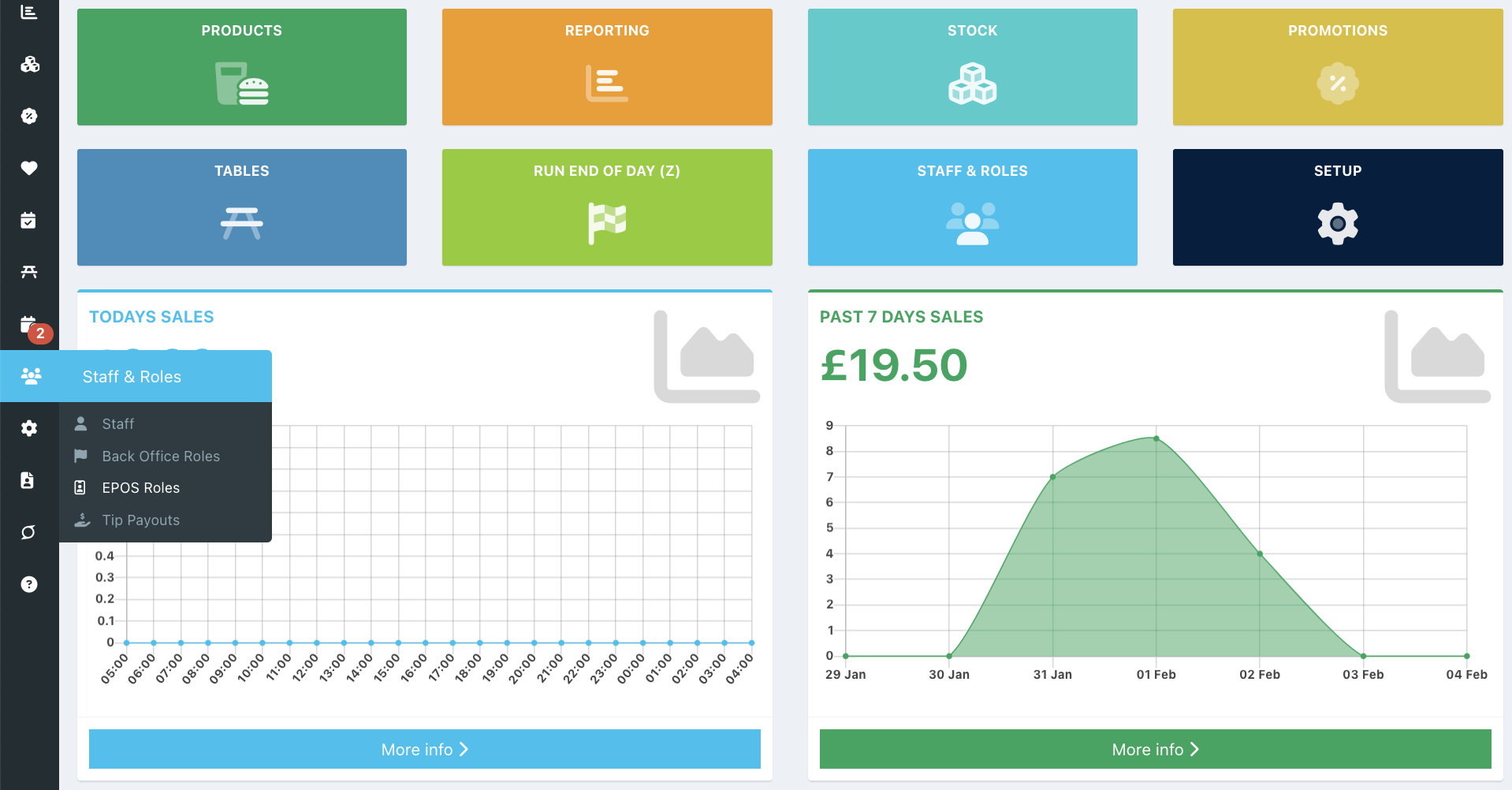
To configure EPOS roles, go into your back office and select Staff & Roles > EPOS Roles.
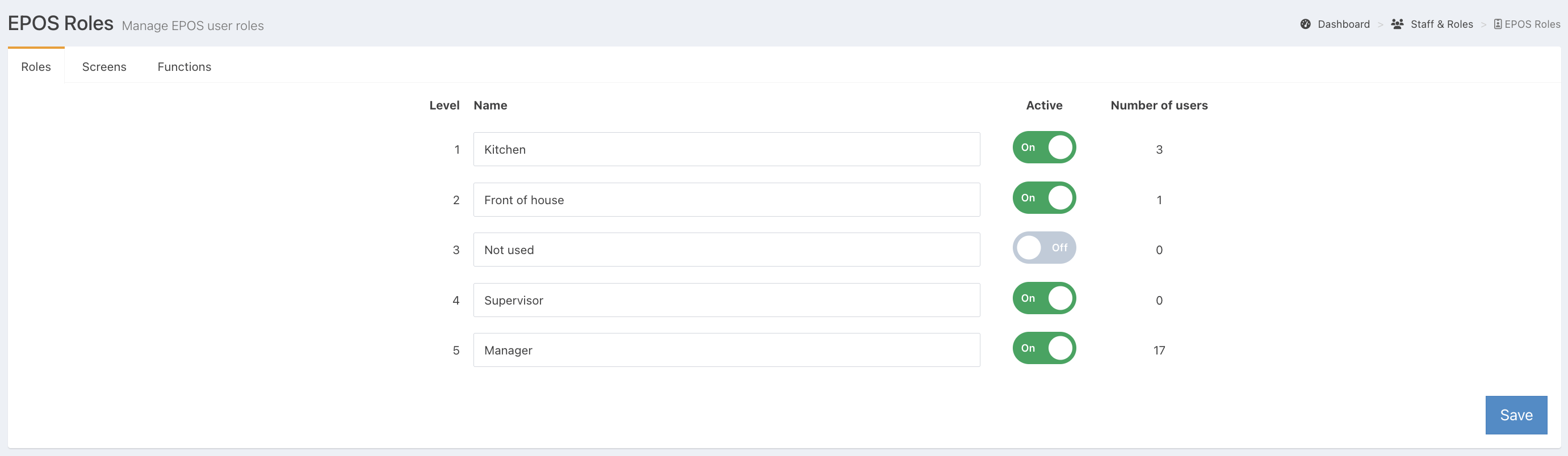
From the Roles tab, you will see 4 active and 1 inactive predefined default roles:
- Kitchen - Access to "Kitchen" screen only
- Front of house - Standard user access (no access to the "Admin" view or ability to perform voids, no sales, or refunds)
- Inactive
- Supervisor - Standard access + ability to perform voids, refunds, and no sales
- Manager - Allows full access to all EPOS screens and functions
The Number of users column shows how many users are assigned to each role.
On this tab, you can edit each role's name and its active status.
Note: You can not deactivate a role that has users assigned to it.
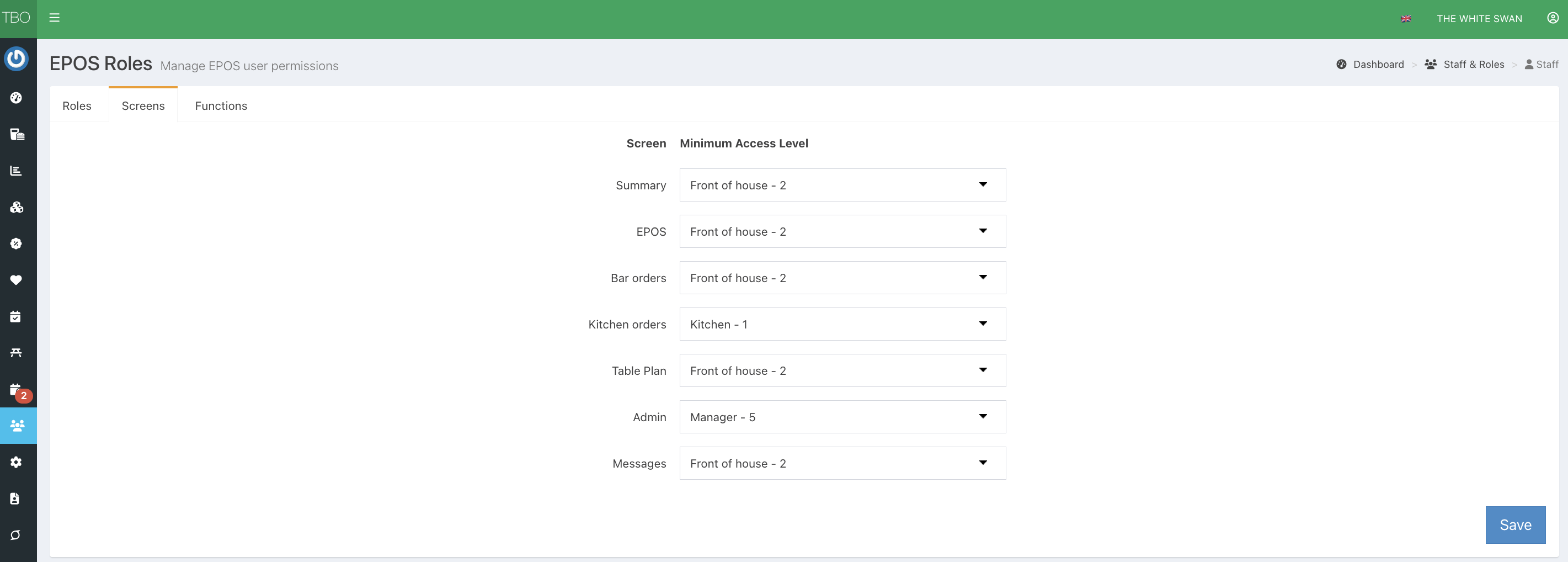
From the Screen tab, you can select the Minimum access level that can access each screen of the EPOS.
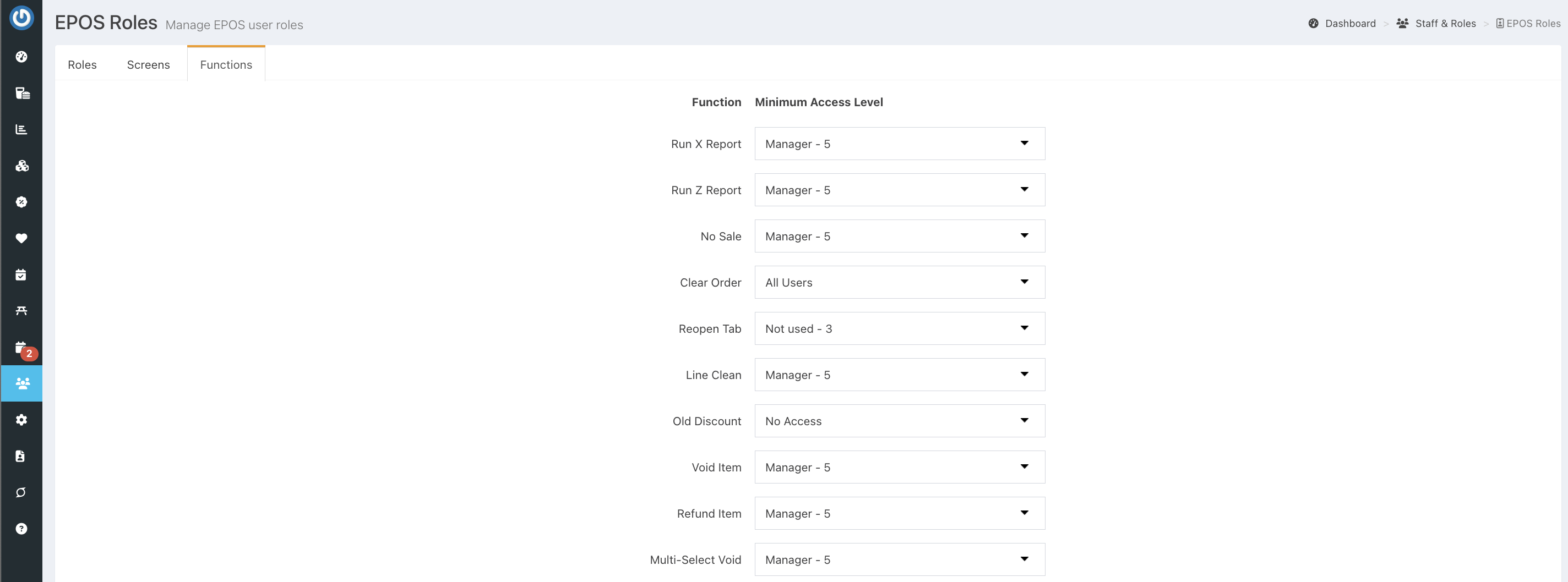
From the Functions tab, you can select the minimum access level that can perform each function.
Click the blue Save button at the bottom of the screen to save your EPOS roles and permissions.
Was this article helpful?
That’s Great!
Thank you for your feedback
Sorry! We couldn't be helpful
Thank you for your feedback
Feedback sent
We appreciate your effort and will try to fix the article