If you no longer need a Member type, you can deactivate it or remove it completely. Before removing a Member type, you must deactivate it and any associated subscription plan.
Note: If you only want to stop a subscription, you can deactivate the subscription plan while keeping the Member type active.
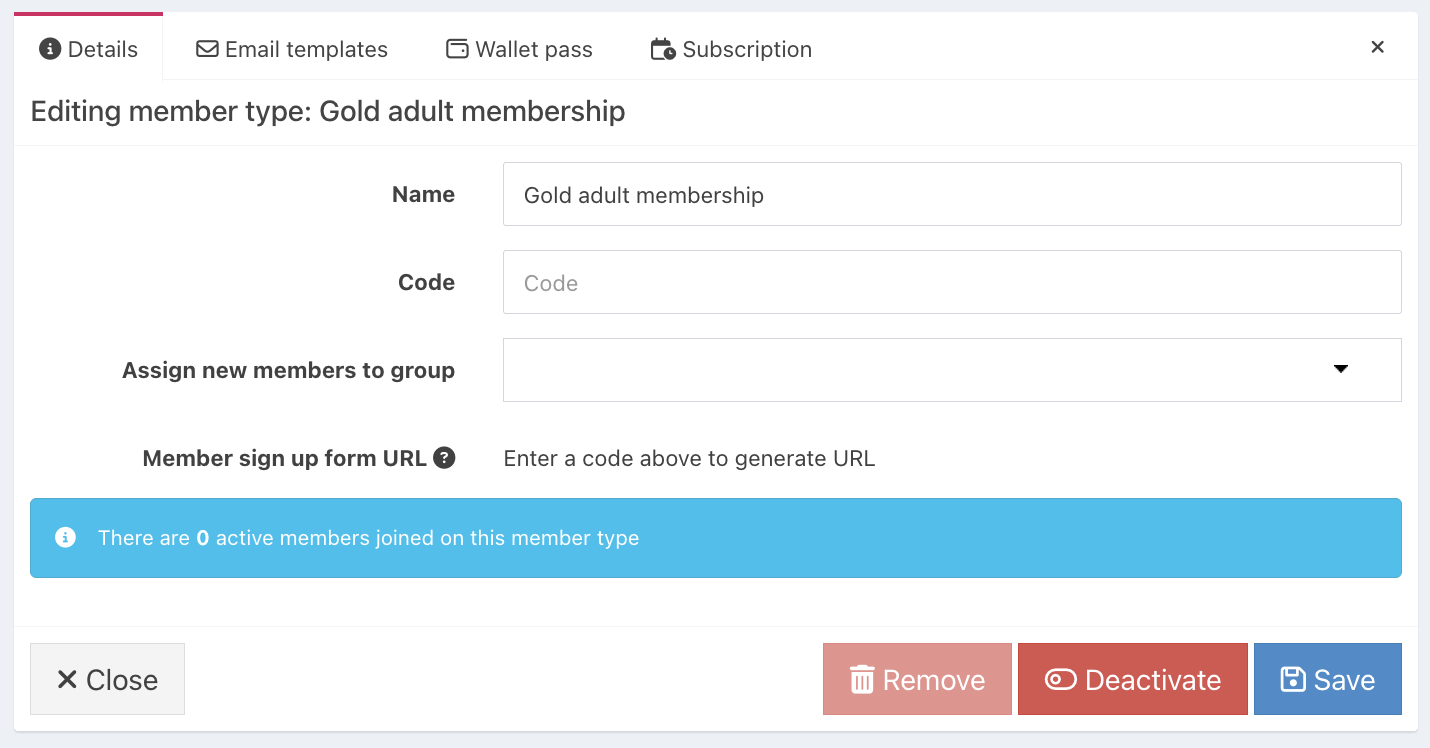
To deactivate a Member type, locate the type in the list and click the blue edit icon.

Click the red Deactivate button on the Member type.
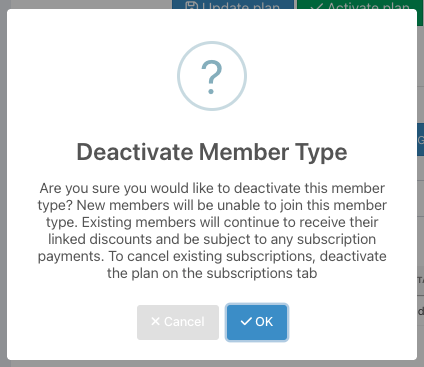
At the Deactivate Member type prompt, click the blue Yes button to confirm.
Once a Member type has been deactivated, you can remove it completely.
Click the red Remove button.

The Member type will be removed from the Type list.
Was this article helpful?
That’s Great!
Thank you for your feedback
Sorry! We couldn't be helpful
Thank you for your feedback
Feedback sent
We appreciate your effort and will try to fix the article