Once you have created a Member type, you can set up a subscription plan to charge members for access to the benefits associated with that membership.
If you would like to collect subscription payments automatically via Direct Debit you will need to connect to GoCardless.
You can choose whether members pay on an ongoing basis or for a fixed number of billing cycles, and configure when payments are due.
You will be able to:
- Add details of your plan
- Set the billing amount and interval
- Set whether the plan is ongoing, or a one-off fee
- Set a fixed renewal date
- Set a start date
To add a subscription, locate the Subscription tab from the required Member type.

Adding details
Give your plan a reference; this will help you to identify it in the Subscriptions centre under Member plans, Member payments and Member subscriptions.

Add any internal notes you and your team may find useful about the subscription plan.
Note: These notes will not be visible to members.
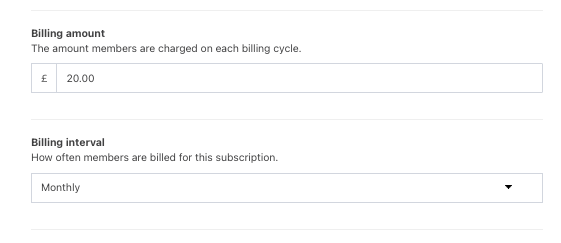
Setting the Billing amount
Enter the Billing amount members will pay for each billing cycle.
Then select how often members will be billed from the Billing cycle dropdown (monthly or annually).
Setting a subscription type
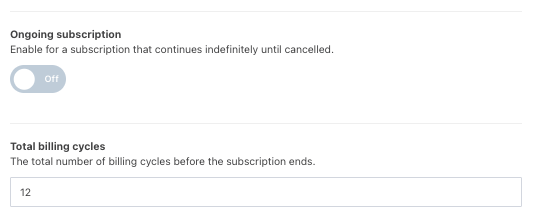
By default, Ongoing subscription will be toggled off.
Enter the number of payments members will make in the Total billing cycles field. The subscription will end once all billing cycles have been completed.
To charge members on an ongoing basis, turn Ongoing subscription on. Members will continue to be billed at the selected interval until their subscription is cancelled.
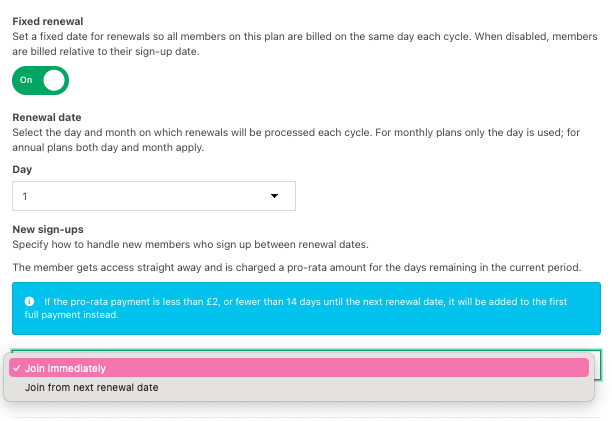
If you want all members on the plan to renew on the same date, turn the Fixed renewal date on.
Select the Renewal date from the dropdown, then choose how new members joining between renewal dates will be handled:
Join immediately – Members receive access straight away and will be charged a pro-rata amount for the remaining days in the current billing period.
Join from next renewal date – Members' access and first payment begin on the next renewal date.
By default, the Fixed renewal date is turned off.
If you want the subscription plan to begin on a future date, select a date from the Start date field.

When all your subscription plan details have been added, click the green Activate plan button.

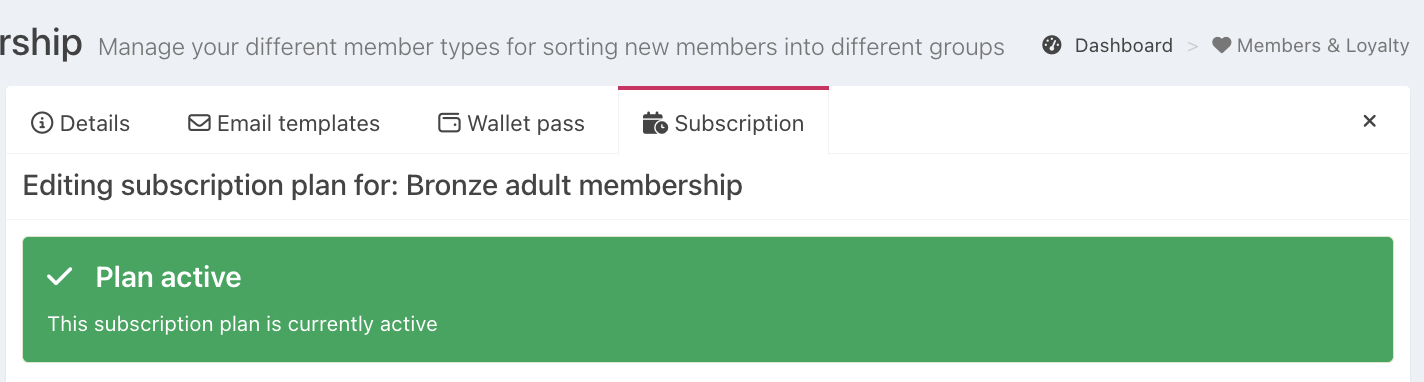
A green success banner will confirm that your subscription plan has been activated, at the top of your subscription.
Members will now be able to sign up online using the member sign-up form or in-venue through the EPOS
Was this article helpful?
That’s Great!
Thank you for your feedback
Sorry! We couldn't be helpful
Thank you for your feedback
Feedback sent
We appreciate your effort and will try to fix the article