If you are ending a subscription plan and don't want to collect any further payments from members, you can deactivate the subscription. Deactivating a plan stops further subscription payments, and you can choose whether existing members expire after the period they have paid up to, or retain access indefinitely.
You can also remove a subscription plan completely once it has been deactivated.
Deactivating a subscription plan
To deactivate a subscription plan, locate your Member type from the list and click the blue Edit icon.

The Member type will appear on the right side of the screen; click the Subscription tab.

Scroll to the bottom of the Subscription plan, and click the red Deactivate plan button.

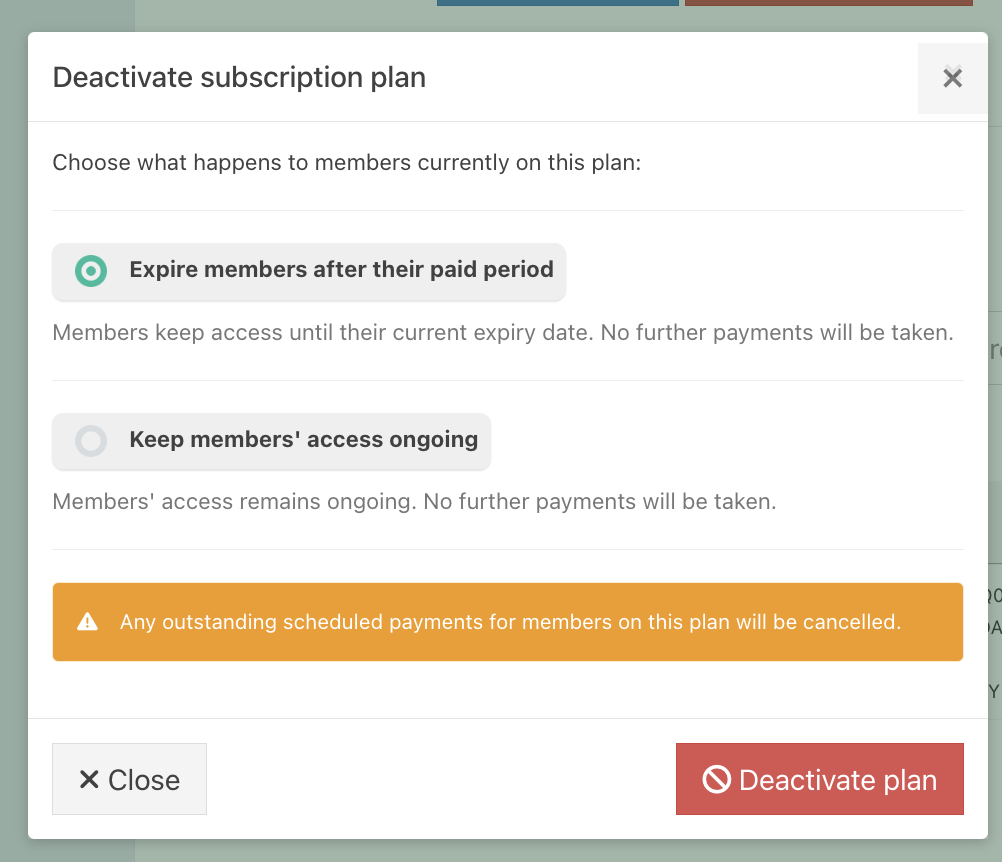
At the prompt, confirm how you would like to handle your current members, followed by the red Deactivate plan button.
- Expire members after their paid period - members will keep their access until the current expiry date, but no further payments will be taken
- Keep members' access ongoing - Member access will be ongoing, but no further payments will be taken
Then click the blue Save button at the bottom of the screen.

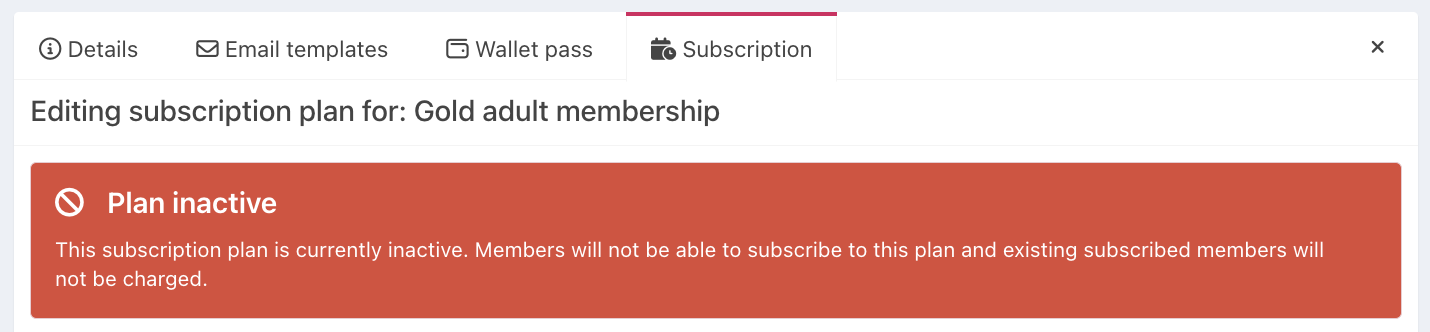
Your subscription plan will now be inactive, indicated by a red banner at the top of the Subscription tab.
Removing a subscription plan
Once a subscription plan has been deactivated, the Deactivate plan button will change to Remove plan. Click the button.

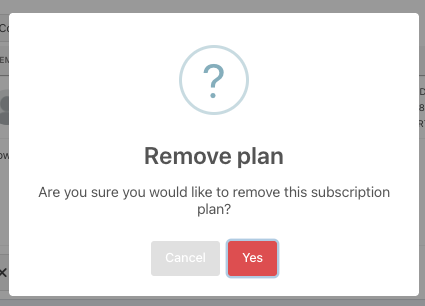
Click Yes at the confirmation prompt, followed by Save at the bottom of the screen.
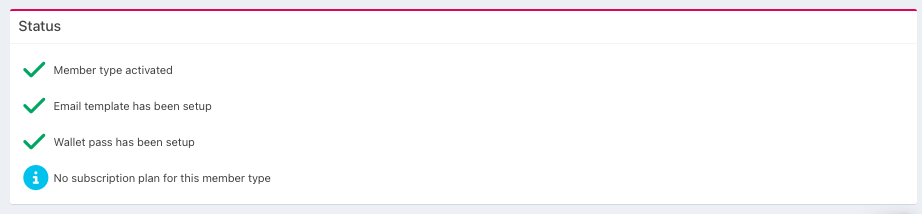
Your subscription will be removed, and the Member type status will update to reflect this.
Note: If you no longer need the Member type, you can also remove the Member type.
Was this article helpful?
That’s Great!
Thank you for your feedback
Sorry! We couldn't be helpful
Thank you for your feedback
Feedback sent
We appreciate your effort and will try to fix the article