Once you have created your department, you can assign staff to it.
To add staff to a department, locate the department in the list, then click the blue Edit icon at the end of the Department name row. The department will load to the right-hand side of the screen. Click the Staff tab.
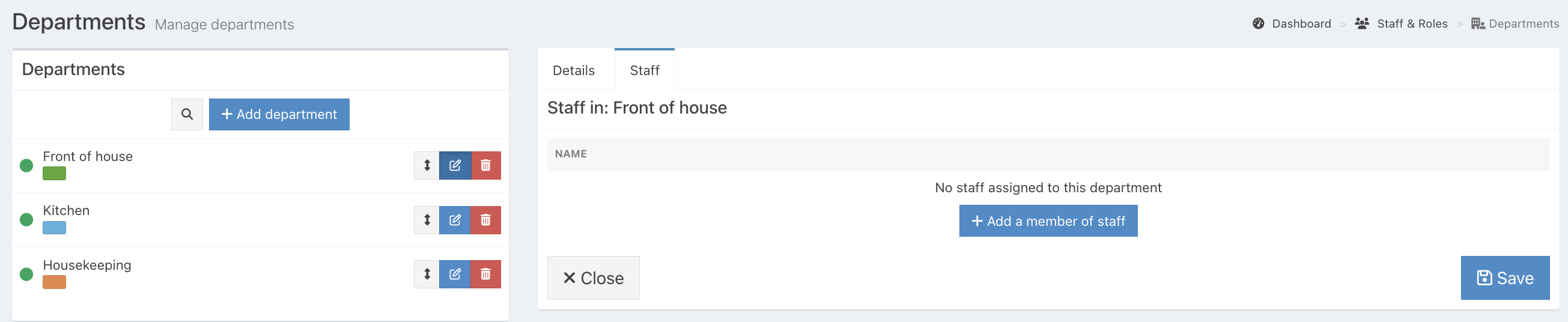
Click the blue Add a member of staff button.
Start typing the staff member's name into the dropdown, or scroll through the list of available staff members. Press Enter to add your staff member.
Staff can belong to more than one department. This is useful for team members who regularly work across multiple departments.
Once you've assigned all staff members, click the blue Tick at the end of the row to apply them.
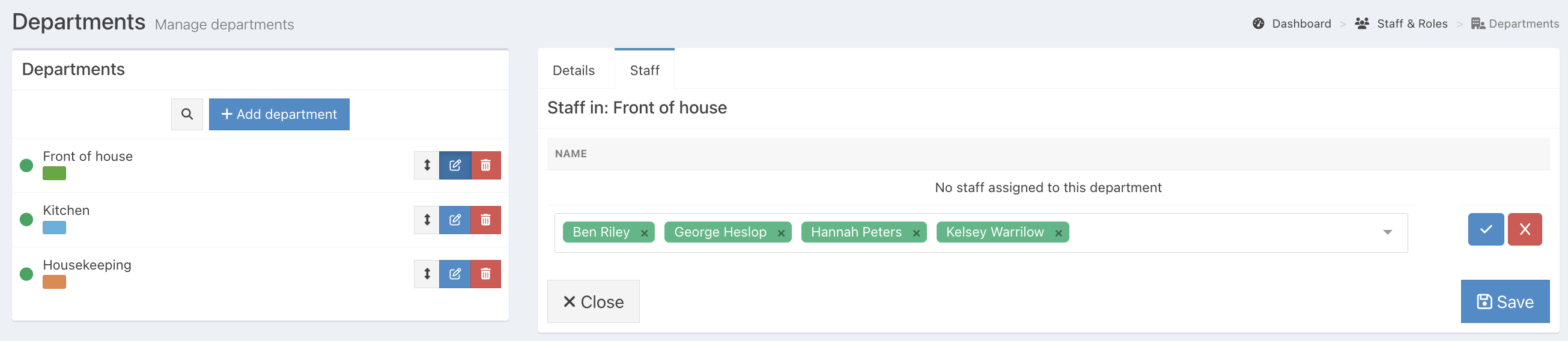
Your staff members are now added.
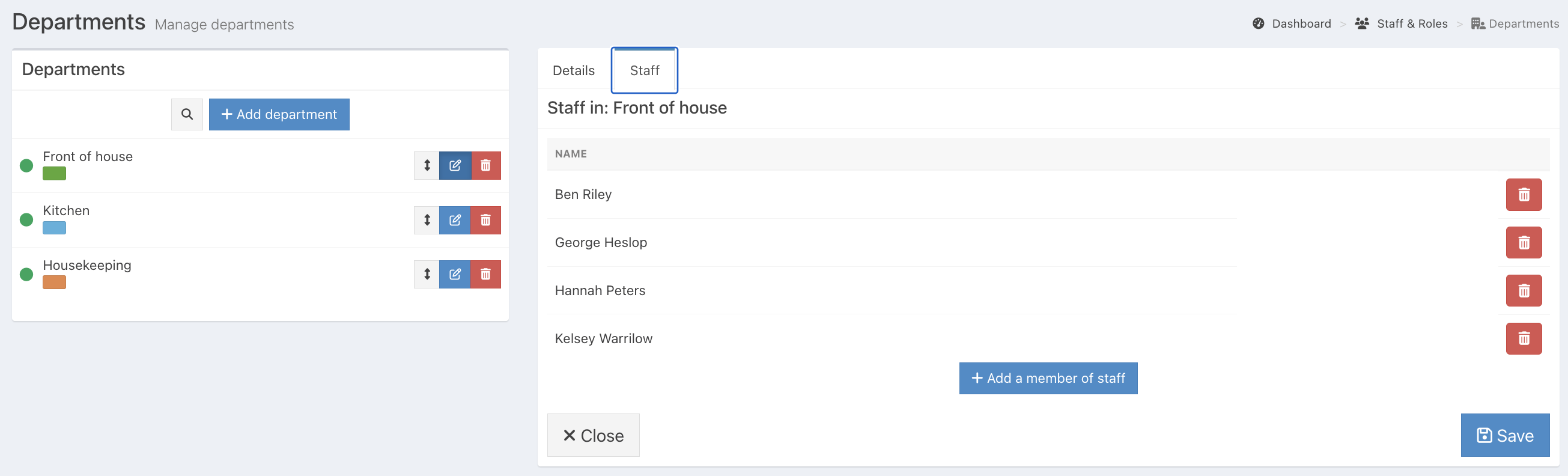
Click the blue Save button to update your department.
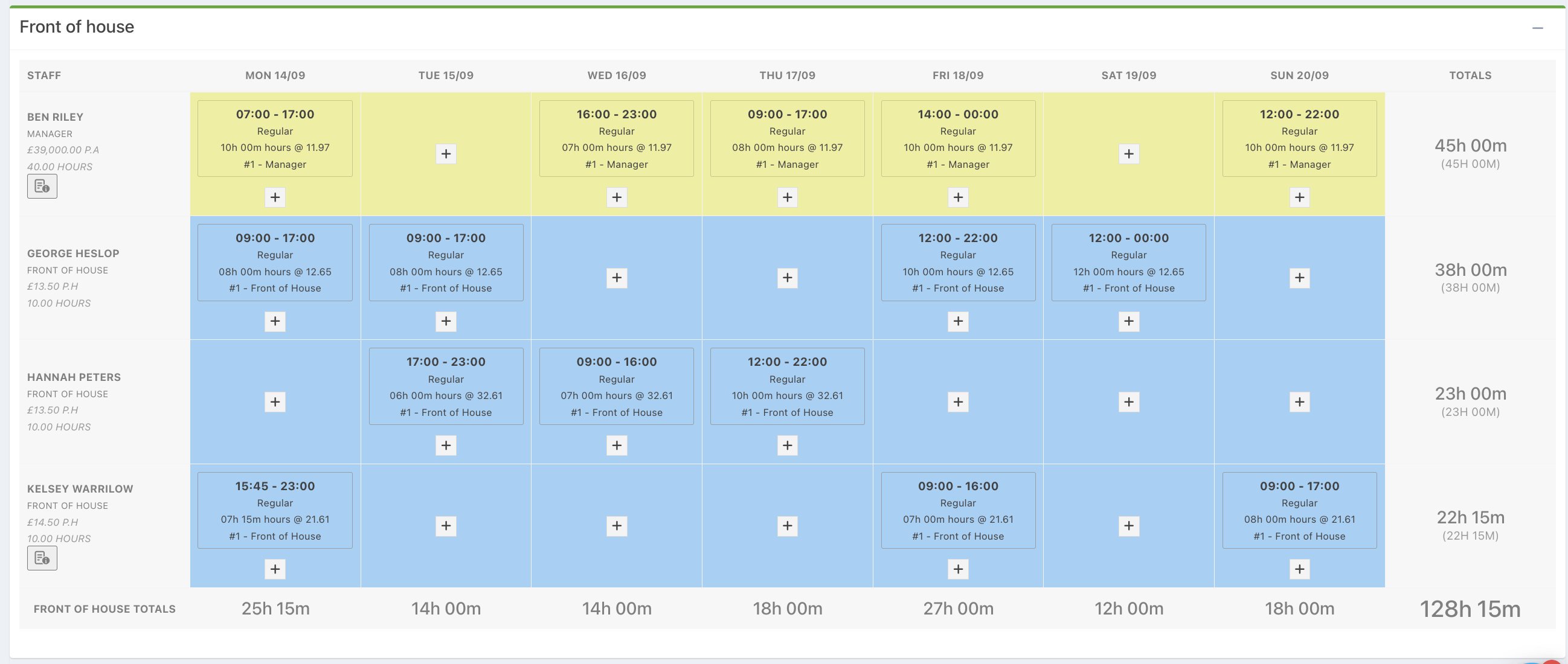
When planning your rota, you will see these staff members on your rota for this department.
Was this article helpful?
That’s Great!
Thank you for your feedback
Sorry! We couldn't be helpful
Thank you for your feedback
Feedback sent
We appreciate your effort and will try to fix the article