The Member Sign-up report helps you track how your loyalty scheme membership is growing over time. The report is displayed as a graph, with options to switch between New Sign-ups and Total Active Members.
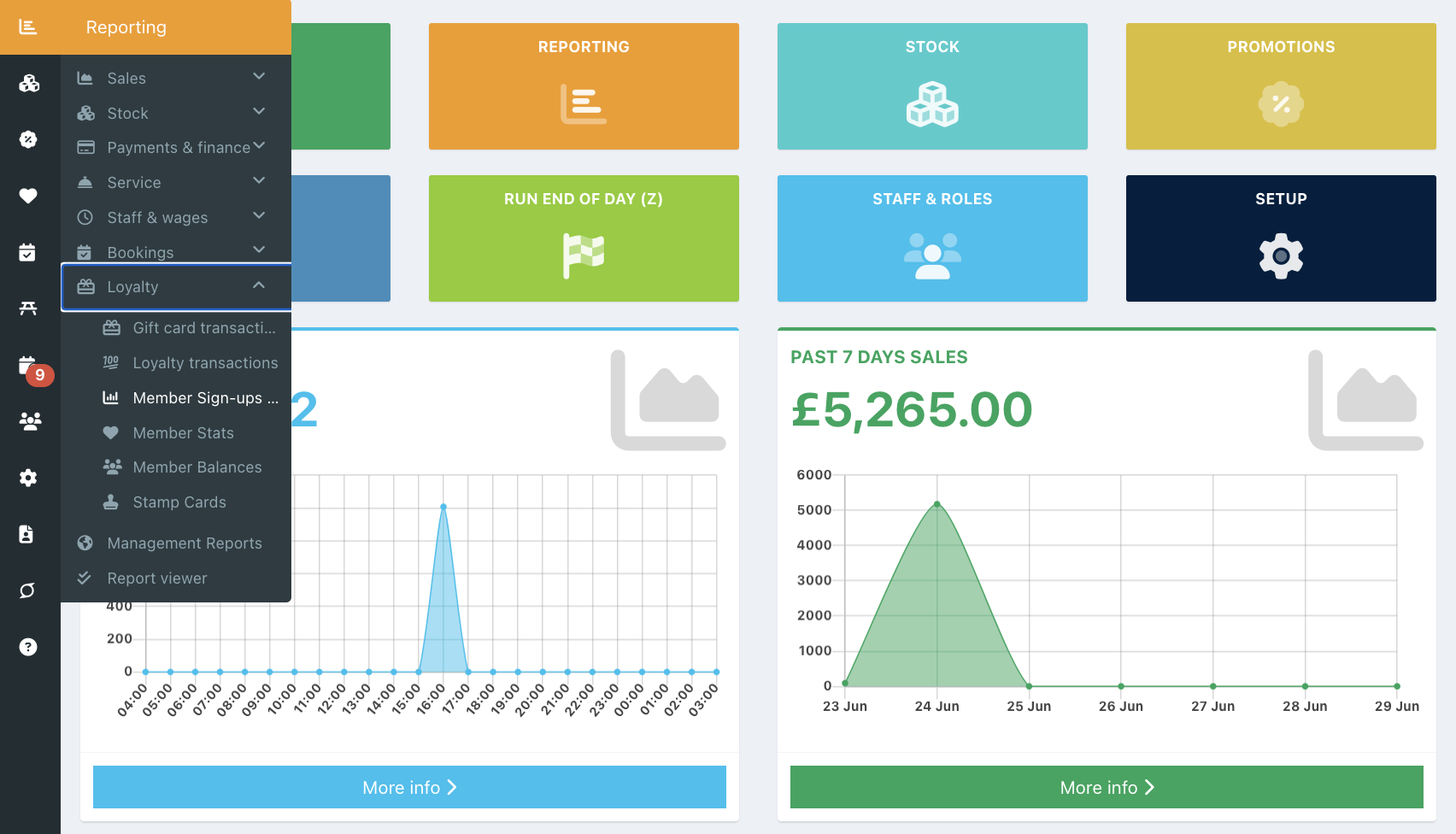
To view the Member Sign-up report, go into your back office and select Reporting > Loyalty > Member statistics.
Note: The report can also be accessed via Loyalty > Members.
The Member Sign-up report will display the last 7 days by default. The date range can be changed by clicking in the Date field, followed by the green Apply button.
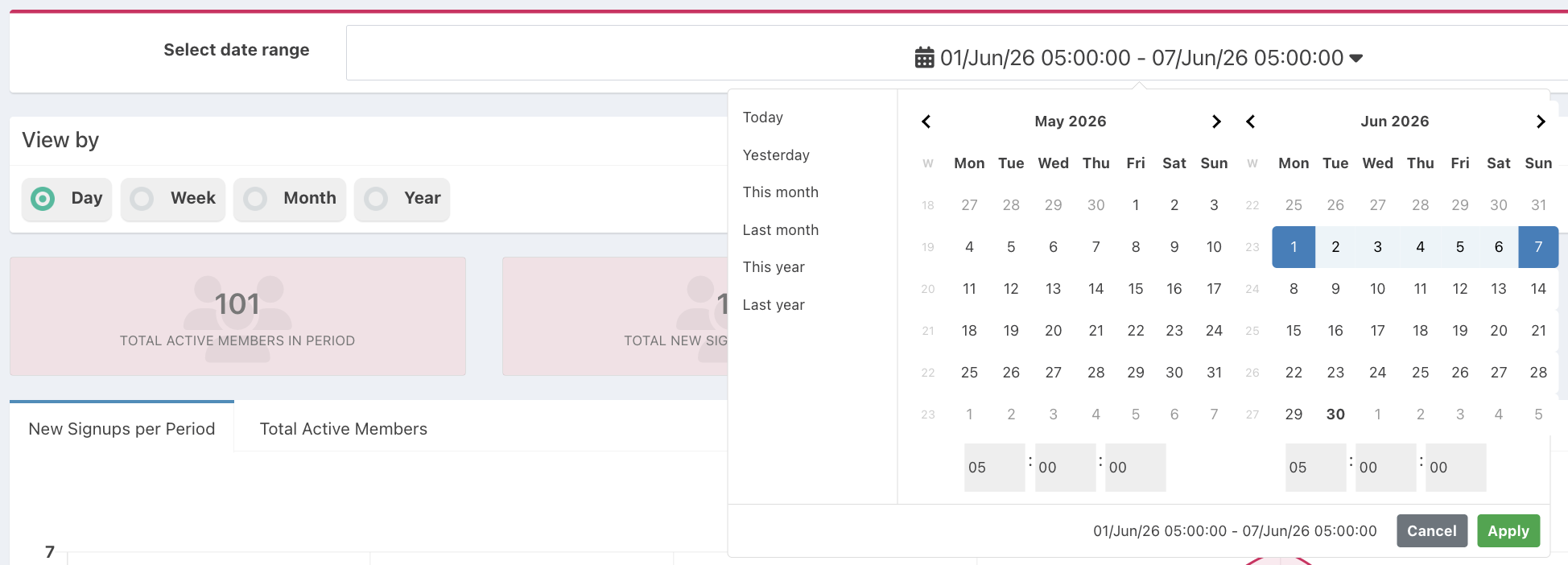
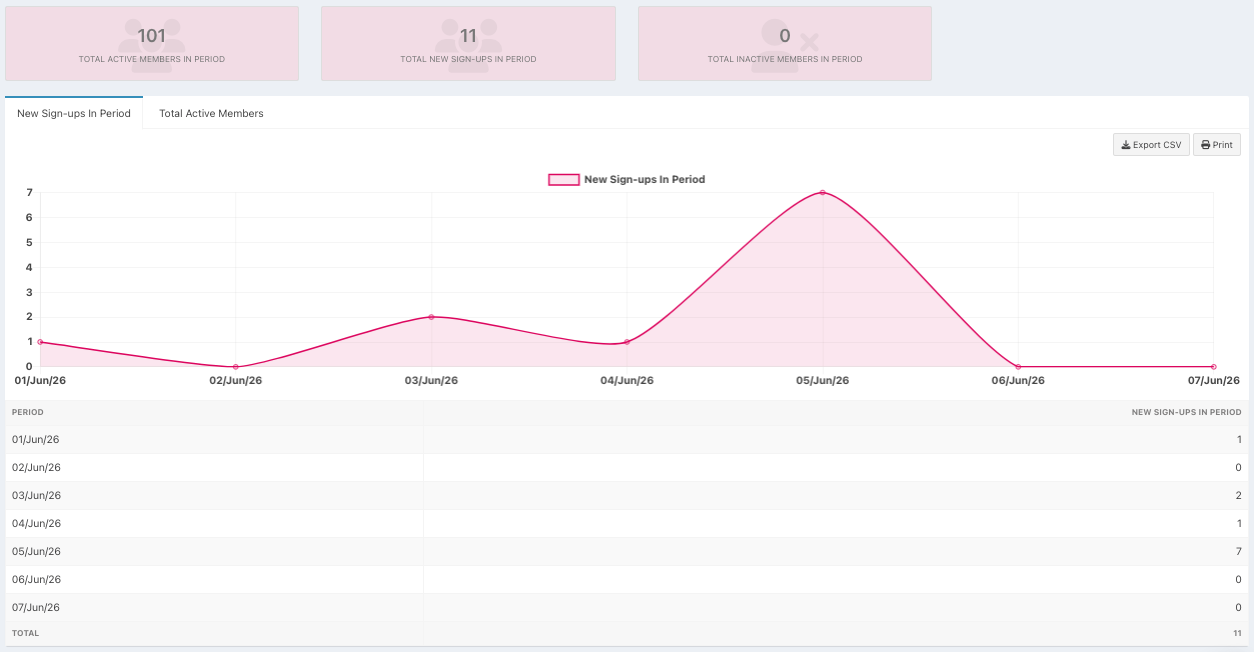
The pink Total boxes will update to inform you of:
- The total active members in the period
- The total number of new members in the period
- The total number of inactive members in the period
You can then select the View format for your report:
- Daily
- Weekly
- Monthly
- Yearly
The New Sign-ups in period tab will show you your data as a Graph, so you can quickly spot when sign-ups rise and fall. Under the graph, you can see the same data by date (dependent on your chosen View format), with the sign-up total listed at the end of each row
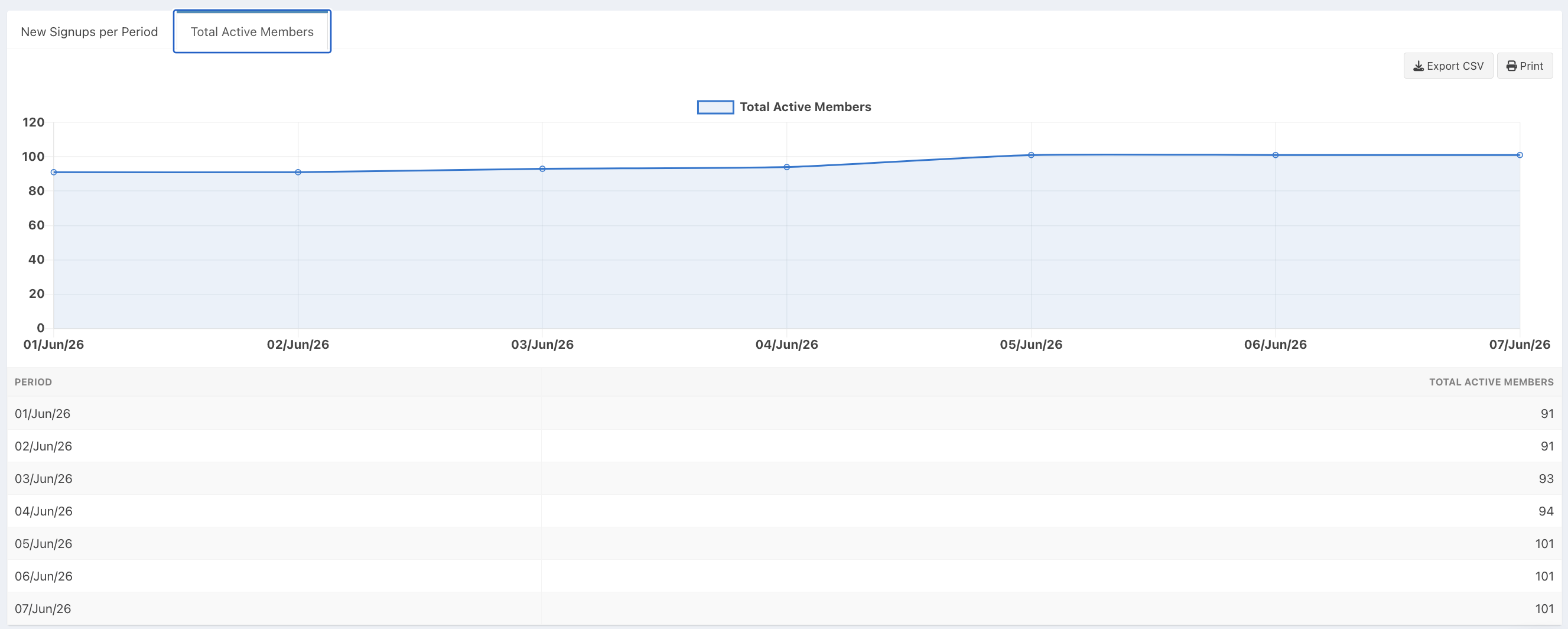
Click the Total Active Members tab to track your active member count across the period. Under the graph, you'll find the same data broken down by date (dependent on your chosen View format), with a running total of active members shown at the end of each row.
Exporting
If you need to export any of the reports, you can do so by clicking the grey Export or Print buttons to the right of the graphs under both tabs.
Was this article helpful?
That’s Great!
Thank you for your feedback
Sorry! We couldn't be helpful
Thank you for your feedback
Feedback sent
We appreciate your effort and will try to fix the article