Mains or Course away messages are sent to the kitchen via the kitchen iPad, if you have one assigned, and to your kitchen printer.
Mains away is the default message, but you can set specific Course away messages in Kitchen management settings on the back office.
To send a Mains or Course away message to the kitchen for a table, click the Mains or Course away button under the MORE menu on the EPOS screen, or alternatively you can Mains or Course away through the tableplan.
If you are only using the Mains away message, you will only select the table you want to add Mains away to.
If using multiple course away messages, you will be prompted to select the table number, followed by the Course away option.
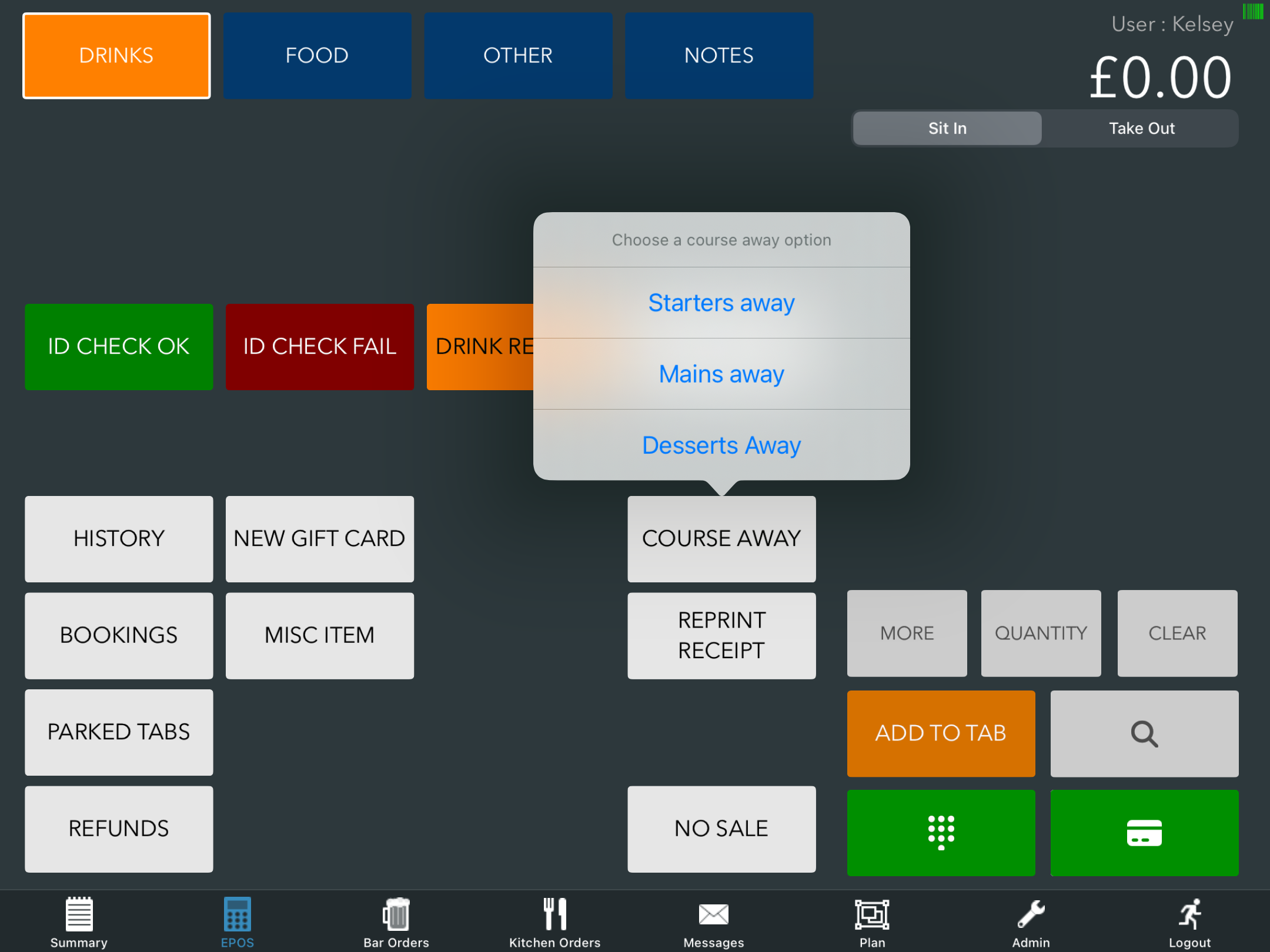
Click Yes at the confirmation prompt.
You will then see a confirmation that the message has been sent.
The kitchen will see the Mains or Course Away message at the top of the screen, and clicking it will take them to the relevant order ticket. If the tick button is clicked, the message will also be marked as acknowledged on the messages screen.
Note: You will need to have assigned your kitchen iPad to the kitchen device group for this message to display.
A ticket will also print to the kitchen printer if one is assigned.
Note: If you use sections for printing, the Mains or Course away ticket will still print to the corresponding printer, if one is assigned. If no printer is assigned to auto-print food, the mains away ticket will print on every section printer.
You can see who called the Mains or Course away and when, by viewing the tab on the summary screen.
Was this article helpful?
That’s Great!
Thank you for your feedback
Sorry! We couldn't be helpful
Thank you for your feedback
Feedback sent
We appreciate your effort and will try to fix the article