The Payments tab within the Subscription Centre provides an overview of all member subscription payments across all subscription plans.
From this screen, you can view payment details, check payment statuses, search for specific payments and perform actions against individual payments, depending on their current status.
You can also manage other aspects of your subscriptions from the Subscription Centre:
Member Plans – View and manage subscription plans
Member Subscriptions – View all member subscriptions
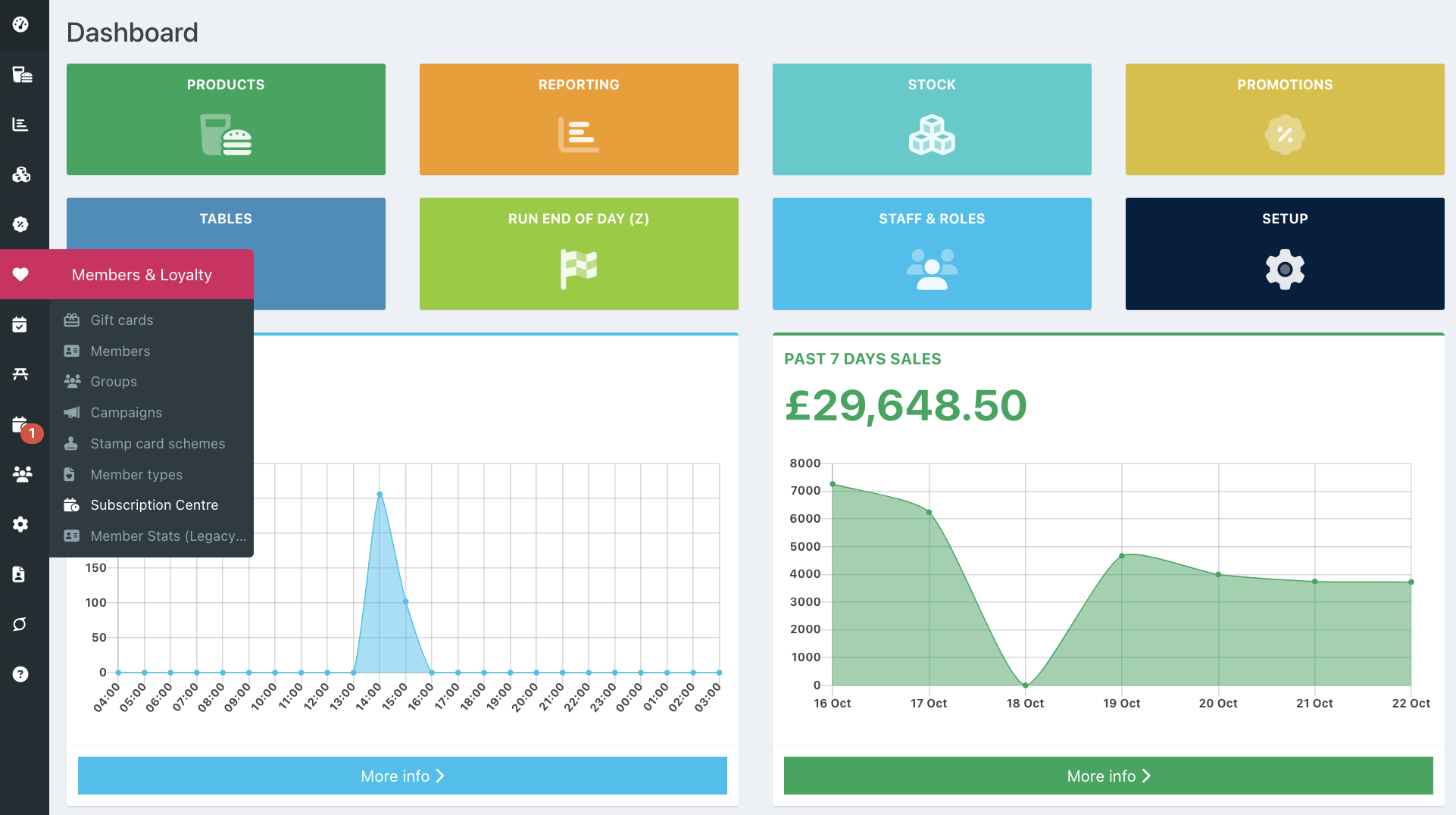
To view Member payments, go into the back office and select Members & Loyalty > Subscription centre.
Click the Payments tab.
By default, All payments will be displayed. You can filter payments using the Date range and Payment status options at the top of the screen.
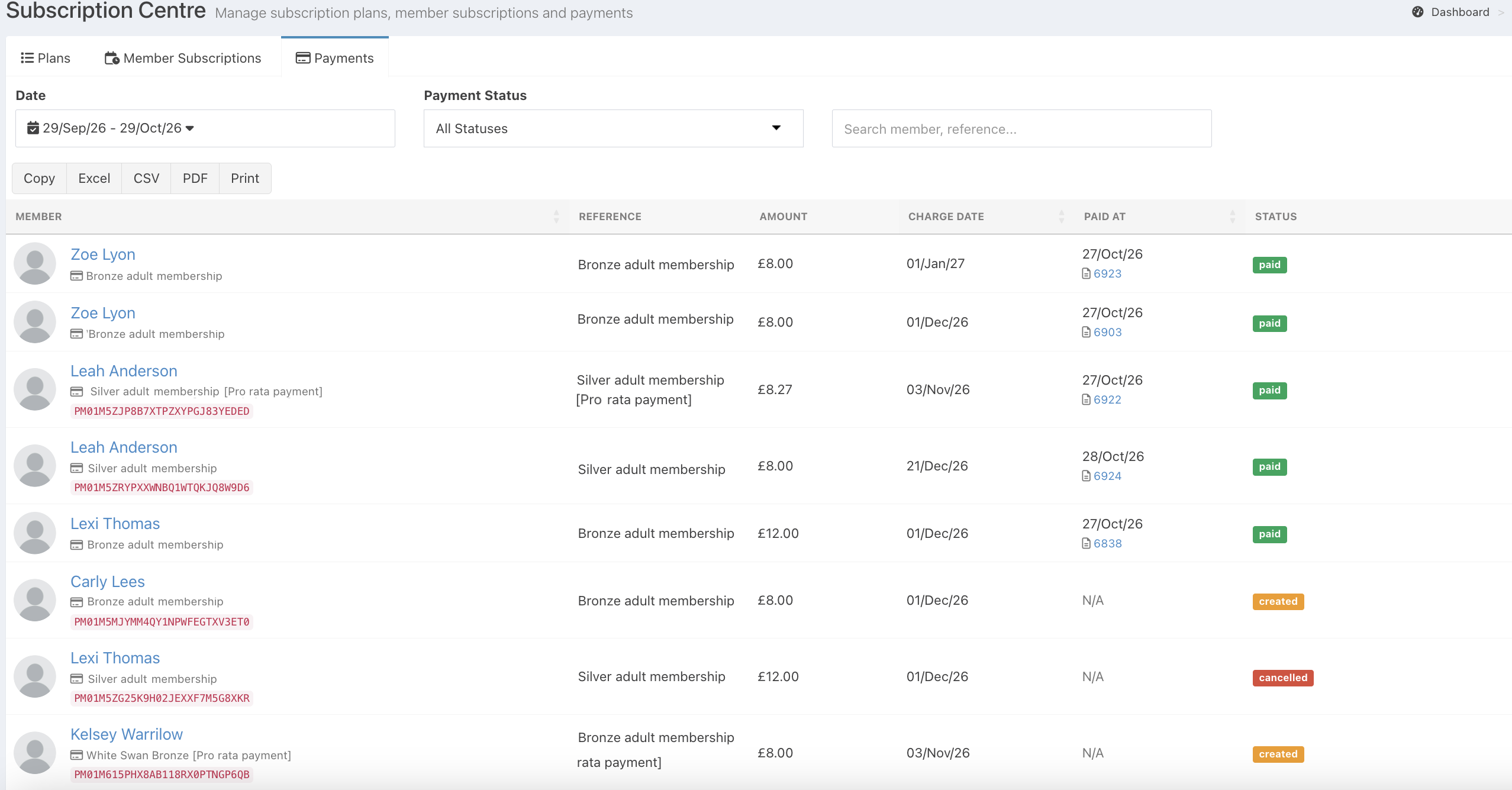
For each member payment, you can see:
- Member name - The name of the member, with a link to their member profile. The subscription plan name is displayed underneath, along with the mandate ID if this has been setup
- Plan reference - The reference associated with the payment, including whether it is a pro-rata payment, where applicable
- Billing amount - The amount to be charged
- Charge date - The date the payment is scheduled to be charged
- Paid at - The date the payment was successfully collected, or N/A if the payment has not been completed.
- Status - The current status of the payment
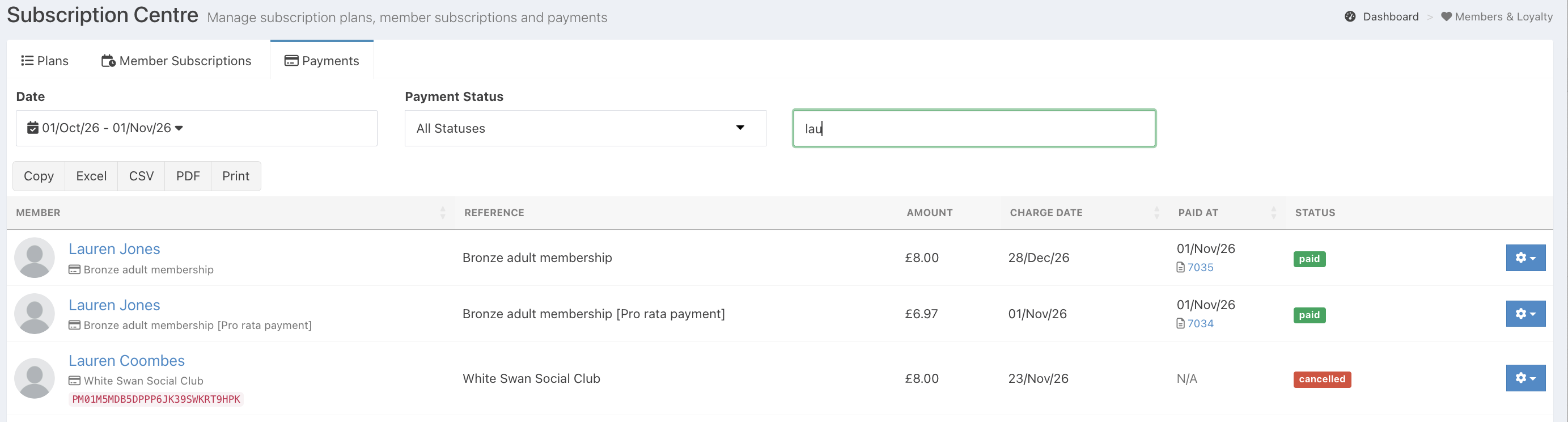
At the end of the Payment row, depending on the Status and Type of payment, you will be able to perform the following actions:
- Payment details - View additional payment status information for payments associated with a Direct Debit mandate.
- Record a manual payment - Record a payment received outside of the system, such as a bank transfer, or card or cash payment not recorded at the EPOS
- Refund a payment - Refund a collected Direct Debit payment. Refunds of manually recorded payments are not currently supported
- Retry payment - Retry a previously attempted Direct Debit payment
- Cancel payment - Cancel a Direct Debit payment that has not yet been completed
Searching
Use the Search bar at the top of the screen to find a specific member or payment. Matching results will be displayed in the payments list.
Exporting
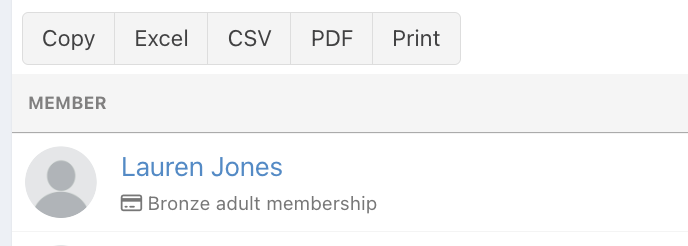
If you need to export your list of Member plans, you can Copy, export to Excel or CSV, download as a PDF or print a copy.
Was this article helpful?
That’s Great!
Thank you for your feedback
Sorry! We couldn't be helpful
Thank you for your feedback
Feedback sent
We appreciate your effort and will try to fix the article