To connect your EPOS to a SumUp reader, you will first need to configure SumUp as your payment provider on the back office.
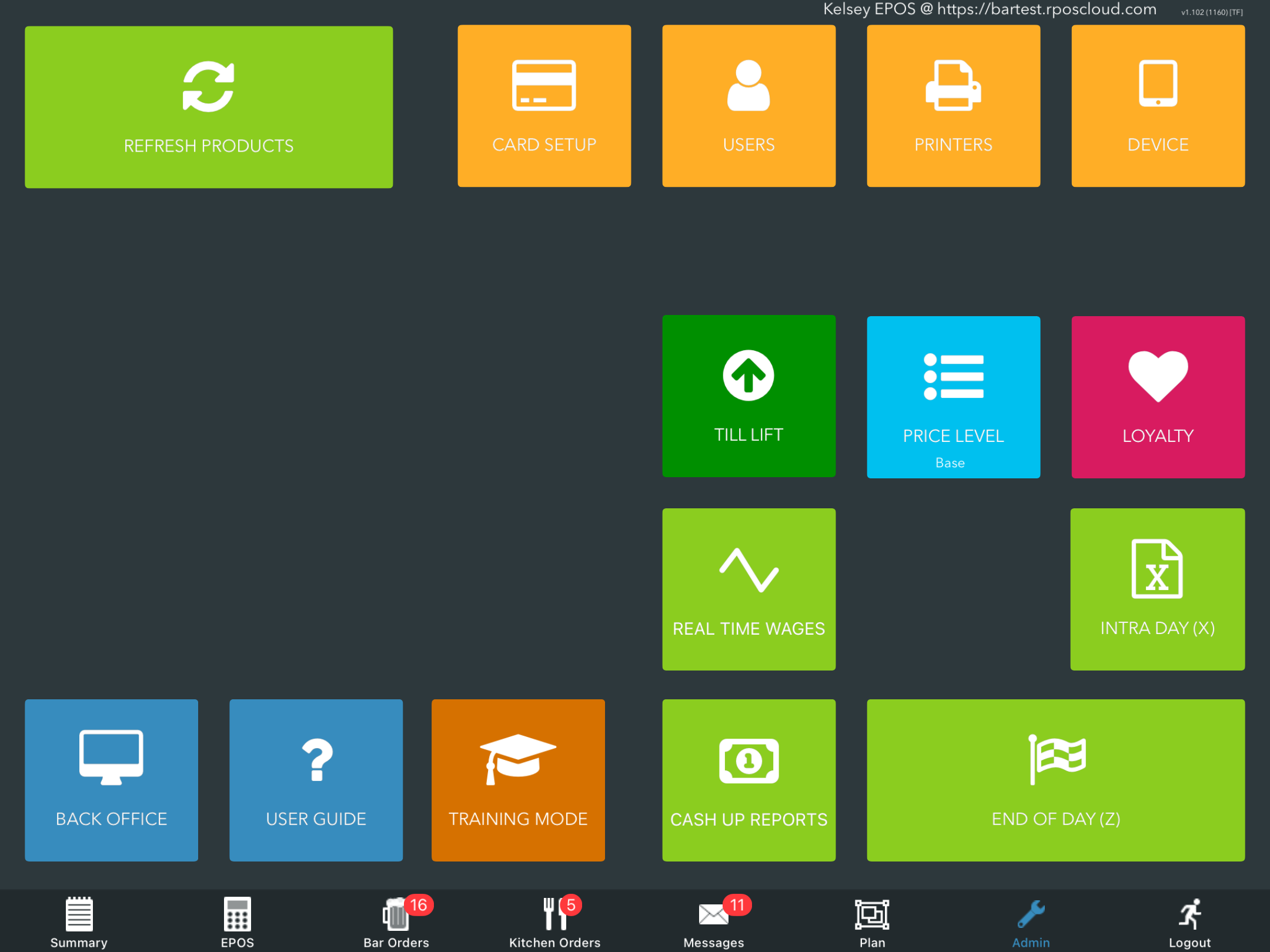
When configured, go to the Admin screen on your EPOS and select the orange Card setup button at the top of the screen.
Note: Ensure your SumUp reader(s) are turned on and within Bluetooth range.
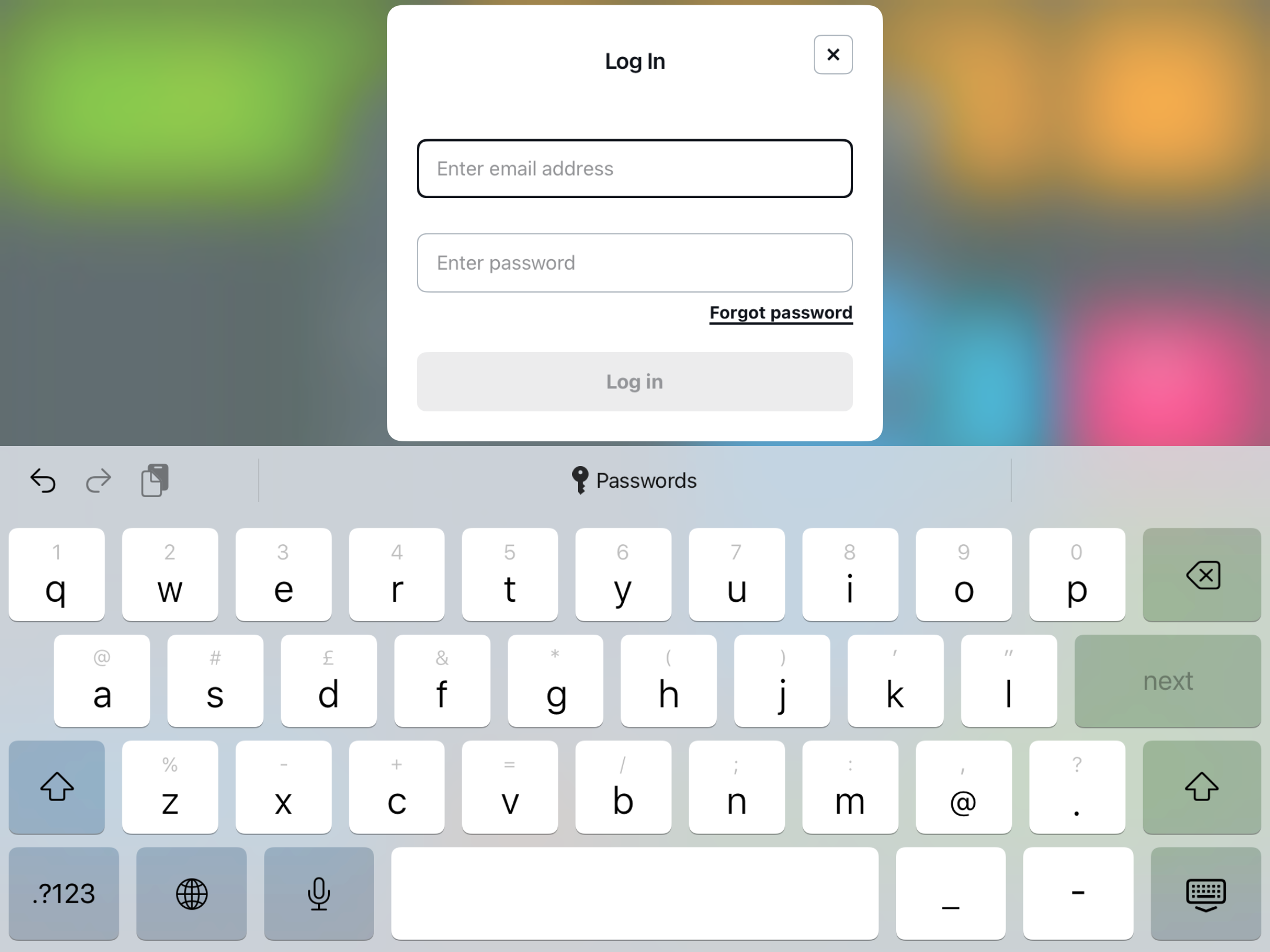
Follow the on-screen instructions to sign in to your SumUp account, followed by the black Login button.
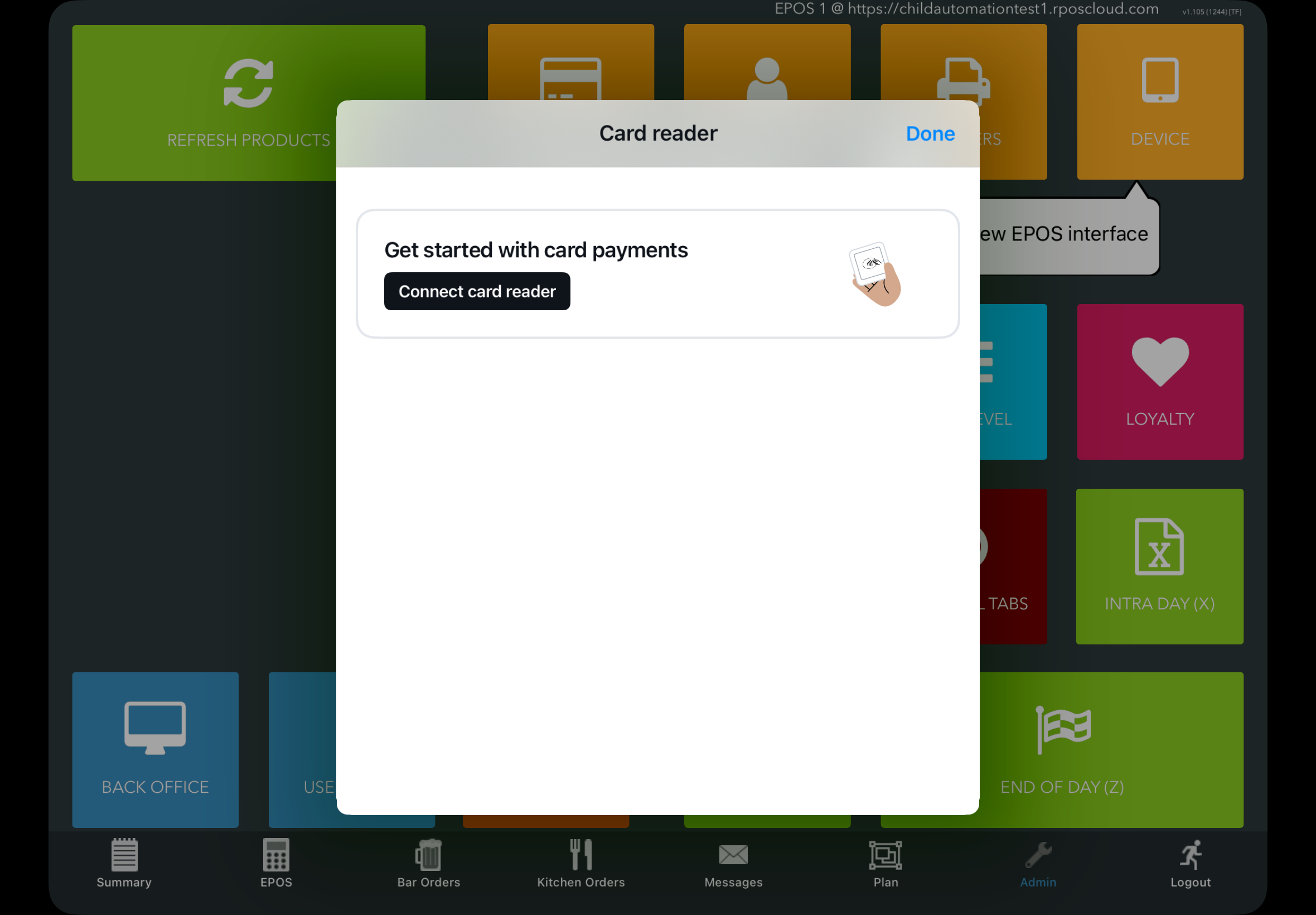
The Card reader modal will display. Click the black Connect card reader button.
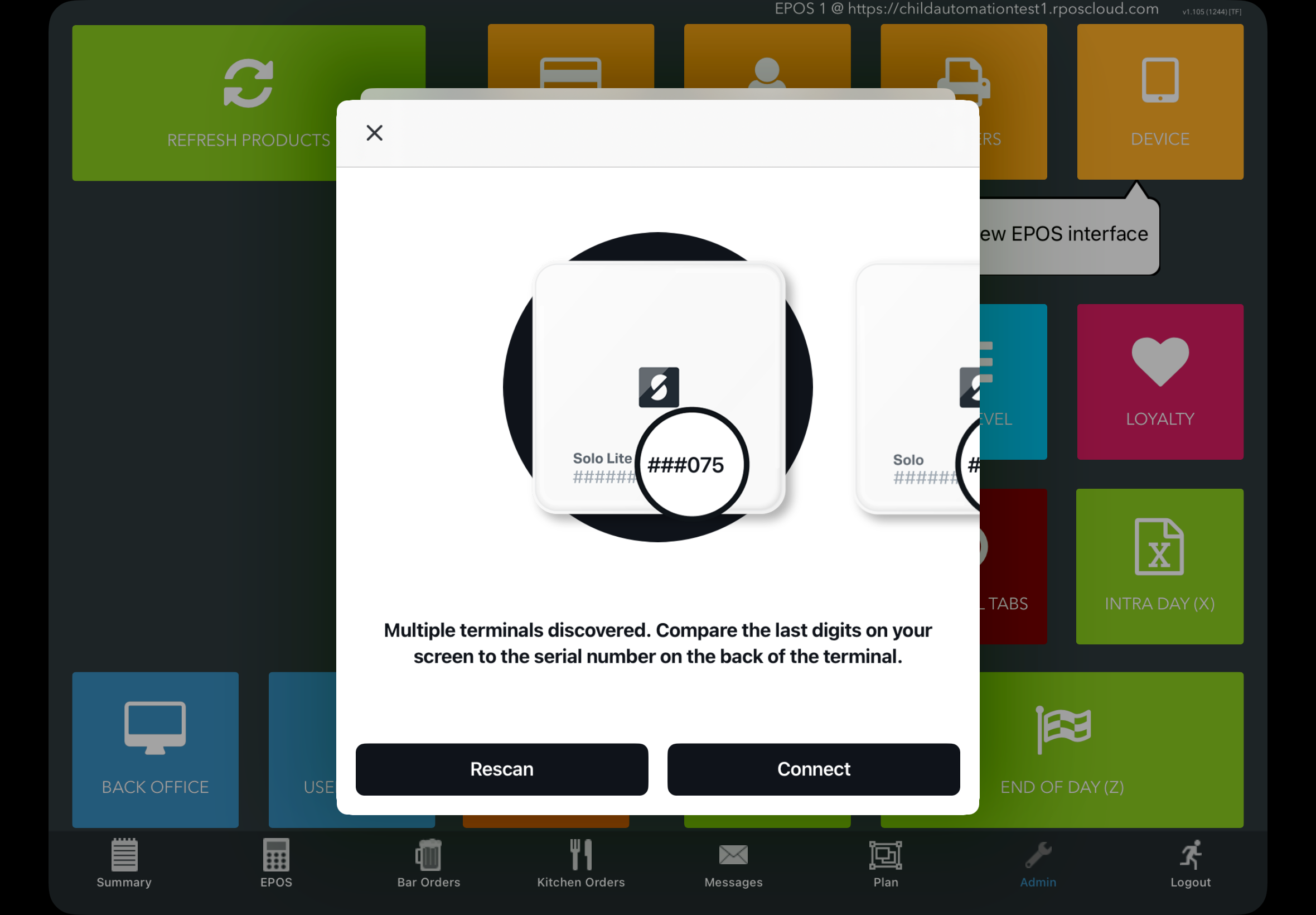
Any readers that are turned on and within range will be recognised. Compare the last 3 digits of the Serial number for each reader.
Note: If you have multiple readers, swipe from the right of the screen to see any additional readers.
Either click the black Connect button for the required reader or click on the corresponding Reader image.
At the prompt, click the blue Pair button.
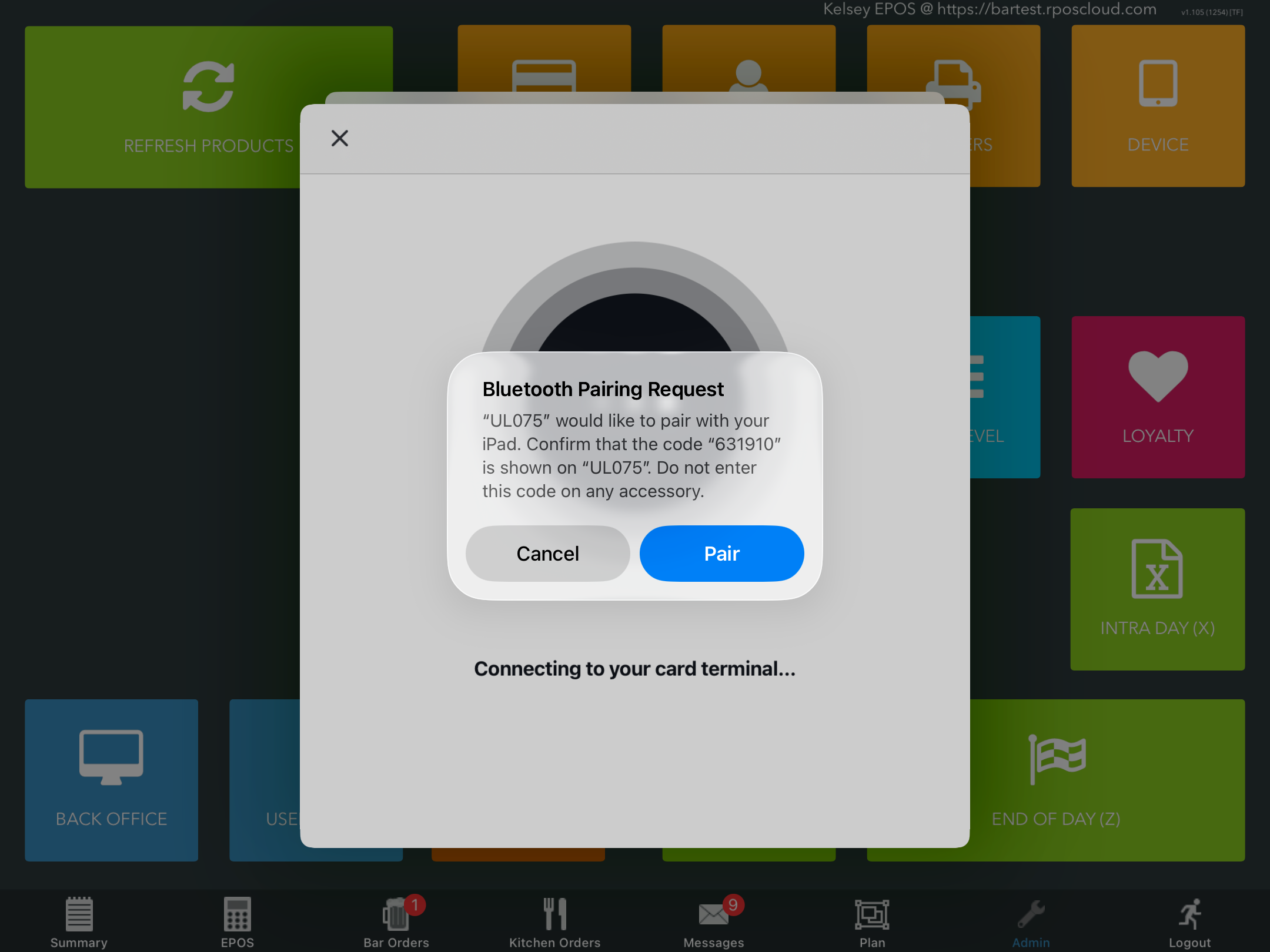
Follow the on-screen instructions to confirm your SumUp reader pairing. Once connected, a Green circular tick will display on the EPOS. Click the black Done button.
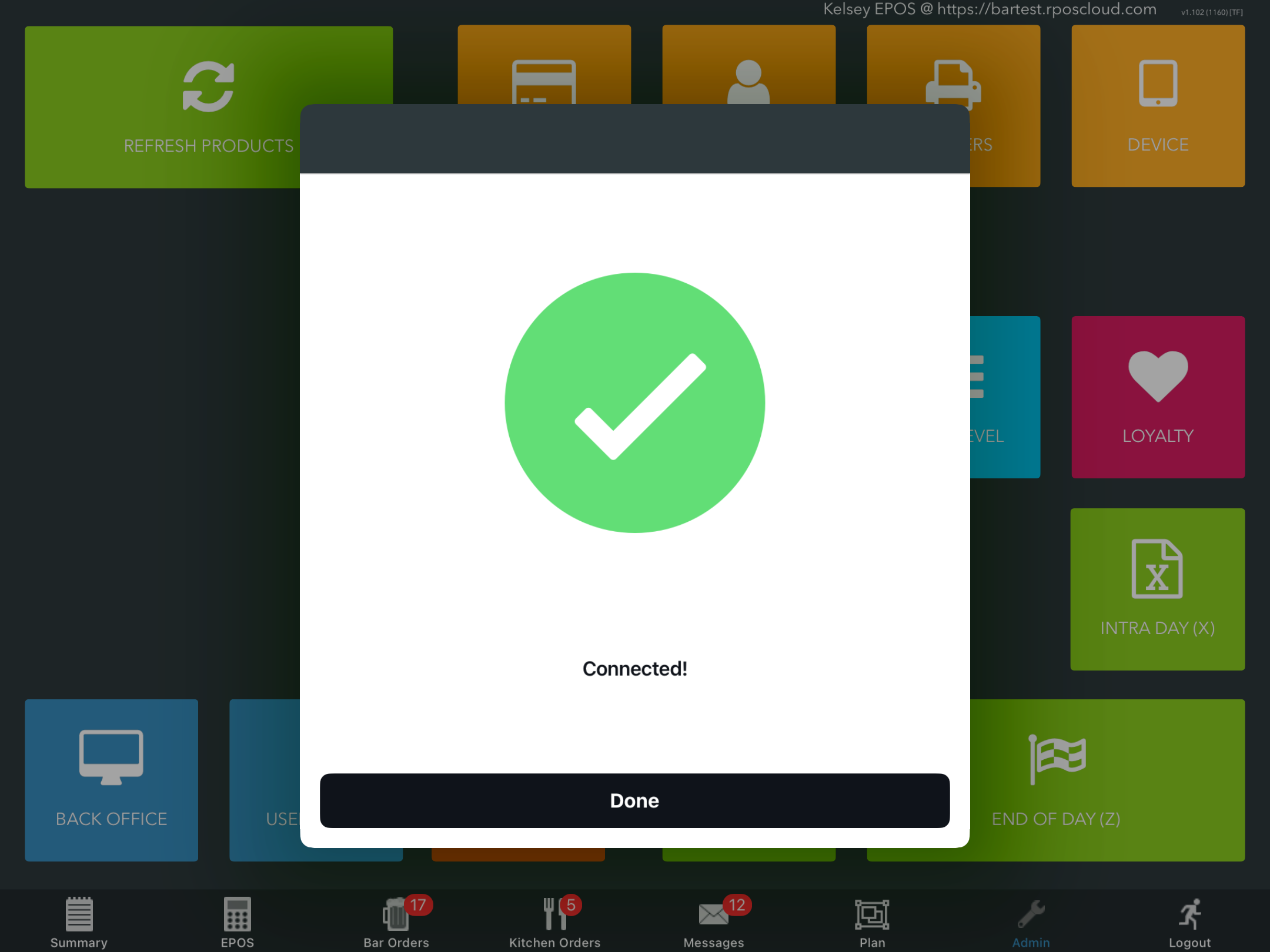
Click the black Done button in the connected modal.
Repeat as above to add additional readers.
You can now take card payments via your SumUp reader.
Was this article helpful?
That’s Great!
Thank you for your feedback
Sorry! We couldn't be helpful
Thank you for your feedback
Feedback sent
We appreciate your effort and will try to fix the article