Before connecting your EPOS to SumUp, you will first need to configure SumUp as your chosen processor on the back office, and then connect to a SumUp reader on each EPOS iPad.
To configure SumUp as your payment processor, go into the back office and select Setup > EPOS from the left-hand navigation, then select the Payment integration tab.

Click the blue Setup payment processor button. The payment processor modal will display.
Select SumUp from the dropdown field.
If you want to Prompt for tips on your reader, toggle this to On. The default tip % options are 5%, 10% and 20%. If you'd like to change these, contact support and they will update them for you.
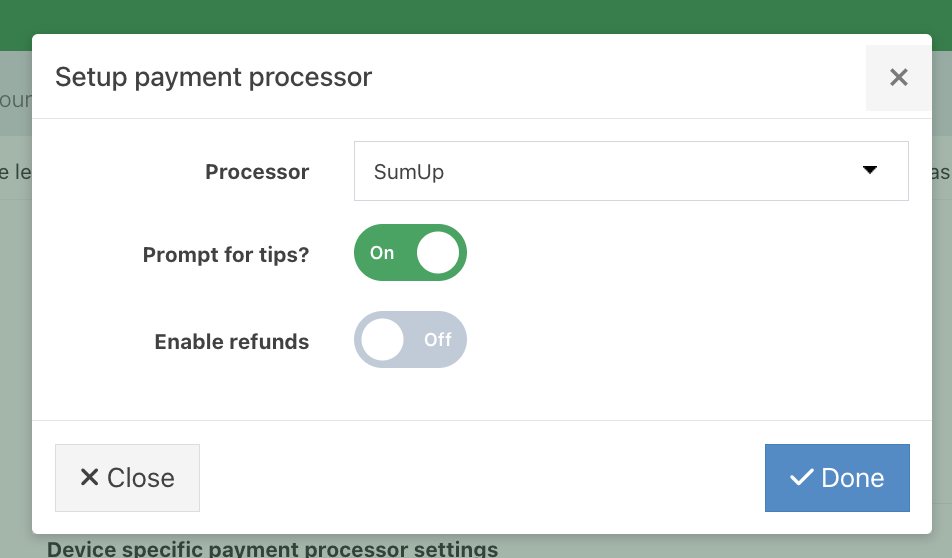
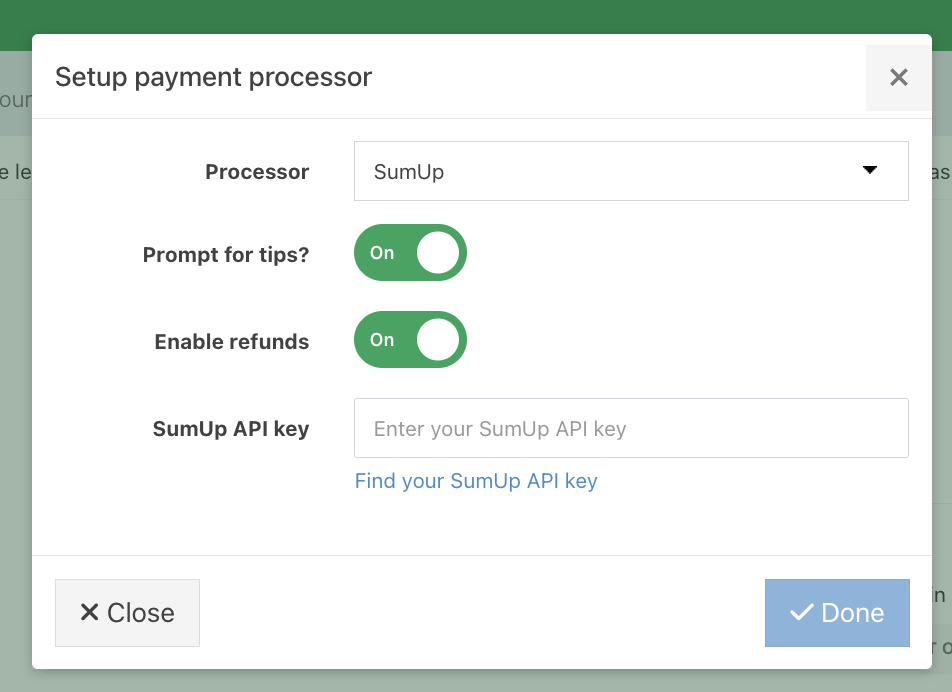
To process refunds, toggle Enable refunds to On.
You will then need to provide your SumUp API key.
Click here to find your SumUp API key.
Then click the blue Done button.
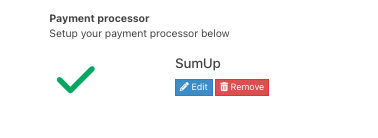
The green tick will display to indicate the processor has been setup.
Click the blue Save button, to update your Payment processor changes

You can now, connect your EPOS iPad to a SumUp reader.
Was this article helpful?
That’s Great!
Thank you for your feedback
Sorry! We couldn't be helpful
Thank you for your feedback
Feedback sent
We appreciate your effort and will try to fix the article