By default, a stocktake will include every stock item you sell. If you prefer to run stocktakes for food and drink separately, you can enable separate stocktakes.
This can be useful if you have different managers or team members responsible for different areas, or if you count food and drink stock at different frequencies.
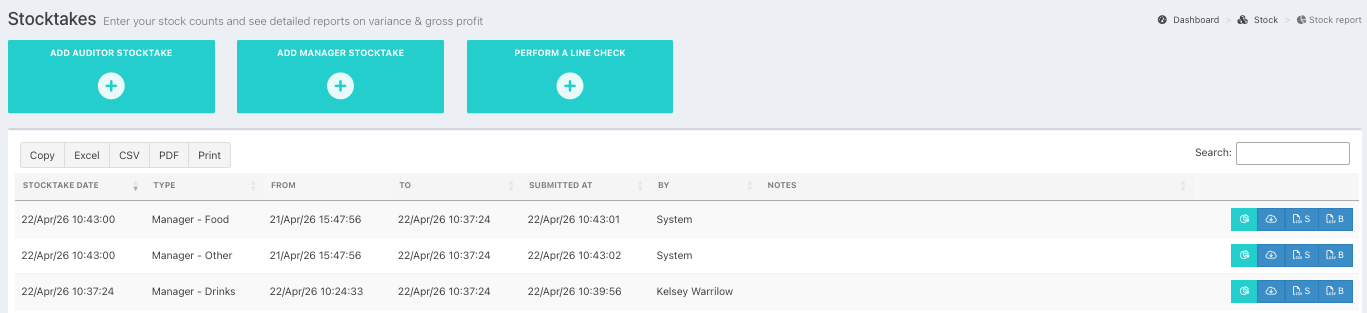
When separate stocktakes are enabled, you will be prompted to select a category (food, drink, or other) each time you run a manager stocktake. Auditor stocktakes will still incude all products.
To enable separate stocktakes, go into your back office and select Setup > Stock, from the left-hand navigation.
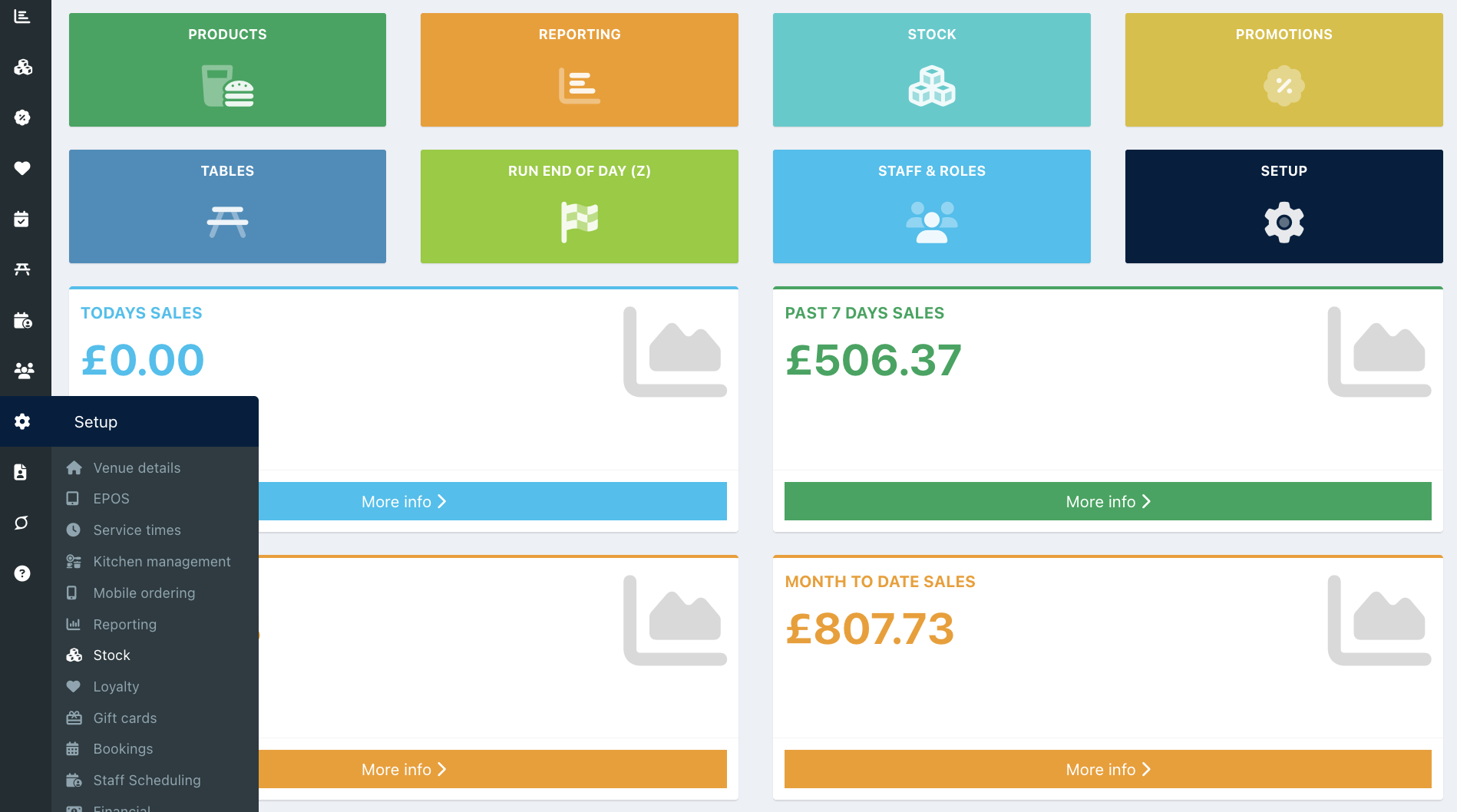
Locate the setting Run separate stocktakes for Drinks, Food, and Other. Toggle this setting to On.

Click the blue Save button at the bottom of the screen to update your Stock settings. You will now be able to run Separate stocktakes.
Disabling Separate Stocktakes
To go back to running combined stocktakes, all categories (food, drink, and other) need a stock count from the same date and time. Running an auditor stocktake is the most accurate way of ensuring up-to-date counts for all categories.
If you disable separate stocktakes without first running an auditor stocktake, the system will create stocktakes for any outdated categories based on expected stock levels, ensuring a common opening stock for all products.
You will need to complete or delete any draft stocktakes before disabling separate stocktakes.
Was this article helpful?
That’s Great!
Thank you for your feedback
Sorry! We couldn't be helpful
Thank you for your feedback
Feedback sent
We appreciate your effort and will try to fix the article