This article covers how to enter a stocktake into the system. Entering a stocktake will generate a report of any stock discrepancies and set your system stock levels to the counts you enter.
To enter a stocktake, go into your back office and select Stock > Stocktakes from the left-hand navigation.
The stocktake list will display. If you haven't completed a stocktake before, this list will be blank.
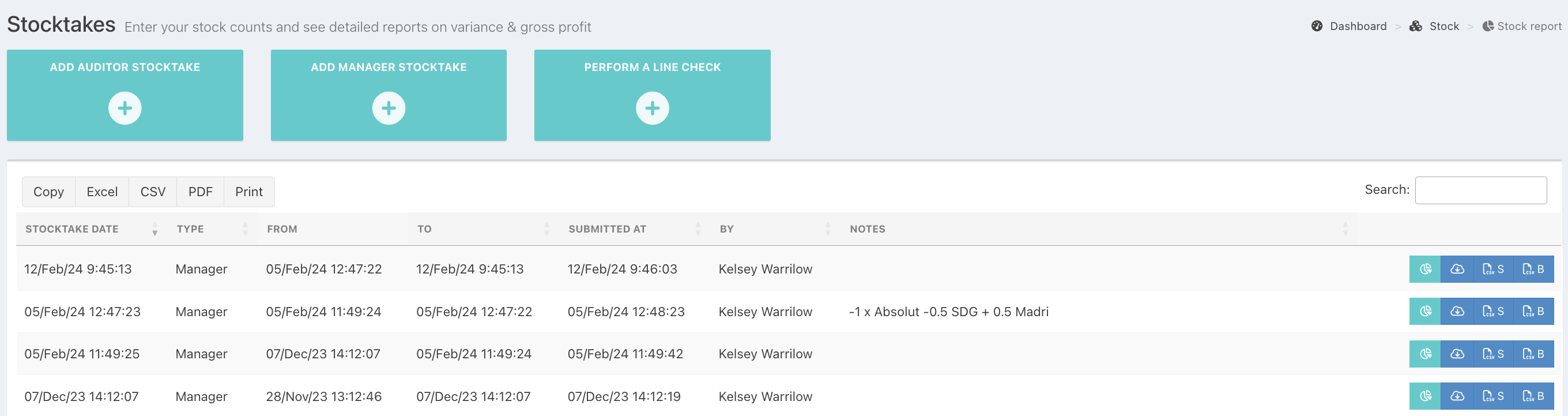
Depending on your role, select either the blue Add Manager Stocktake or Add Auditor Stocktake button. The difference between an Auditor Stocktake and a Manager Stocktake is that an Auditor Stocktake shows figures for the period since the last Auditor Stocktake, rather than since the last Manager Stocktake. Running an Auditor Stocktake also creates a Manager Stocktake.
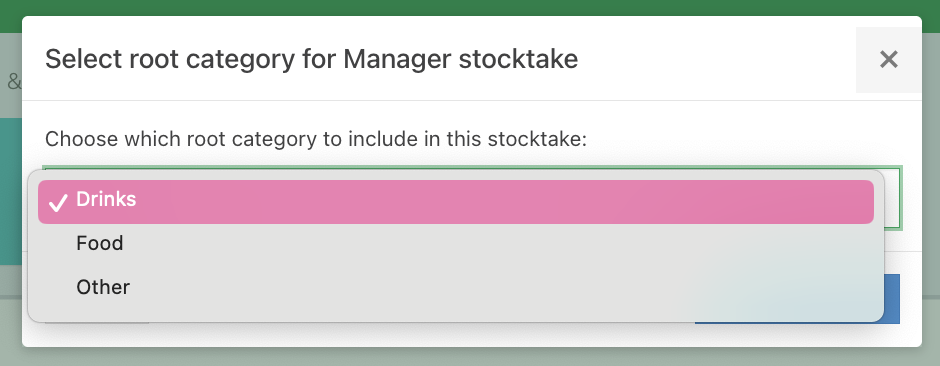
If you select Add Manager Stocktake and have enabled Separate stocktakes, you can select which Root category to stocktake. Only products in that category will be visible for you to enter actual counts.
After creating your stocktake, click the Config & Help tab. Here, you can choose which information you would like to display on your stocktake.
To the right of the screen, choose whether you would like to Print count sheet or Download count sheet for Excel by hitting the relevant blue button. A list of all your stocked products will be printed or downloaded, depending on your choice, with fields for entering your counts.
Once you have counted your stock, click the Count sheet tab to enter it in the system. Alternatively, you can enter your counts directly into the system.
Stocktake information will display to the left of the screen which will show:
- Date and time of the current stocktake
- When the last stocktake was run
- Labels to indicate Manager, Auditor or Line check, as well as a Drinks, Food or Other
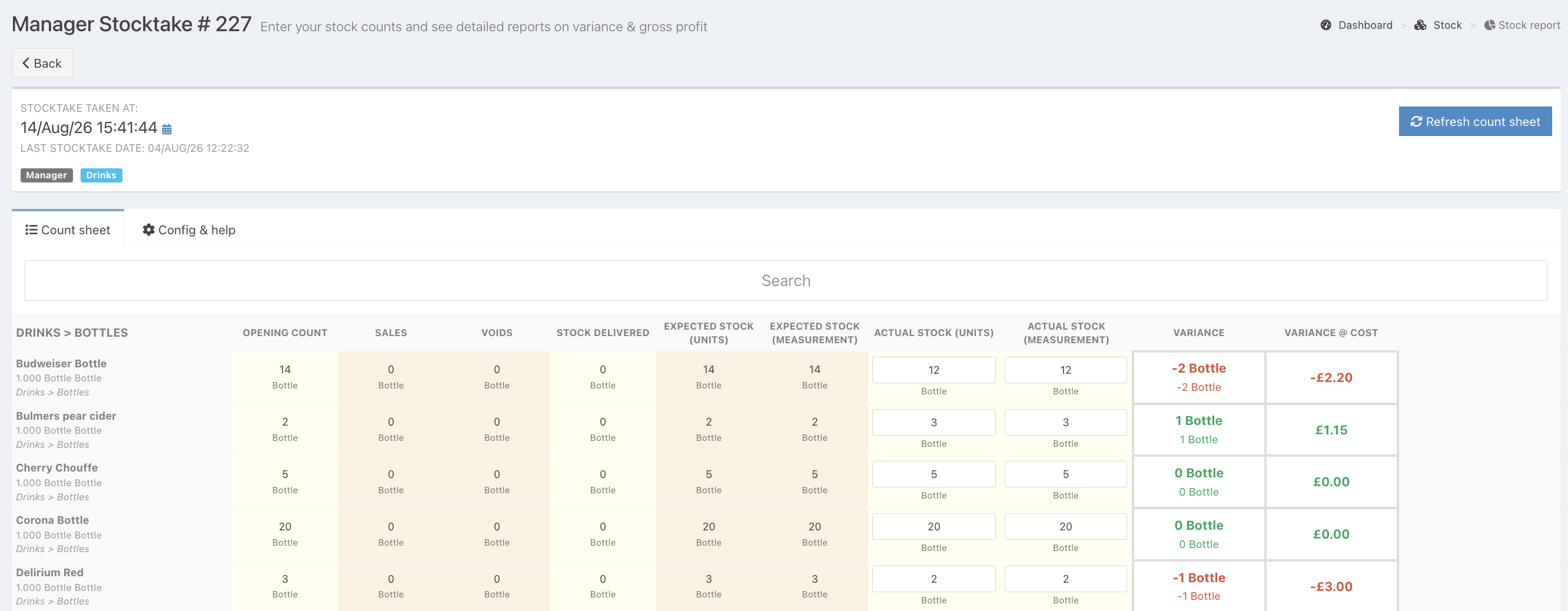
Entering your counts
You can enter the stock in order units (what you purchase the stock in e.g. keg or bottle) or measurement unit (what you sell your stock in e.g. pints or millilitres). Populating either value for a stock item will automatically populate the other. For more on these stock settings see Product Stock Settings.
If you always enter your stock in either order or measurement units, you can set the stocktake to display only the one you use by going to the config & help tab. Here you can also select the fields you would like to be displayed when entering a stocktake (if your user has the required permissions)
If you have stock areas configured, you can enter your count for each area (e.g. upstairs bar), and your total stock on hand will be calculated from each area's count.
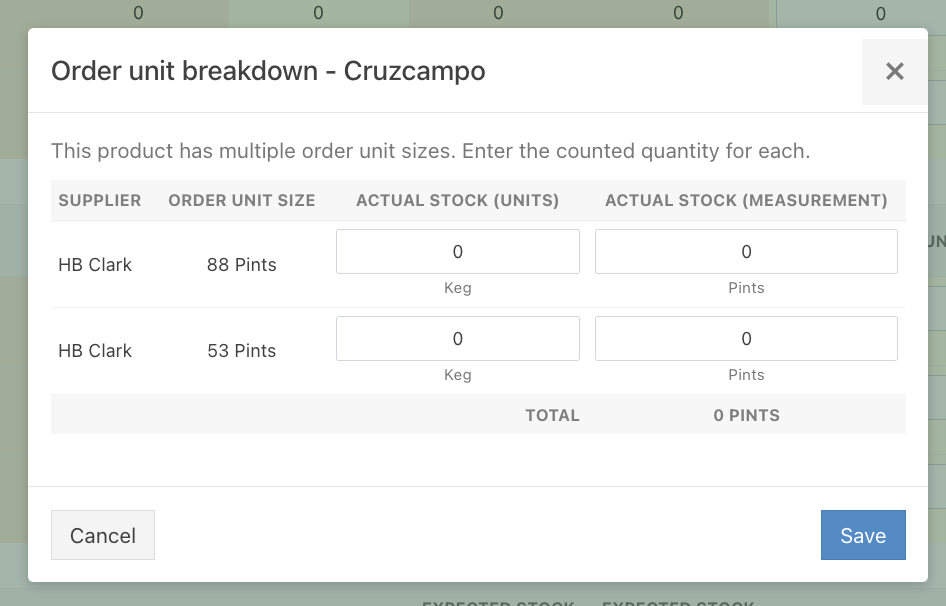
Multiple order unit sizes
If a product has multiple order unit sizes, click Enter counts in the product row to expand all available sizes, then enter the count for each size. Alternatively, enter the measurement unit directly into the Actual stock (measurement) column.
Note: When you have multiple order unit sizes for one product, all values display in Measurement unit. The orange Warning triangle under the product name indicates this.

At the bottom of your stocktake, you can add stocktake notes which will be displayed in the notes column of the stocktake summary screen.
Saving your stocktake
If you need to save your stocktake partway through entering your count, just click the Back button in the top left of the screen. You will then see your draft stocktake at the top of the stocktake summary view and can click on the pencil icon to continue entering your counts when you're ready.
Previewing your stock report
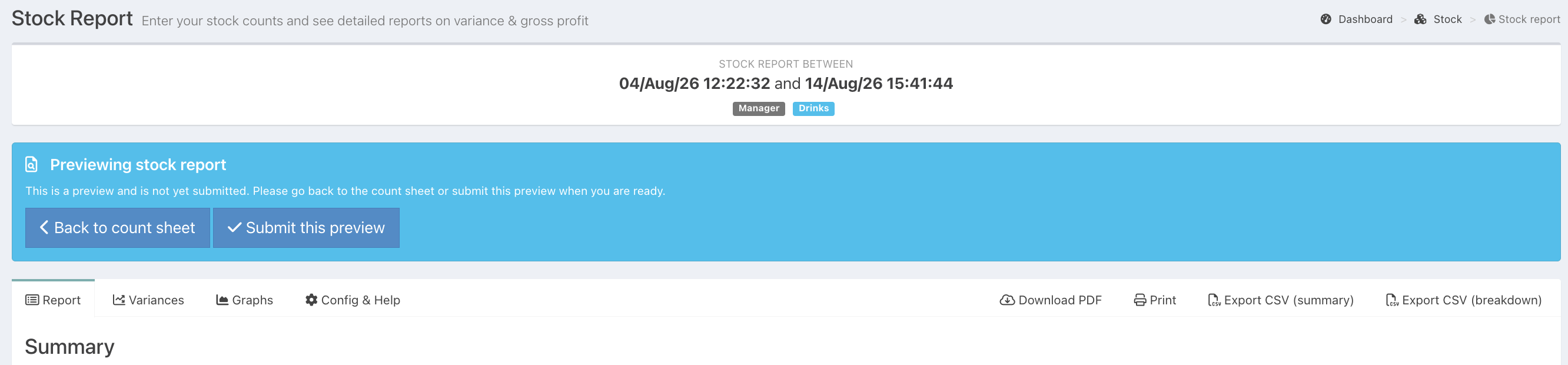
When you have entered all your counts, you can click Preview to see how your stock report will look before setting your stock levels to your declared counts. (If you don't see a Preview button, you will need to enable stock report previews)
If you are not ready to submit your preview yet, you can come back to it at any time by clicking the Preview button on the right-hand side of the draft stocktake in the stocktakes summary of your back office.
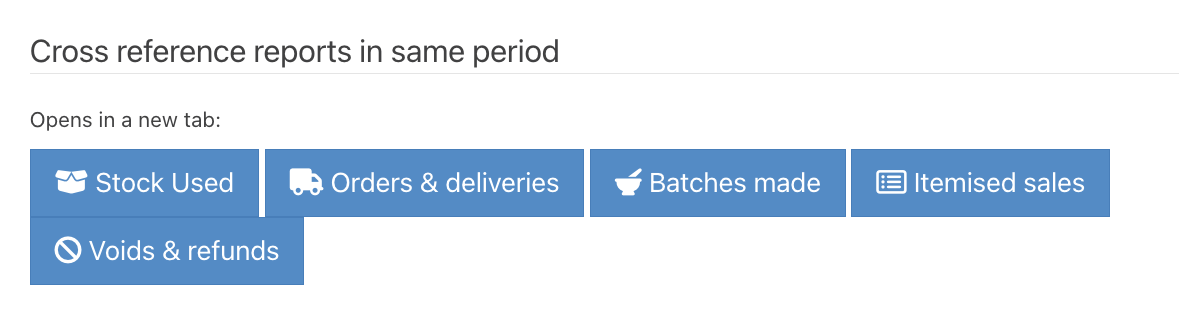
Cross-reference reports
Use the Cross-reference Reports section to access related reports for investigating variances or anomalies. Click any report button to open it in a new tab. Each report will automatically default to the date range of your current stocktake. You can use these reports either when previewing your stocktake if enabled, or after you have submitted your stocktake.
You can select:
- Stock used report
- Orders and deliveries
- Batches made
- Itemised sales report (If you have enabled separate stocktakes, by default this will automatically display the root category from the stocktake - Drink/Food/Other)
- Voids and refunds
Submitting your stock report
After reviewing your preview, you can submit the stocktake from the preview report, which will save the report and update your stock levels to match your counts.
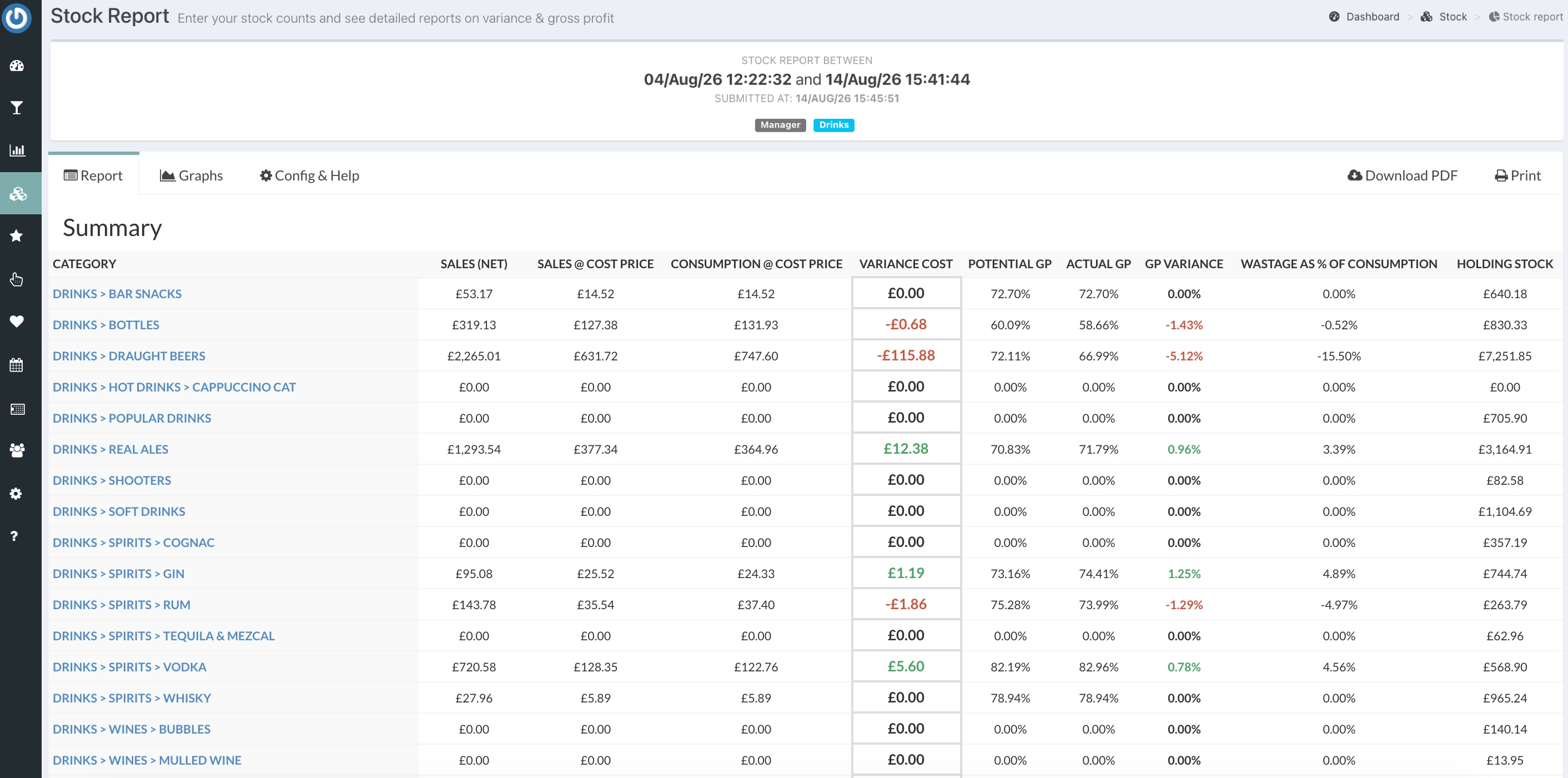
If you don't have stock previews enabled, you can click Submit directly from the stocktake, at which point you will be presented with your stock report.
For an explanation of the information shown on your stock report, see Understanding Your Stock Report.
You can also click on the Variances tab to view the products with the highest variances.
When you go back to the stocktake summary, you will see your report in the list and can view it again by clicking on the report icon in the actions column. You can also download your report as a PDF or CSV.
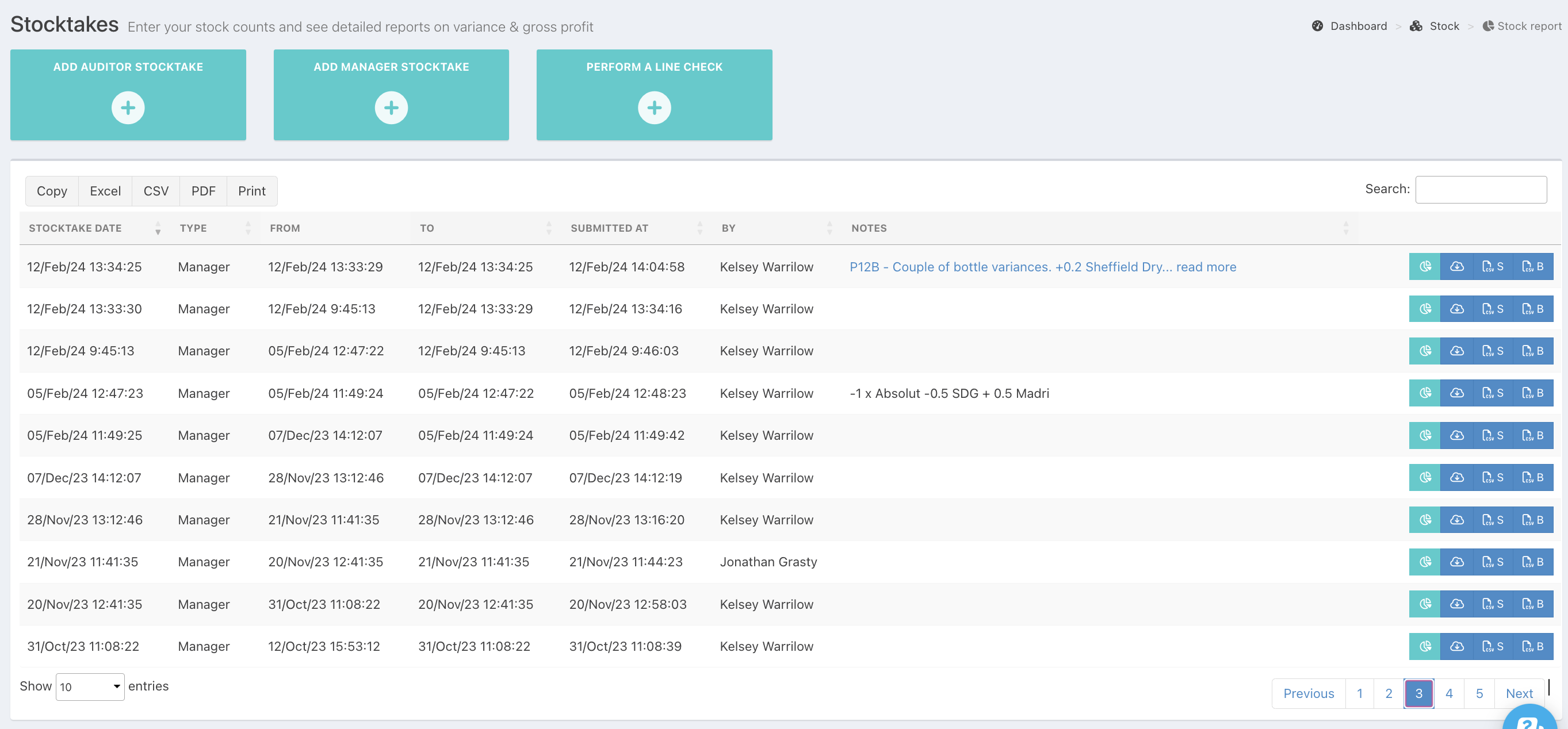
Any notes relating to your stocktake will be displayed in the notes column. If the notes are too long, click the notes field & a preview pop-up will display the notes.
You can now download your stocktake as a PDF, or export to CSV.
Was this article helpful?
That’s Great!
Thank you for your feedback
Sorry! We couldn't be helpful
Thank you for your feedback
Feedback sent
We appreciate your effort and will try to fix the article