A walk-in is a quick way to add a booking for guests who arrive at your venue without a prior reservation. Instead of going through the full booking process, you can record a walk-in by entering a few basic details and confirming the booking immediately.
Recording walk-ins ensures your table availability stays accurate, preventing tables that are already occupied from appearing available for last-minute bookings.
Note: You can also record walk-ins on your EPOS screen, either through the Bookings Grid View, or via the Table Plan.
To add a walk-in from the back office, select Bookings > Bookings.
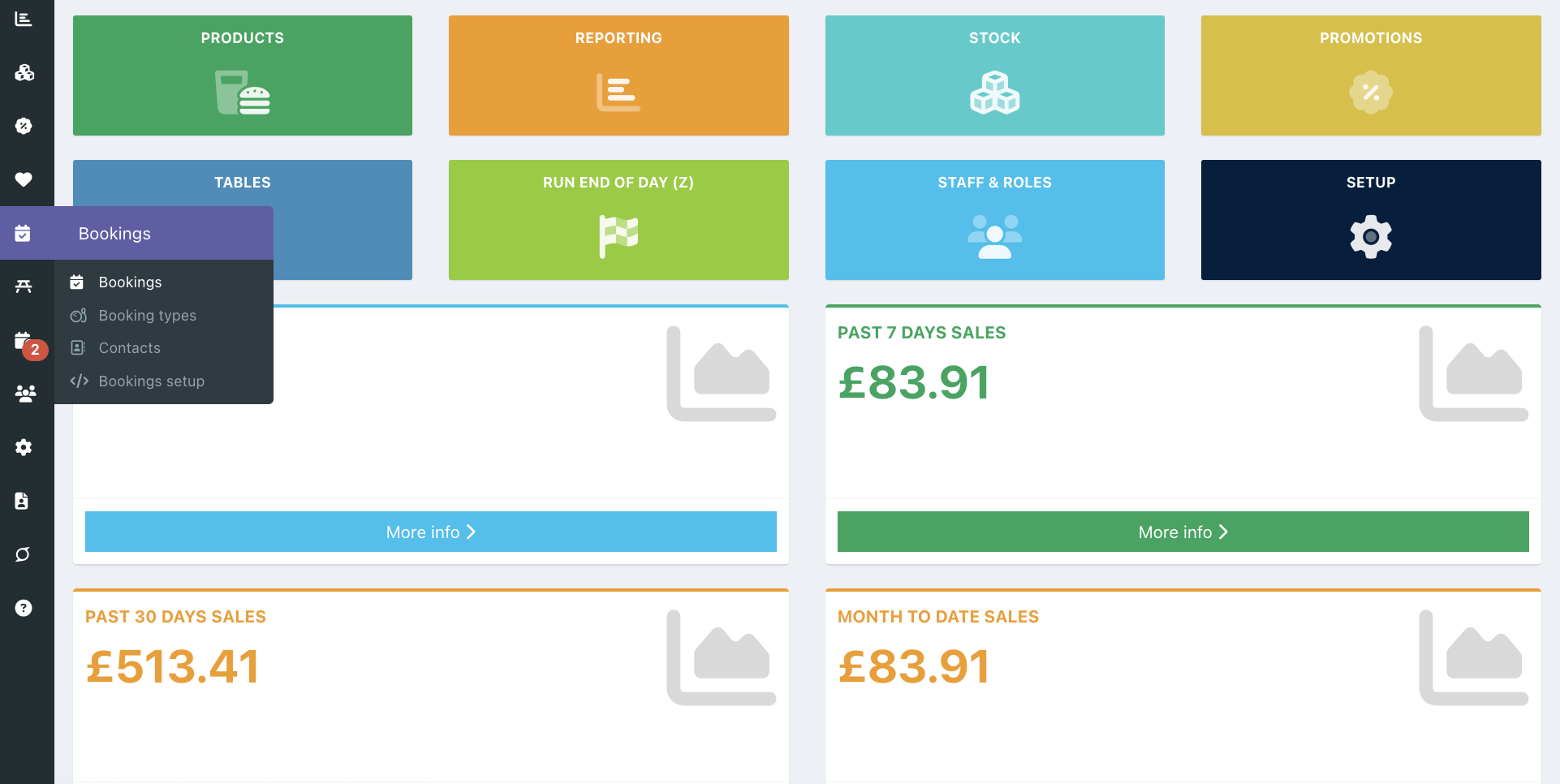
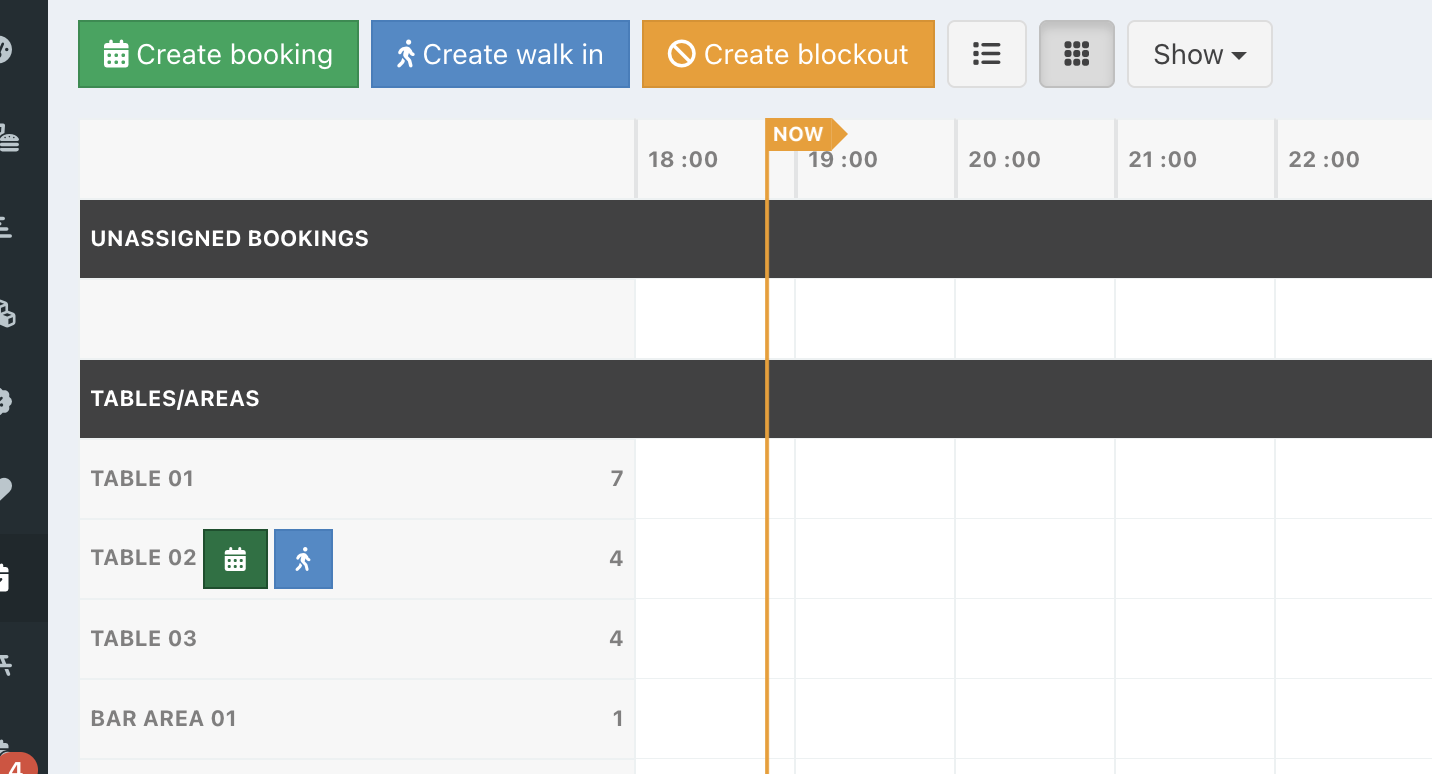
You can add a walk-in from either the list-view or grid-view by:
- Clicking the blue Create walk-in button
- Hovering over a table on the grid view and clicking the walk-in icon to add a walk-in for that table
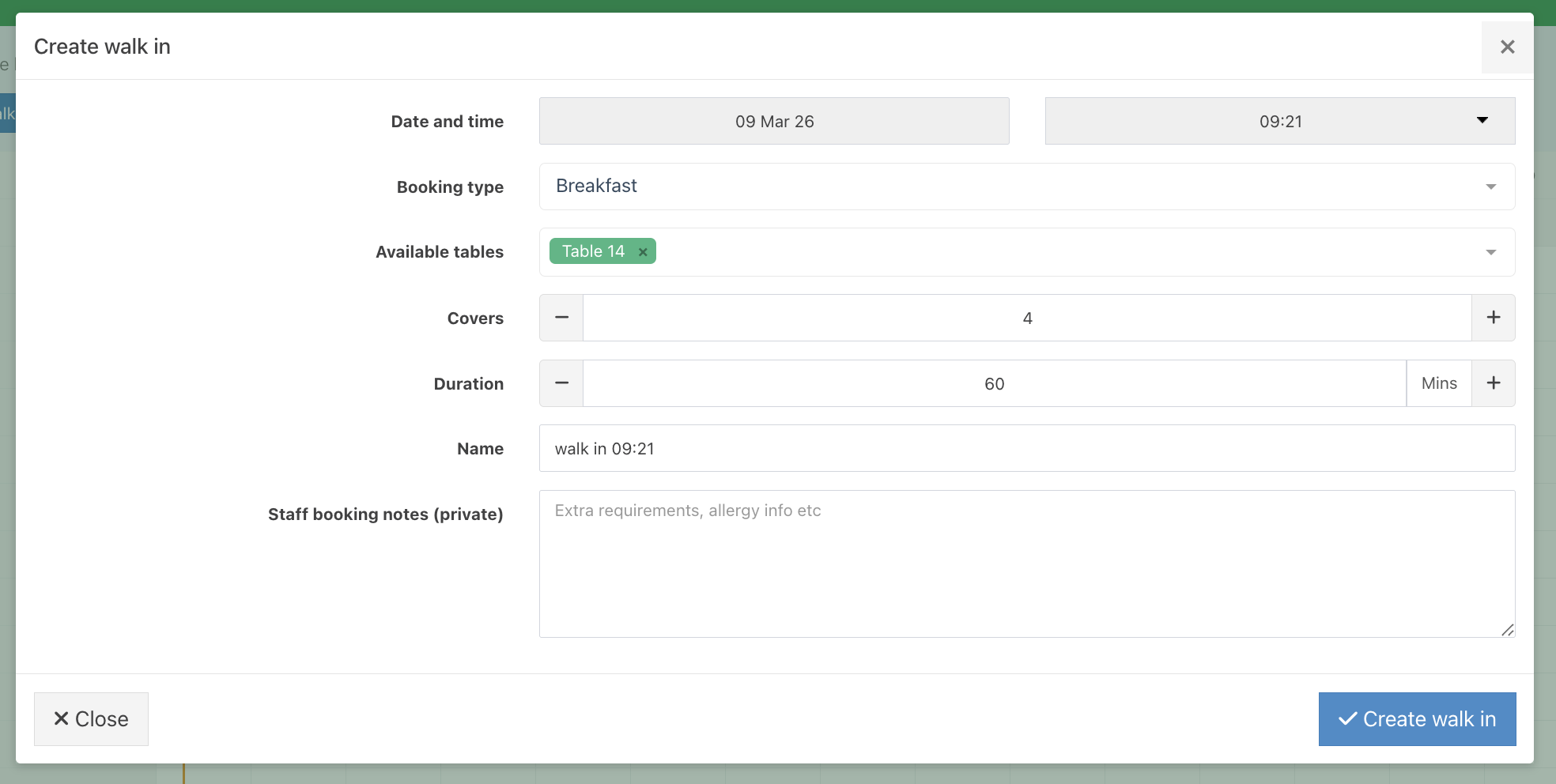
On the walk-in modal:
- the Date and time will default to today and cannot be changed
- the Name will pre-populate with Walk-in and the Current time
- If you created the walk in from hovering over a table, the table will be populated
If you select a booking type, the duration will automatically update to the duration you specified in the booking type setup.
Enter all other details where needed to confirm your walk-in. Then click the blue Create walk-in button.
The Walk-in will now display on the List view and Grid view.
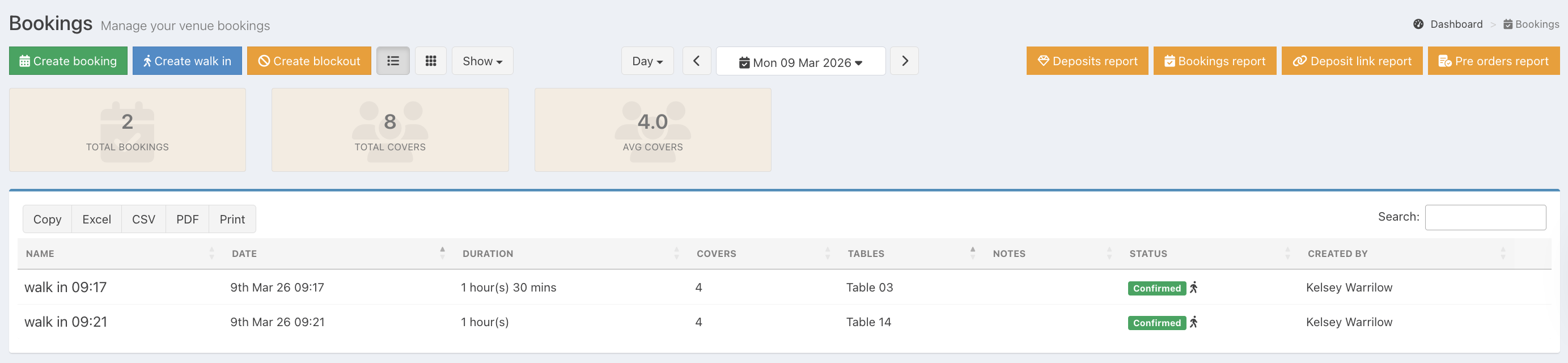
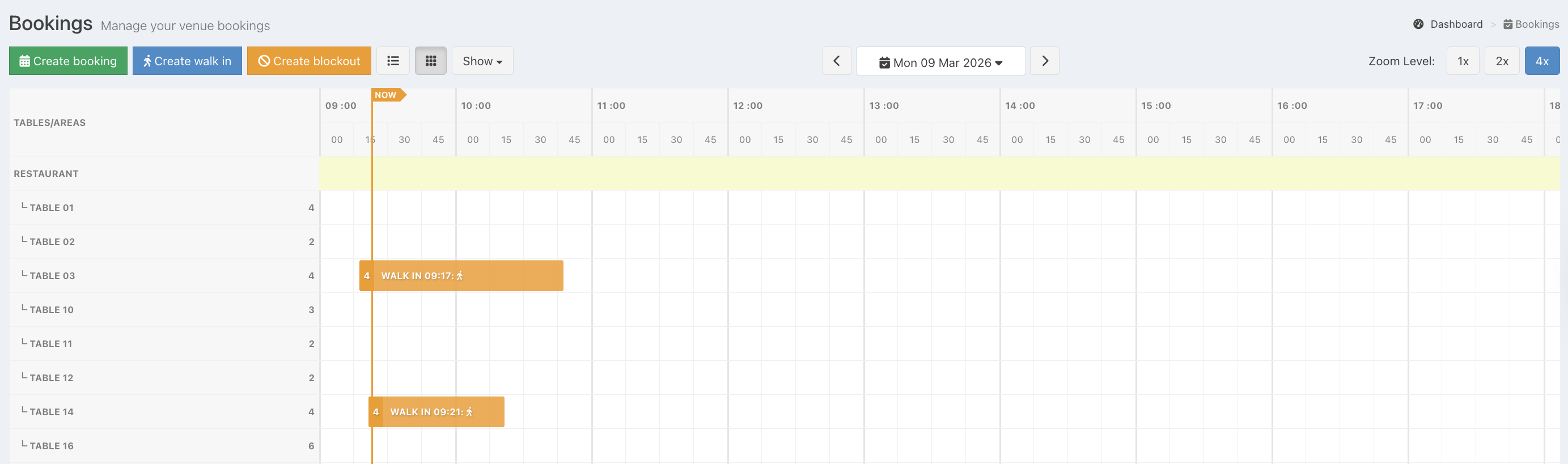
Note: If you need to edit a walk-in, this can still be done in the usual way by clicking on the booking.
Was this article helpful?
That’s Great!
Thank you for your feedback
Sorry! We couldn't be helpful
Thank you for your feedback
Feedback sent
We appreciate your effort and will try to fix the article