If you use DesignMyNight as your booking platform, you can integrate DesignMyNight with the Tabology system to bring deposits across onto customer tabs.
Note: To set up the integration, contact support@tabology.com
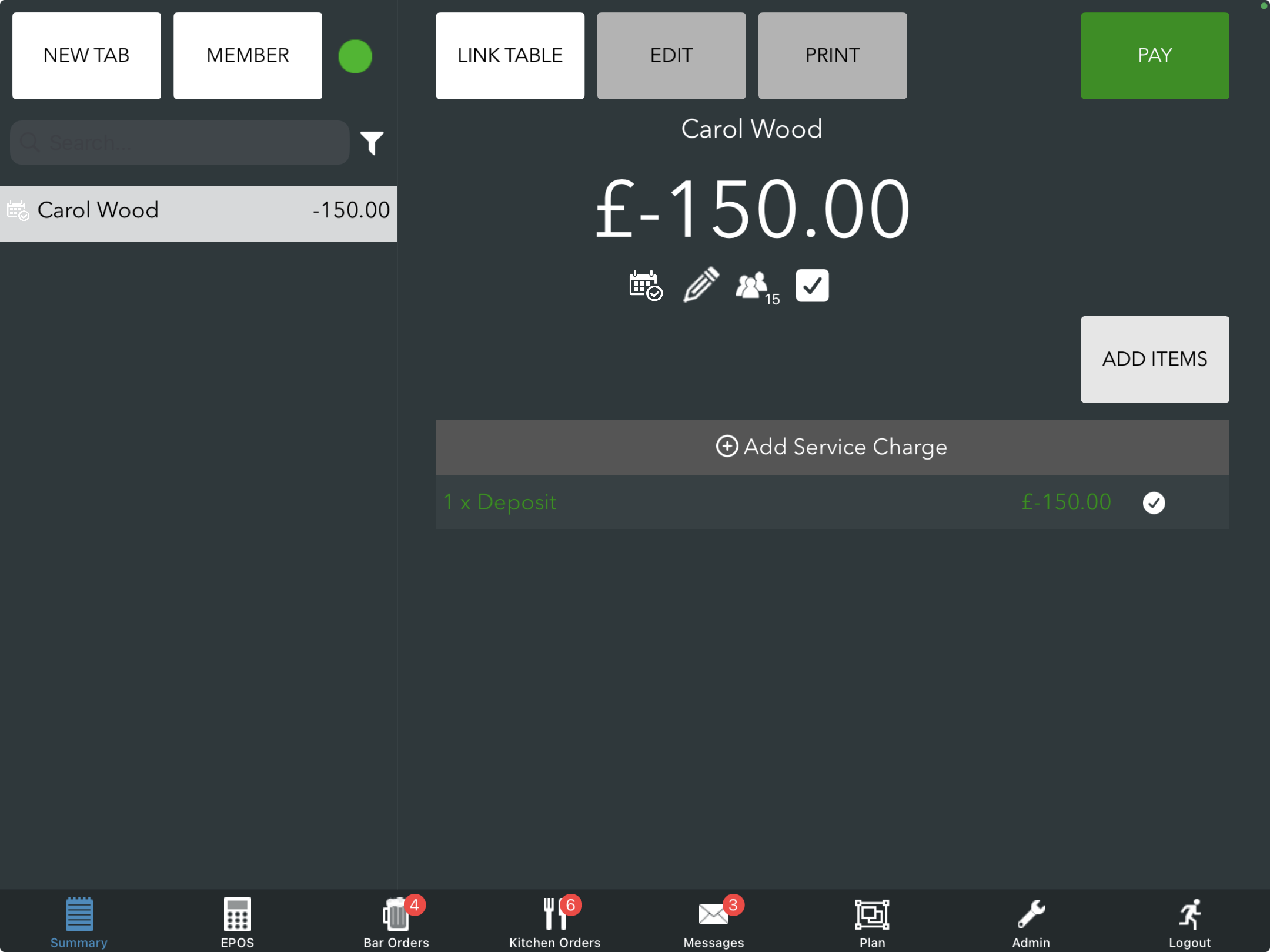
When integrated with Tabology, you can view any DesignMyNight bookings on the back office and the EPOS and open a tab for a booking, with any deposits applied as credit.
Once a tab is opened, you can link it to the relevant table.
Note: DesignMyNight bookings are view-only.
Back office
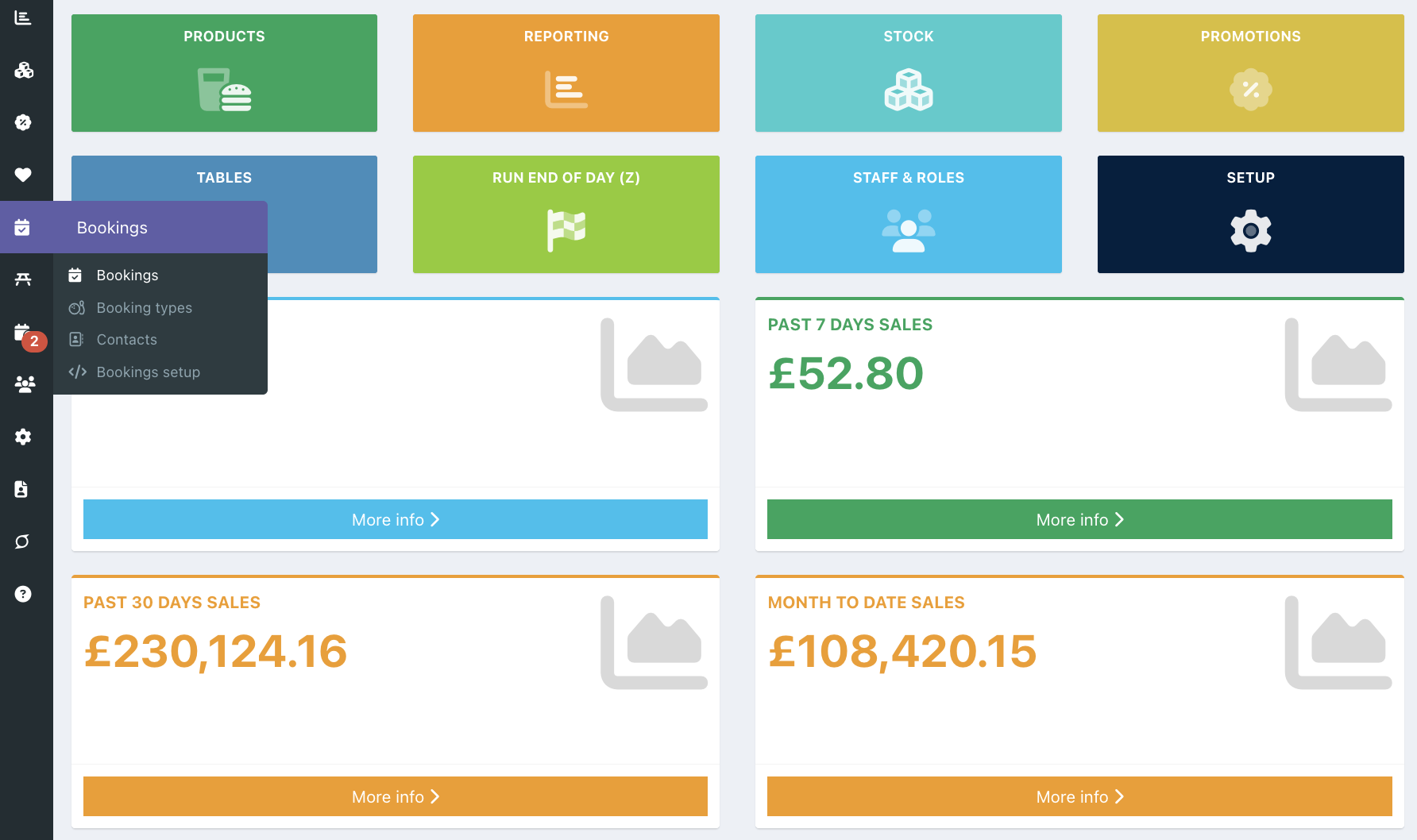
To view DesignMyNight bookings on the back office, go into the back office and select Bookings.
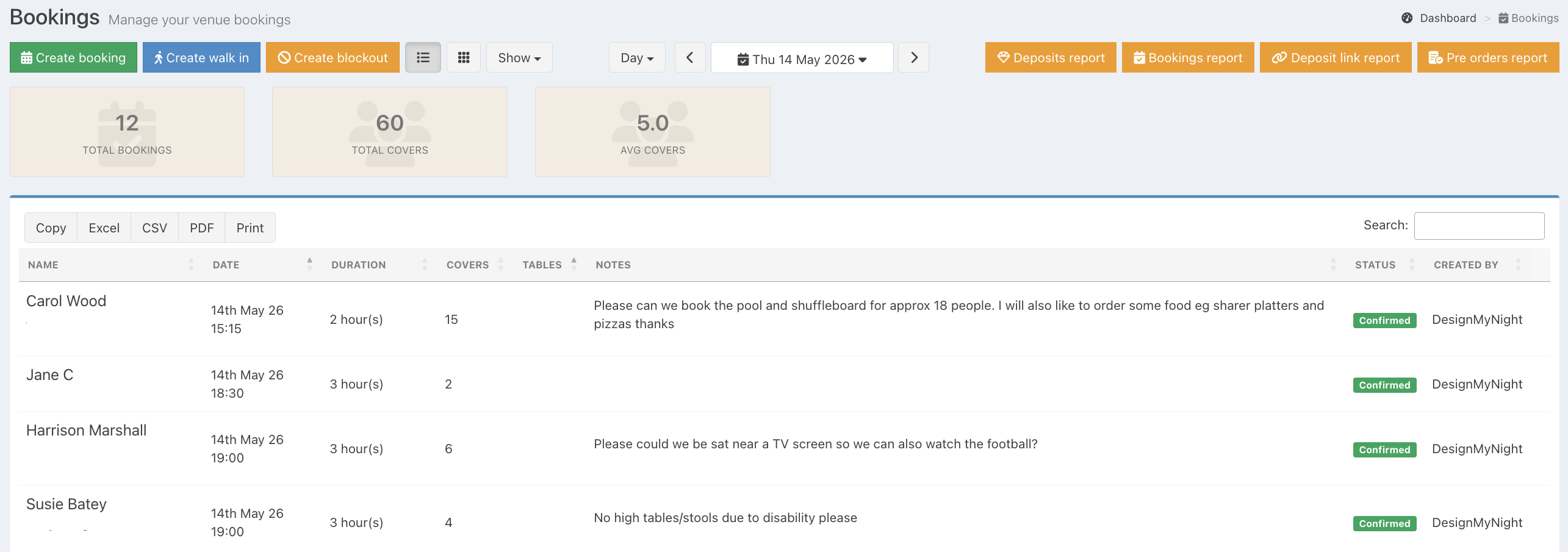
Any DesignMyNight bookings for the day will display in the List view format. Bookings can also be viewed in the Grid view format, by clicking the Grid icon
Note: DesignMyNight bookings will not have table numbers assigned. You will need to open a tab for the booking and link this to the table.
EPOS
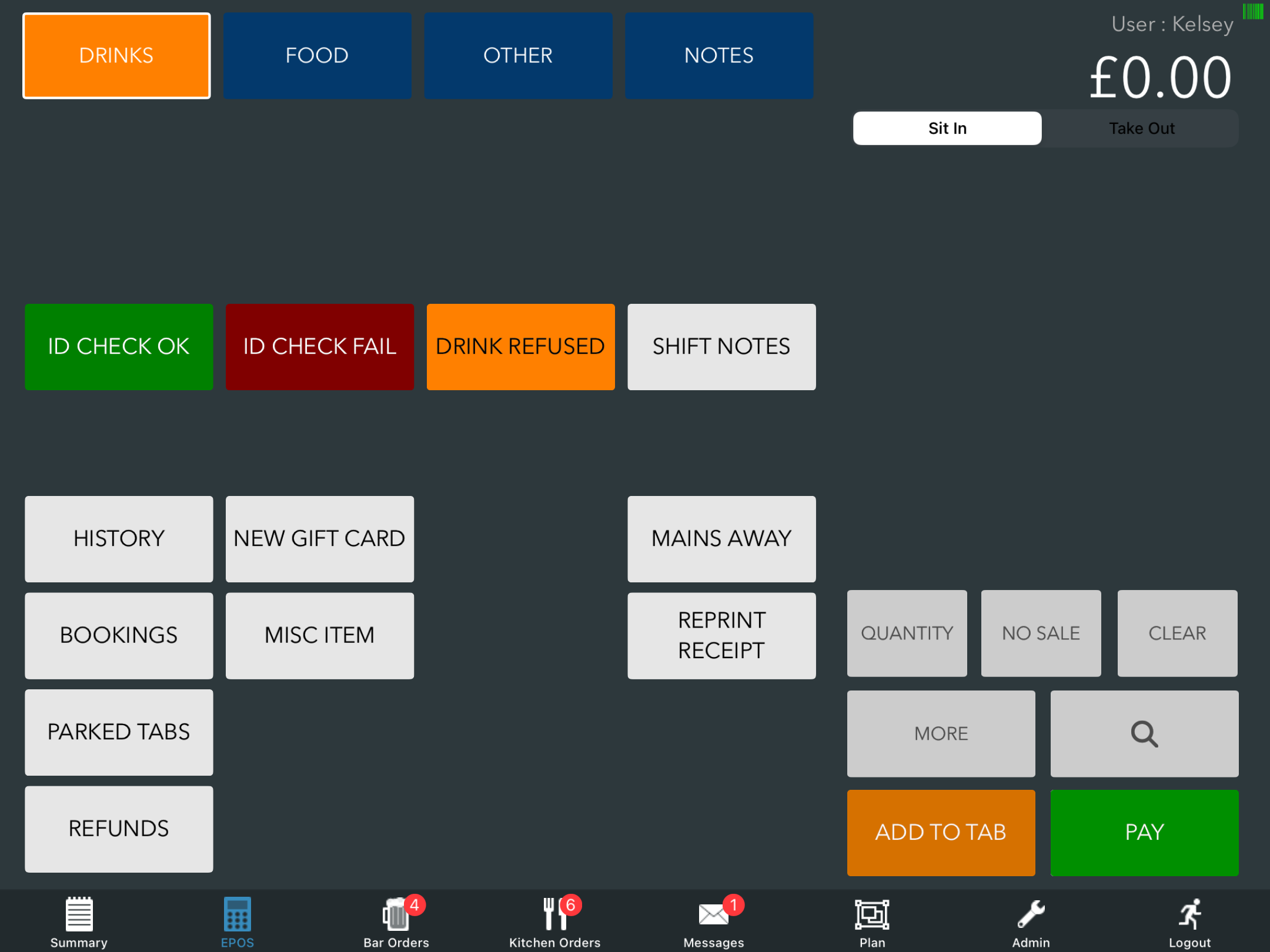
To view bookings from the EPOS, log onto the EPOS and select More from the EPOS screen. Then select Bookings.
AnyDesignMyNight bookings for the day will display in the List view format. You can also view them in the Grid view format by clicking the Grid icon.
Note: When viewing bookings in the Grid view format, all bookings will display in the Unassigned section.
Bookings with the Orange indicator next to the booking name indicate that a tab has been opened for the booking.
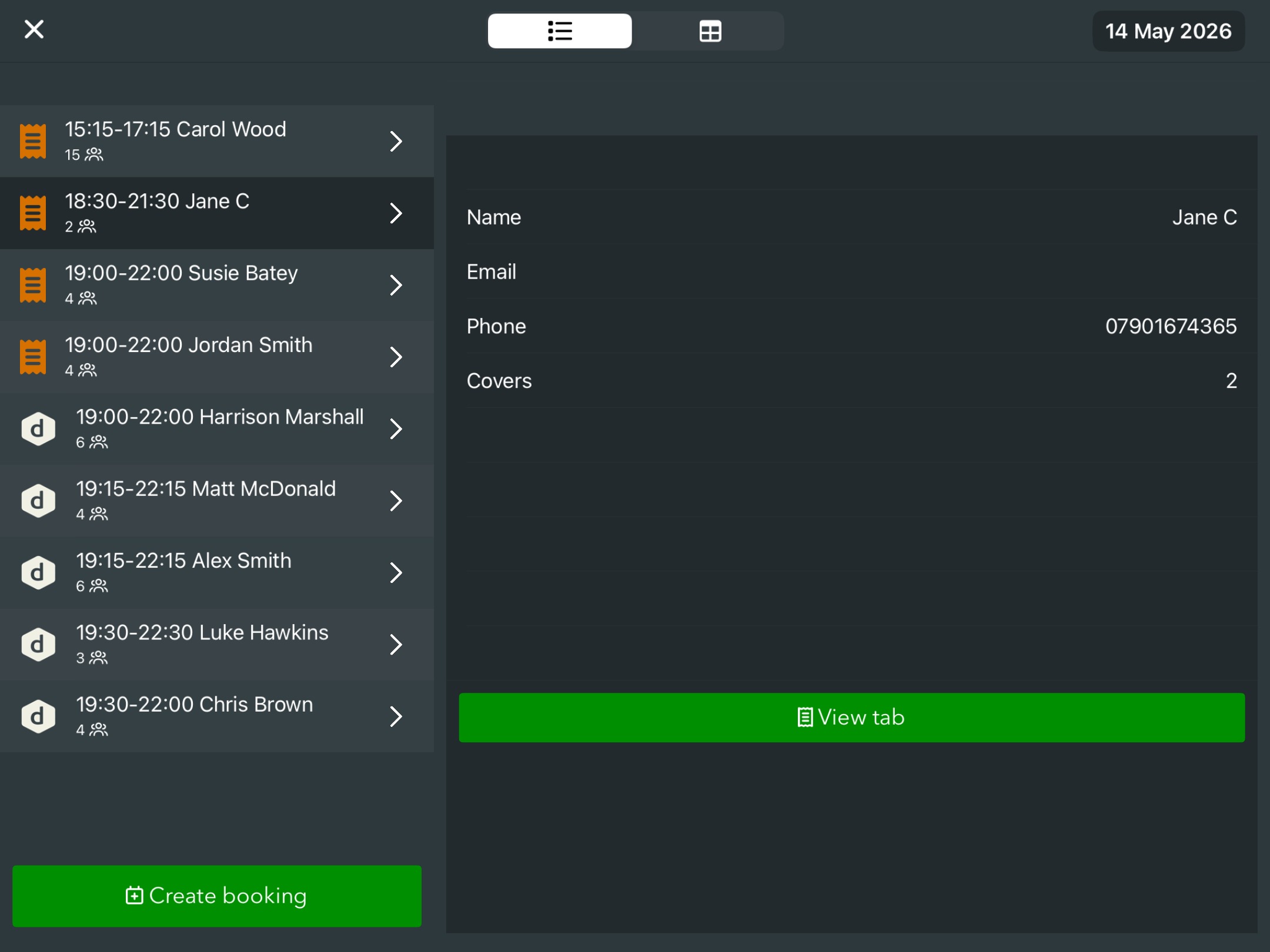
Clicking the green View tab button will open up the booking and apply any deposits that have been paid on the booking.
Was this article helpful?
That’s Great!
Thank you for your feedback
Sorry! We couldn't be helpful
Thank you for your feedback
Feedback sent
We appreciate your effort and will try to fix the article