You can control which elements appear at the top of your Mobile Ordering menu, allowing you to prioritise branding or maximise space for menu items.
These settings are particularly useful if you want to bring products higher up the screen and reduce scrolling for customers.
Navigate to Setup > Mobile ordering > Other settings.
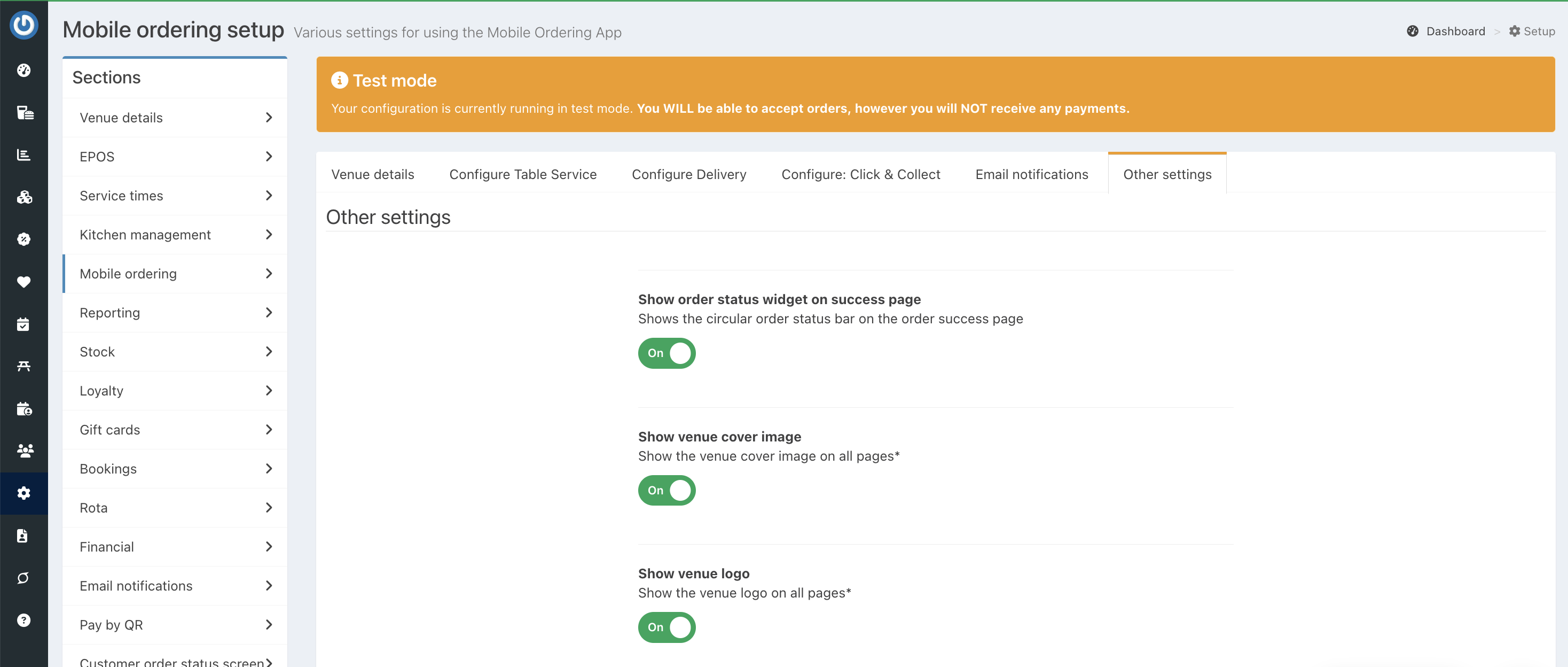
You can toggle the following settings on or off to change the appearance of your mobile ordering menus.
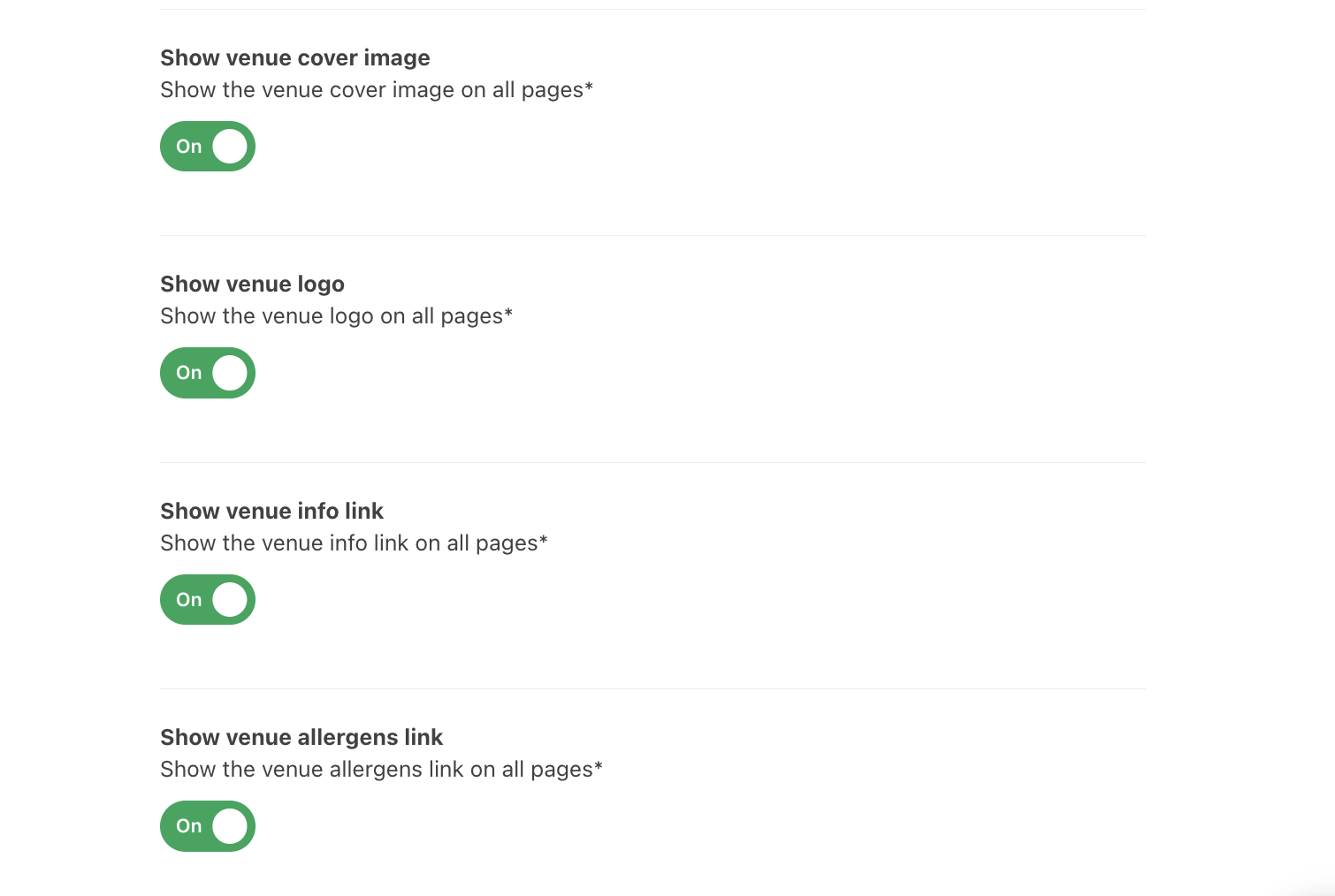
Show venue cover image
Displays your venue’s cover image at the top of the mobile ordering pages.
Turning this off reduces the height of the header and brings categories and products higher up the screen.
Show venue logo
Displays your venue logo on mobile ordering pages.
If disabled, the header becomes more compact, allowing menu items to appear sooner without scrolling.
Show venue info link
Displays a link to your venue information (address and contact details) on the menu.
Show venue allergens link
Displays a link to the full name and description for each of the allergen symbols.
Was this article helpful?
That’s Great!
Thank you for your feedback
Sorry! We couldn't be helpful
Thank you for your feedback
Feedback sent
We appreciate your effort and will try to fix the article