As a leave approver you can edit parts of a requested, approved or declined leave request dependent on the type of request. This may be necessary if staff members miscalculate the number of hours they need to request, or request the wrong day or leave type.
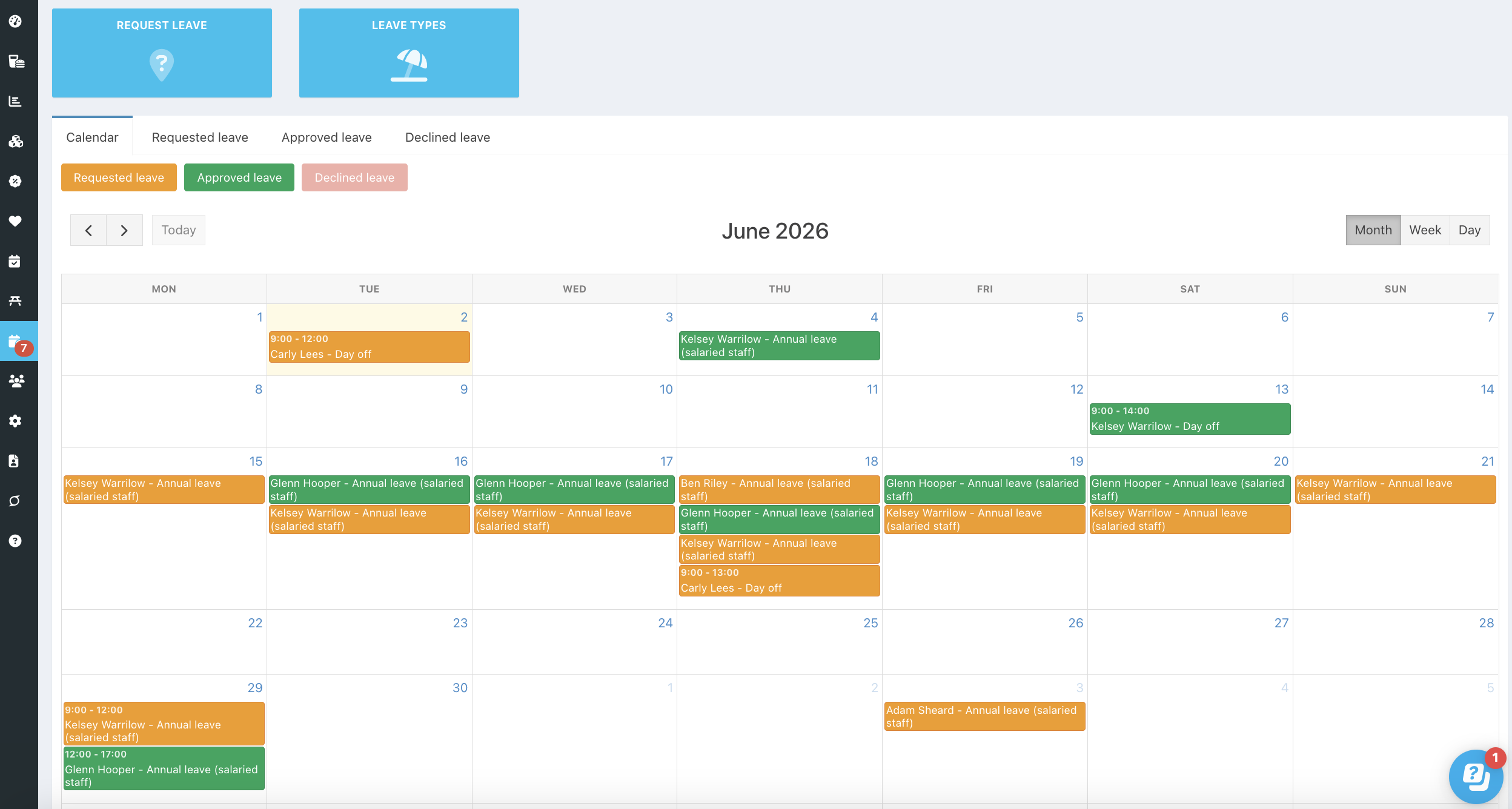
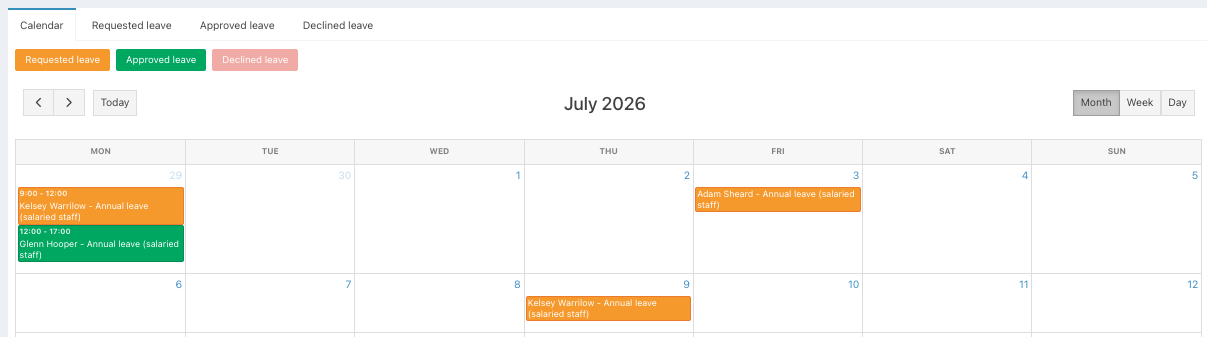
Leave requests can be edited from both the Leave Calendar where you can see all your teams requests at a glance for the month, or via the List Views whereby you will be able to see all requests that your team have made.
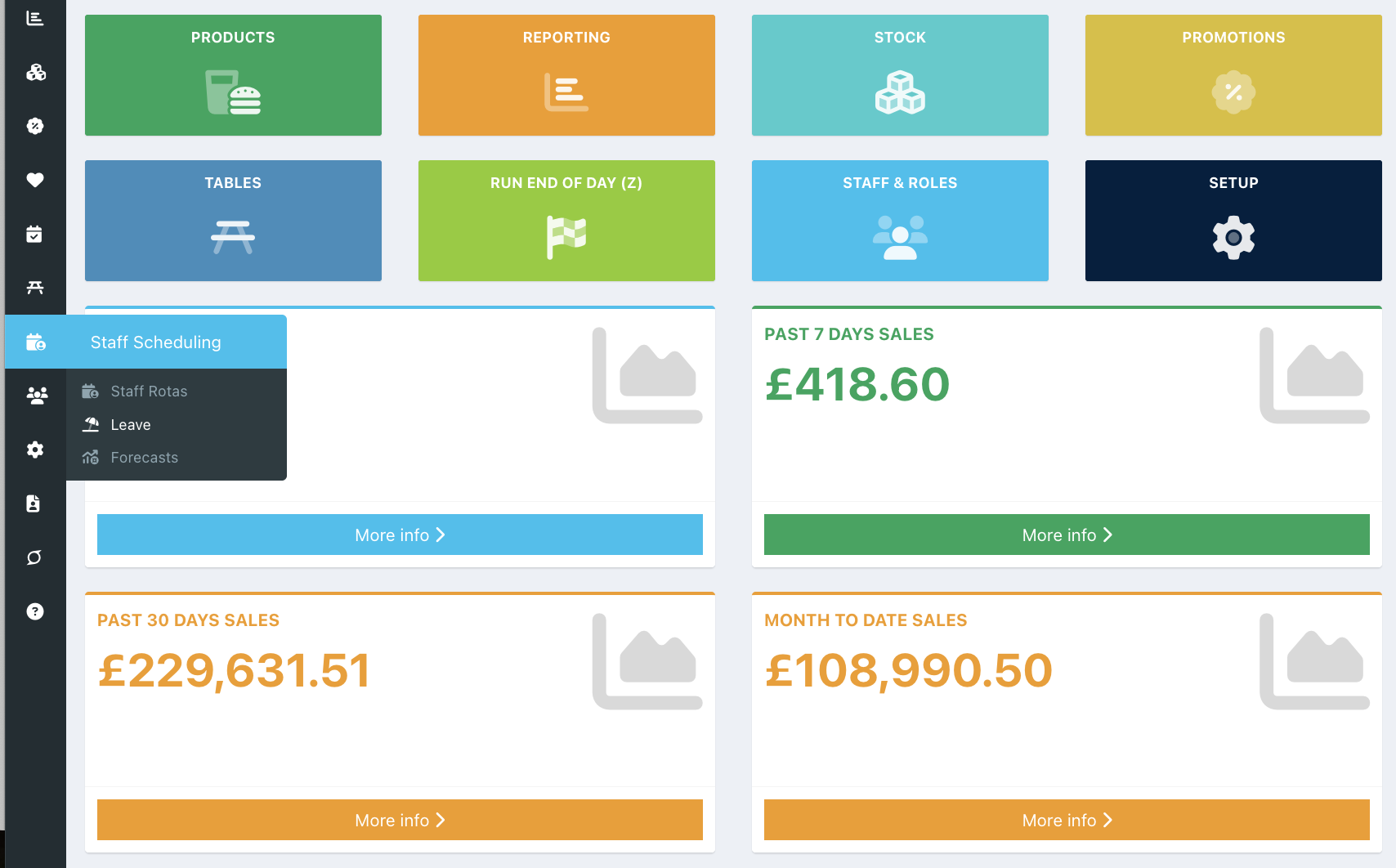
To view leave requests, go into your back office and select Staff Scheduling > Leave from the left hand navigation.
Locate the required leave request that needs to be edited. By default Declined requests won't display, click the greyed out Declined leave button, to see Declined leave.
Alternatively you can click the Requested tab, to view all requested leave in a list, followed by the blue edit icon at the end of the request row.
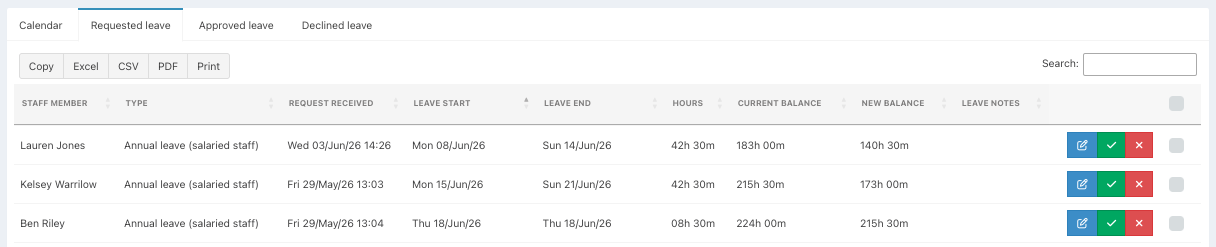
Requested leave
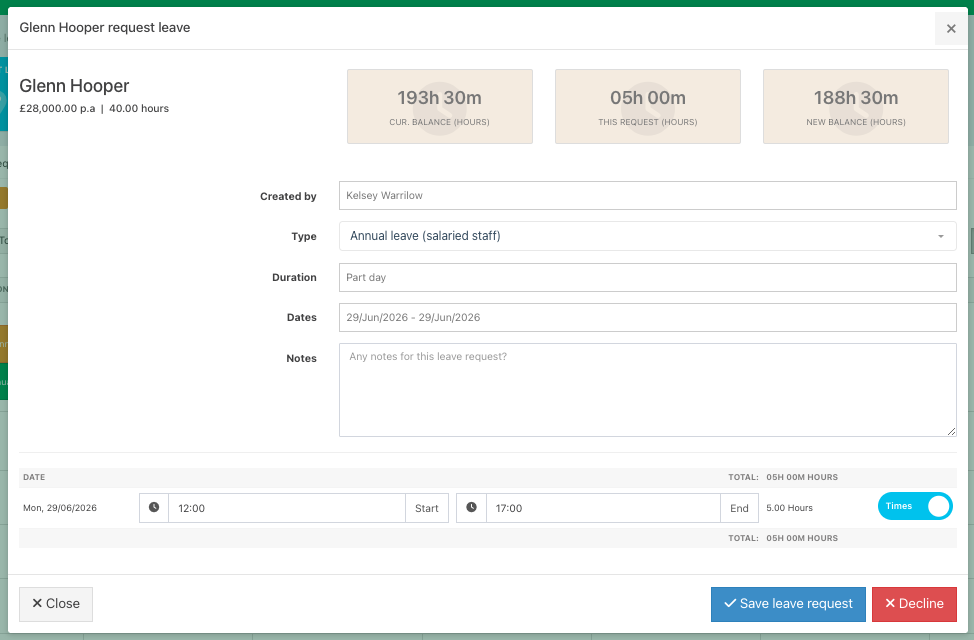
The leave details will pop up. For all Requested leave, you will be able to edit:
- The leave type
- The duration
- The dates
- Add any notes
- Any hours or time fields
When you have made the required changes, choose the action that reflects what you would like to do, Approve, decline or Save leave request. Saving the leave request will leave the request in the requested status.
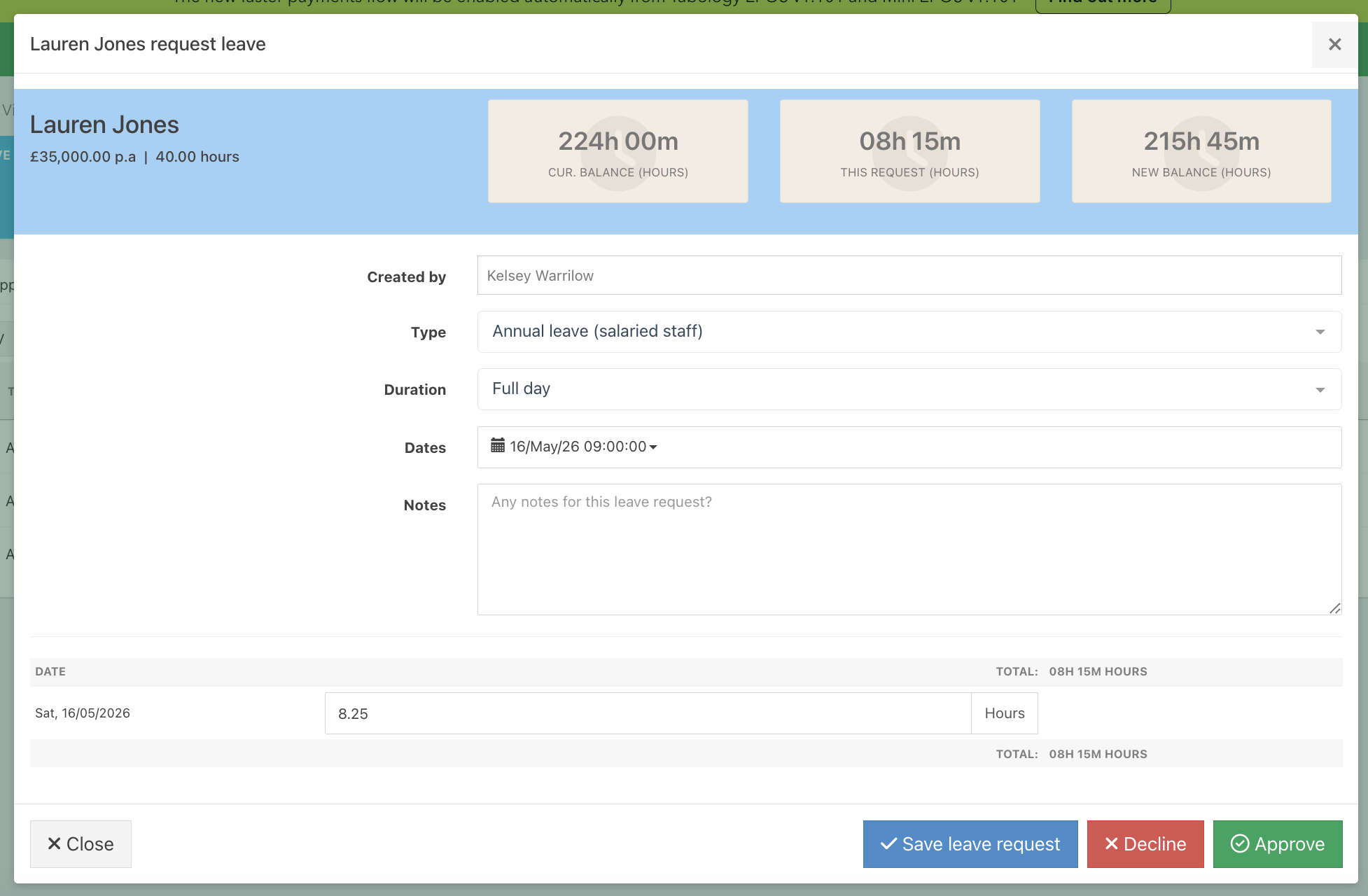
Approved/Declined leave
From the Calendar view, click on the required request. To see Declined requests, click the greyed out Decline button.
Alternatively you can click the Approved or Declined tabs, to view all leave in a list, followed by the blue edit icon at the end of the request row.

The request details will pop up. For all Approved or Declined leave, you will be able to edit:
- The leave type
- Add any notes
- Any hours or time fields
Note: The dates or the duration of an Approved or Declined request cannot be edited and are greyed out to identify this. If the staff member has requested the wrong dates, they will need to submit a new leave request.
When you have made the required changes, choose the action that reflects what you would like to do.
Was this article helpful?
That’s Great!
Thank you for your feedback
Sorry! We couldn't be helpful
Thank you for your feedback
Feedback sent
We appreciate your effort and will try to fix the article