When a staff member requests leave, any leave approver for that staff member can view and respond to the request.
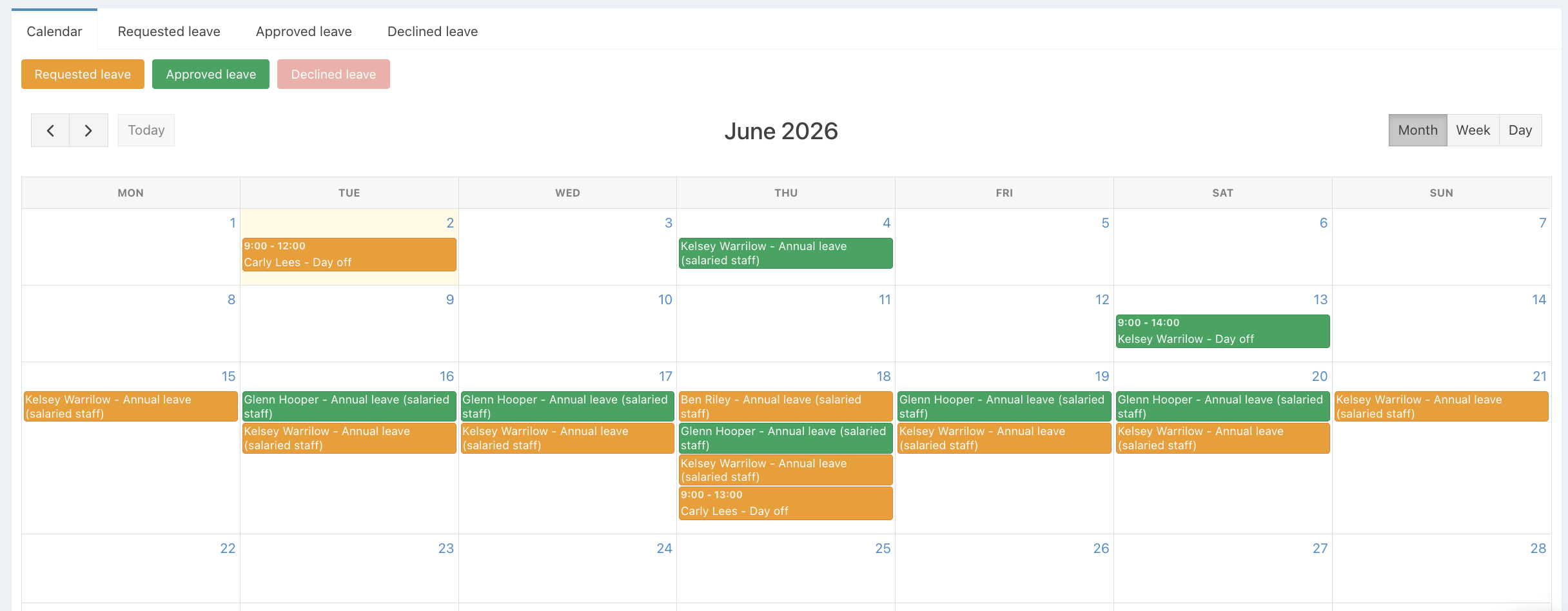
You can view and respond to leave requests from both the Leave calendar, where you can see your team's requests at a glance for the month, or from the List view, which will show you a list of all your requests.
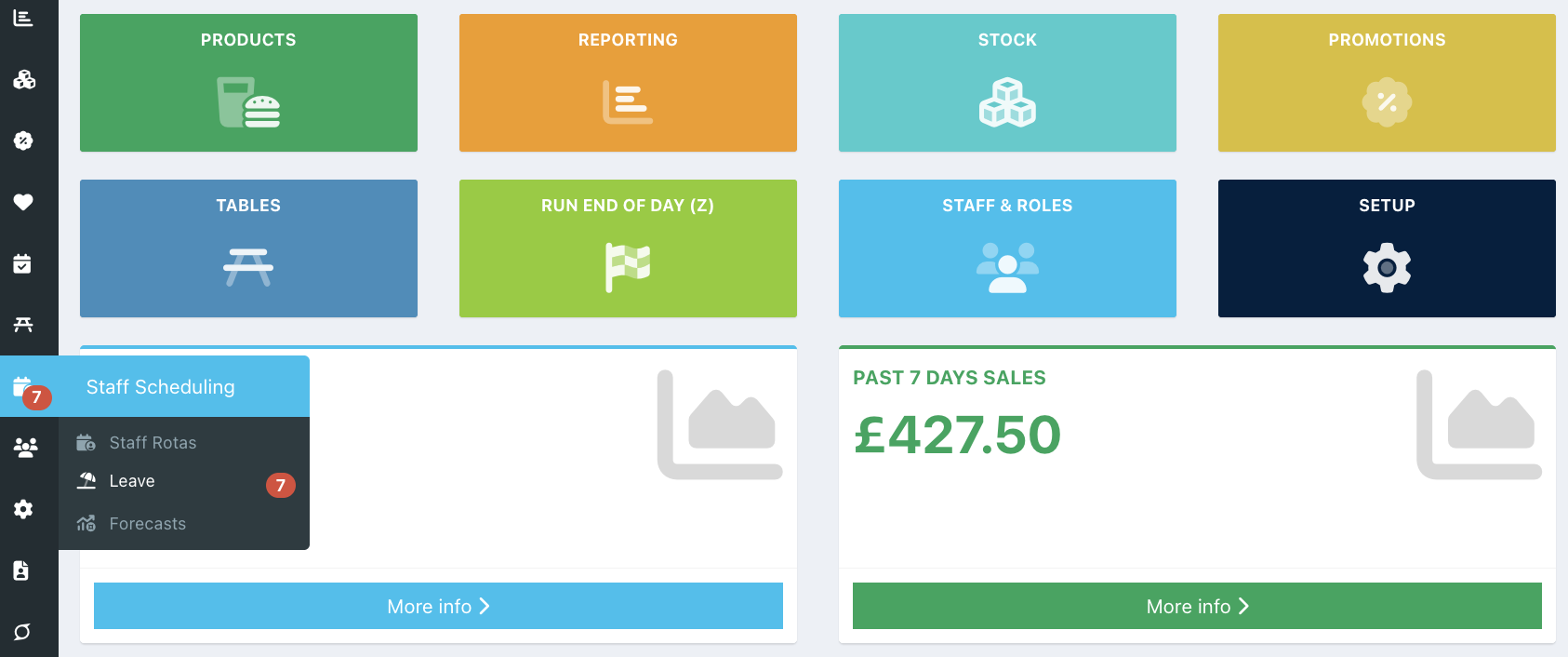
To view leave requests, go into your back office and select Staff scheduling > Leave from the left-hand navigation.
Note: If you have any open leave requests, you'll see a Red badge over the Staff Scheduling icon in the left-hand navigation, showing how many requests there are. It will also appear on the Leave option.
By default, you will be able to see all requested and approved leave. Requests will display in Orange.
Note: Staff members who are not leave approvers can only see their own leave requests.
To approve a leave request, click the request. You can then review the request and click the green Approve button. When approved, the current and new balance will automatically update on the Requested leave tab.
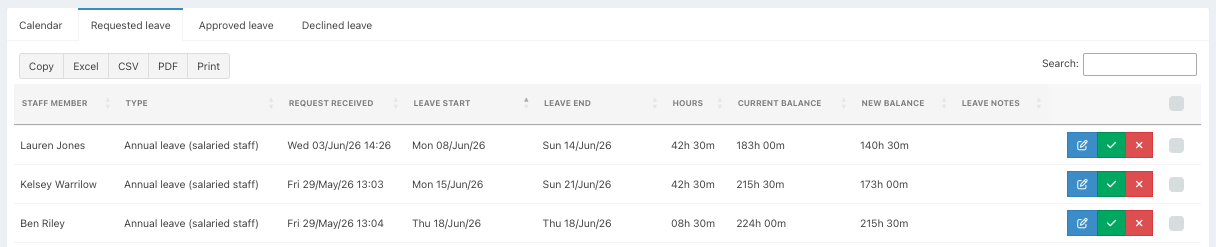
To approve a leave request from the List view, click the Requested tab, locate the request, and then click the blue Edit icon at the end of the request row. Review as above and action where needed.
Note: You can edit the leave request if needed. For example, a staff member has miscalculated the hours for their request.
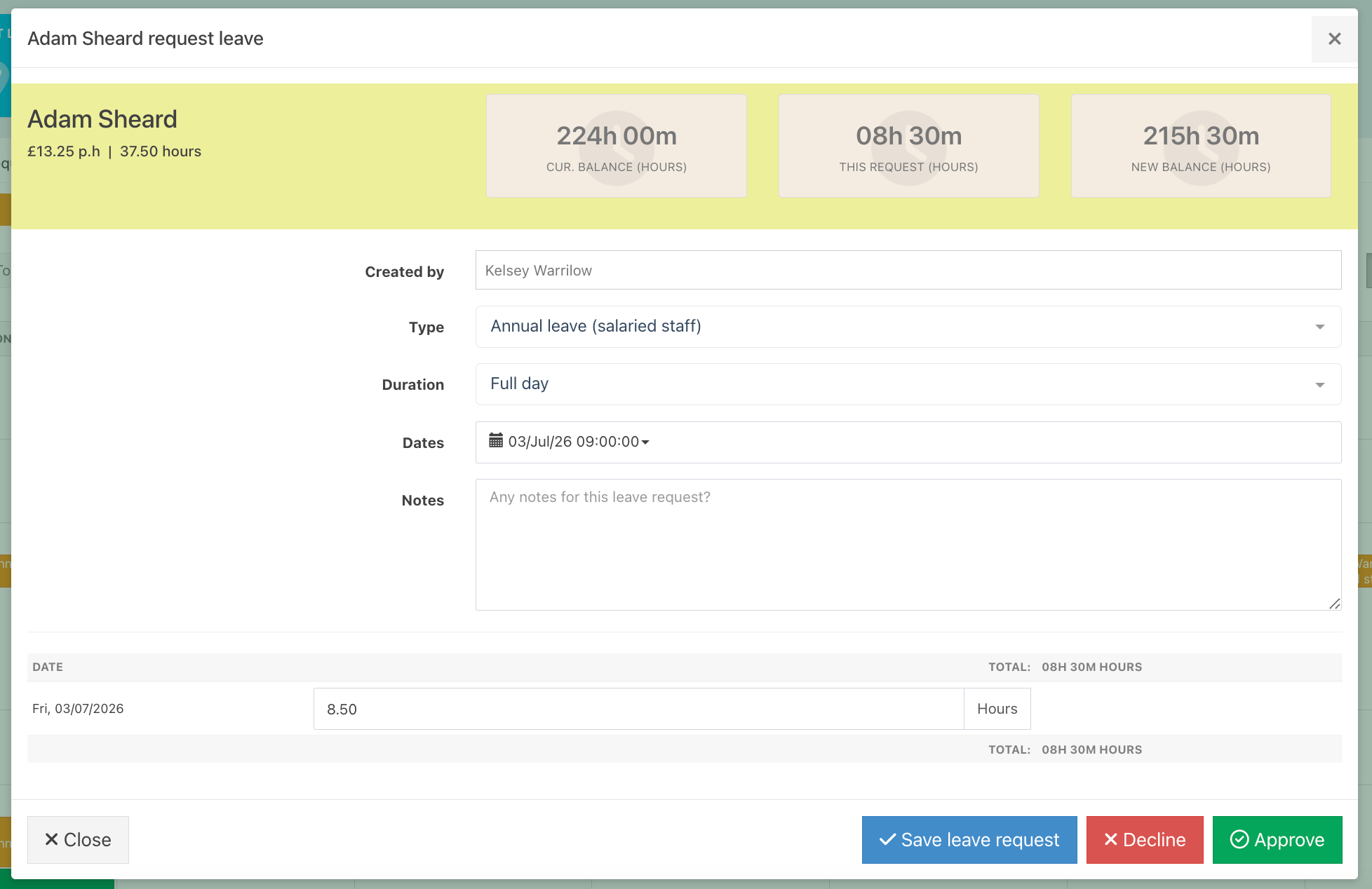
To decline a leave request, click the red Decline button.
When declining, a pop-up will display for you to enter an Optional reason for declining, then click the green Decline button.
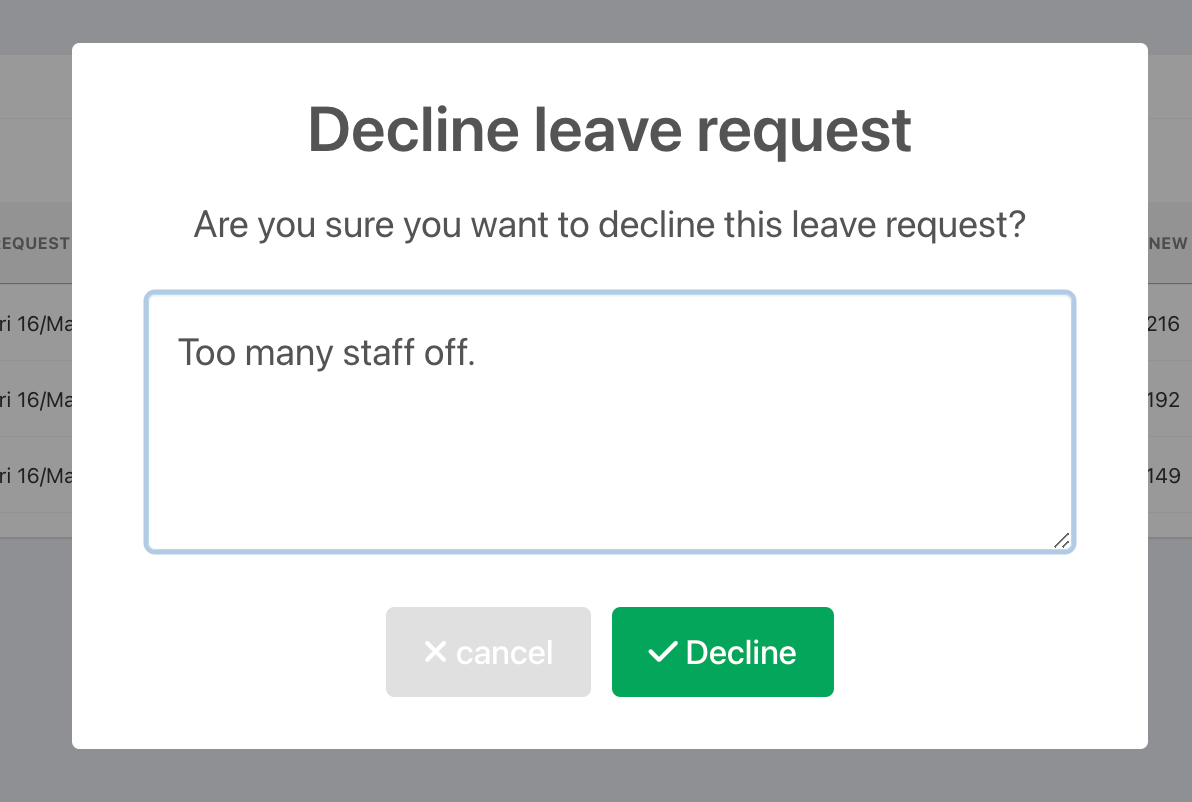
The leave request will automatically move to either the Approved leave or Declined leave tab, depending on your action.
When you approve or decline a leave request, the staff member automatically receives an email notifying them. If you have provided a reason for declining, this will also appear in the staff member’s email notification.
From the List view, you can respond to multiple requests at once. Click the checkbox at the end of each row to select the requests you want to approve or decline, or click the checkbox in the column heading to select/deselect all.
When one or more rows are selected, you'll see a green tick (Approve) and a red cross (Decline) appear in the column heading. Click the corresponding button to approve or decline the selected requests. Those staff members will be automatically notified via email.

You can change your decision on a currently approved or declined request if required.
Was this article helpful?
That’s Great!
Thank you for your feedback
Sorry! We couldn't be helpful
Thank you for your feedback
Feedback sent
We appreciate your effort and will try to fix the article