You can edit any submitted leave requests until the point they have been approved or declined. This may be necessary if you miscalculate the number of hours you need to request, or request the wrong day or leave type.
To view your leave requests, go into your back office and select Staff & Roles > Leave from the left-hand navigation.

Click the blue Leave requests button.

Requested leave will be located under the Requested leave tab. If your request has already been approved or declined, you will only be able to View the request. By default, leave requests are shown in order of leave start date.
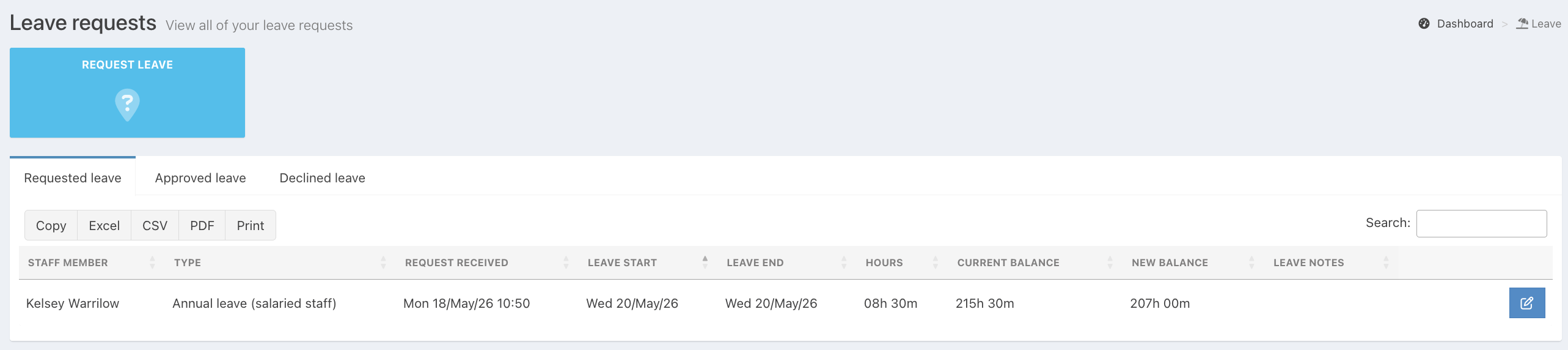
Find the leave request you want to edit and click the blue Edit button at the end of the row.
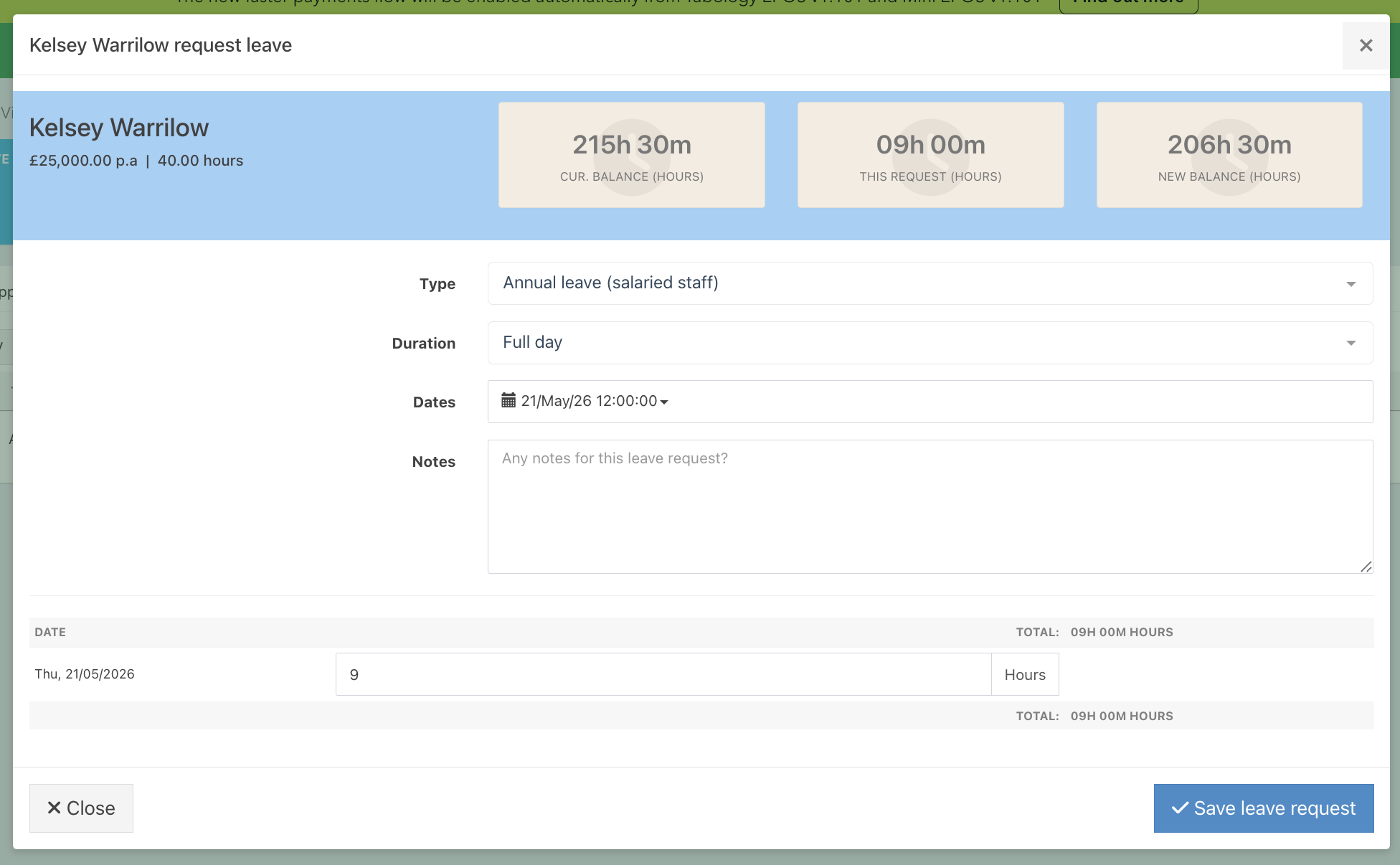
The request details will pop up. For all Requested leave, you will be able to edit:
- The leave type
- The duration
- The dates
- Add any notes
- Any hours or time fields
Click the blue Save request button in the modal to update your changes.
Was this article helpful?
That’s Great!
Thank you for your feedback
Sorry! We couldn't be helpful
Thank you for your feedback
Feedback sent
We appreciate your effort and will try to fix the article