You can add members to your club or loyalty scheme, either on the EPOS or the back office. This article covers how to add members via the back office.
Before adding any members, decide how you will identify them when they make purchases. If you will use QR codes that can be added to your members' Apple or Google wallets, you will need to enable member QR codes before adding your members.
If you will be using RFID cards, you may find it easier to create your members on the EPOS, where you can link a card during the creation process.
To create a member from your back office dashboard, select Members & Loyalty > Members.
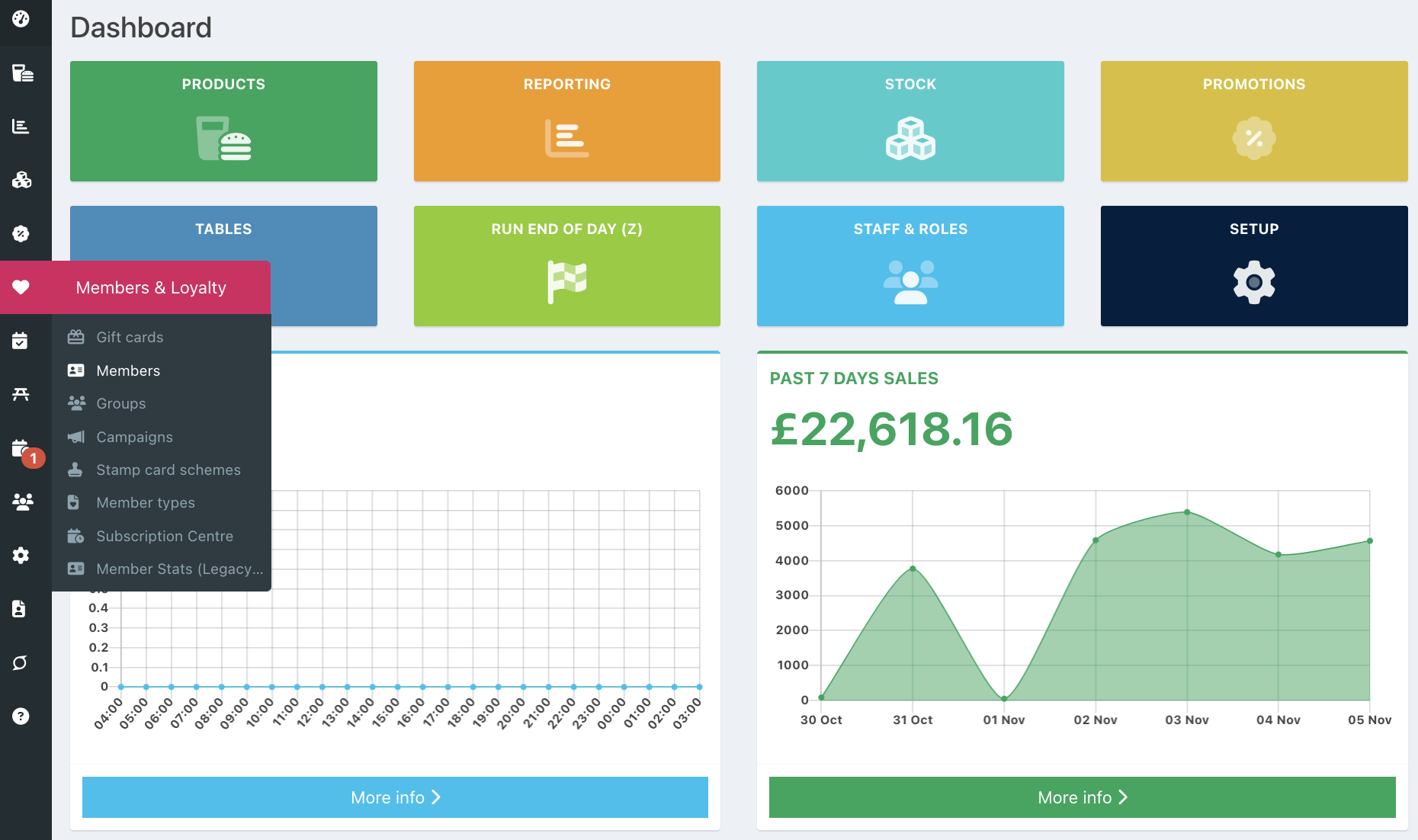
Then click the pink Create a new member button.

Enter the new member's details. You need at least a name and an email address if you use member QR codes.
Note: You can configure which member fields display here and which are mandatory (indicated with a red asterisk).
If you use Member types, assign your new member to the relevant Member type from the dropdown. If the member type has a subscription plan associated with it, the member will automatically be added to that plan.
Note: If a member has a subscription, their Expiry date will be set automatically based on the subscription period and payments received. If the member does not have a subscription, the expiry date will be set based on the default expiry date in your Members setup, but you can override it here.
Then click the blue Save button at the bottom of the screen.
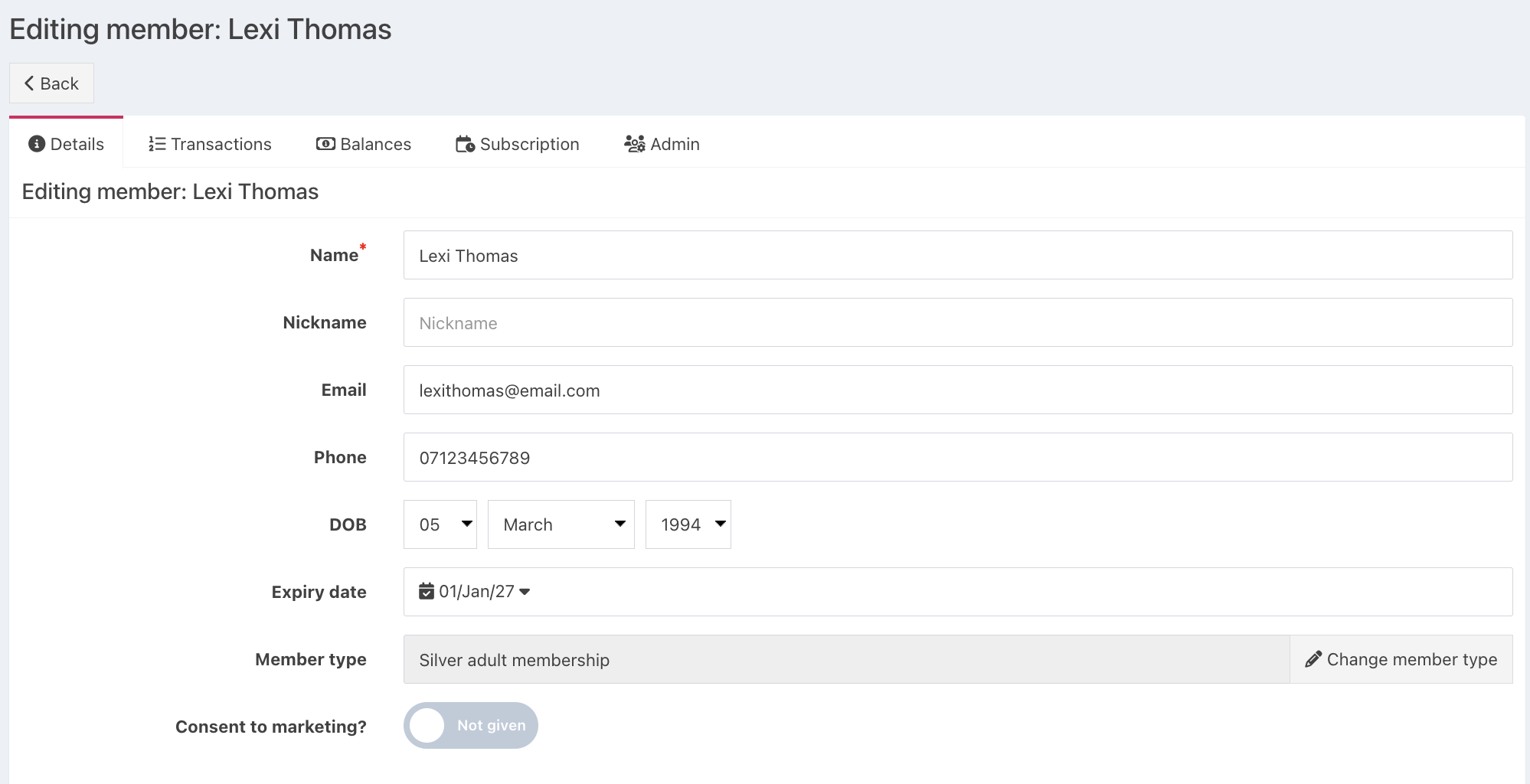
Your member will be successfully created and added to the Member list.
Note: If your new member already exists as a contact in the system, the contact's booking history, including any purchases made on booking tabs, will be linked to the member automatically.
If you have enabled member QR codes, the member will have received an email with their QR code that they can add to their Apple or Google Wallet.

You may want to link some promotions to your members.
Was this article helpful?
That’s Great!
Thank you for your feedback
Sorry! We couldn't be helpful
Thank you for your feedback
Feedback sent
We appreciate your effort and will try to fix the article