To see a wage percentage forecast for an upcoming week, you need to enter your rota and have sales forecasts in place for the week.
Sales forecasts can be:
- Generated using AI
- Uploaded
- based on a previous week
- or entered manually
If you've already entered or uploaded your sales forecasts in the Forecasts module, these will pull through to the Forecasts tab of the rota automatically.
Alternatively, you can set these on the Forecasts tab of the rota.
To do this, go to Staff Scheduling > Staff Rotas from your back office dashboard.
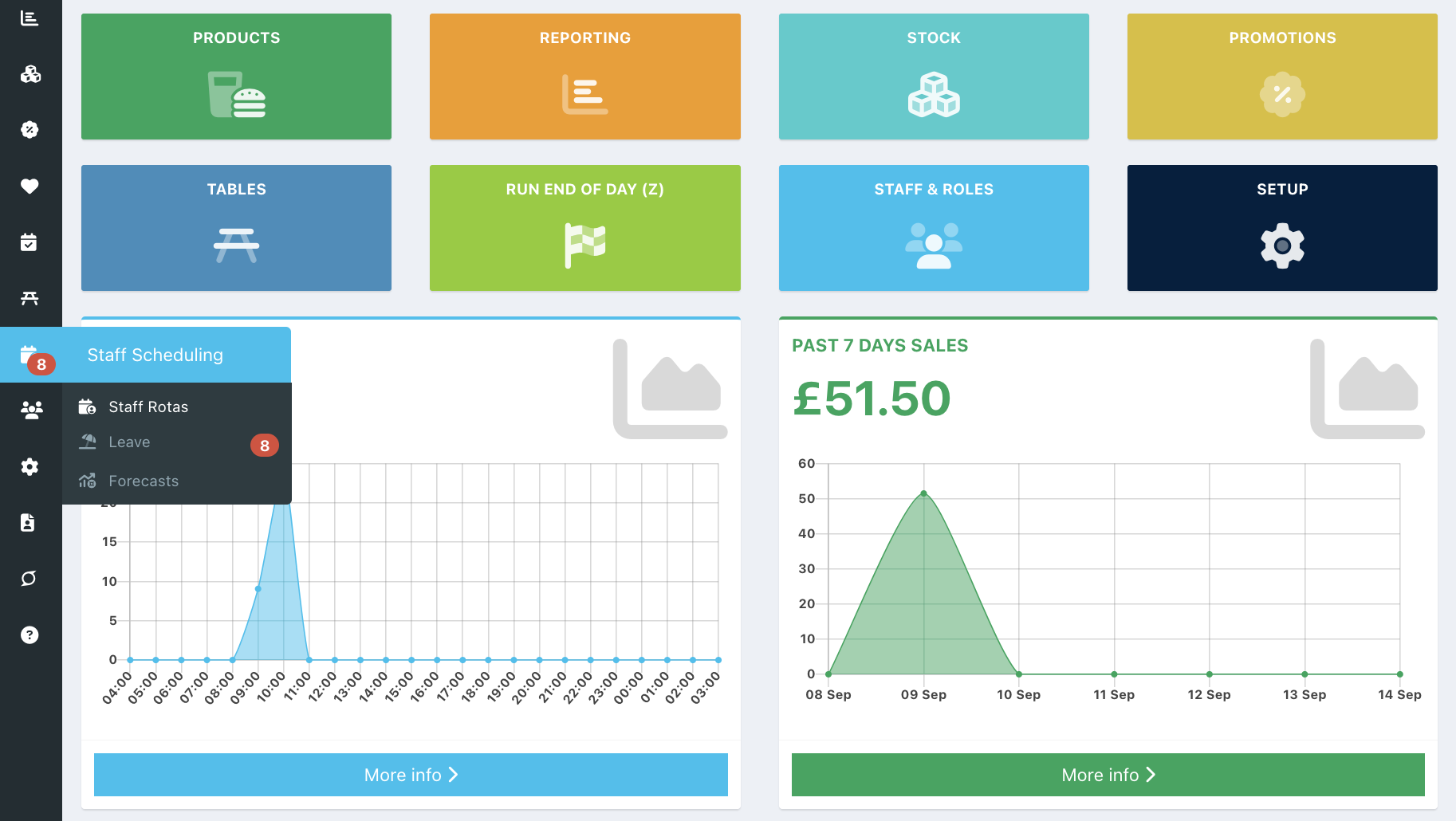
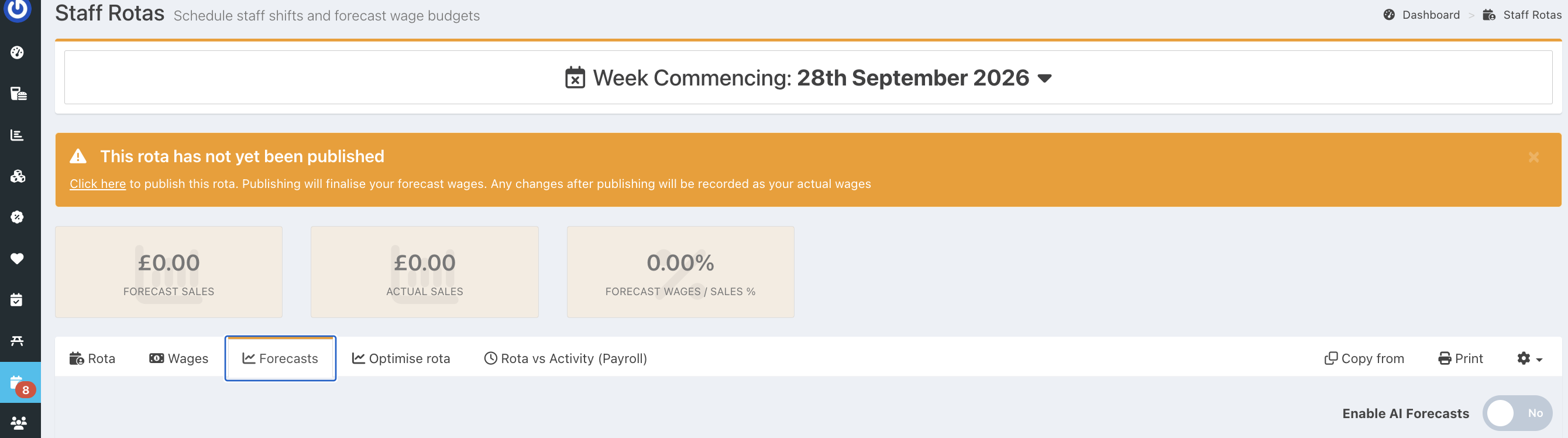
You will see your rota for the current week and can switch to a future week's rota if needed by clicking anywhere on the Week commencing line at the top right of the screen.
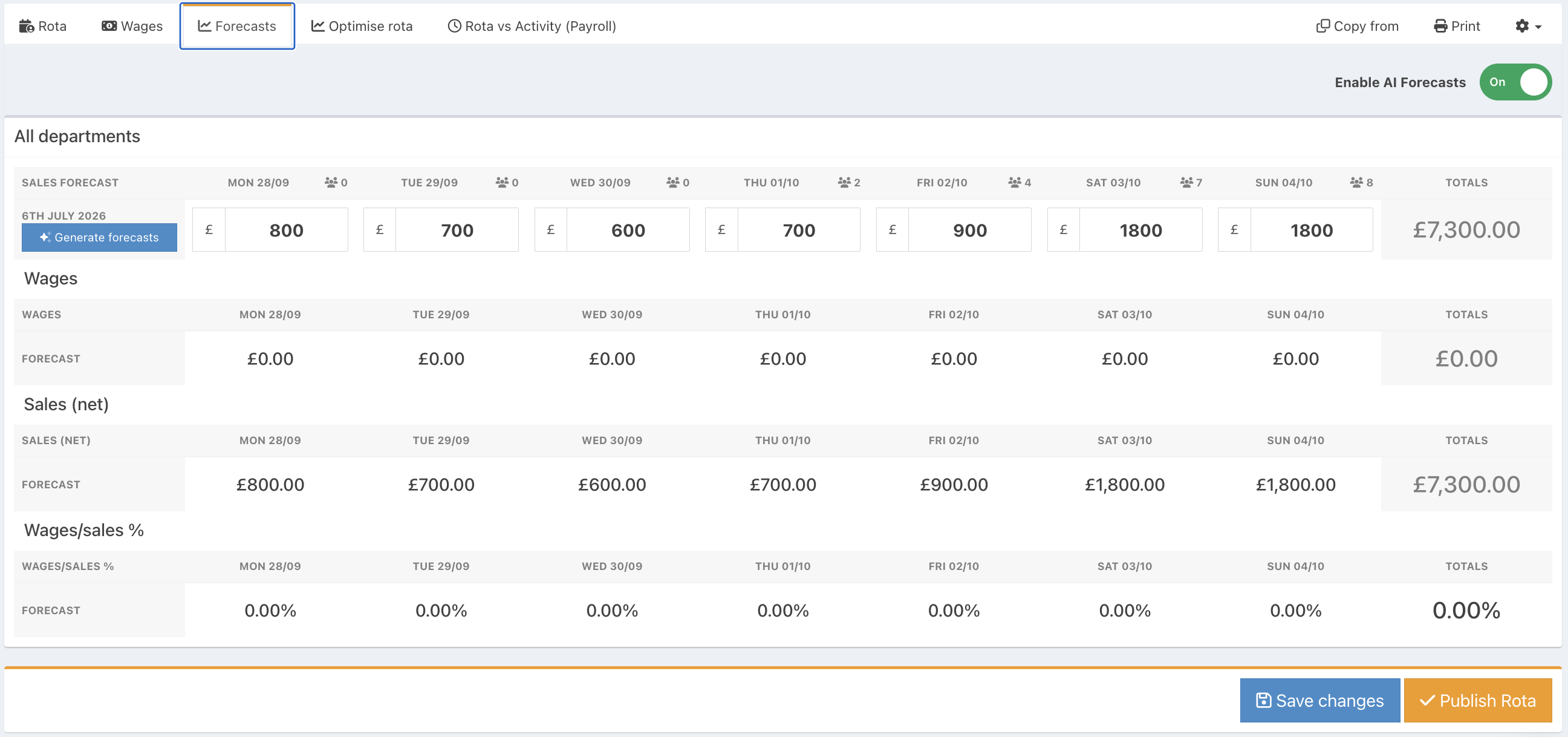
If you have set up departments, you can enter sales forecasts per department, or for all departments.
To enter your sales forecasts against the selected week, click on the Forecasts tab.
Generating forecasts using AI
If you have Enabled AI Forecasting, you will see the blue button Generate forecasts. Click this button to generate forecasts for the current week.
Note: If you haven't yet enabled AI forecasting, you can switch the Enable AI Forecasting toggle in the top right of the screen to On. It can take up to 15 minutes to train the model before you can generate your first forecasts, and you will need at least 14 days' worth of sales.
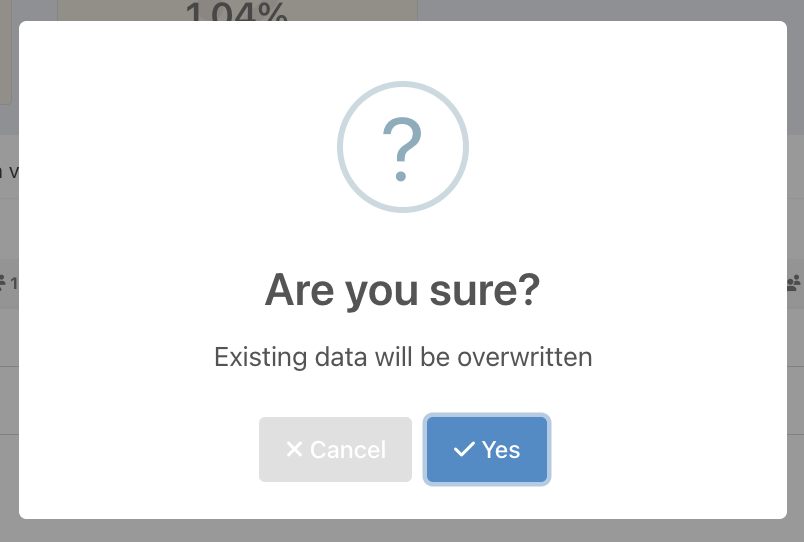
When you generate your forecasts, you will be prompted to confirm that you are happy to overwrite any existing forecasts for the week. Click Yes to proceed.
Basing forecasts on a historic week
If you haven't enabled AI forecasting you will see a Change week button instead of the Generate forecasts button.
Press the Change week button to select a representative historical week on which to base your forecasts on.
Note: By default, the forecasts will be populated with sales from the latest completed week.
Once you have selected an appropriate week as a baseline, you can edit the forecasts manually to adjust for any expected differences.
If you take bookings, you will see the total covers booked in for each day above the field where you input your forecast, so you can use this information to make any adjustments.
Manually entering forecasts
If you would like to enter your own forecasts from scratch, you can type these into the forecast boxes for each day and department, or collectively as a whole under All departments
Again, if you take bookings, you can use the total covers booked in for each day to help with your manual forecasts.
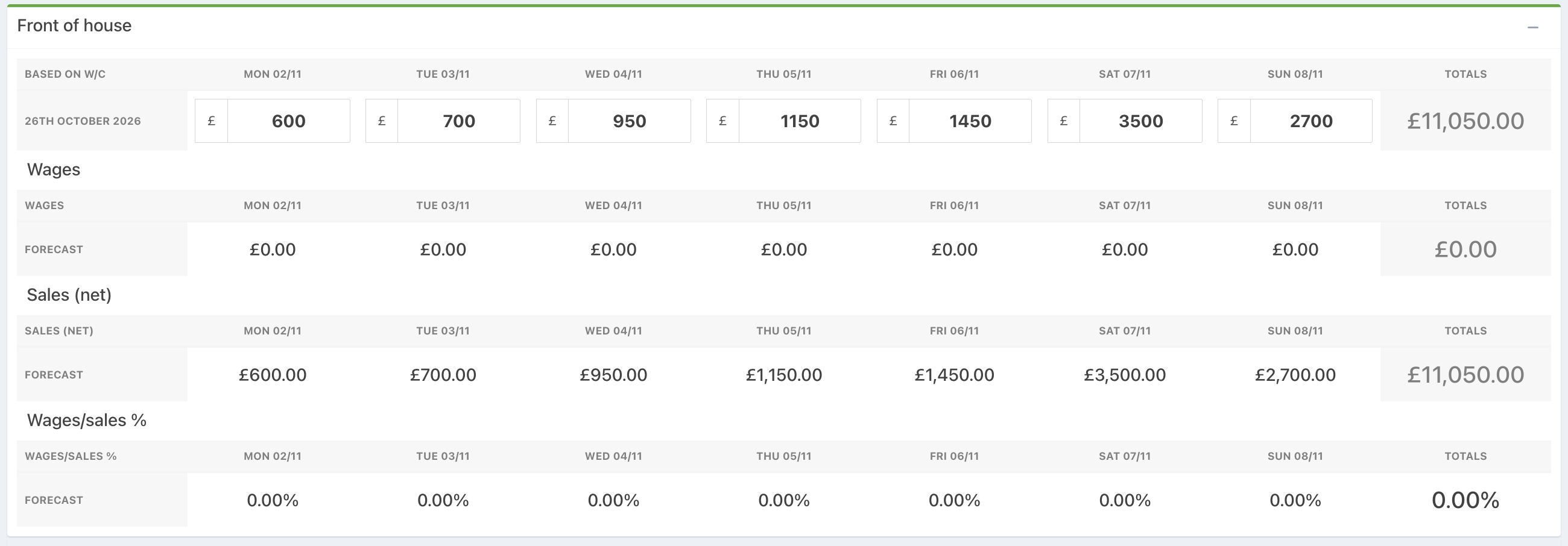
Checking forecast wage percentages
When you have entered your forecasts, press the blue Save Changes button. You can then enter your rota for the week, then come back to your forecasts tab to check your wage percentages before publishing your rota.
If you have already entered your rota, you will see your forecast wage percentages as you enter your forecasts. If you are happy with all of your figures you can publish your rota.
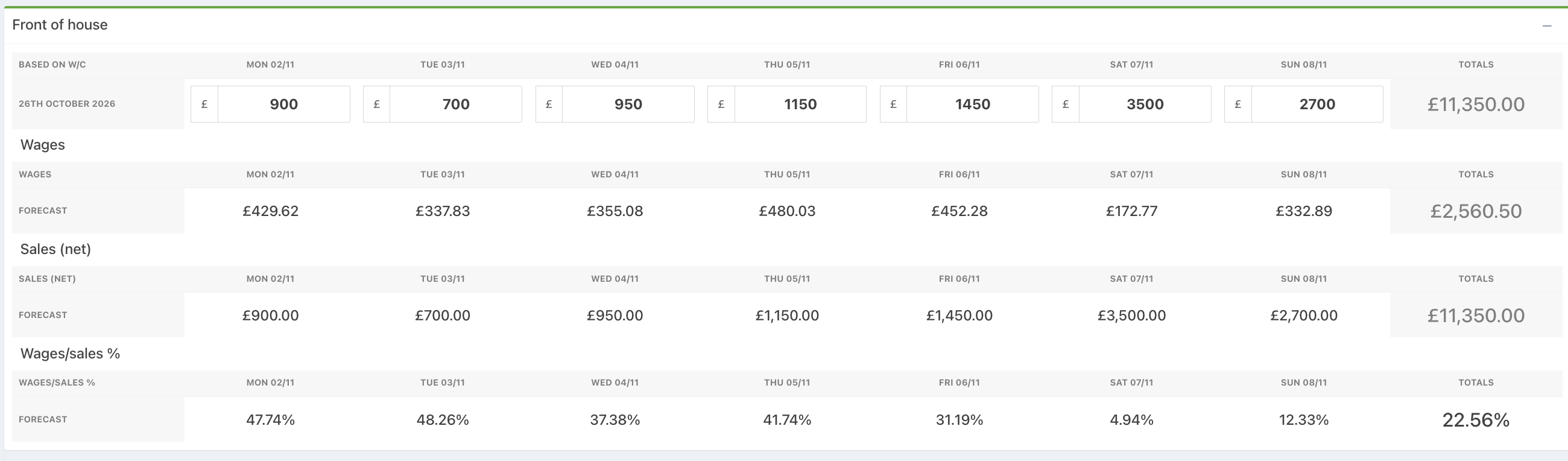
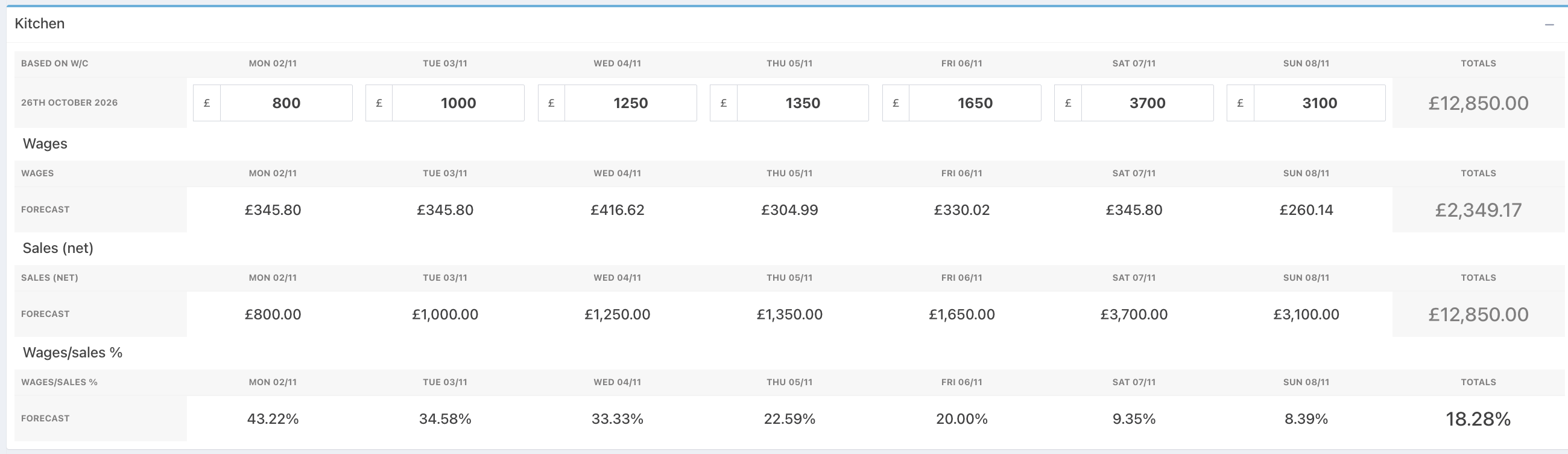
Publishing your rota will permanently save the figures as your forecast for the week.
You can still make changes to your published rota to reflect any changes that occur during the week. This will allow you to view your forecast vs your actual wage percentages.
Was this article helpful?
That’s Great!
Thank you for your feedback
Sorry! We couldn't be helpful
Thank you for your feedback
Feedback sent
We appreciate your effort and will try to fix the article