You can create new members for your club directly from the EPOS and assign them to a subscription plan. Depending on how your subscription is set up, you can then take a payment or send the member a Direct Debit form to set up their payments.
If you are creating a member without a subscription, see Creating members on the EPOS.
If you want to issue QR code passes that are emailed to members and added to their Apple or Google wallets, enable member QR codes before adding your members.
To create a new member, on the Summary screen press the Member button.
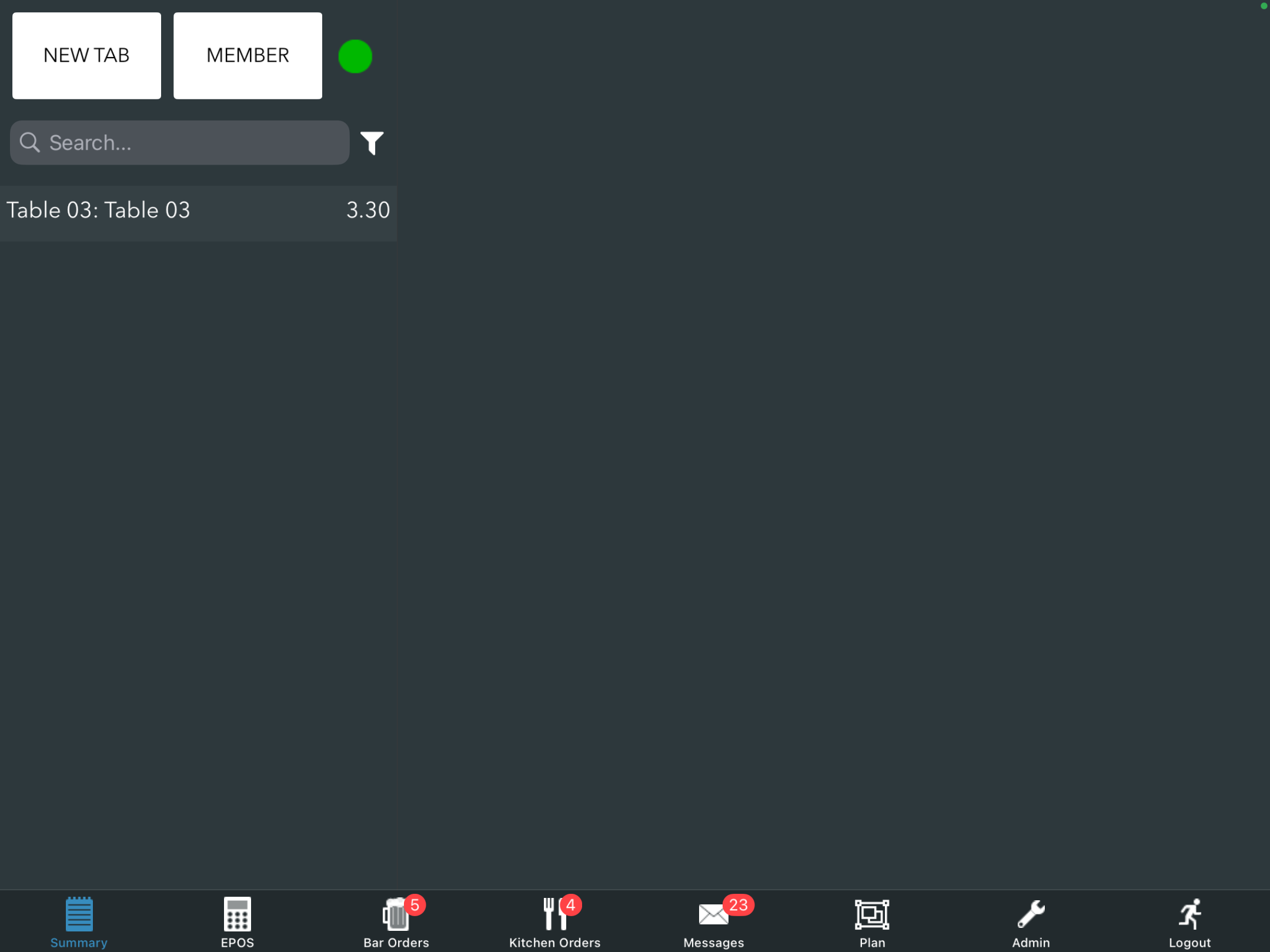
You will see a screen where you can open a tab for an existing member or create a new member.
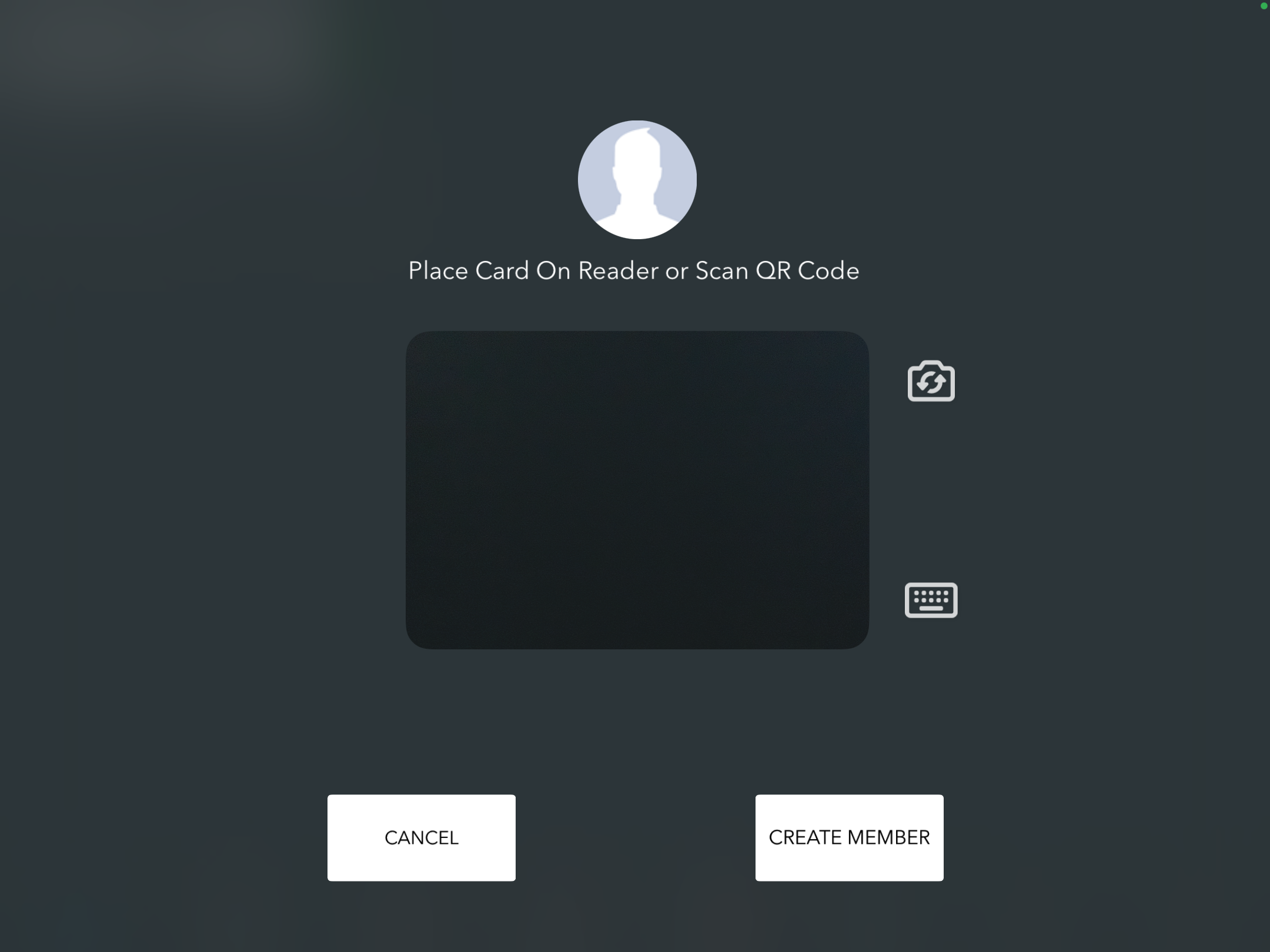
Press Create member.
Note: If you use RFID cards to identify your members, place a new RFID card on the reader to create a new member linked to the card.
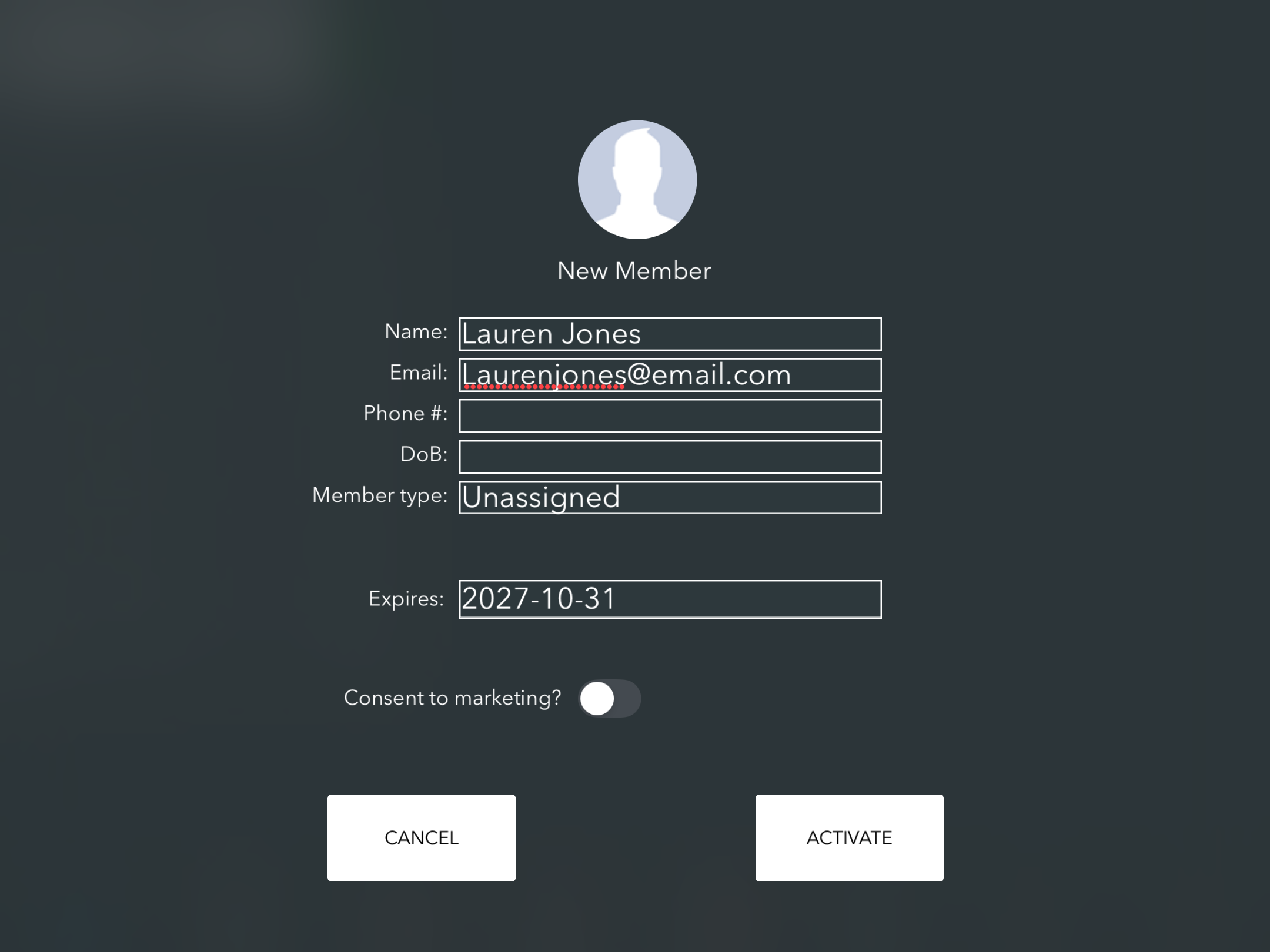
You can then enter any details you would like to store for the member. You need at least a name and, if using QR codes, an email address where the QR code pass will be sent, as well as confirming whether your customer consents to any marketing permissions. By default, this will be off. You can click the toggle to turn this on.
Note: You can configure which fields are displayed and whether they are required or optional in the back office.
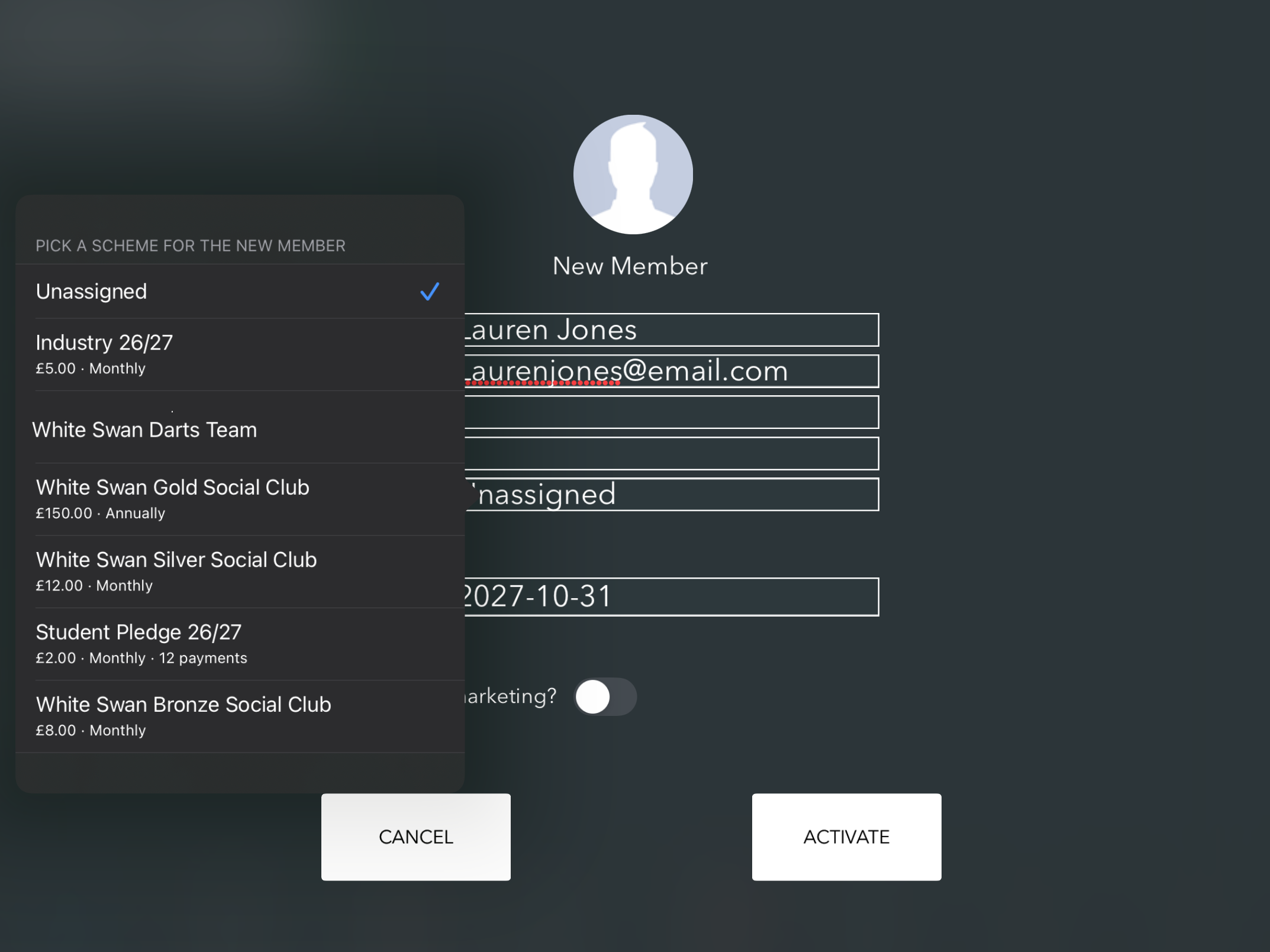
Select the Member type you want to assign the member to.
The subscription amount and billing interval will be displayed below the Member type name, helping you identify the correct subscription.
The membership expiry date will be set automatically based on the subscription settings.
If your system is set up to allow members to have prepay balances, you will see a toggle to select if the member will be a prepay member with a balance. If your system is not set up to allow members to have balances, you won't see this option.
When you have added the details, press Activate.
You will now be prompted to set up their subscription payment. The steps will depend on whether you have connected to Go Cardless to take subscription payments via Direct Debit.
If you don't collect payments via Direct Debit, you will be prompted to take a payment for the first period of the subscription.
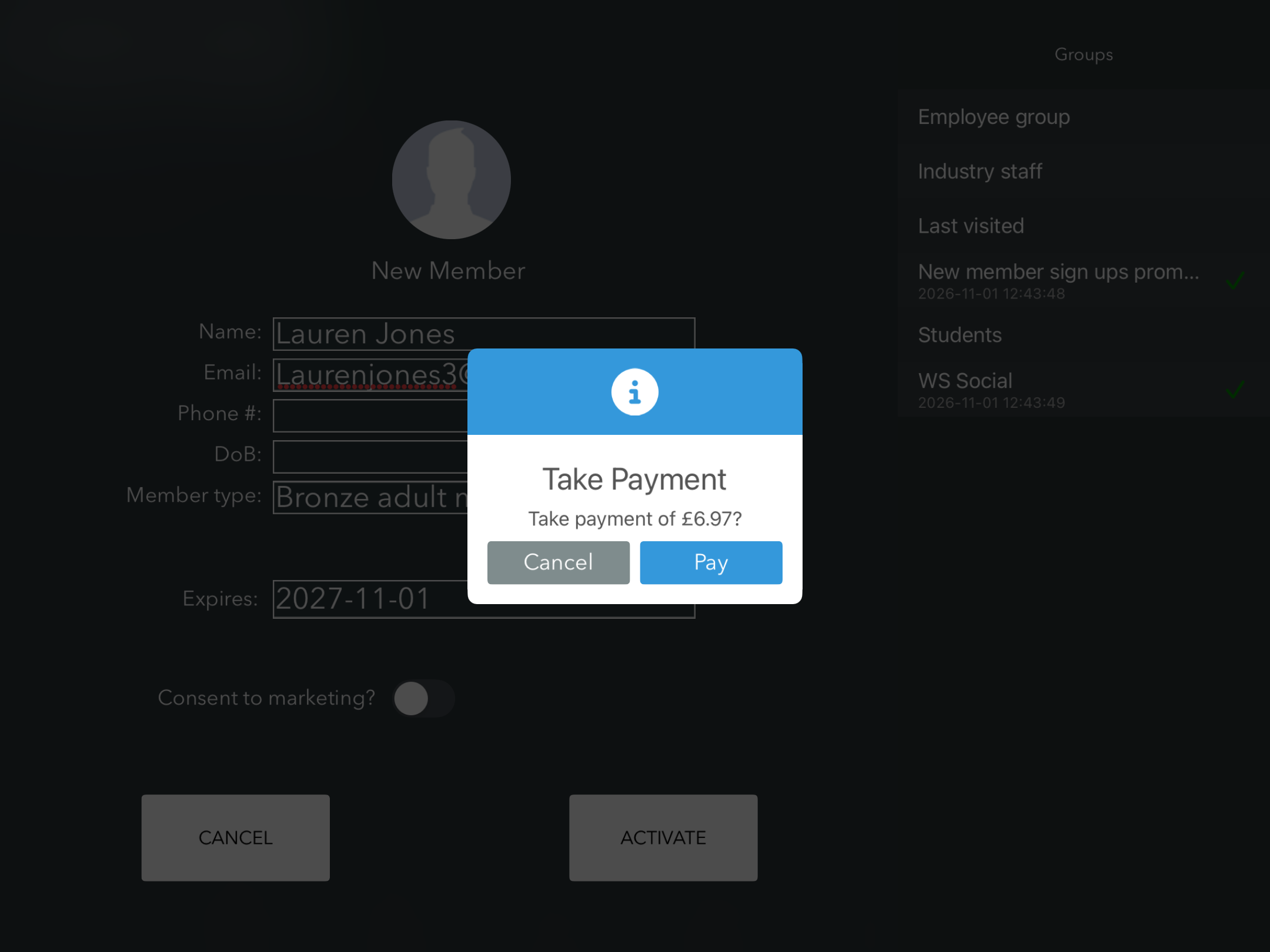
If you don't want to take payment yet, press Cancel to skip the payment and continue to the Member profile, where you can open a new tab for the member if required.
If you do take payments via Direct Debit, a QR code will display for your customer to scan, taking them directly to the Direct Debit form to fill out.
A link to the form will also be emailed to the member, and if you are connected to Twilio, you can choose to send it via SMS.
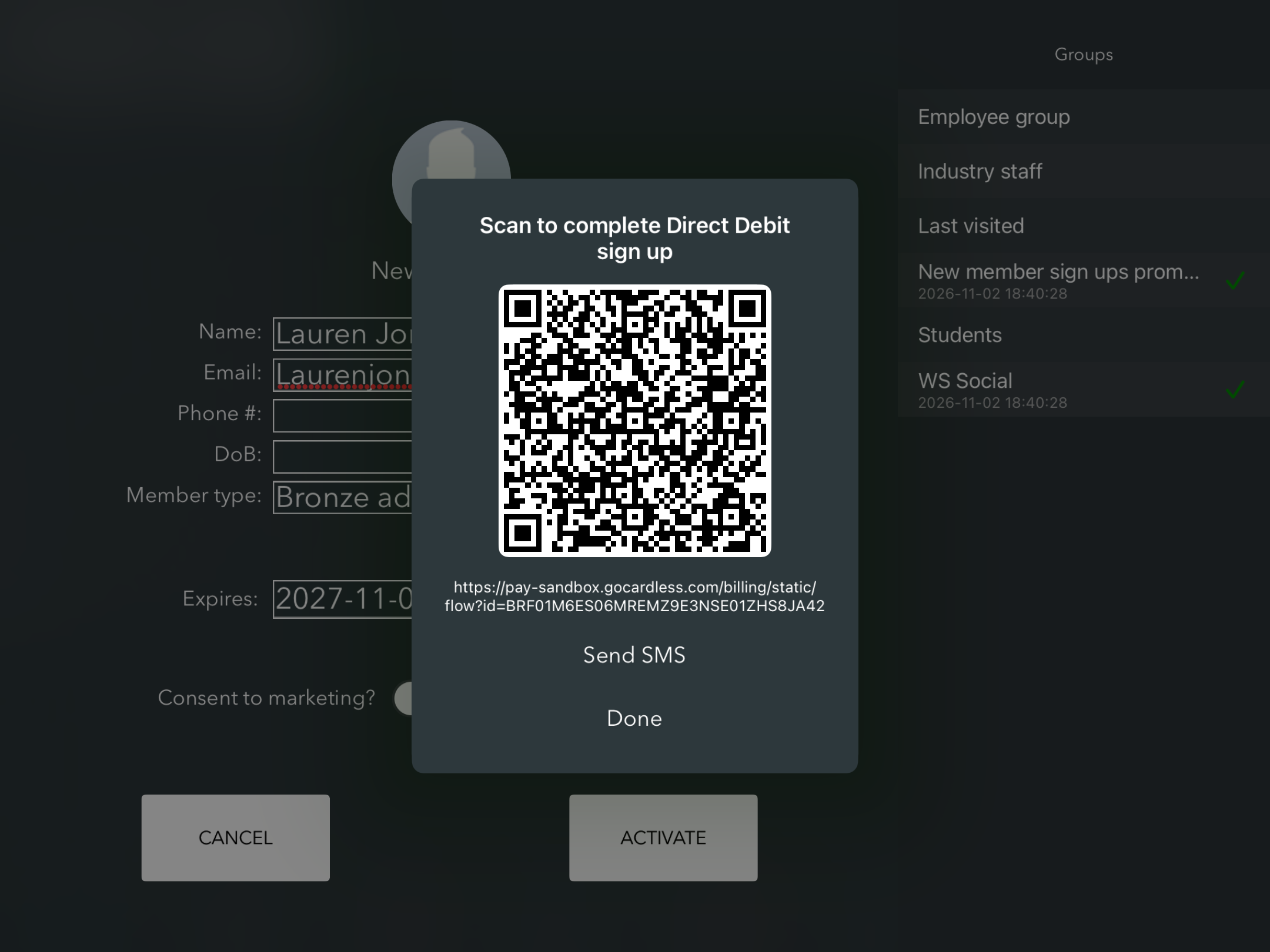
Once the member completes the Direct Debit form, their first payment will appear as pending in the system, which means you can open tabs or record transactions against them.
Managing the member's subscription
You can view and manage member subscriptions and payments in the Subscription Centre on the back office.
- Viewing member subscriptions – View individual members' subscriptions.
- Viewing member payments – View payments associated with member subscriptions.
For subscriptions using Direct Debit, payments will be collected automatically according to the subscription's billing schedule once the member has completed their Direct Debit mandate.
For subscriptions without Direct Debit, you can take payments via the EPOS, or take payments outside of the system and record them against the member in the back office.
Was this article helpful?
That’s Great!
Thank you for your feedback
Sorry! We couldn't be helpful
Thank you for your feedback
Feedback sent
We appreciate your effort and will try to fix the article