The allergen matrix allows you to view and manage allergen and dietary information across your products in one place, helping you keep this information up to date and support customers in making informed choices when ordering.
You can use the matrix to specify which products contain allergens, may contain them, or are free from them. You can also mark products as suitable for dietary requirements, such as vegan or vegetarian.
Note: Allergen and dietary information can be managed either through the allergen matrix or directly on a product through the Advanced tab. Changes made in either place will be reflected in both.
If required, you can also manage your allergen and dietary labels.
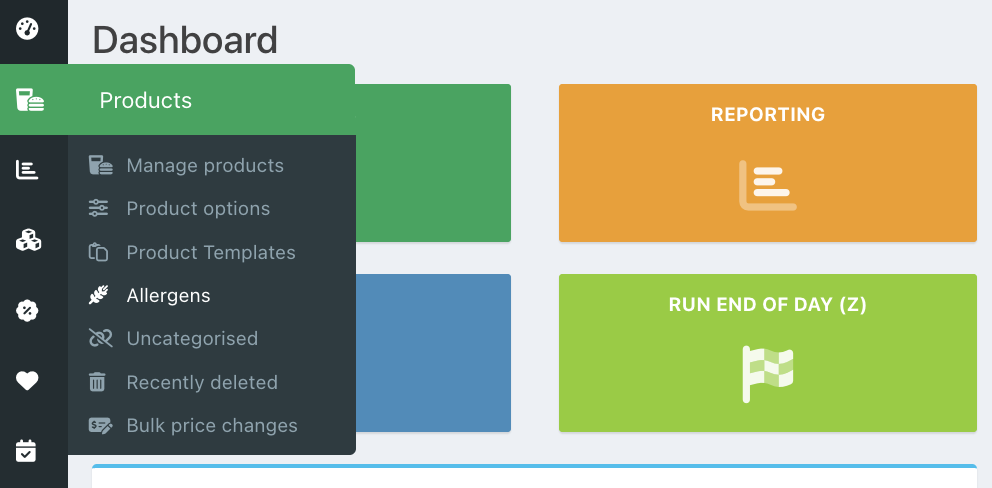
To add allergen and dietary information to your products, go into the back office and select Manage products > Allergens.
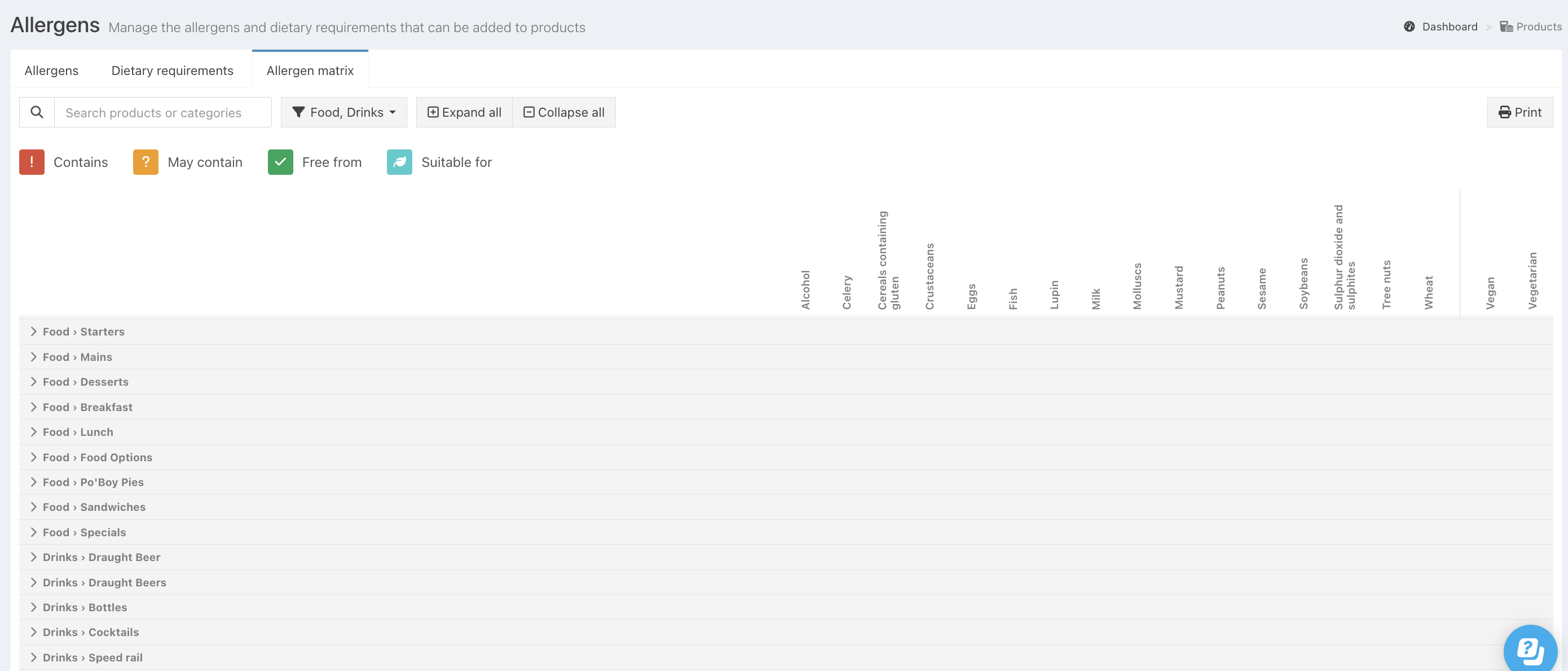
Click the Allergen matrix tab.

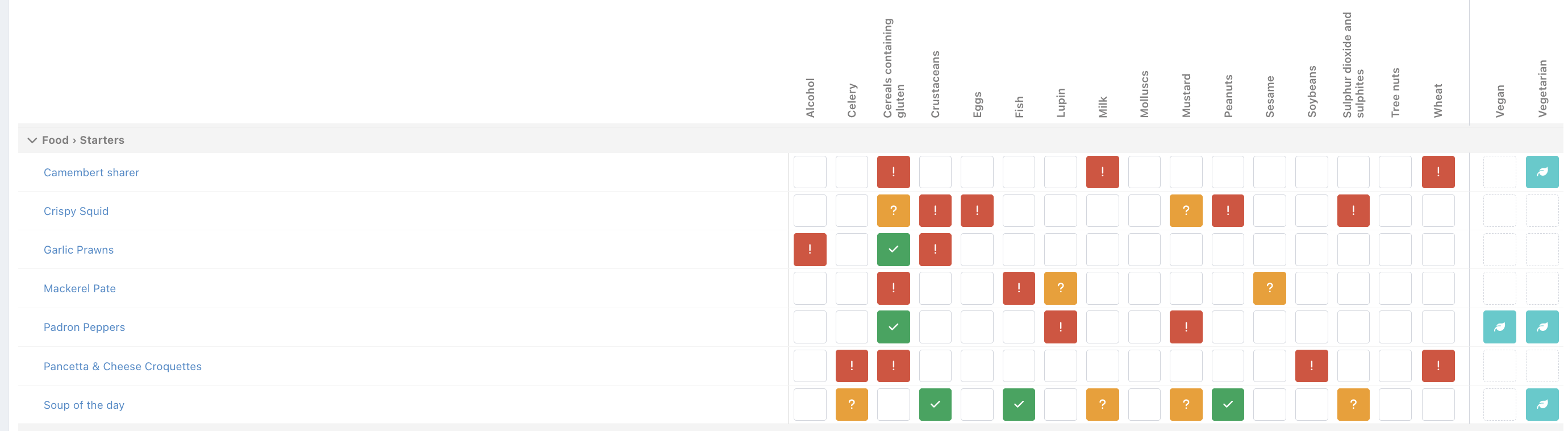
Your products will be grouped by Root category > Sub-category down the left-hand side, with the allergens and dietary requirements across the top.
The colour indicators show the allergen or dietary information recorded against each product:
Red – Contains the allergen
Amber – May contain the allergen
Green – Marked as free from the allergen
Blue – Marked as suitable for a dietary requirement, such as vegan or vegetarian
You can filter the matrix to show products from specific categories, or search for individual products.
To filter by category, click the Category dropdown at the top of the screen and select the categories you want to view. Click the Expand all button, to display the products within the selected categories.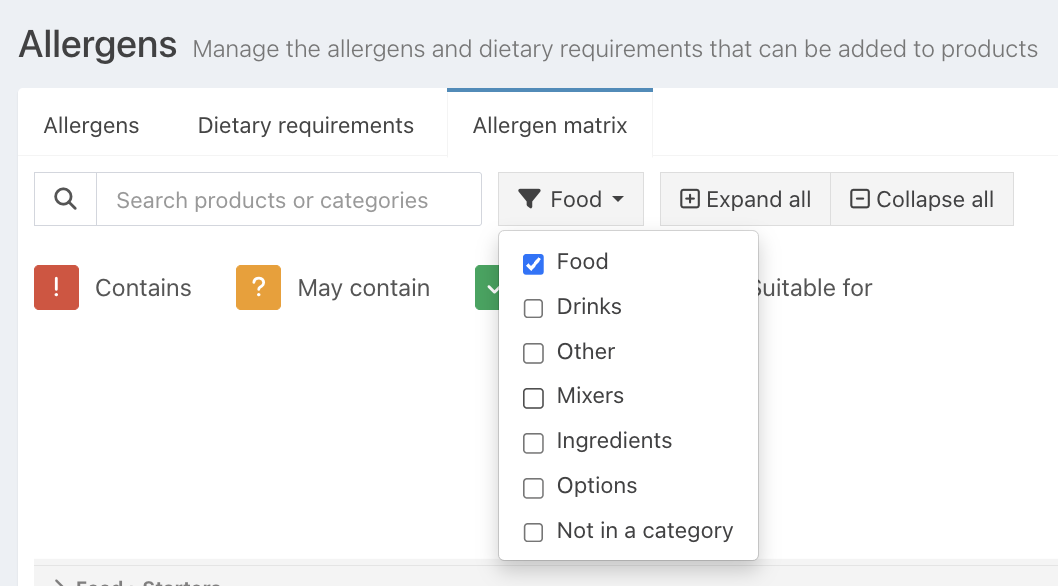
Alternatively, use the Search box to find a product or category. The results will update as you type.
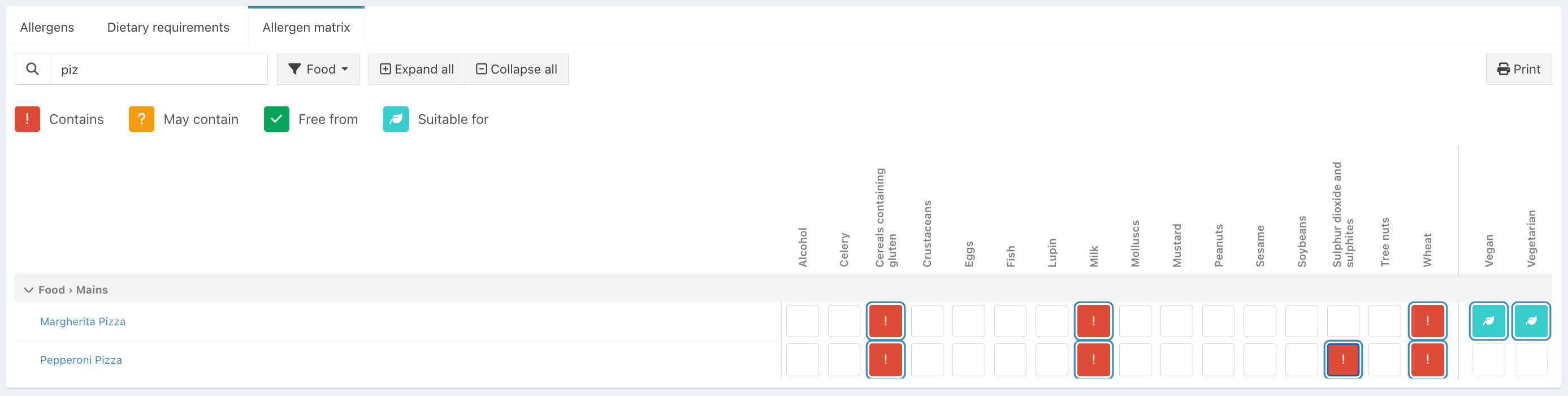
To add an allergen to a product, locate it in the matrix and click the cell corresponding to the allergen or dietary requirement you want to change.
Each click cycles through the available statuses, allowing you to mark whether a product contains an allergen, may contain it, or is free from it.
For dietary requirements, you can mark whether the product is suitable.
Your changes are saved automatically and will also be reflected in the allergen and dietary information on the product itself.
Click the Product name to open its product details and view or edit the information there.
Reviewing changes
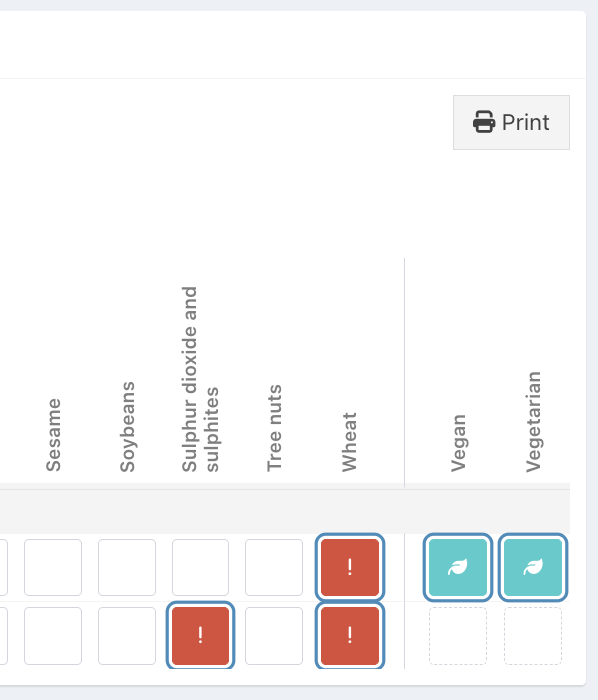
Any changes you make are highlighted in the Review box, allowing you to review them and undo any made in error.
If you need to undo a change, click the blue Undo button next to the specific change, or to undo all changes listed, click Undo these at the top of the Review box.

Printing
To print a copy of your Allergen Matrix, for reference in your venue, click the grey Print button in the top right of the screen.
Was this article helpful?
That’s Great!
Thank you for your feedback
Sorry! We couldn't be helpful
Thank you for your feedback
Feedback sent
We appreciate your effort and will try to fix the article