If your EPOS is integrated with Teya payment terminals, you can configure your terminals to enable you to pay a customer's bill at the table using only the Teya terminal. This avoids taking an EPOS iPad to the table to take payment.
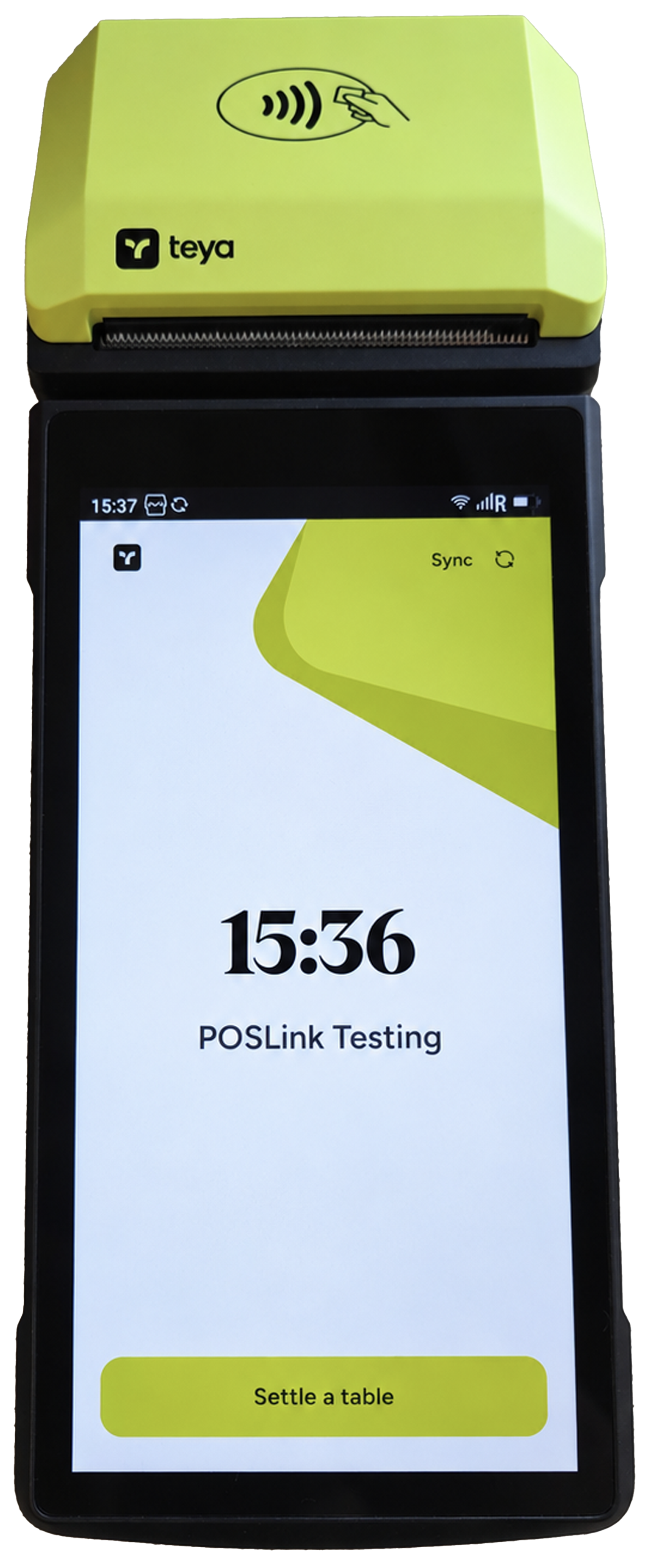
To pay a bill on the Teya terminal, click the green Settle a tab button.
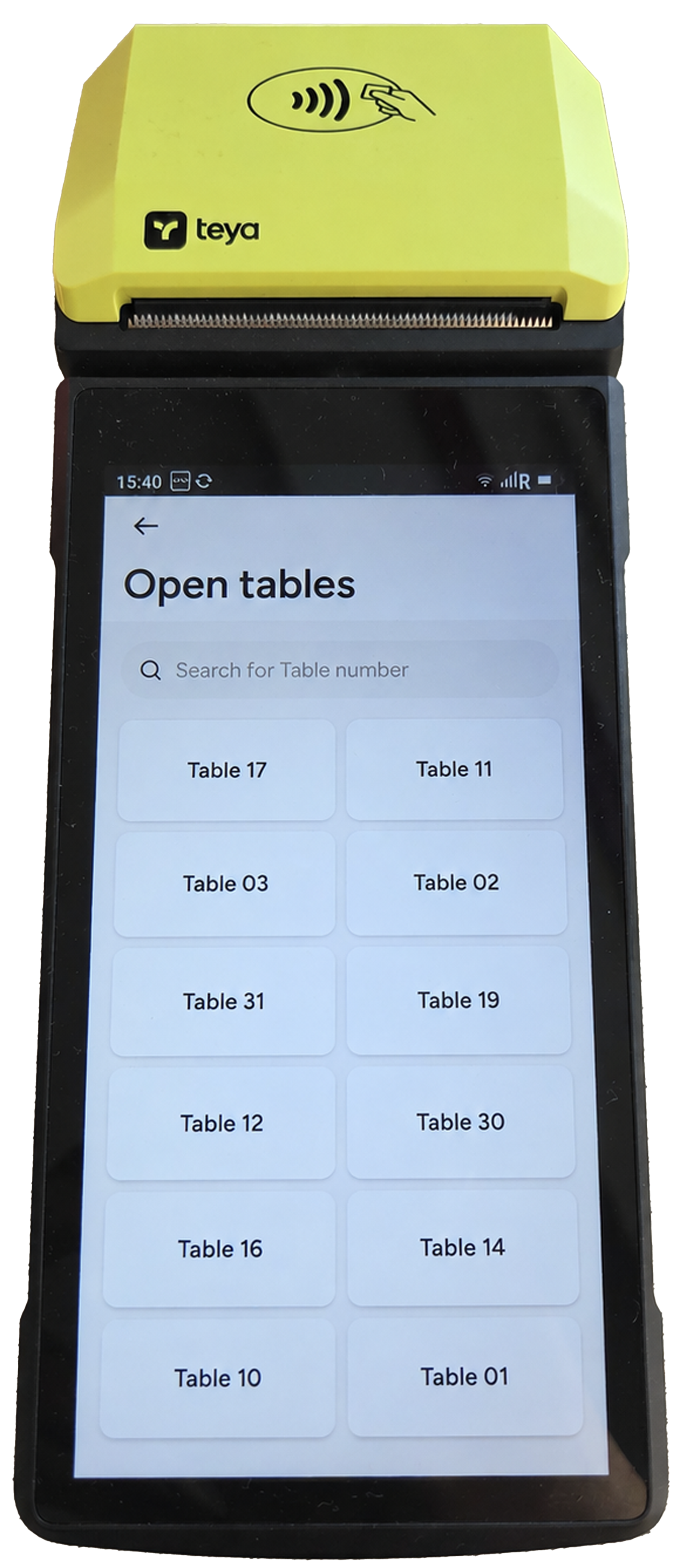
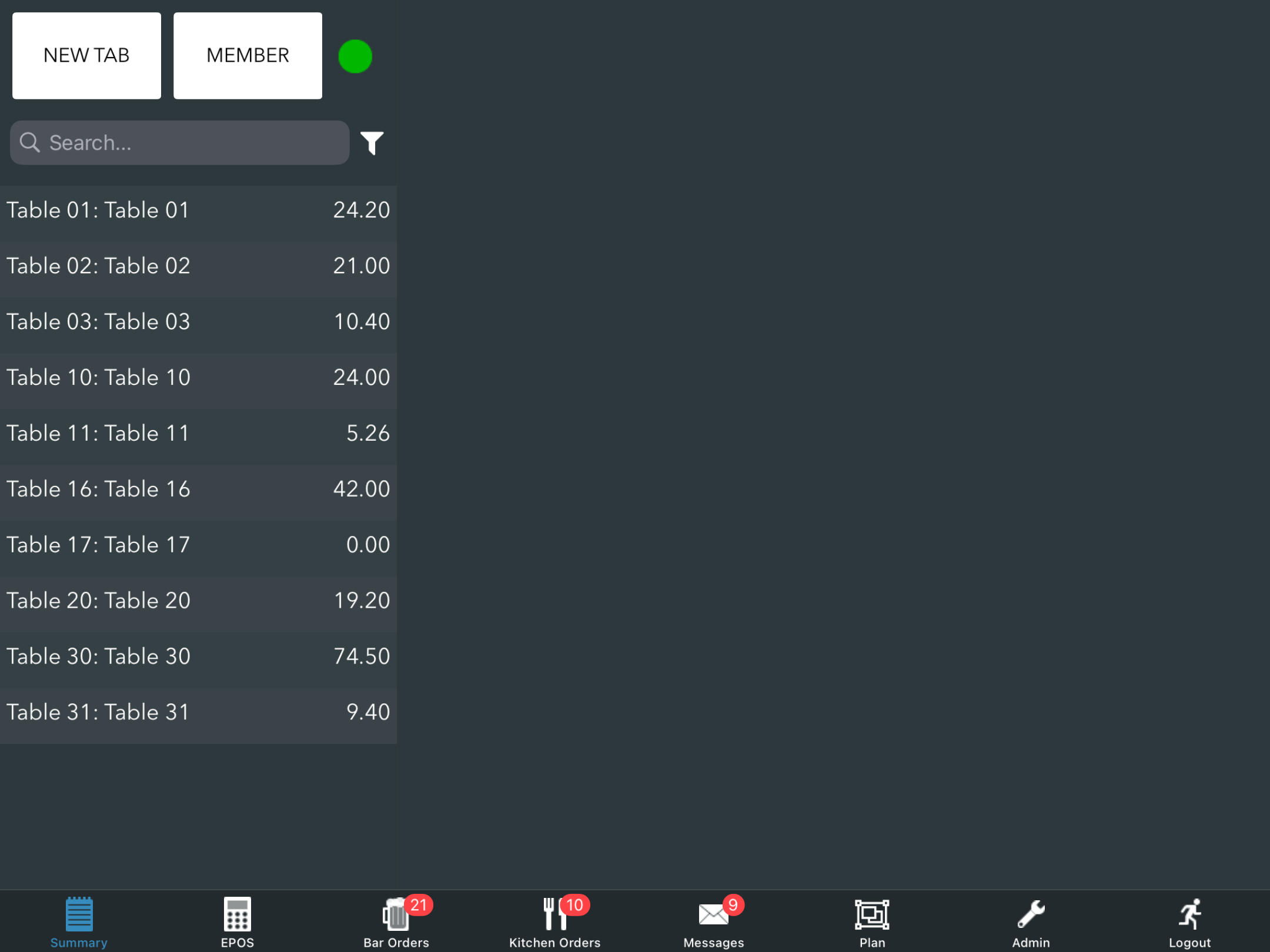
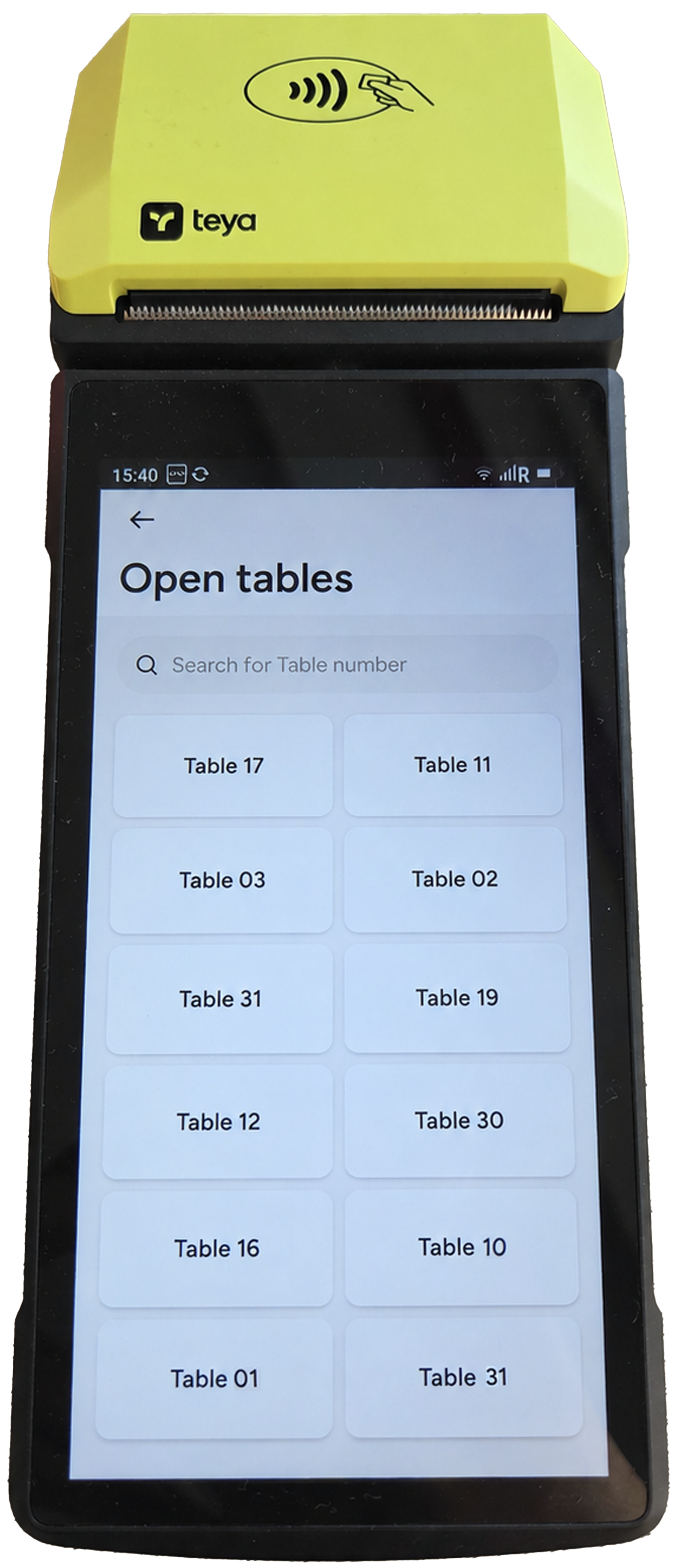
A list of tabs and their table numbers will display on the Open tables screen.
Note: If you enable Teya Pay at Table at any point throughout the day, Teya will only return tabs that have been created after Teya Pay at Table was enabled. If you are an existing customer, enable Teya Pay at Table at the start of the working day.
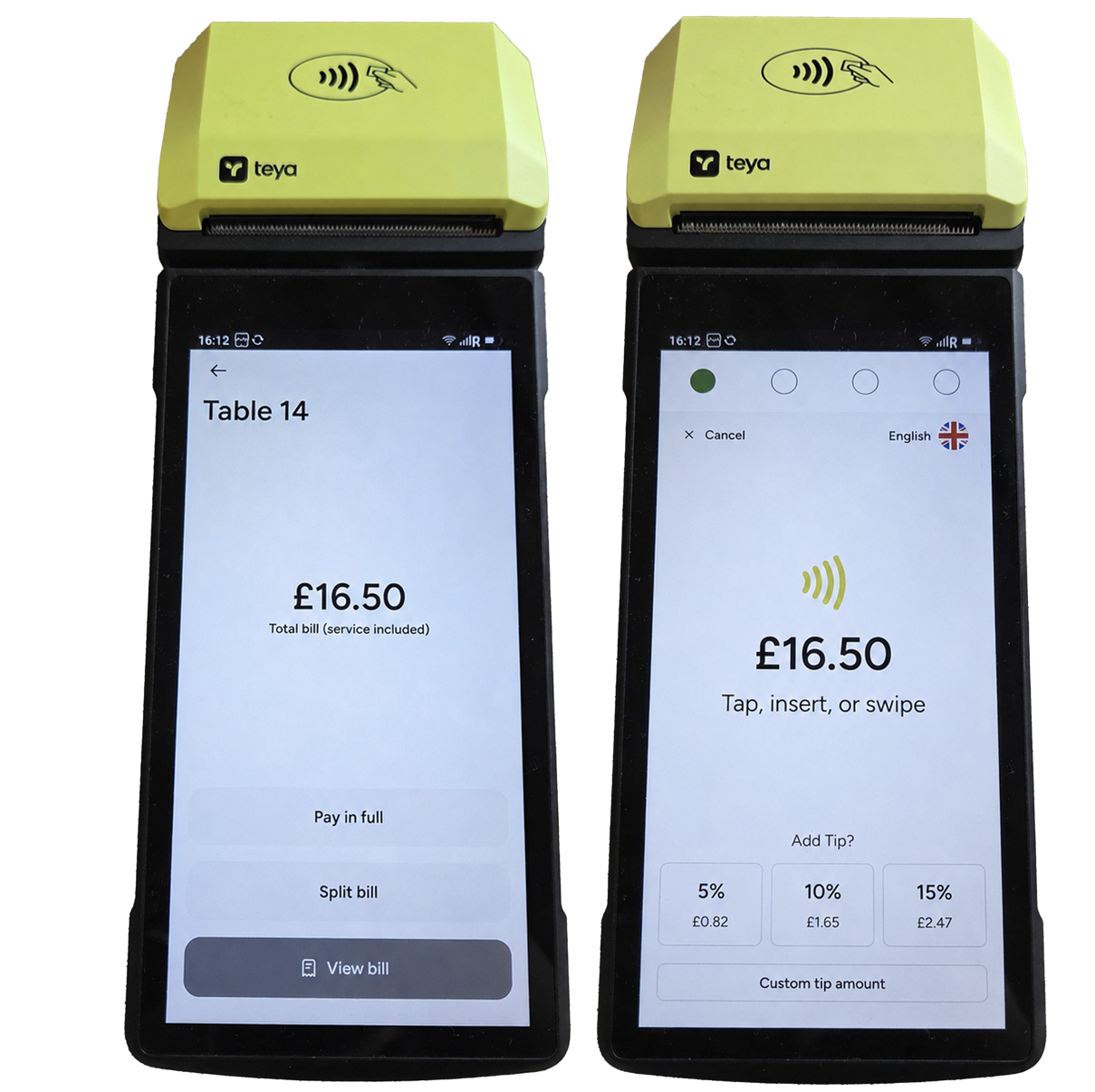
Select a tab from the list, then select the required payment method, followed by a tipping option if configured.
Tap the card or device at the top of the Teya terminal for contactless payments, or insert the card in the bottom of the terminal to use chip and pin.
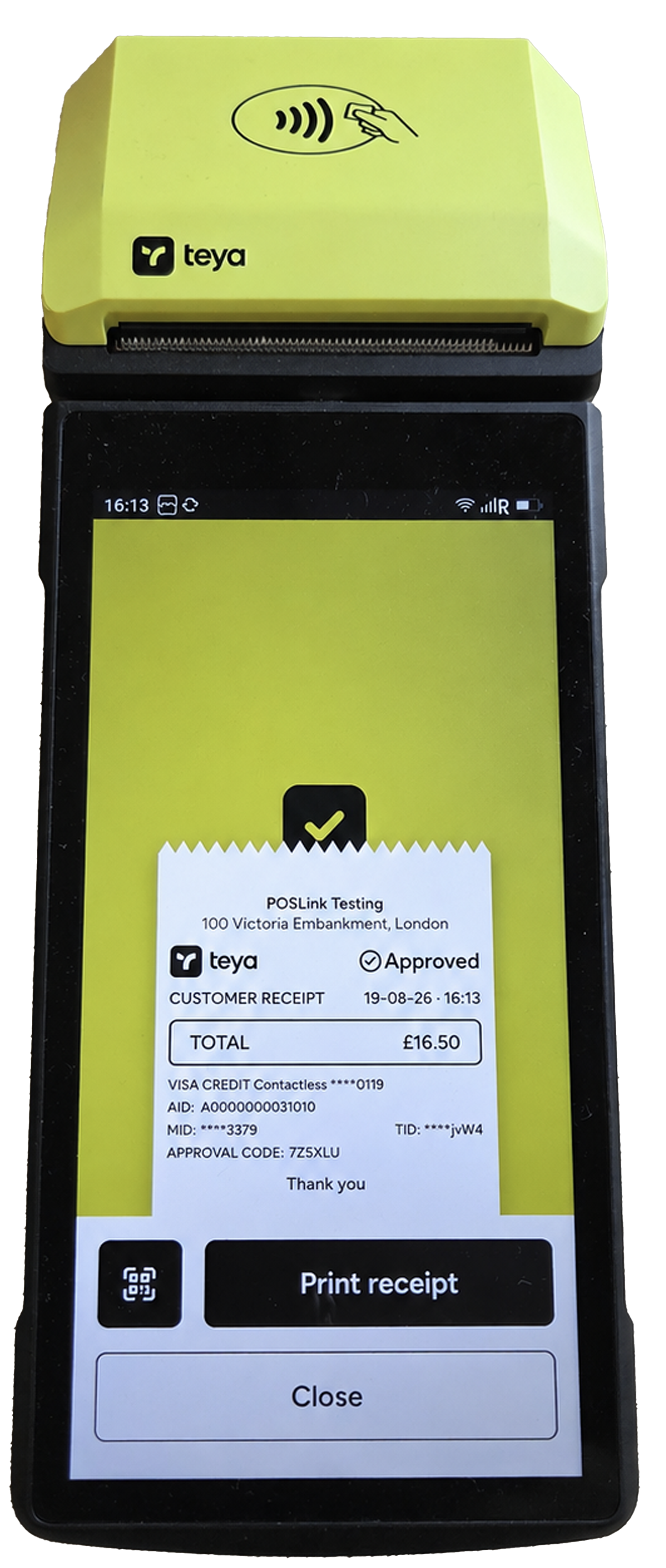
Once the payment completes the Approved status will display on the Teya terminal.
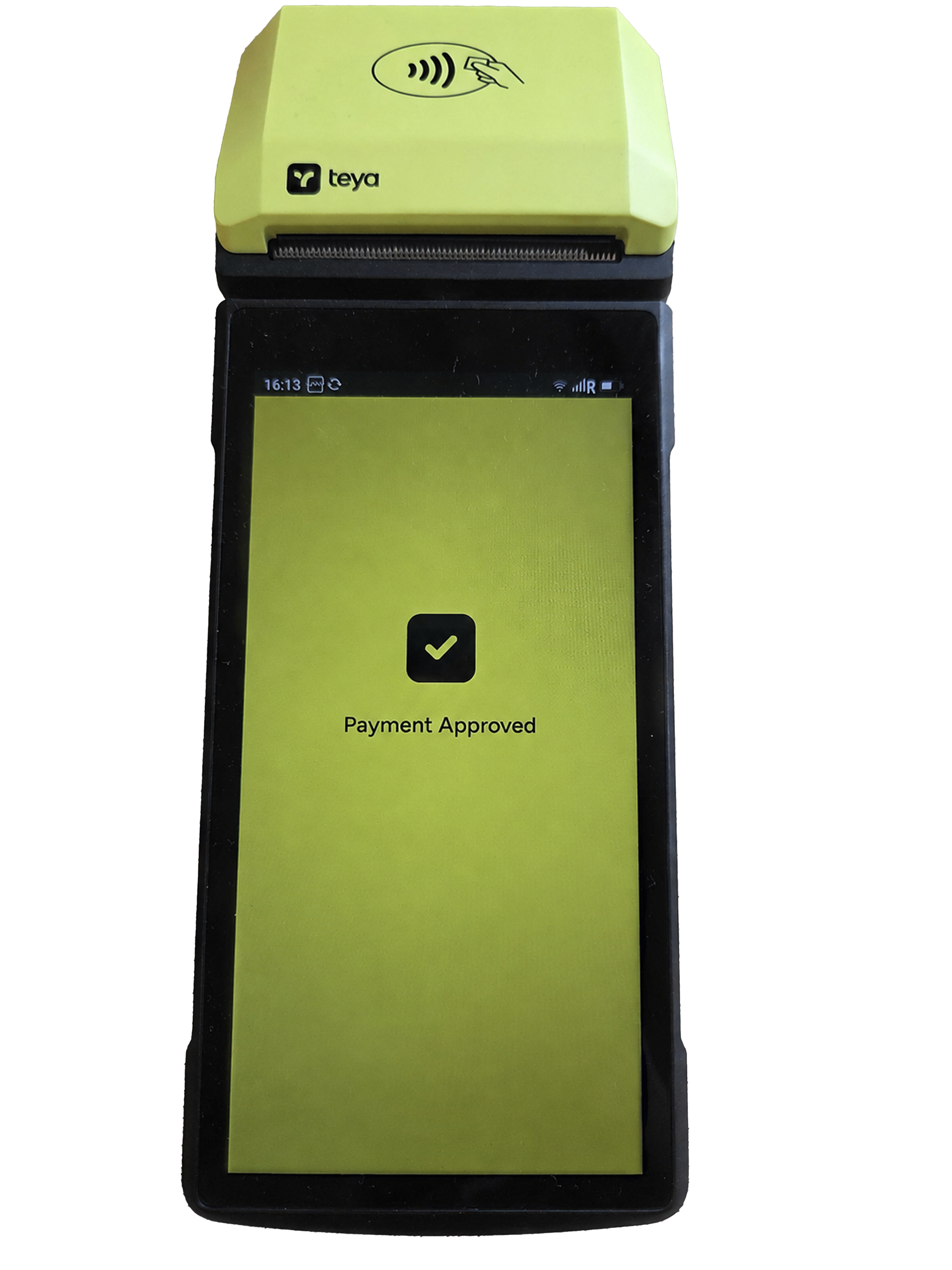
The payment will be applied against the customer's bill, and the tab will be settled. The tab will no longer display on the terminal or on the EPOS.
If the customer requires a receipt, press the black Print receipt button.
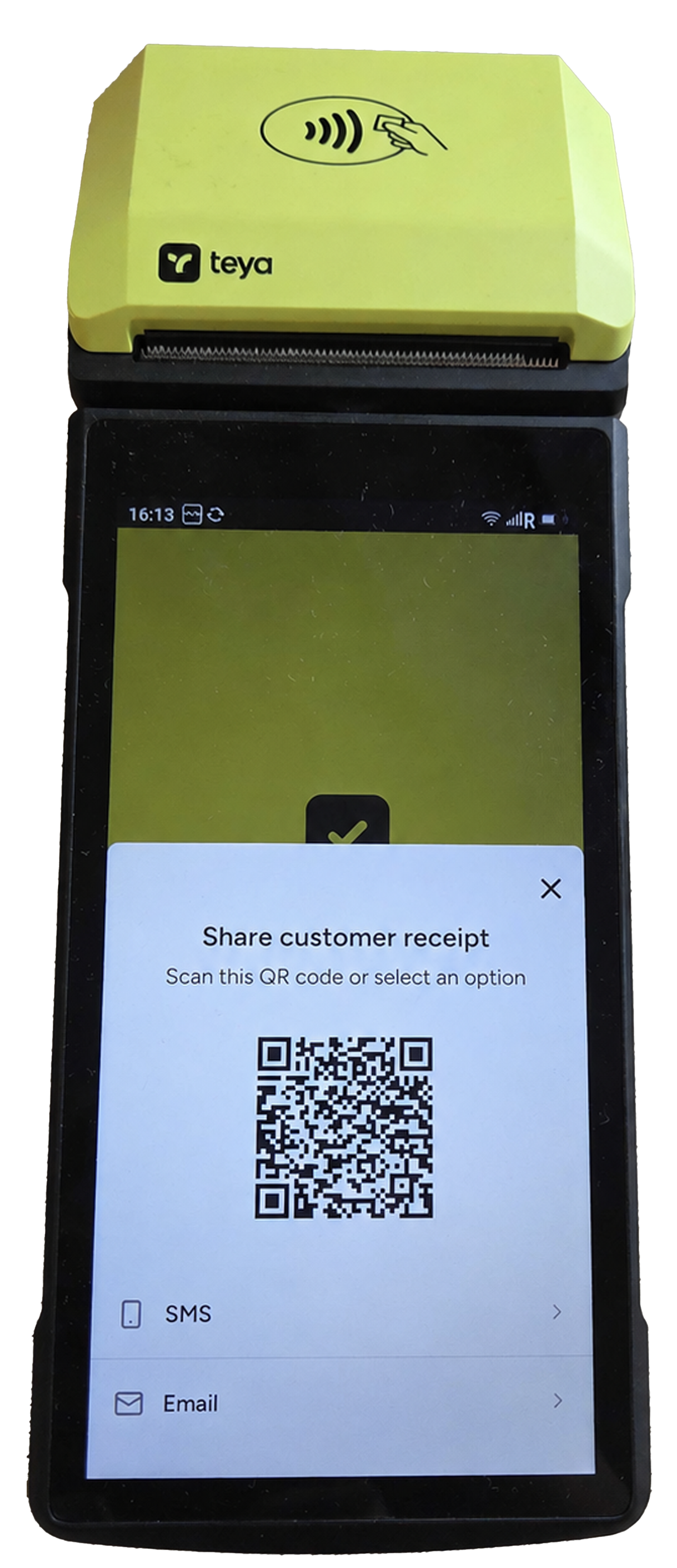
Alternatively, click the QR code button. A QR code will display that the customer can scan on their own device.
This will display the Customer receipt on their phone, and they can download this if needed.
Customer receipts can also be sent via SMS or Email. Click the corresponding button and follow the on-screen instructions to complete this process.
If the payment is approved, press Close on your Teya terminal. You will then return to the Open tables screen.
Declined payments
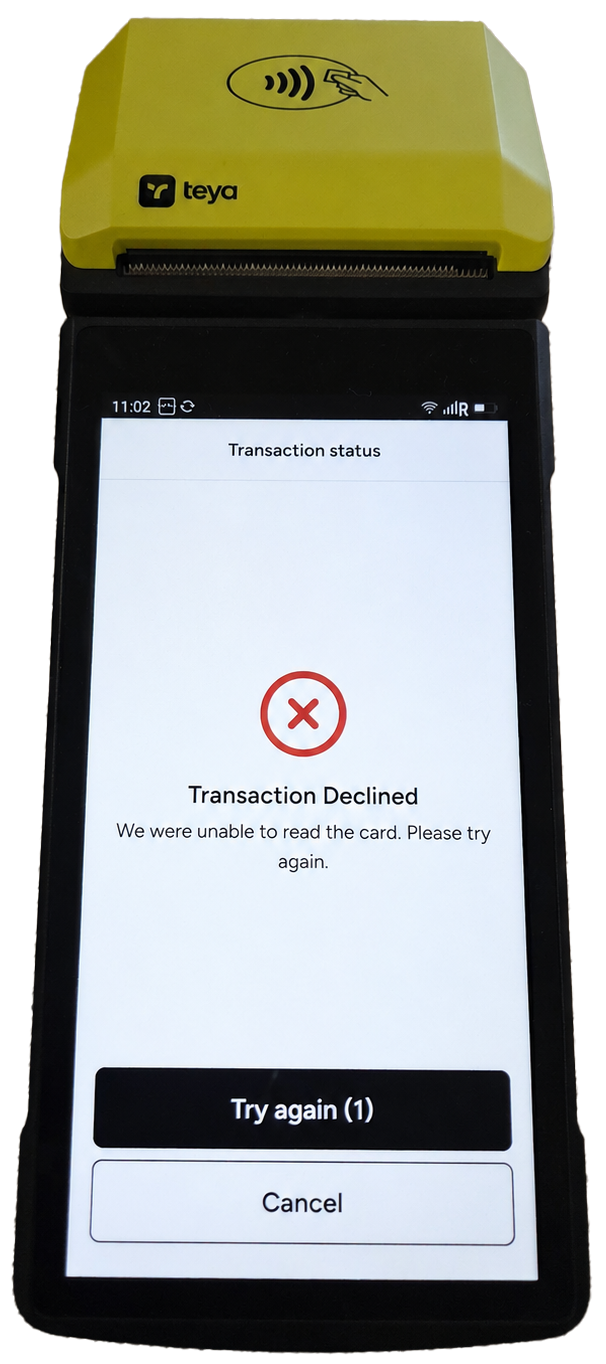
If the payment is declined, the Teya terminal will display a Transaction declined message. You can then click the black Try again button, to re-try the transaction, or Cancel the transaction if another method of payment is going to be used.
Was this article helpful?
That’s Great!
Thank you for your feedback
Sorry! We couldn't be helpful
Thank you for your feedback
Feedback sent
We appreciate your effort and will try to fix the article