Training mode lets you use the EPOS exactly as you would during a real shift, without affecting your live data. This can be beneficial when you are training new members of your team. You can use training mode on one device while using your other devices to serve customers.
When using Training mode, you can:
- Open and manage tabs
- Use the bar and order screens
- Record payments
- Access the table plan
- Access the admin screen
Note: Access to loyalty/members, pre-orders, card integrations and bookings is disabled during Training mode.
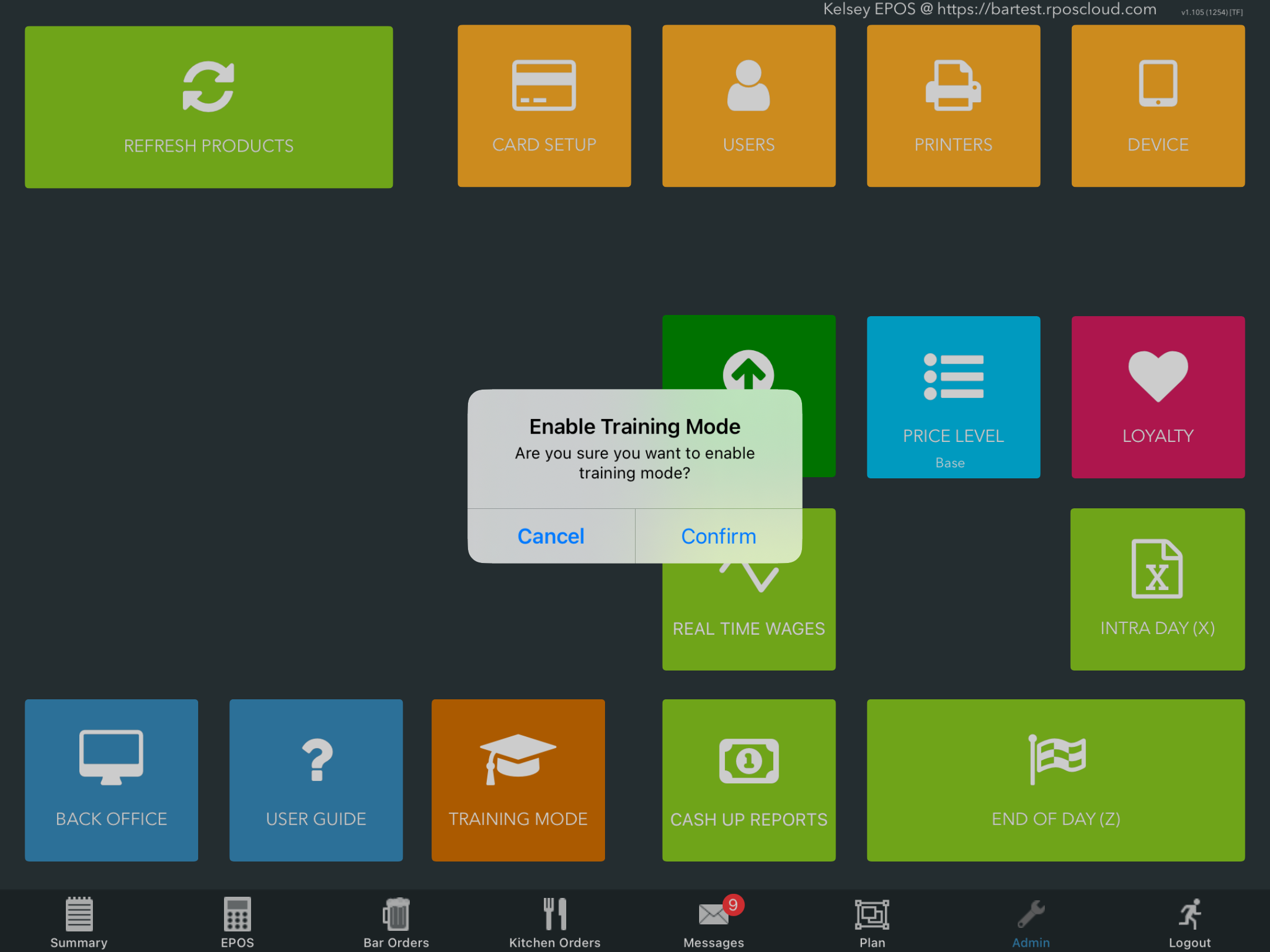
To use Training mode, log in to your EPOS and go to the Admin screen. Then select the orange Training mode button from the bottom row and click Confirm when prompted.
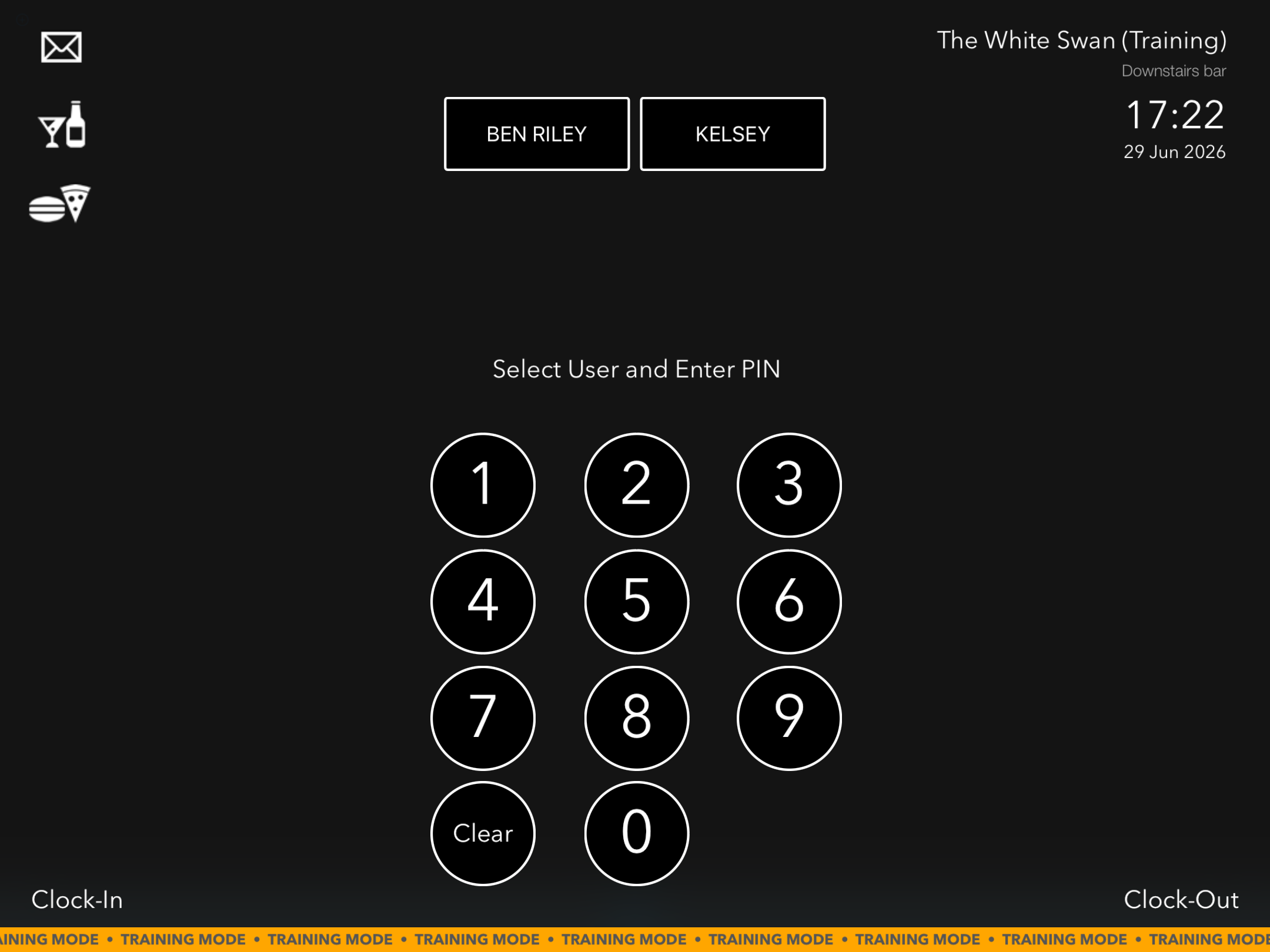
When Training mode is enabled, a yellow banner will appear at the bottom of the EPOS screen to indicate you are in Training mode.
You will also see (Training) displayed in brackets next to your venue name.
You can now start to use your EPOS in Training mode.
Exiting Training mode
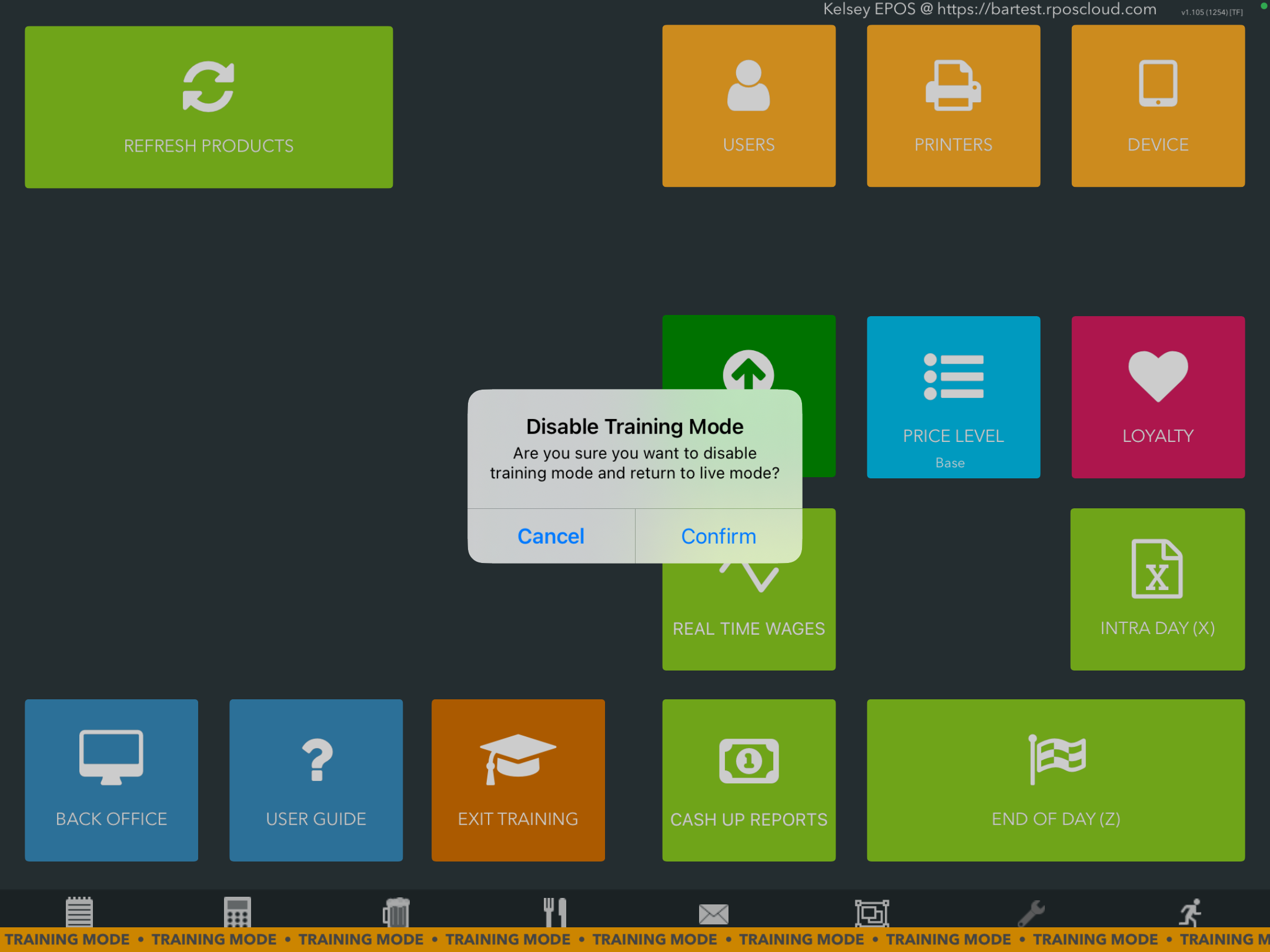
To exit Training mode, go back to the Admin screen and locate the orange Exit Training button.
At the prompt, click Confirm.
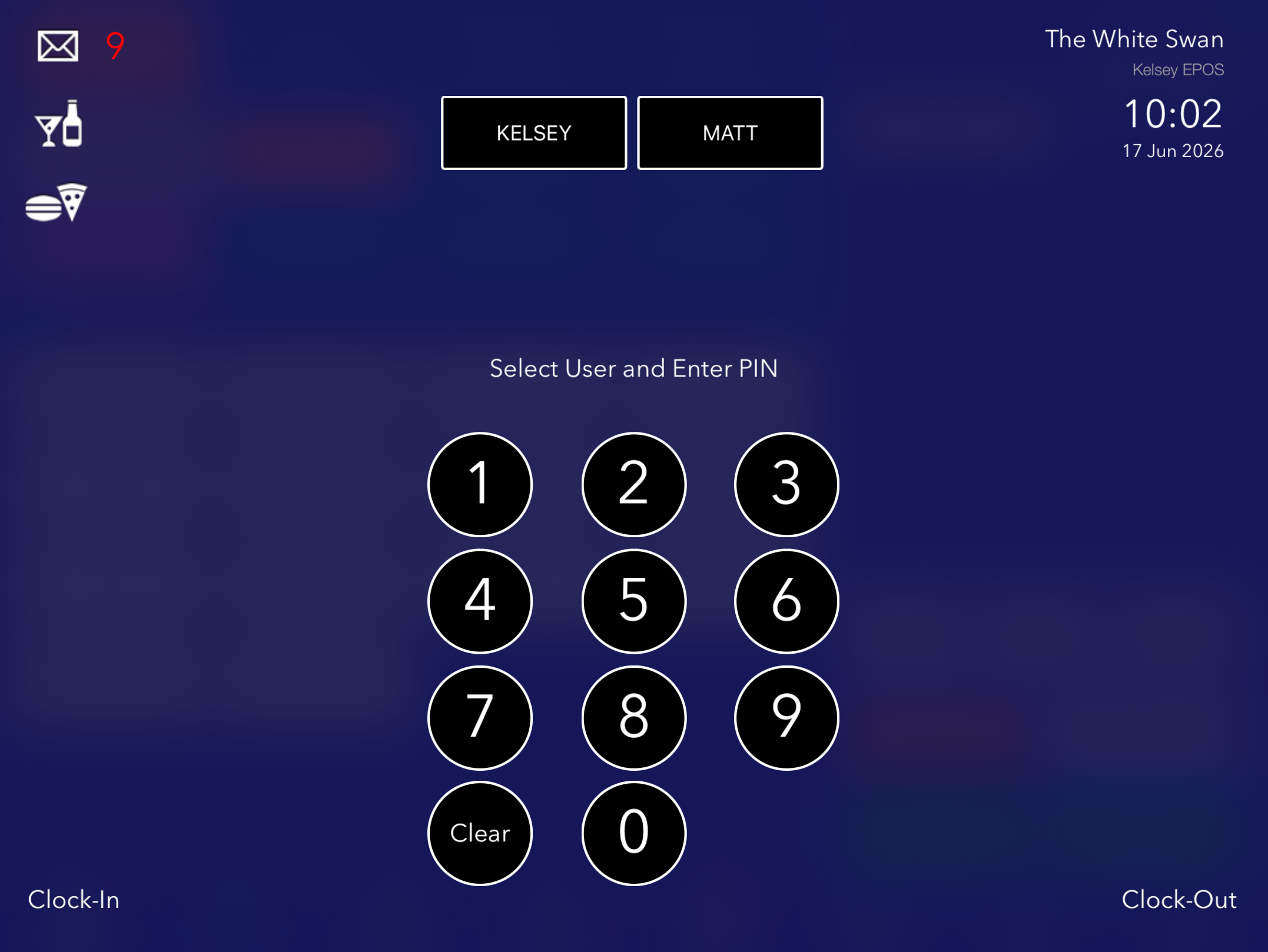
Training mode will be disabled, and your EPOS will return to the login screen. The training mode banner will no longer display to indicate that you are no longer in Live mode.
Was this article helpful?
That’s Great!
Thank you for your feedback
Sorry! We couldn't be helpful
Thank you for your feedback
Feedback sent
We appreciate your effort and will try to fix the article