If you use Square as your payment processor, by default Tap to Pay on the Mini EPOS device will be enabled, allowing you to take contactless payments.
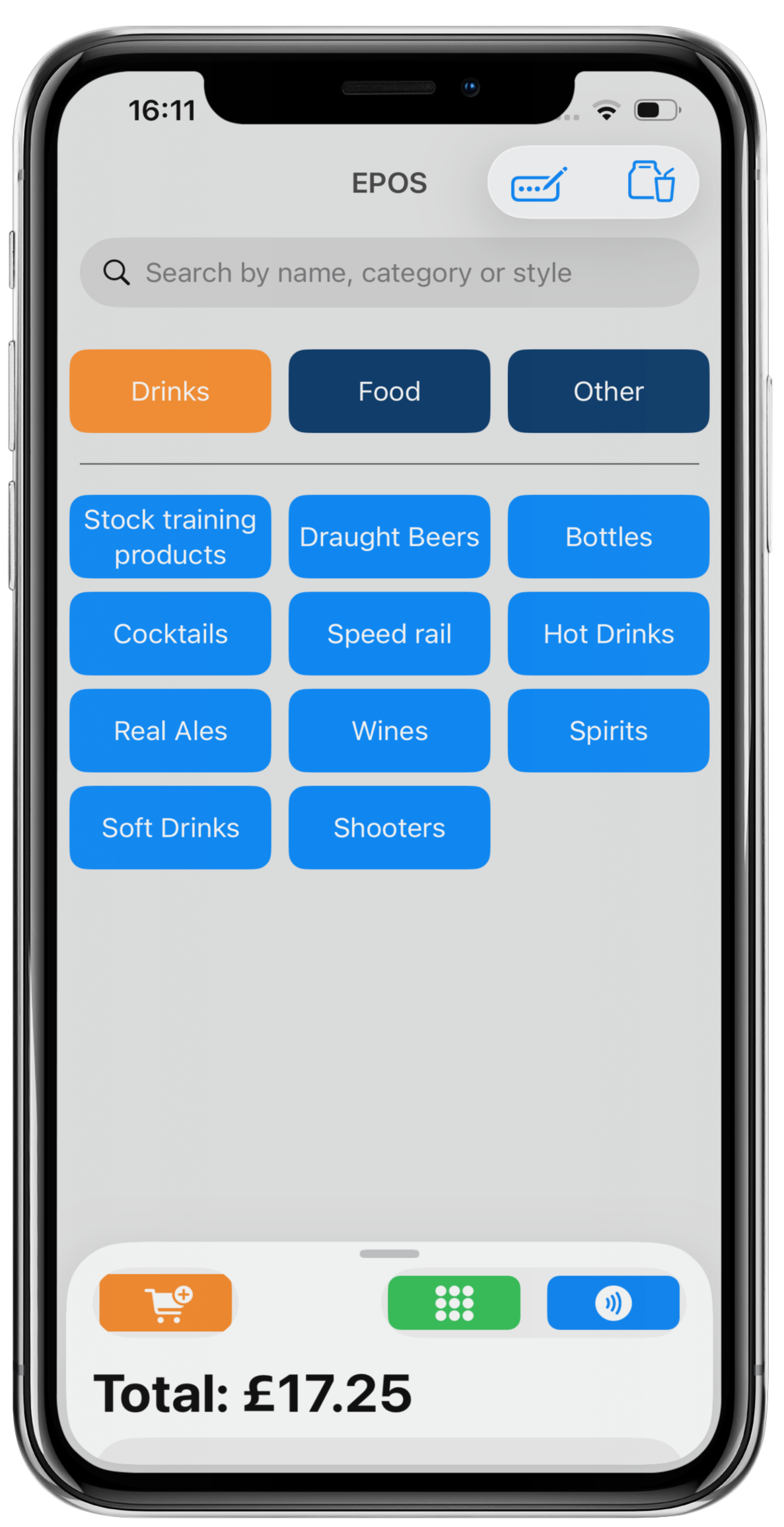
To take a Tap to Pay payment, add products to your order or tab as usual & click the blue Tap to Pay button from the bottom of the screen.
The Square payment screen will display, confirm the amount and click the black Tap to Pay on iPhone button.
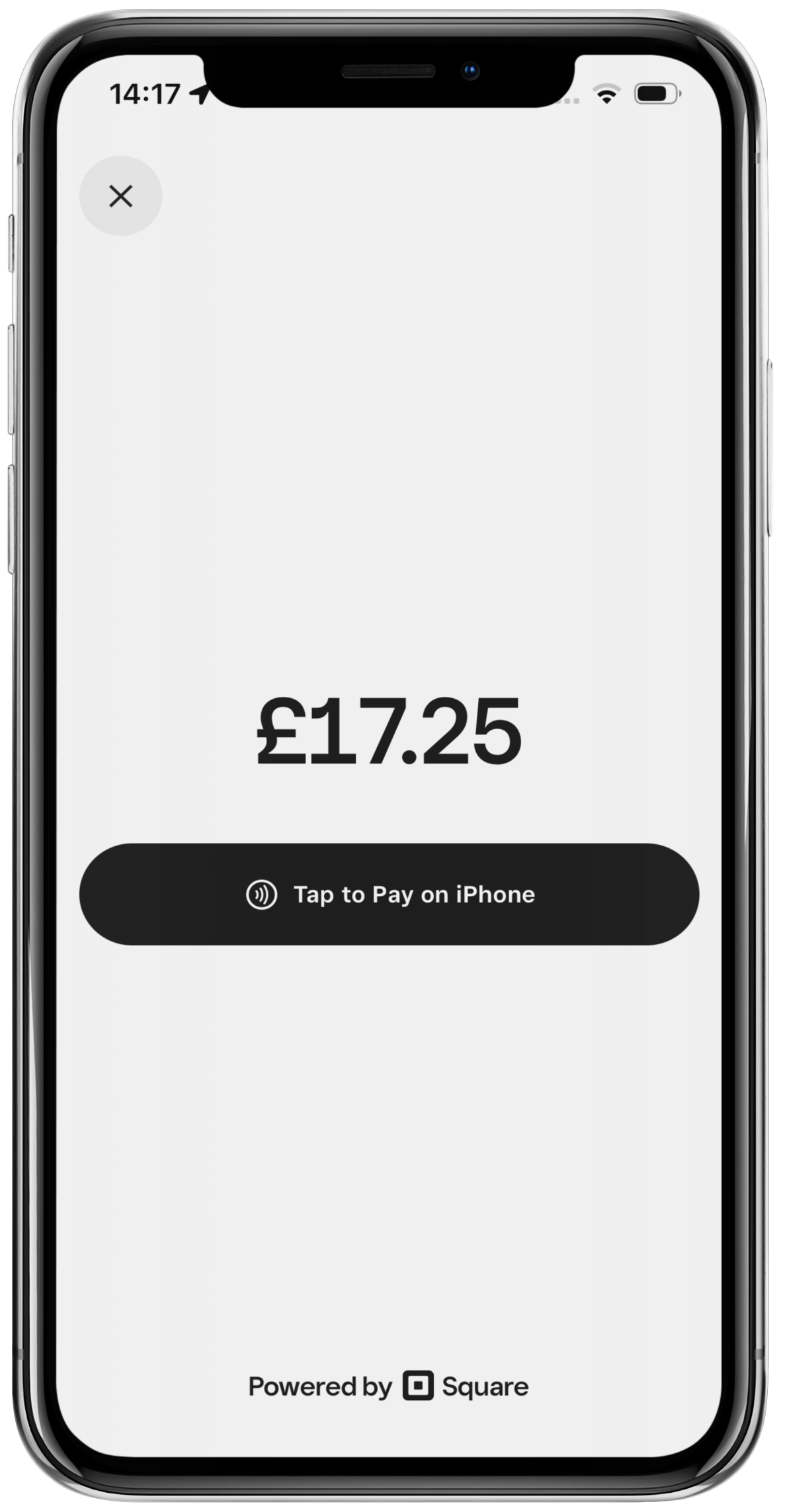
The required amount to be paid will show on the Tap to Pay screen.
The customer will hold their card or their smartphone digital wallet at the top of the iPhone, over the contactless icon.
If a PIN entry is required, the customer will be prompted to enter their PIN.
When the payment is completed, a Done message will display on the device.
You will return to the payment screen, where you can complete the order or tab as normal.
Was this article helpful?
That’s Great!
Thank you for your feedback
Sorry! We couldn't be helpful
Thank you for your feedback
Feedback sent
We appreciate your effort and will try to fix the article