When you sell products, if you want customers to see what's in their basket and the total amount, you can display the basket on a Tabology Reader. The customer can then also use the Tabology Reader to scan their loyalty pass and pay for their order.
Note: If you don't want to scan loyalty cards or take payment with the Tabology Reader, you can display the customer order on an external LED screen instead.
To display the customer basket on a Tabology Loyalty Reader, first set up your Tabology Reader.
Once your reader is set up, go to the EPOS and click Admin from the bottom navigation bar, followed by the orange Device button.
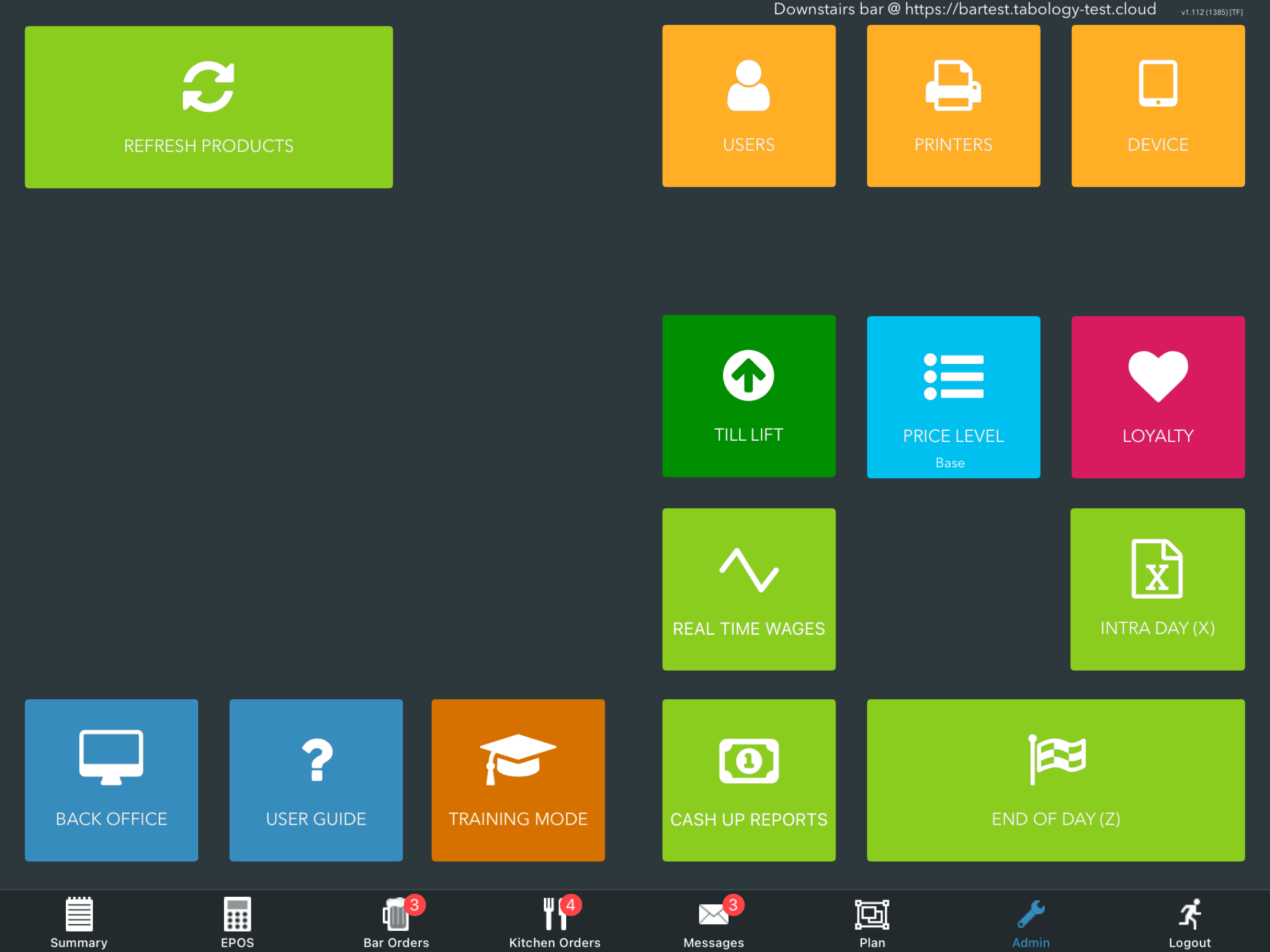
Locate the Tabology reader setting.
Click Show basket on reader and select the desired reader.
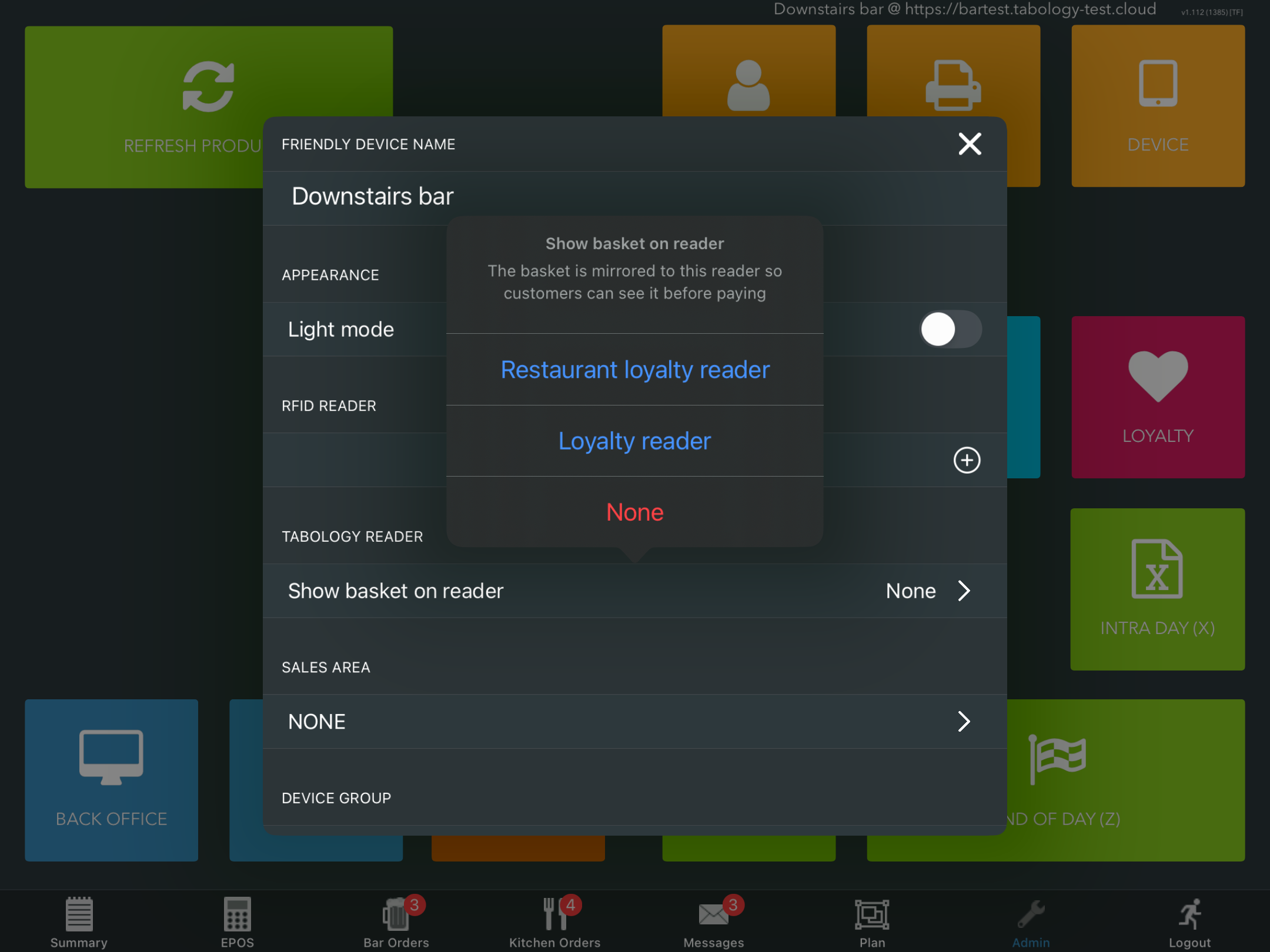
Close the Device settings modal and return to the EPOS.
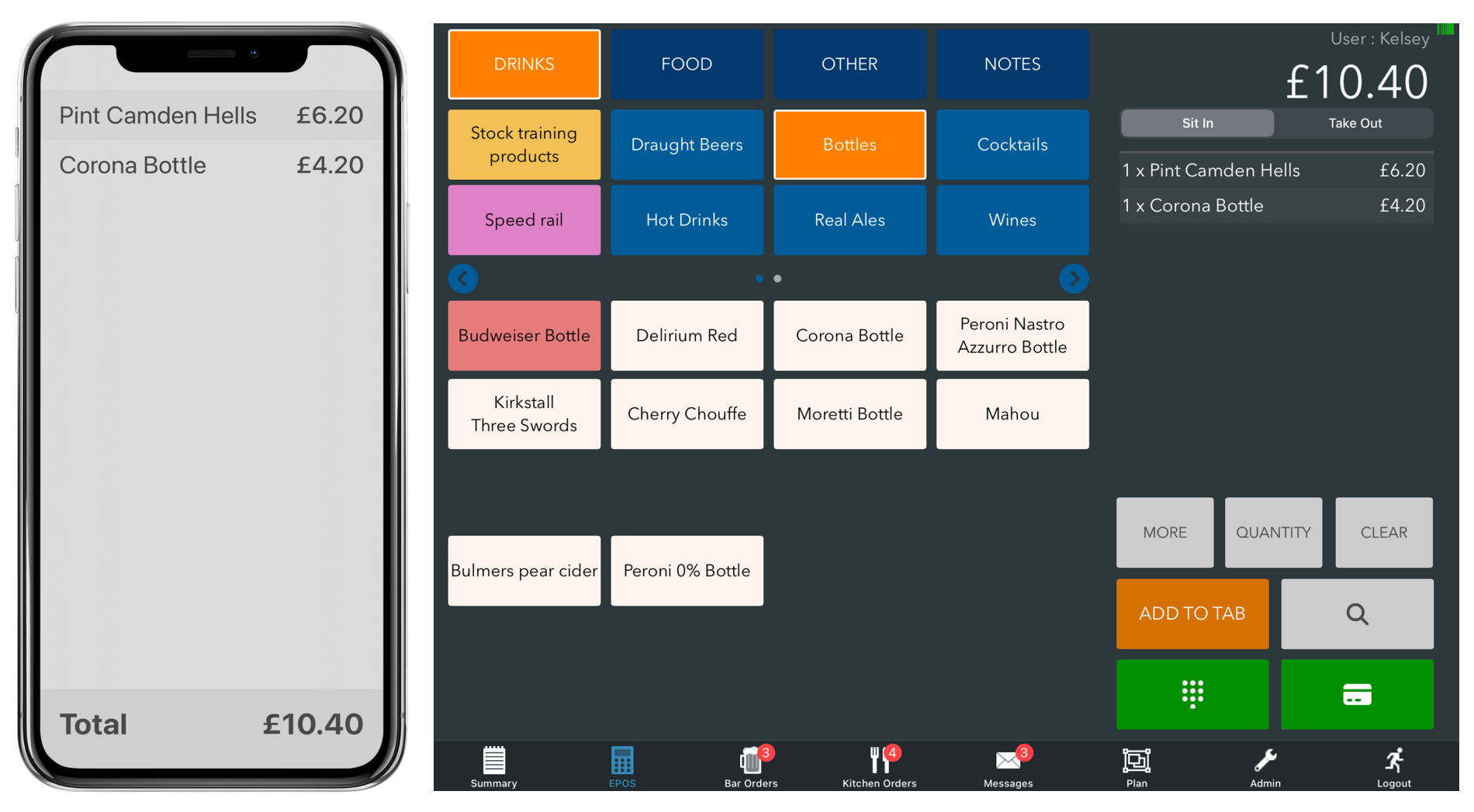
Add the customer's products to the basket as normal on the EPOS. This will now also display on the selected Tabology Loyalty Reader.
The first time using the customer screen, you will need to select how you would like to additionally use your Tabology Loyalty Reader when in the basket screen:
- Scan on this device - scan the QR code or NFC card on the EPOS iPad
- Scan QR code on reader - customer can scan their QR code or NFC card on the reader
- Tap card on reader - customer can tap their payment card on the reader
Note: Your preference will be remembered, but if you need to change this come back to pay screen and long-press on the camera icon.
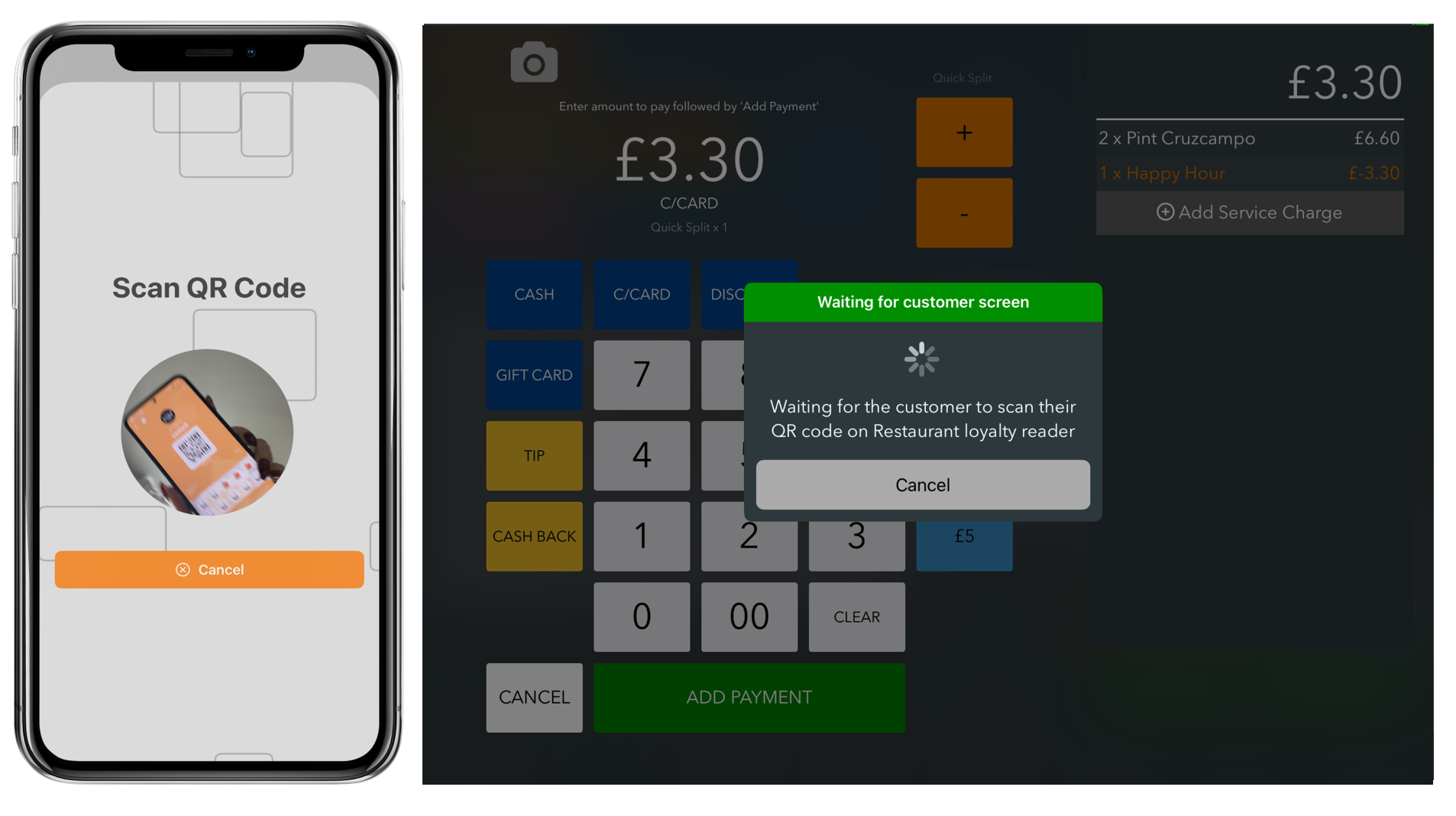
Selecting Scan QR code on reader, will display the QR code action for the Tabology Loyalty Reader.
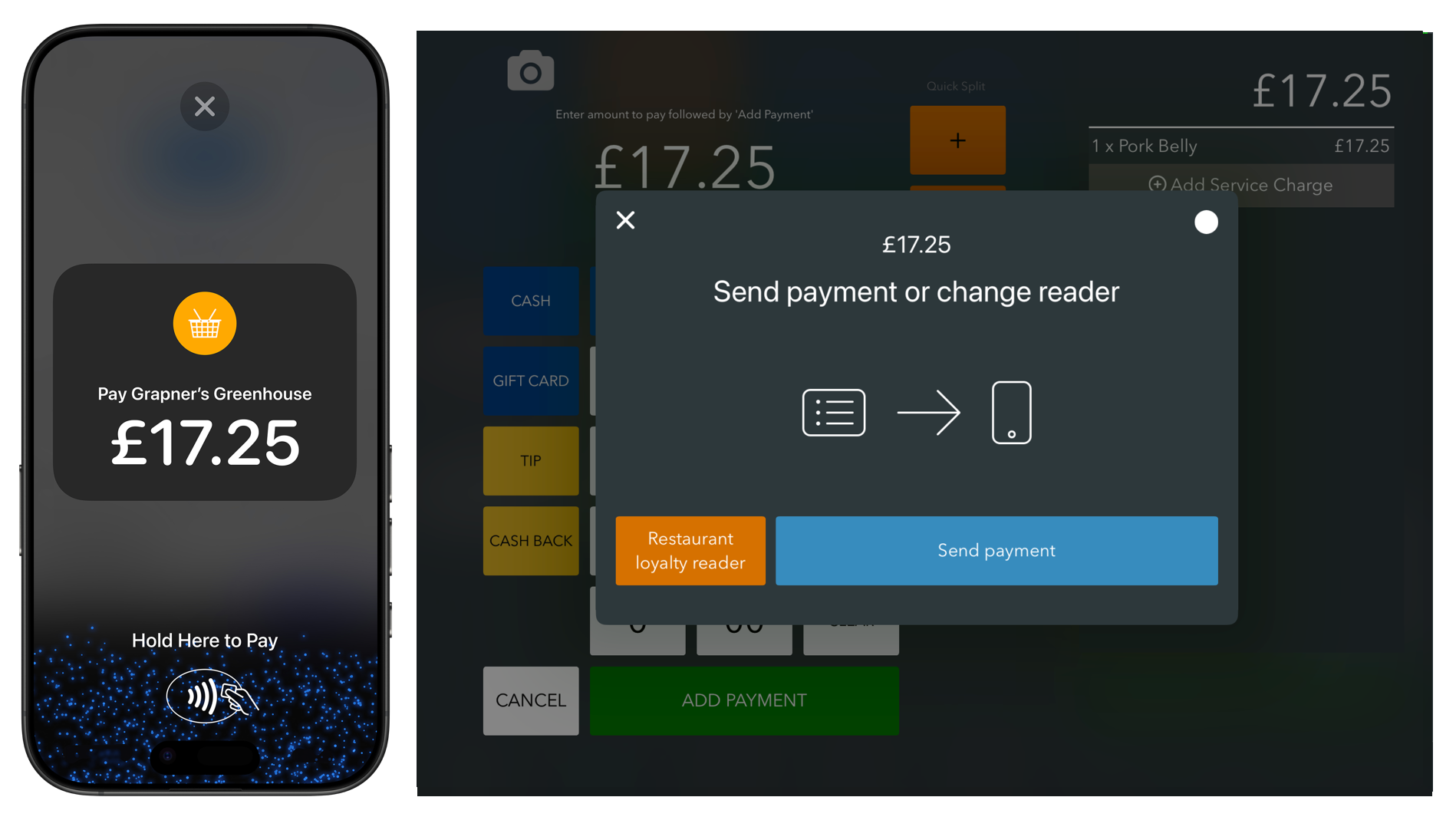
Selecting Tap card on reader, will display the Payment modal and send payments to the same Tabology Loyalty Reader.
Note: Tap card on reader, can only be used if Zettle or Square are your payment provider and you have enabled Tap to Pay.
After each successful transaction, the screen will display the Tabology logo. To start the next order, just add items to the basket.
Was this article helpful?
That’s Great!
Thank you for your feedback
Sorry! We couldn't be helpful
Thank you for your feedback
Feedback sent
We appreciate your effort and will try to fix the article