If you use Teya as your payment processor, you can trigger refunds directly from the EPOS.
Note: If you reject a mobile order, Teya will automatically refund the payment, so the steps below are only required for accepted orders.
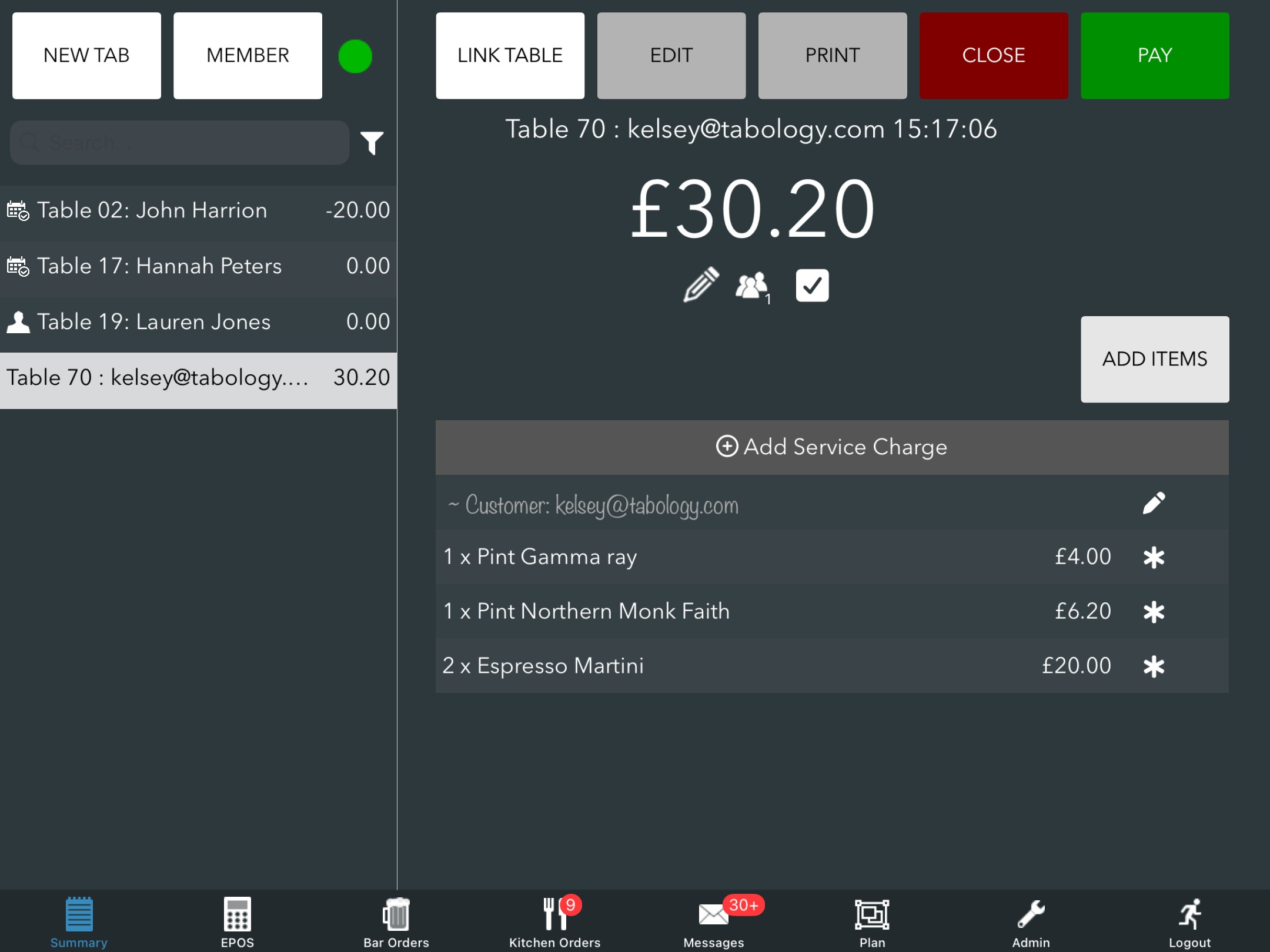
If the tab you need to refund is not shown on the summary screen, you will first need to reopen it. Alternatively, if the Tab is available on the Summary screen, open the tab as usual.
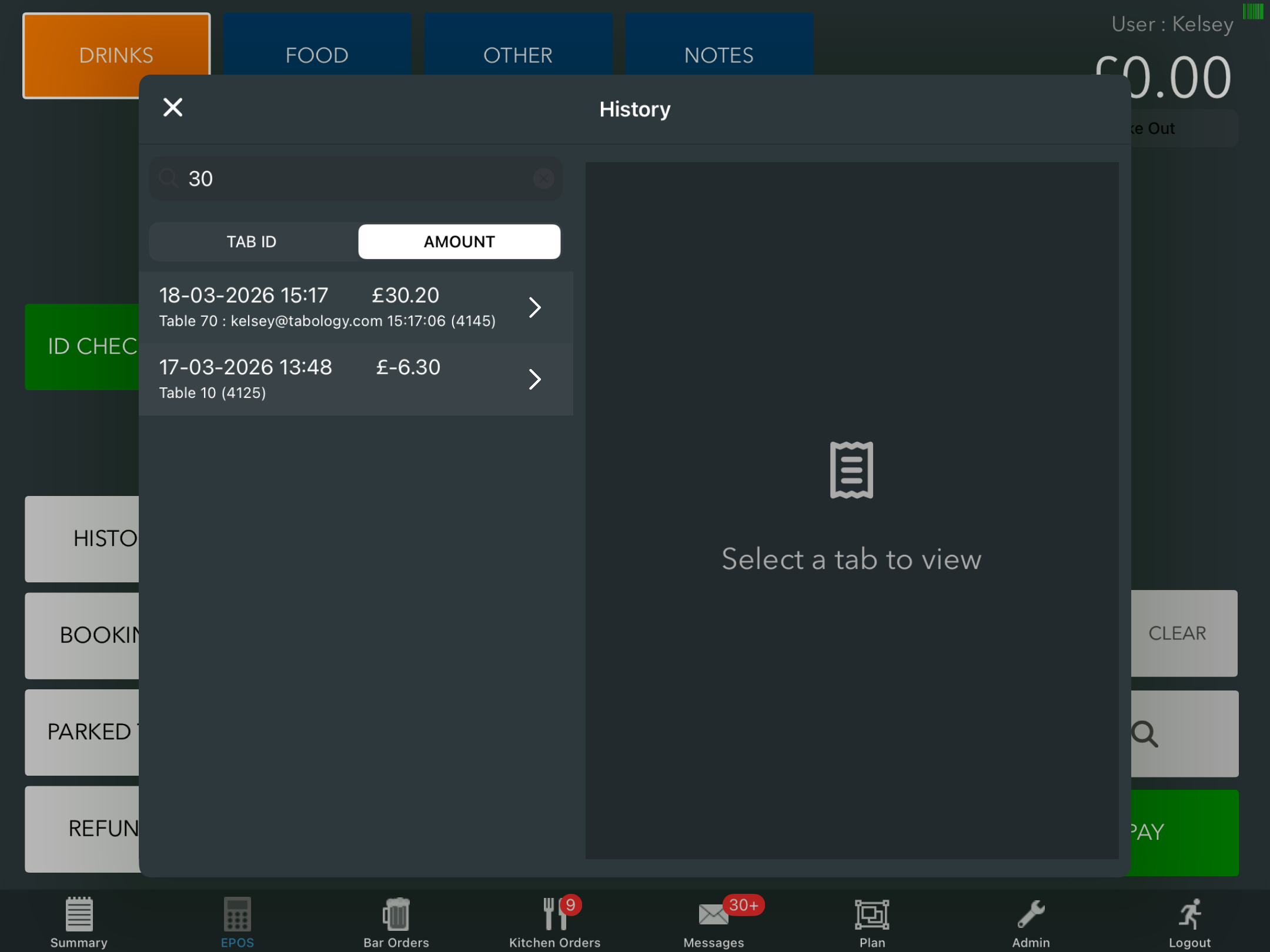
To reopen a tab, go to the EPOS screen, select More > History.
Start typing details of the tab into the Search field, followed by selecting either Tab ID or Amount to correctly locate the tab.
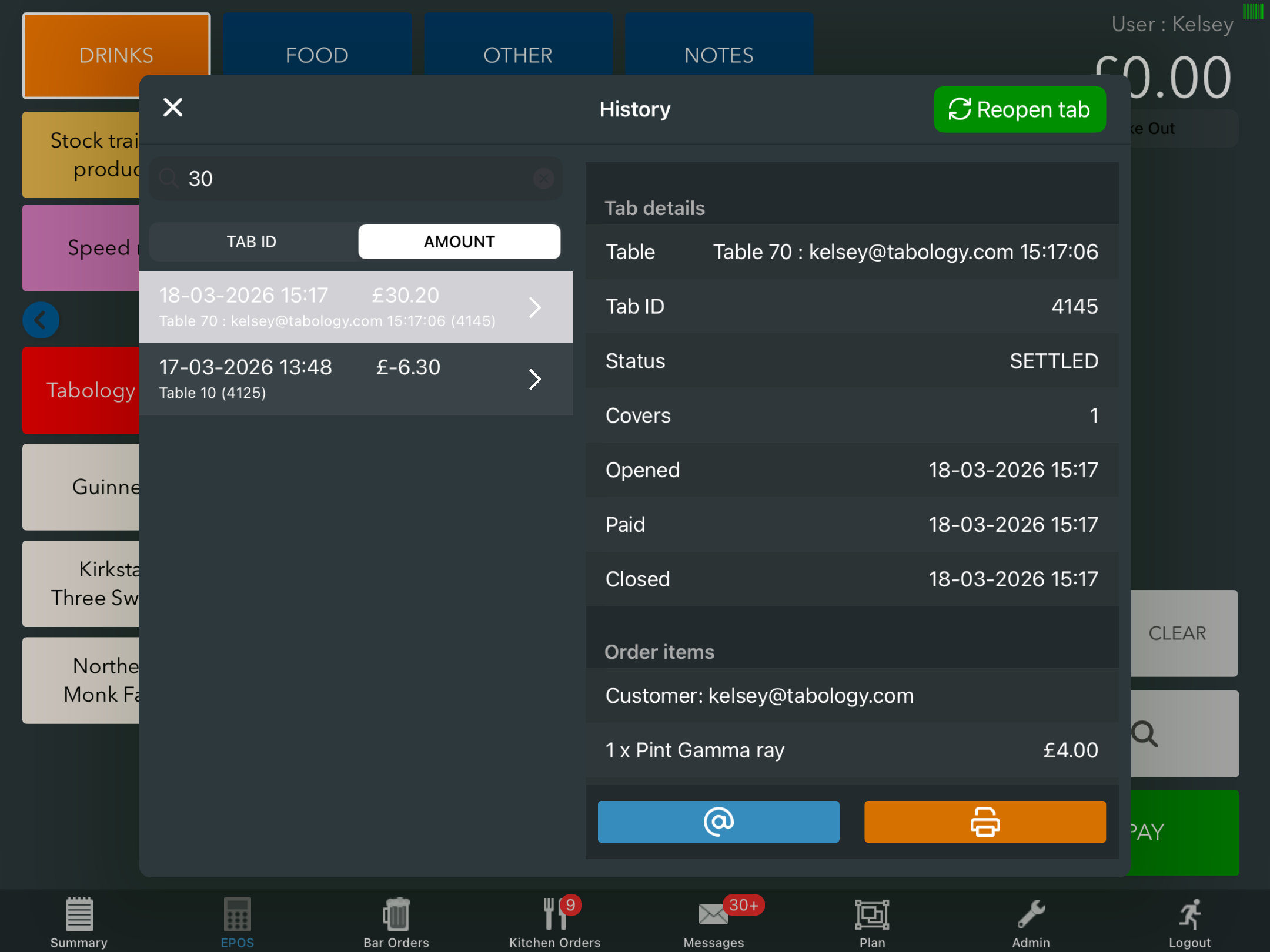
Once the tab displays, click the green Re-open tab button, in the top right of tab.
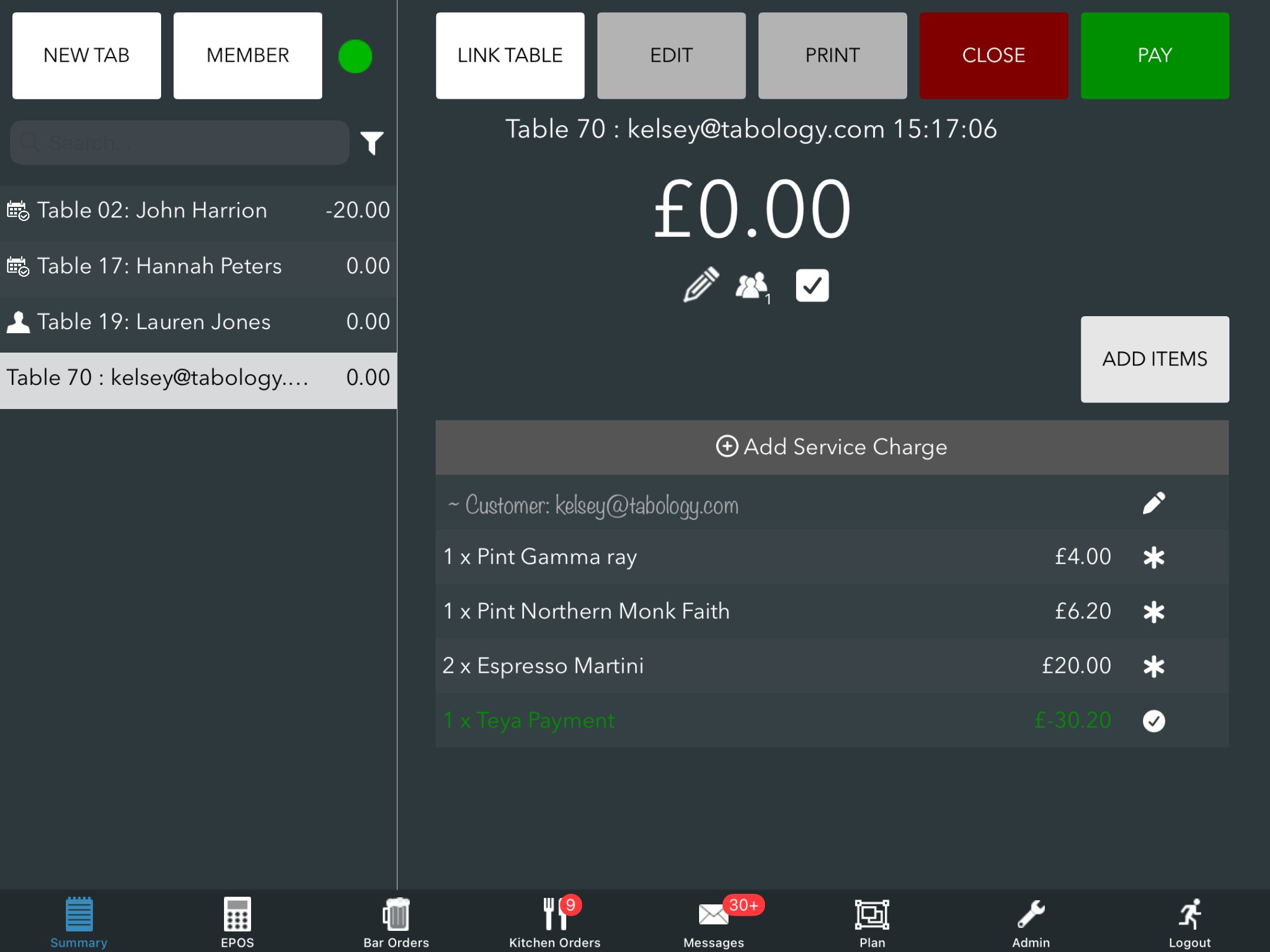
You will return to the Summary screen, where the tab will automatically open.
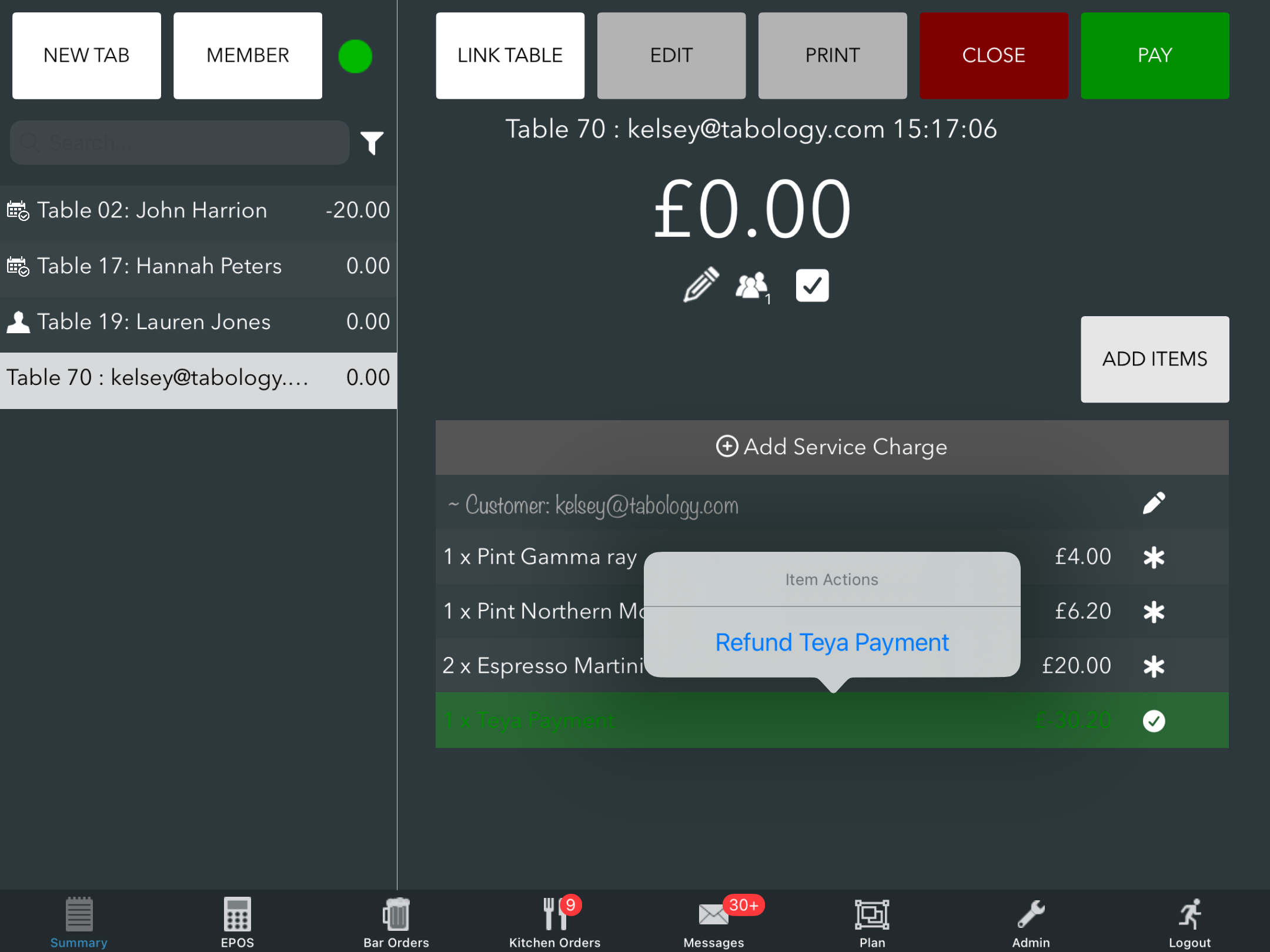
Locate the Teya payment line and click it. The Item action will display. Click Refund Teya payment.
Note: If you are refunding an in-venue Teya payment, this will display as a C/card payment.
The Teya payment will be removed from the tab and refunded to the customer.
You can then void the remaining items on the tab. See Voiding items.
Was this article helpful?
That’s Great!
Thank you for your feedback
Sorry! We couldn't be helpful
Thank you for your feedback
Feedback sent
We appreciate your effort and will try to fix the article