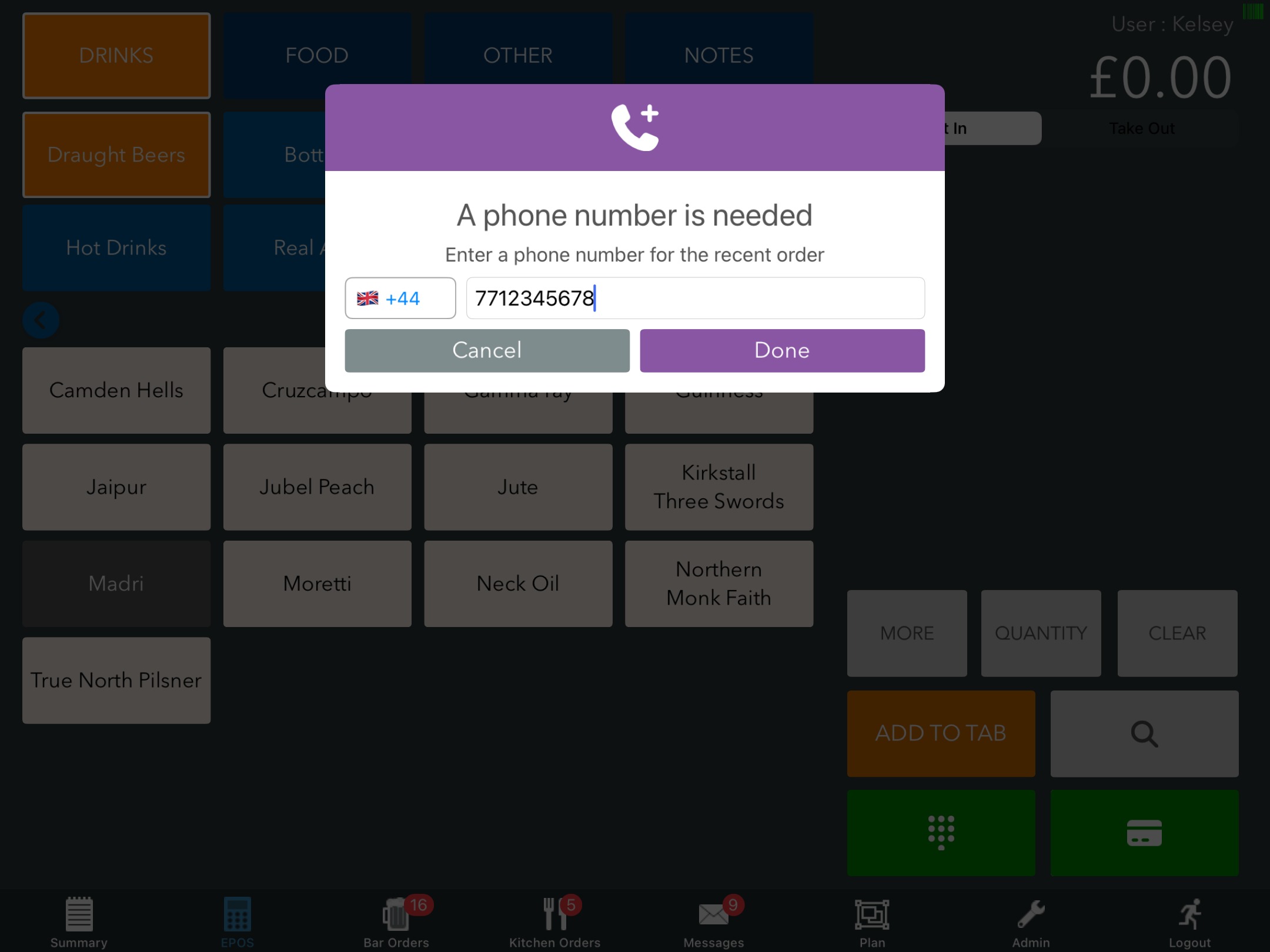
If you have enabled Order ready SMS notifications and turned on Capture phone numbers on EPOS, you will be prompted to enter the customer's phone number whenever you place an order that includes food.
A phone number can be added to an order in the following ways on the EPOS:
- Adding items to an order, then clicking Add to tab
- Adding items to an order, then clicking on either of the Payment buttons
- Adding items to the basket through the tableplan
The prompt will display for you to enter a phone number. Check the area code and enter the phone number in the value field. Then click the purple Done button.
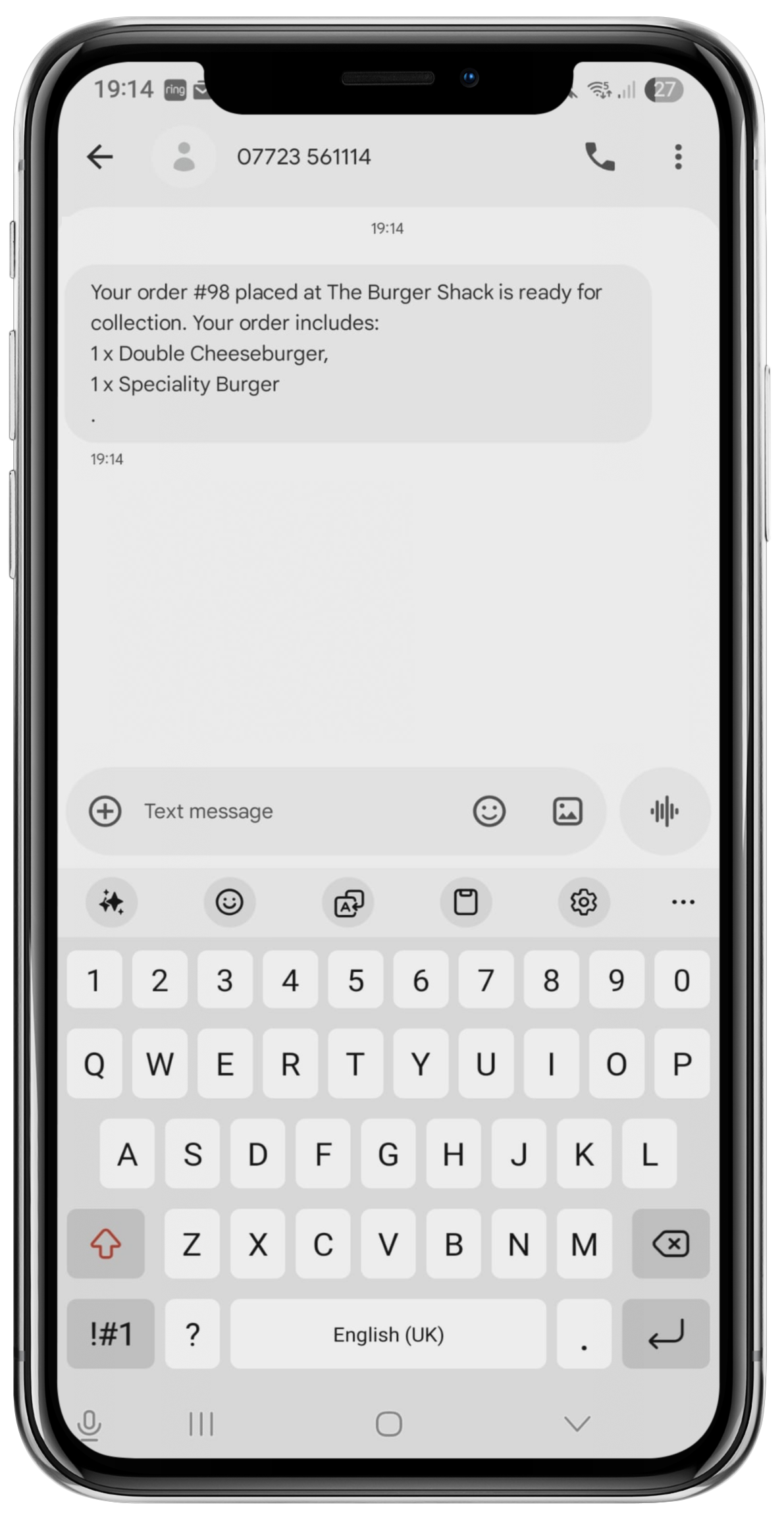
When the order status progresses to Ready, your customer will receive an SMS message informing them that their order is ready for collection.
Was this article helpful?
That’s Great!
Thank you for your feedback
Sorry! We couldn't be helpful
Thank you for your feedback
Feedback sent
We appreciate your effort and will try to fix the article