Order ready SMS notifications can be used to inform your customers when their food order is ready for collection. Order notifications can be sent as a whole ticket or per section.
This feature will only work for products that are assigned to a section. Please see how to setup sections and how to allocate sections.
Note: You will need to integrate with Twilio to send SMS notifications.
To enable Order ready SMS notifications, go into your back office and select Setup > Kitchen management.
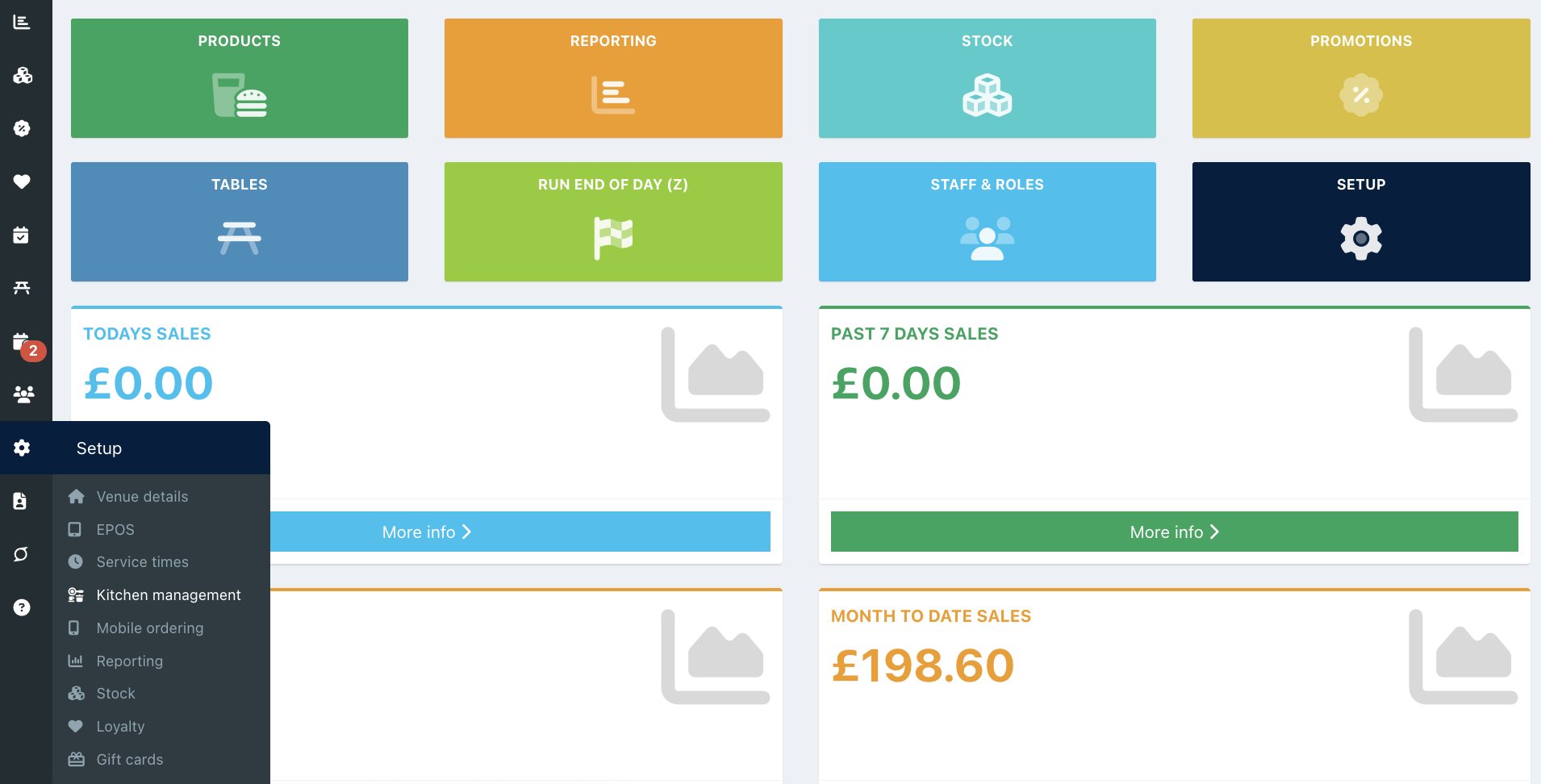
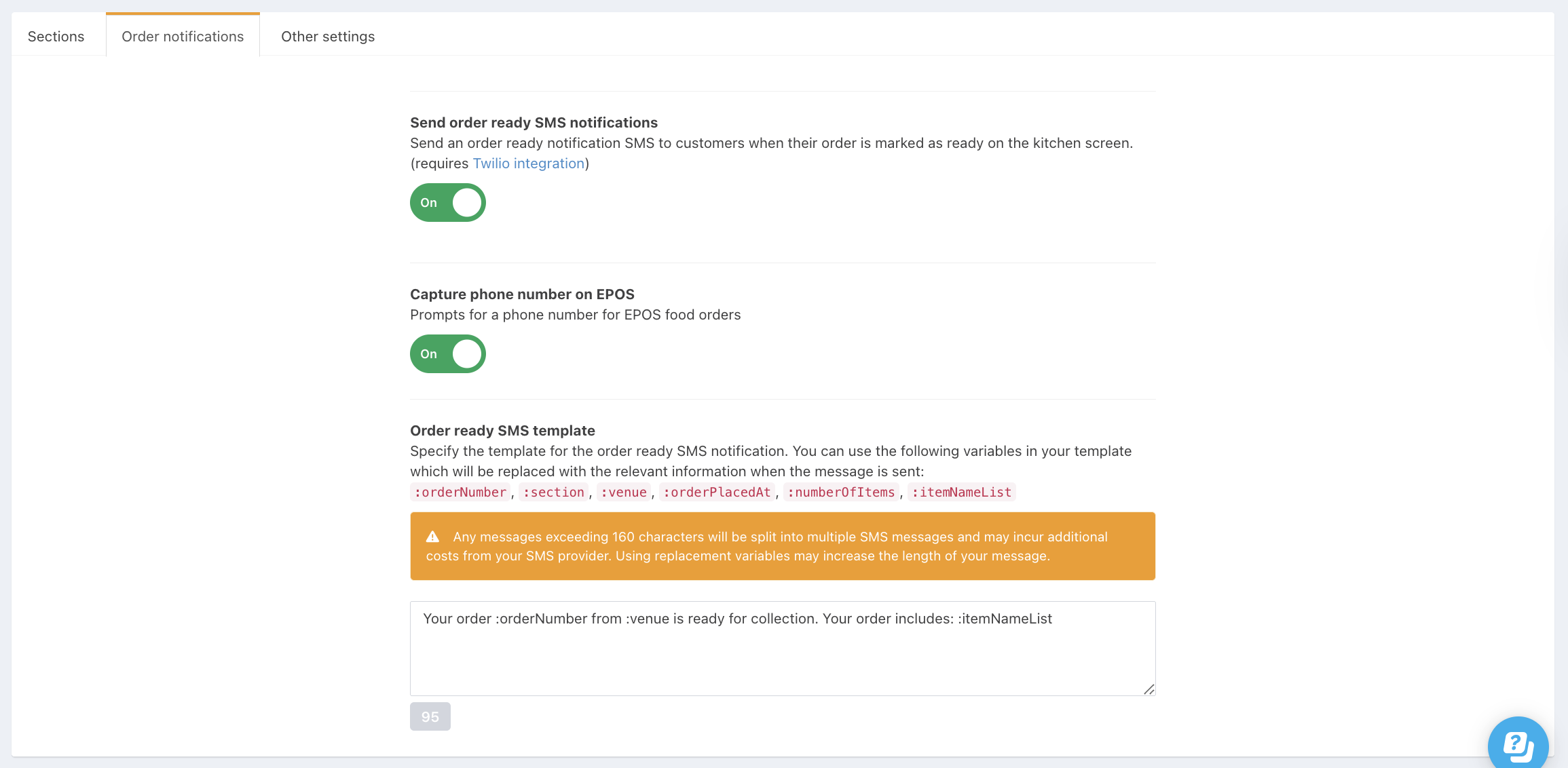
Click the Order notifications tab and then toggle Send order ready SMS notifications to On.

When toggled on, additional fields will open, allowing you to tailor your SMS notifications.
If you would like to send notifications for orders placed via the EPOS, toggle Capture phone number on EPOS to On. When this is on, you will be prompted to enter the customer's phone number after any food order.
You can then specify how your SMS messages will look in the Order ready SMS template field. These are the messages that your customer will receive. You can use the lightweight markup language to format your SMS messages. Using the tags provided will swap out details for your venue or/and order.
When adding your message, the grey character counter will update. If you exceed the character limit, this will display in red.
Click the blue Save button at the bottom of the screen to save your changes.
If you will be sending order ready notifications for click & collect orders, you will need to ensure you are capturing phone numbers for these.
Was this article helpful?
That’s Great!
Thank you for your feedback
Sorry! We couldn't be helpful
Thank you for your feedback
Feedback sent
We appreciate your effort and will try to fix the article