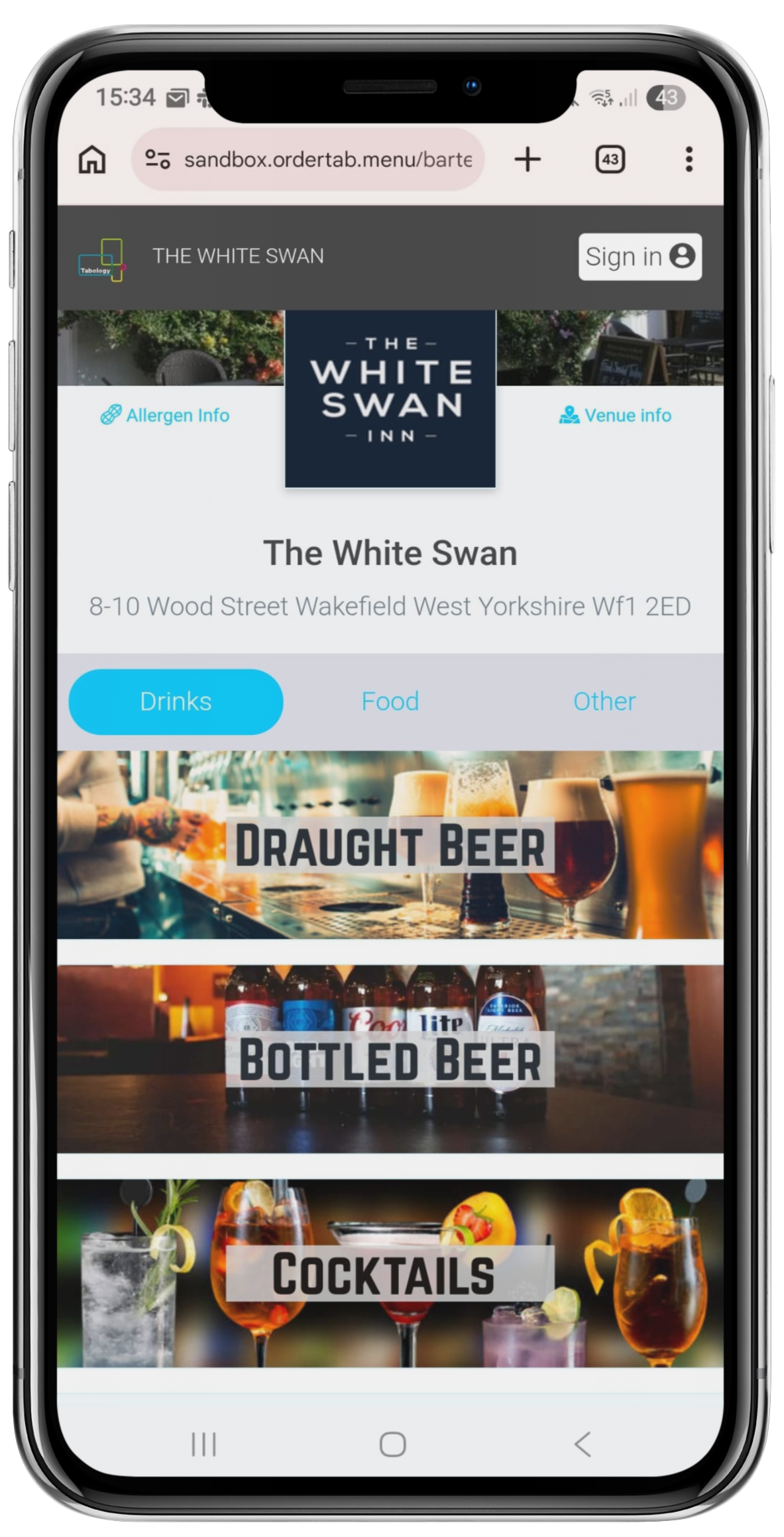
You can add cover images to categories on your mobile ordering menus. Category images serve as visual cues, making it quicker and easier for your customers to identify what they are looking for.
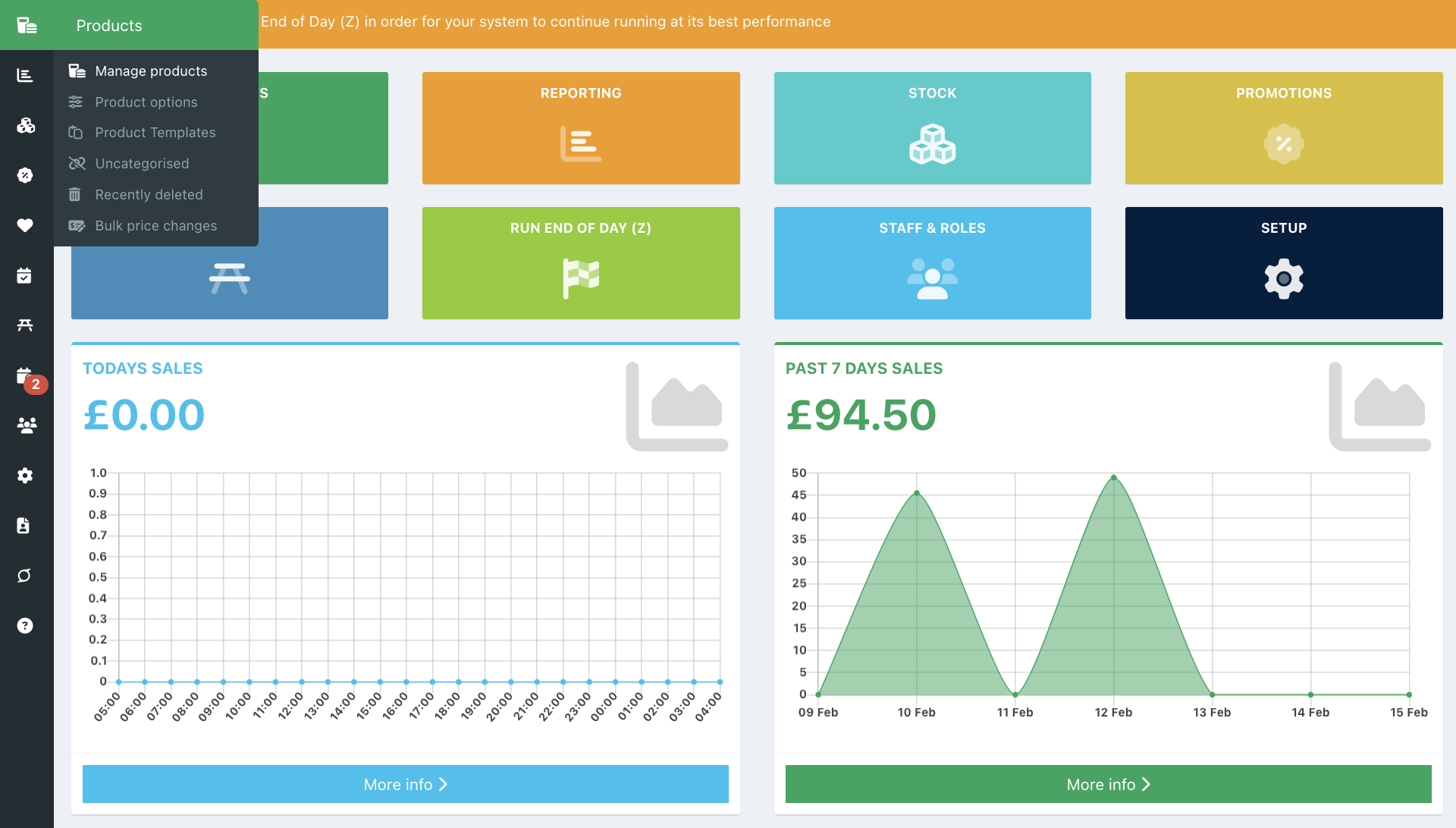
To add a category cover image, locate the category from Products > Manage products.
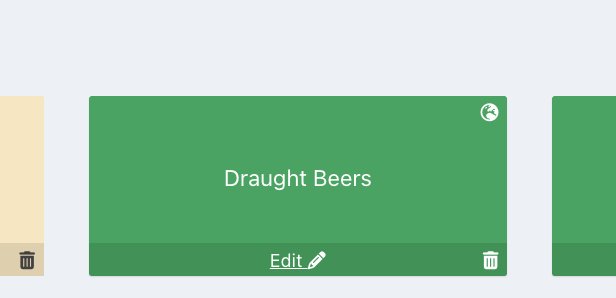
Locate the category through the core categories, then click the Edit button.
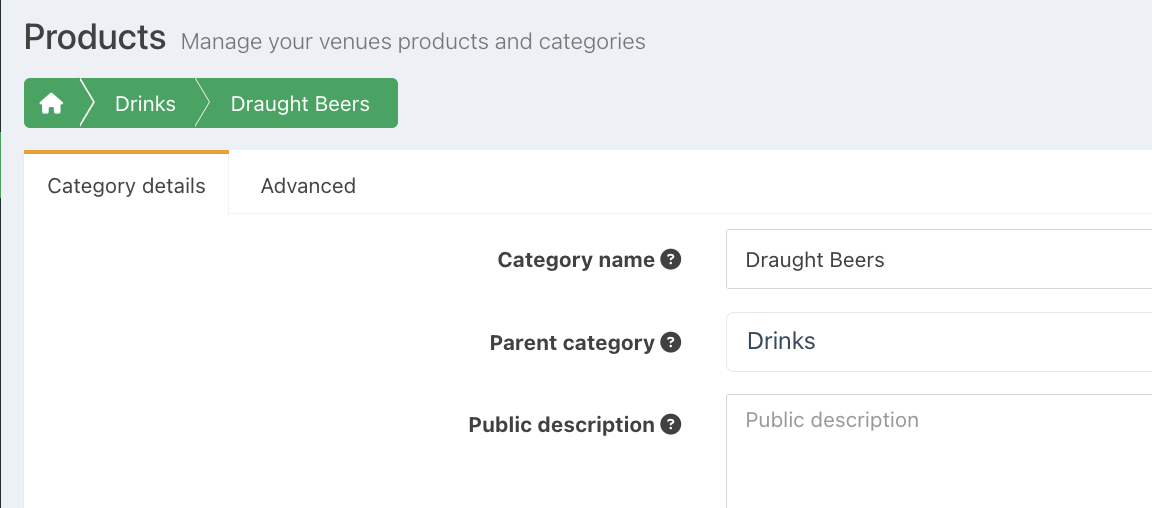
Click the Advanced tab at the top of the screen.
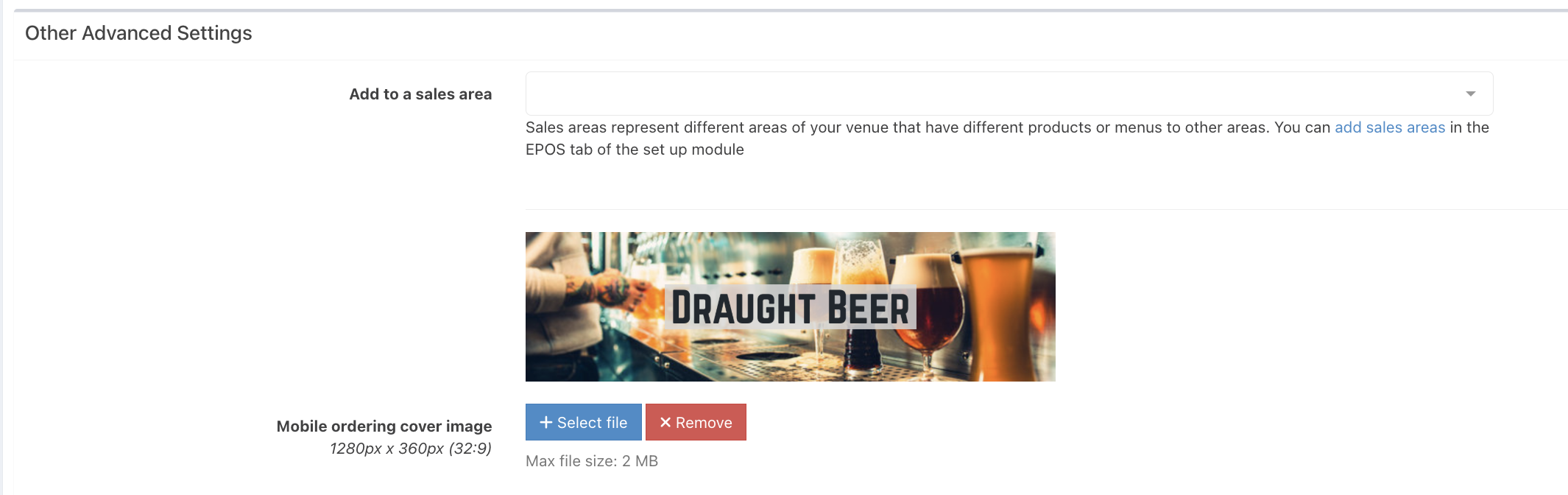
Scroll down to Other advanced settings, and locate Mobile ordering cover image. Click the blue Select file button to upload your category image.
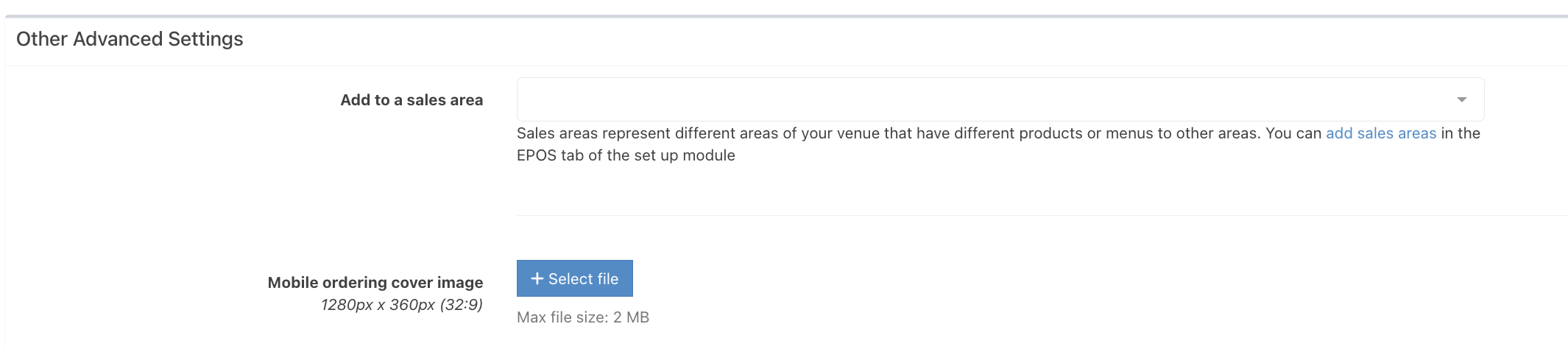
When uploaded, your category image will display.
Click the blue Save button to save your changes. Your customers will now view your menu with the category menu image (s).
Was this article helpful?
That’s Great!
Thank you for your feedback
Sorry! We couldn't be helpful
Thank you for your feedback
Feedback sent
We appreciate your effort and will try to fix the article