The Member type a member is added to determines the welcome email, wallet pass branding, and default group they are assigned to (for promotions), so it is best to ensure a member is added to the correct Member type when they sign up.
If you do need to change the Member type a member is assigned to, or add an existing member to a new Member type, you can do this in the members module in the back office.
To edit the scheme a member belongs to, go into your back office & select Members & Loyalty > Members from the left-hand navigation.
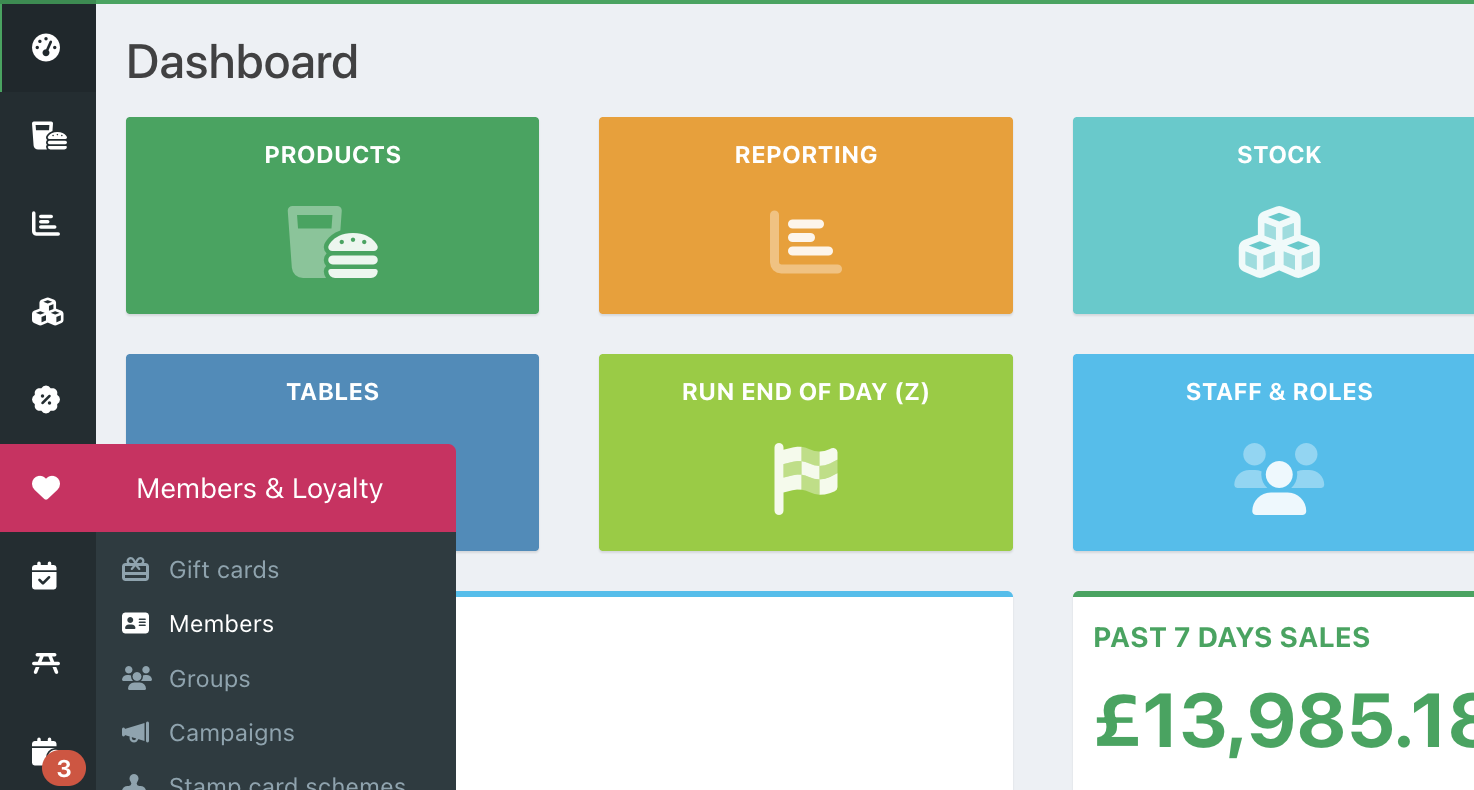
On the Members page, click the member whose scheme you would like to change.
Note: If you have a long list of members, you can use the Search function on the right-hand side of the screen.

On the Edit member screen, locate the Member type field in the Member details section.

To update the member type, click the dropdown box & select the new member type.

A message will inform you that the member will be added to the default group for the new member type, but will not be removed from any other groups they are a member of (including any group associated with the member type you are moving them from). If you need to remove your member from any previous member groups, you will need to do that manually after allocating them to the new scheme.
Members will automatically be removed from any subscription plans associated with the previous member type and added to any plans associated with the new member type.
Click the blue OK button to confirm your new default group & member type.
Click the blue Save button in the bottom right of the screen to confirm your changes.

Your member will now be assigned to the new member type.
If you want to send the member the welcome email for their new member type with a link to their new wallet pass, you can do so using the Resend wallet email button.
Was this article helpful?
That’s Great!
Thank you for your feedback
Sorry! We couldn't be helpful
Thank you for your feedback
Feedback sent
We appreciate your effort and will try to fix the article