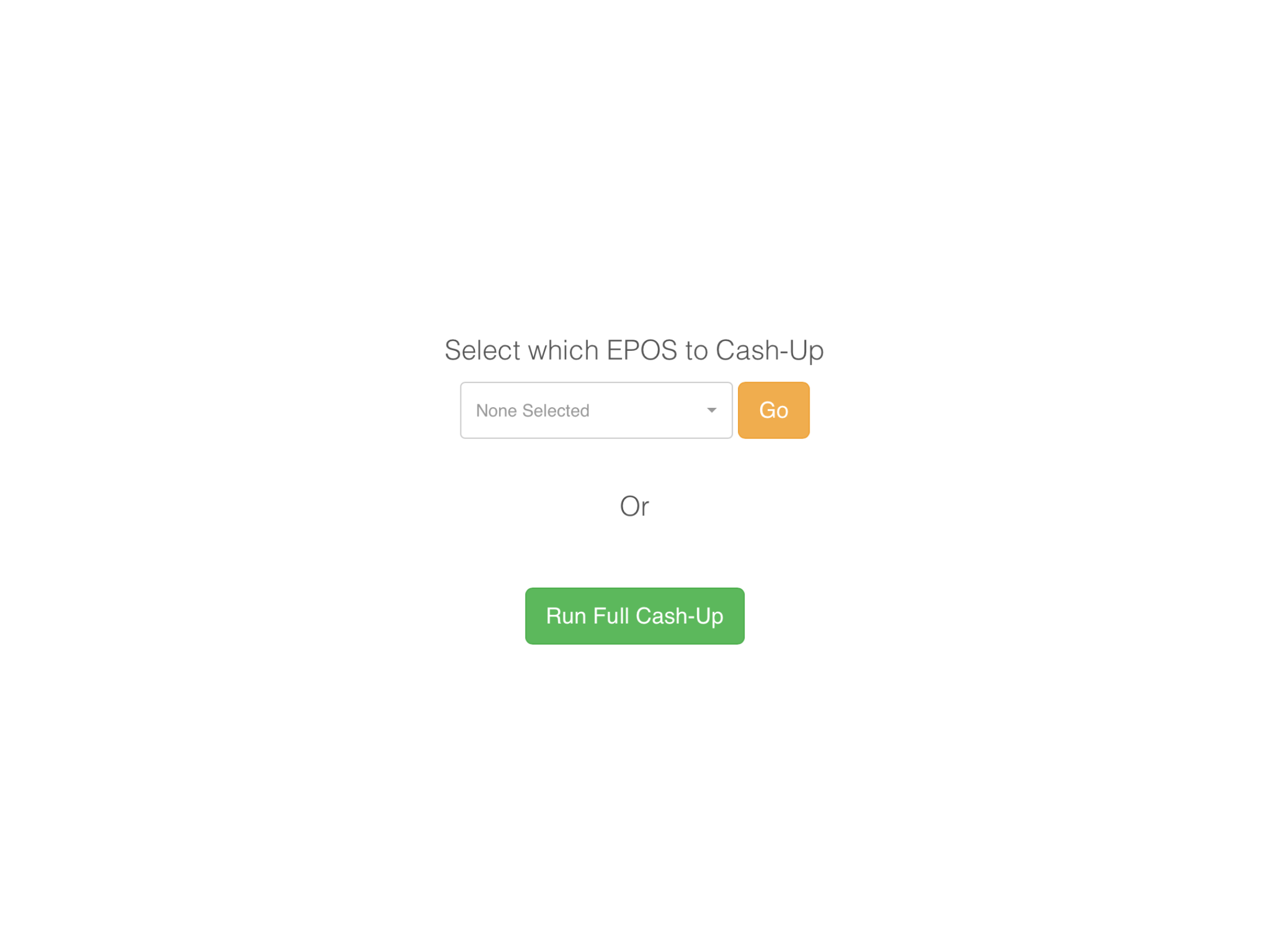
To run a full cash up, again press the 'End Of Day (Z)' button on the admin screen and this time select 'Run Full Cash Up'.
You will be presented with the payments screen. On this screen you will see your previously cashed up till & the card transactions you have already declared.
These amounts will always pre populate from the expected, if your card machines are integrated, if not you will need to enter these manually. Please contact support@tabology.co.uk, if you would like integrated card payments setup.
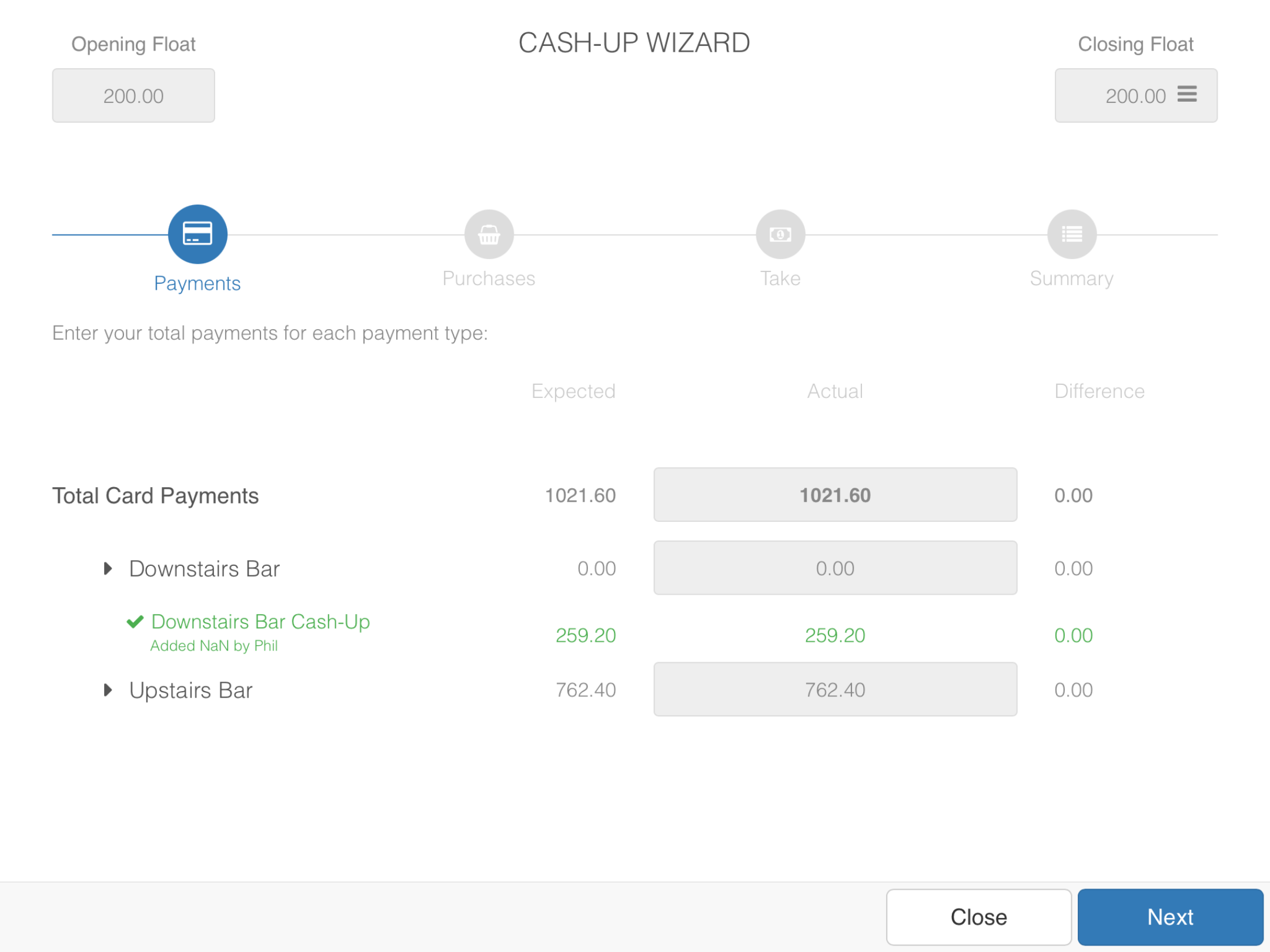
Note: On this screen, you can also check your floats are set correctly. If they are not, close the cash up screen, change your floats on the back office, then come back to the cash up. Floats are grouped collectively for the venue & not broken down till by till.
On pressing 'Next' you will be presented with a screen for you to enter any purchases/petty cash you made using onsite cash. You can also choose from the drop down menu which EPOS the petty cash has gone through.
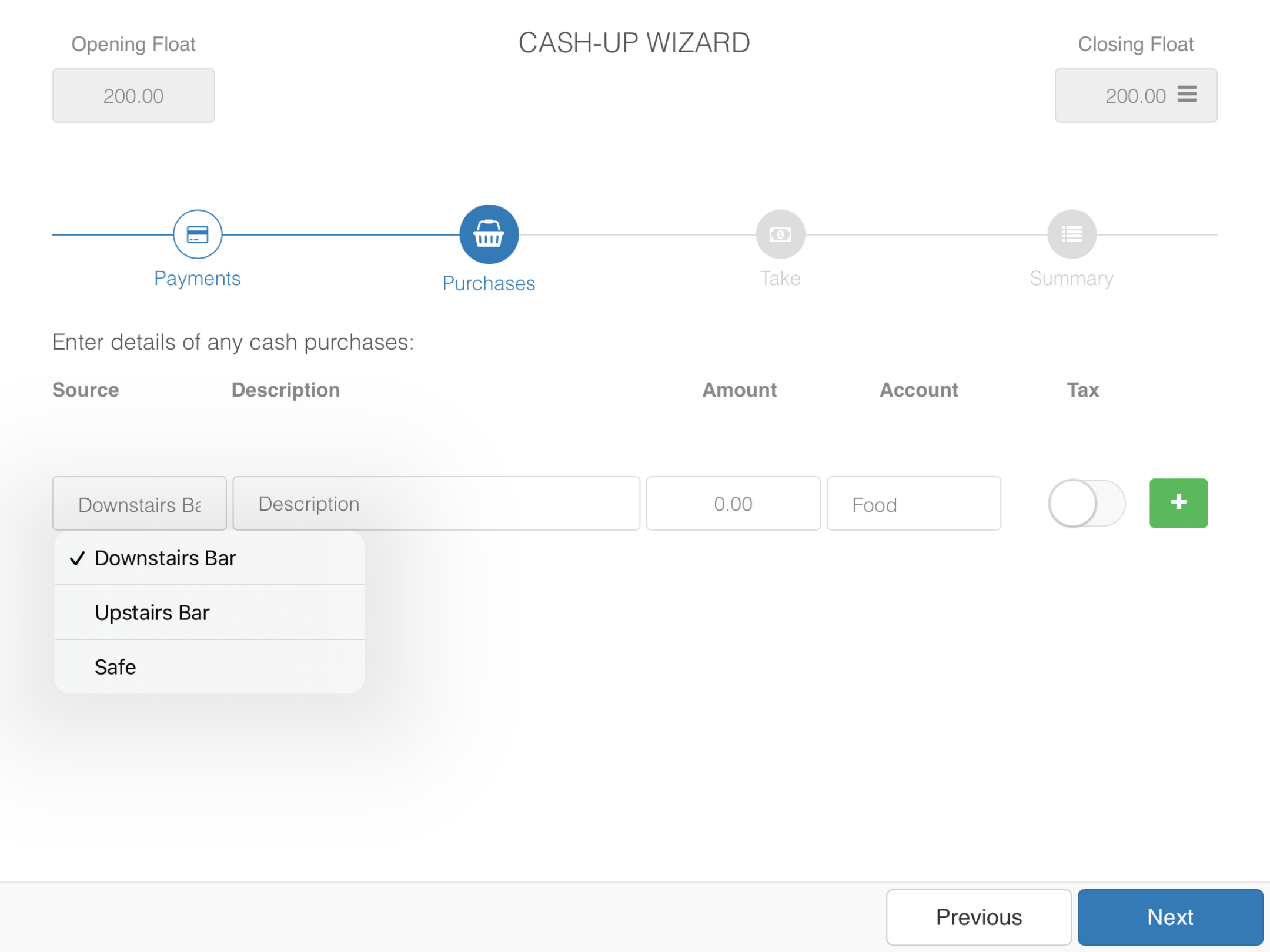
To enter a purchase just fill in a description and amount and press the + button on the far right
Note: If you integrate with Xero or Quickbooks you can also select an account for a purchase to be posted to and set whether there is tax on the purchase or not. If you don't use an integrated accounts package you can ignore these fields.
On pressing 'Next' you will be taken to the 'Take' screen. This is where you will declare all your cash from your tills, minus your till floats. This cash is usually popped into an envelope for banking or put into your drop safe.
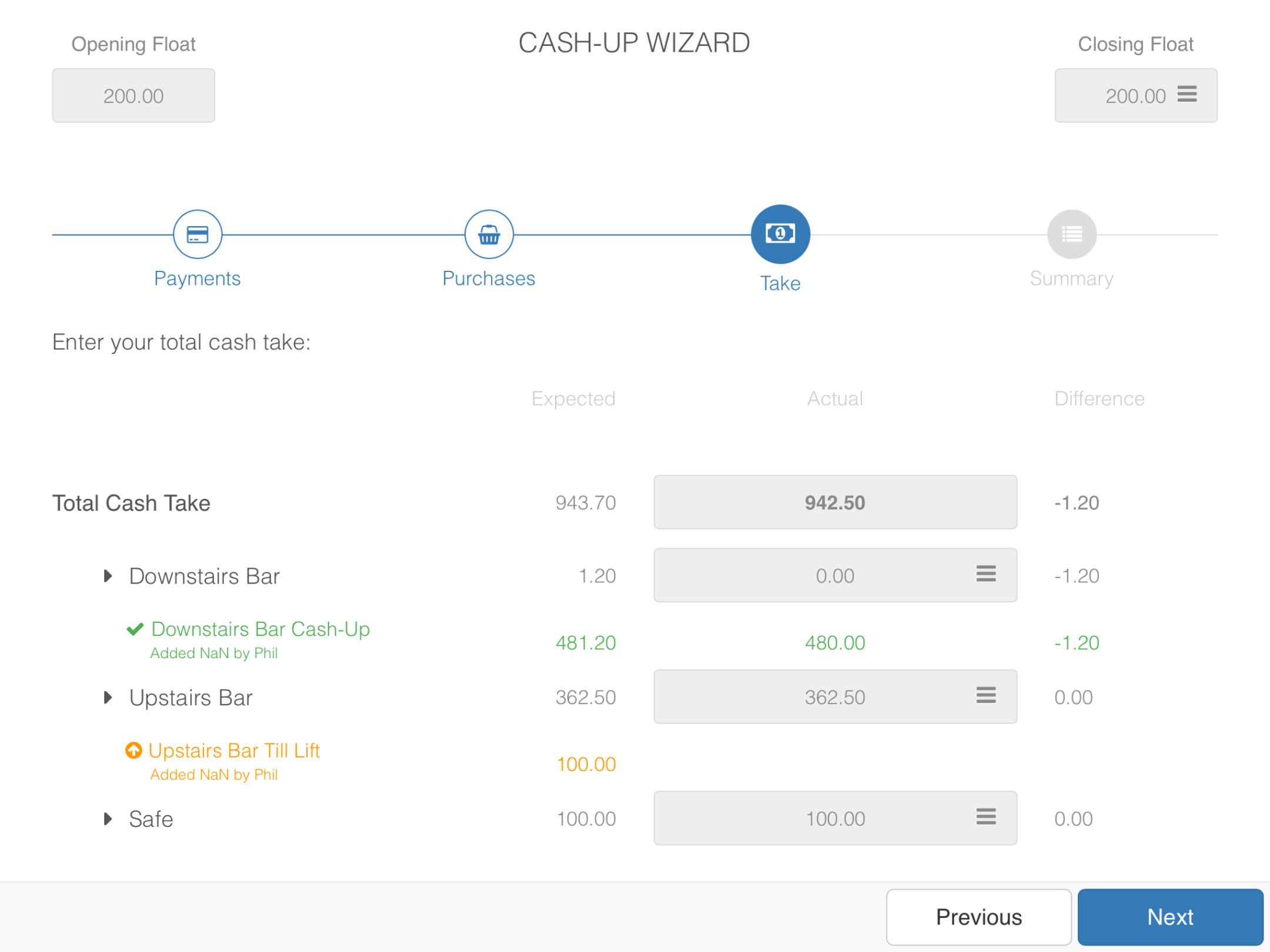
To the left of the screen, you will have your expected column. This is the amount of cash you expect to have in your tills after your floats.
You will then need to physically count your cash & declare the amount in the actual's column.
In the above example you can see we have completed a till lift to the value of £100.
The total cash being declared is calculated from 'Downstairs Bar Cash Up' + 'Upstairs Bar' + 'Upstairs Bar Lift'.
The amount in your safe, does not contribute towards your total take. This is just where you record how much is in the safe CHECK?
Once entered, you will see any variance's between your expected & actual, in the far right hand side column called 'Difference'.
Note: If you declared your card payments as £1 down, the system would automatically expect you to have £1 extra in cash to counteract the variance.
Press 'next' once you have entered all your take information.
The final screen will bring you to the summary, which will summarise all the payment information you have declared. Your variance will be at the top of the screen in red under your total payments, and will also detail a breakdown where the variance has come from.
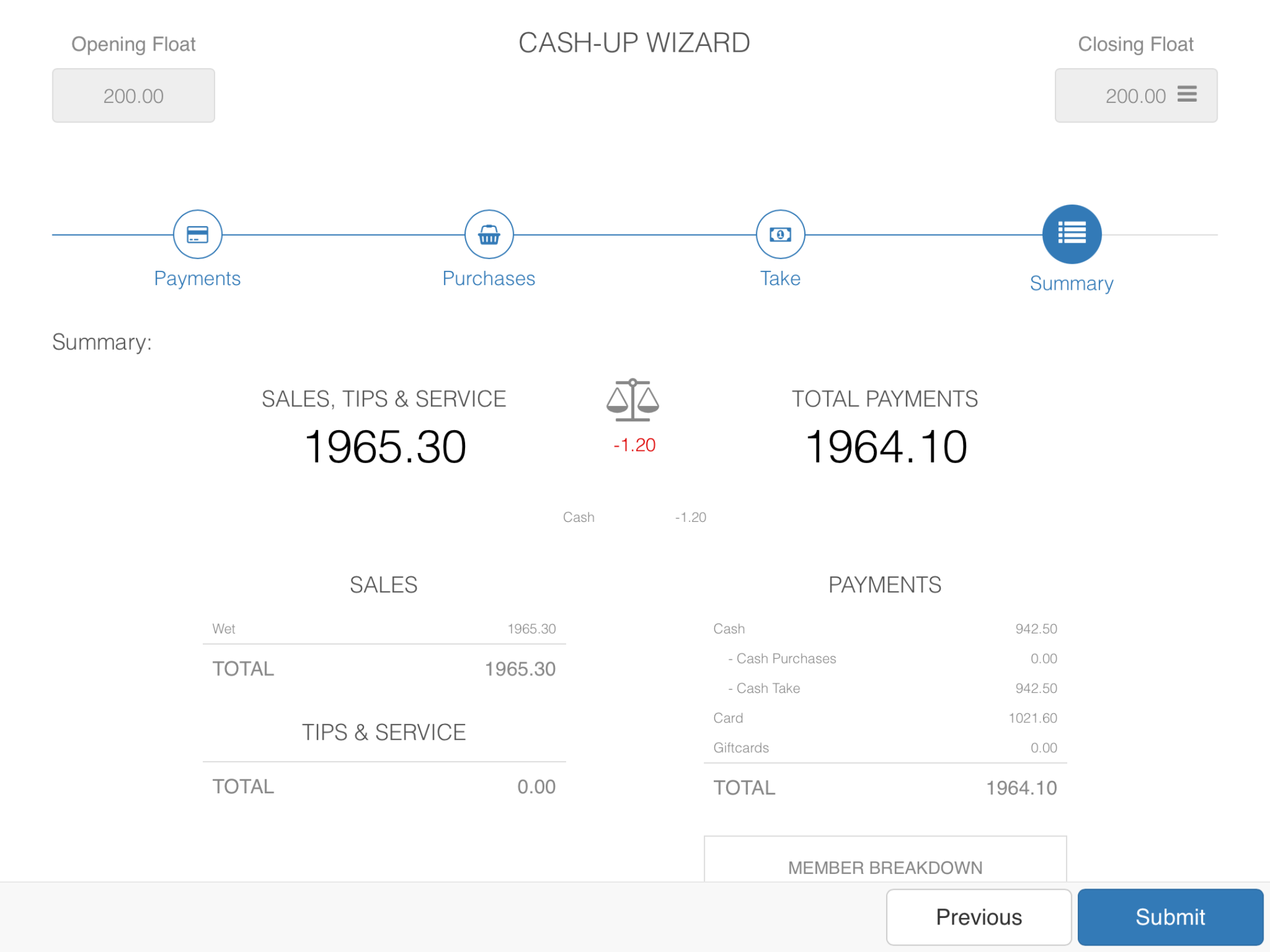
Once you are happy with all the information you have declared, press 'Submit'.
You will see a message saying your cash up is complete. On clicking OK your cash up report will be displayed on the screen, printed, and emailed to the email addresses you have set up.
Now see Understanding cash up reports.
Was this article helpful?
That’s Great!
Thank you for your feedback
Sorry! We couldn't be helpful
Thank you for your feedback
Feedback sent
We appreciate your effort and will try to fix the article