It is possible to configure your system so that a cash up can be run on each till individually, instead of entering figures for the whole venue.
With this option, it is possible to cash up one or more tills during the trading day and then continue using the till after cashing up, if desired.
When the final cash up is run, all tills will be included, but actual counts can still be entered on a per-till basis, with variances shown per till.
To cash up an individual till, click Admin from the bottom navigation menu, then click the green End of Day (Z) button.
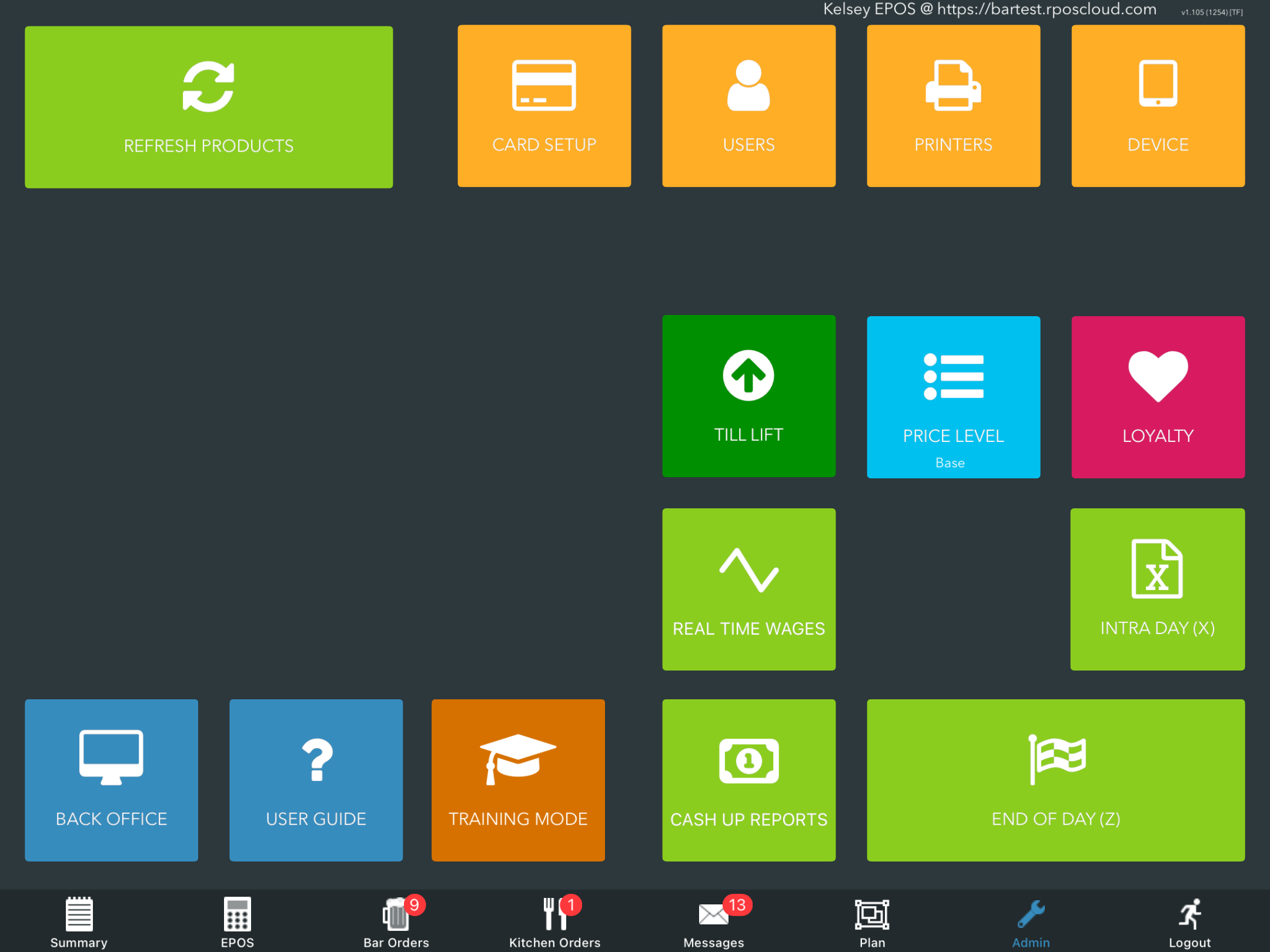
Click Yes at the Z-report prompt.
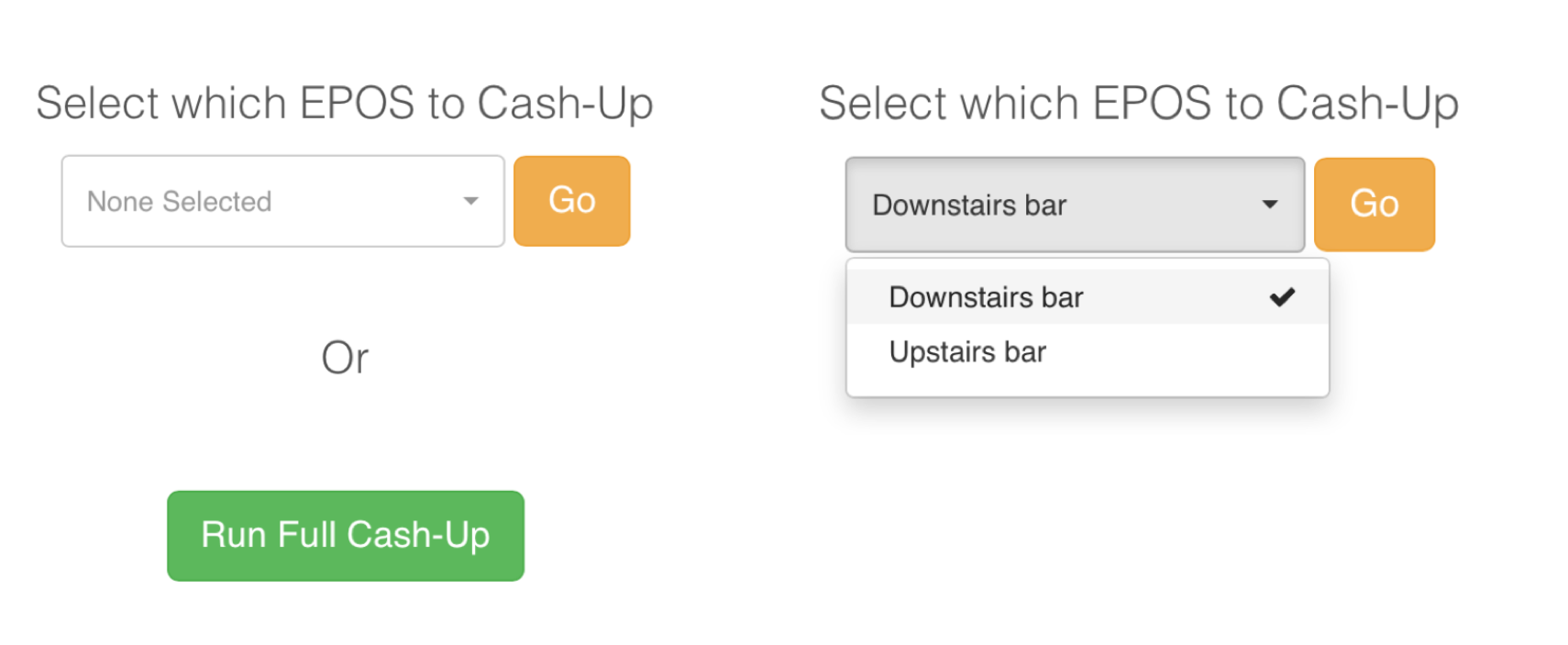
The EPOS Cash-up screen will display. You will have the choice to cash up individually or run a full cash-up.
Choose the EPOS you wish to cash up individually from the drop-down list, then select Go.
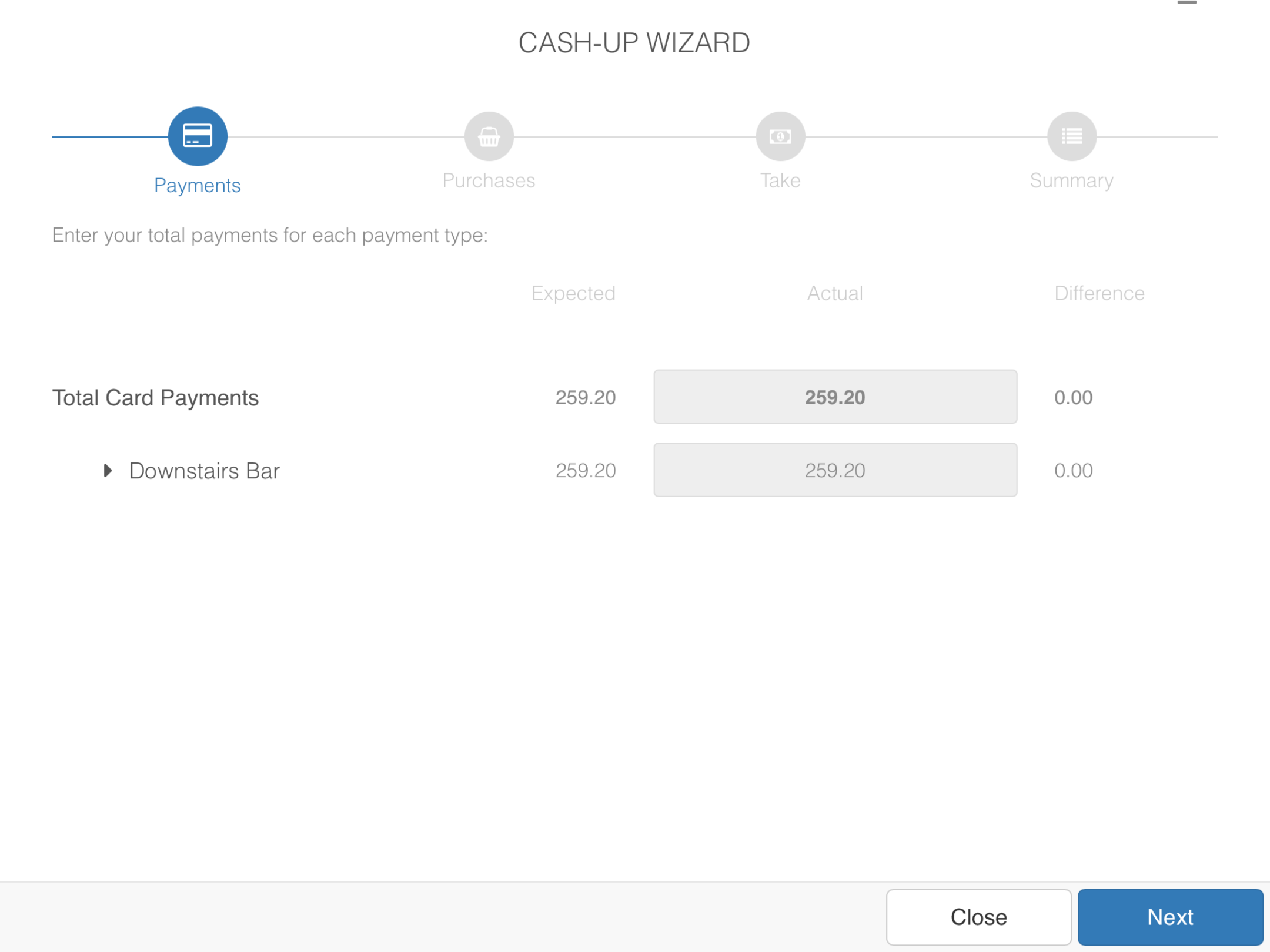
You will be presented with the payments screen, where you can enter the count of your card payments and any other payment types you accept, excluding cash (this comes later).
The grey boxes will pre-populate card transactions from the EPOS as it is being cashed up. This will only happen if your card machine is integrated. Alternatively, if your card machines are not integrated, you will need to manually enter your actual figures.
Click the blue Next button to continue.
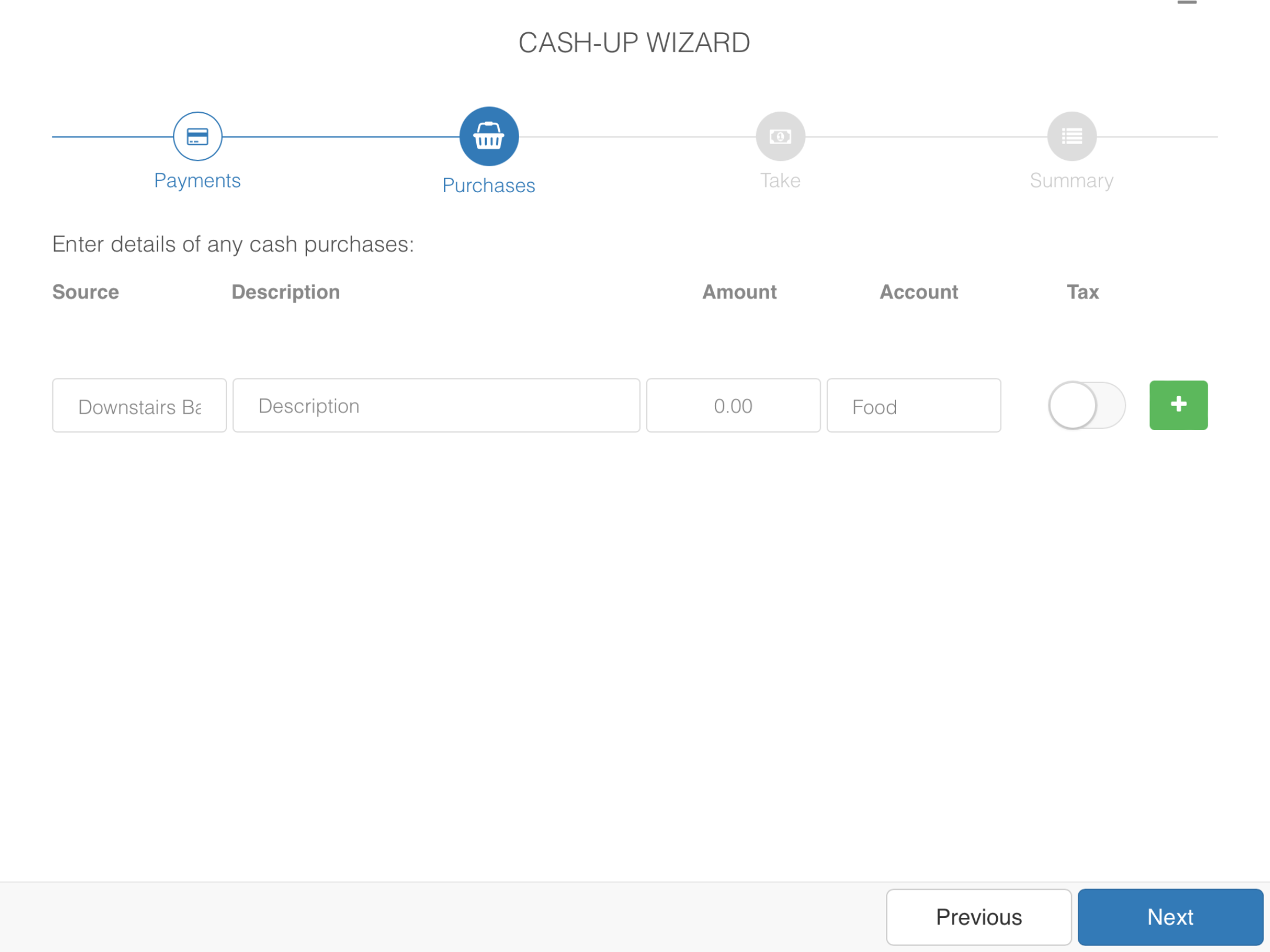
On the Purchases screen, you can enter any purchases/petty cash that have been made. Use the green + button to add your purchase once all fields are completed.
Click the blue Next button to continue.
The Cash take screen shows the amount of cash in your till, minus your floats.
To the left of the screen, you will have the Expected column. This is the amount of cash you expect to have in your tills.
Both grey boxes are blank, as this is where you will physically count your remaining cash & declare the amount you have.
Note: If you declared your card payments as £1 down, the system would automatically expect you to have an extra £1 in cash to offset the variance.
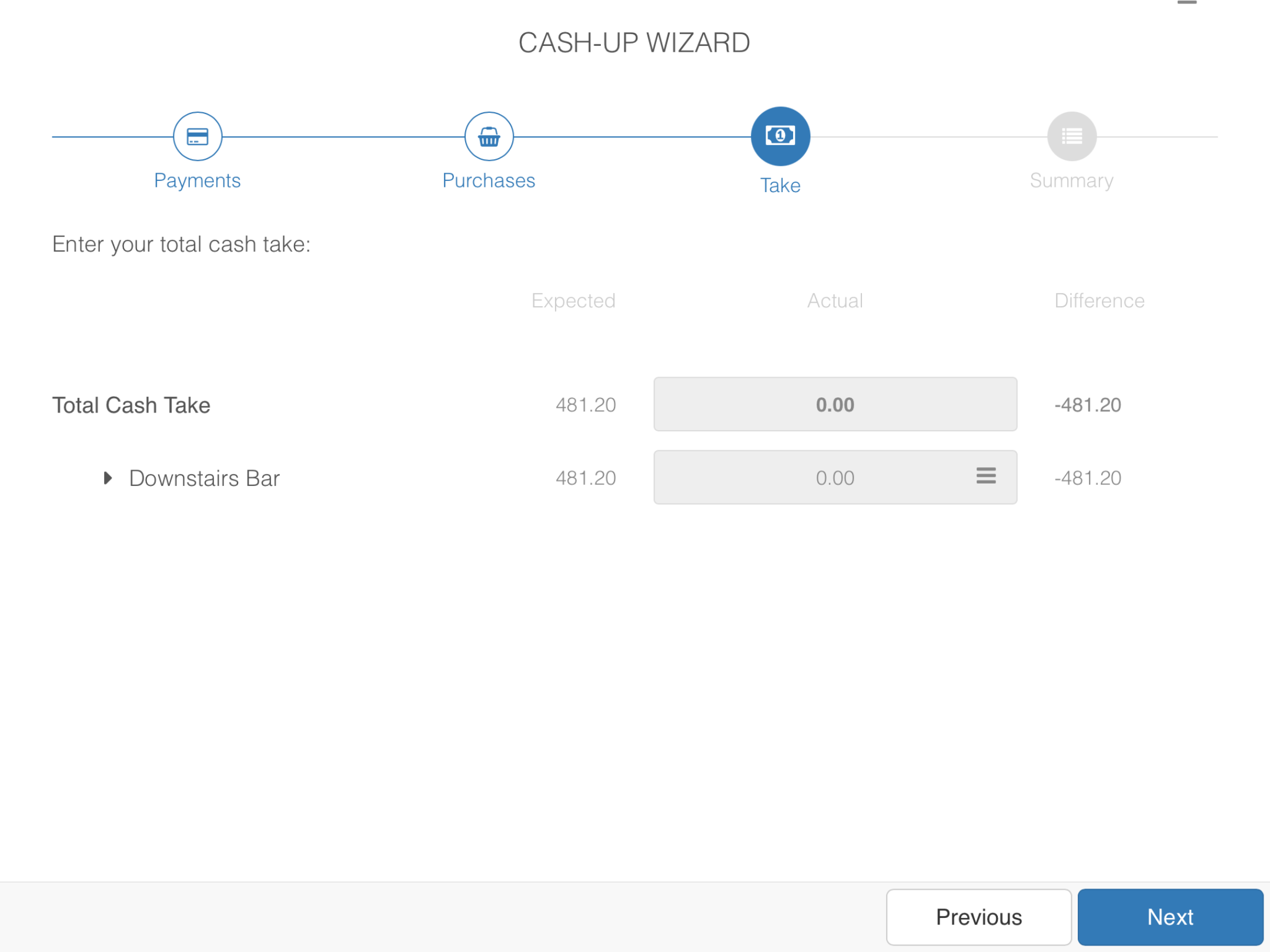
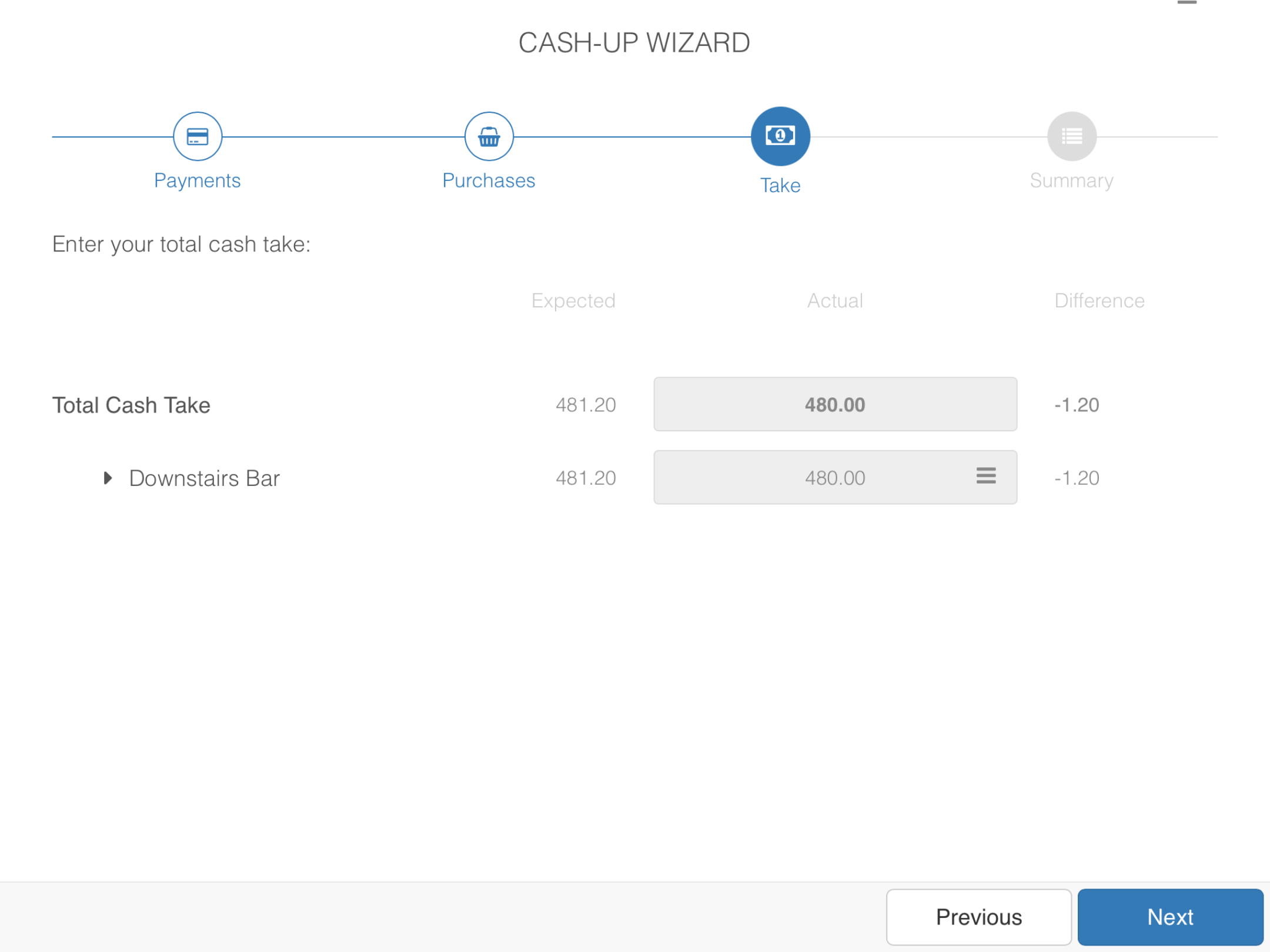
The grey box with the three lines is where you can enter your actual cash. This will then calculate any variance between your expected & actual, and will be displayed in the column on the right-hand side under Difference.
Click the blue Next button to continue.
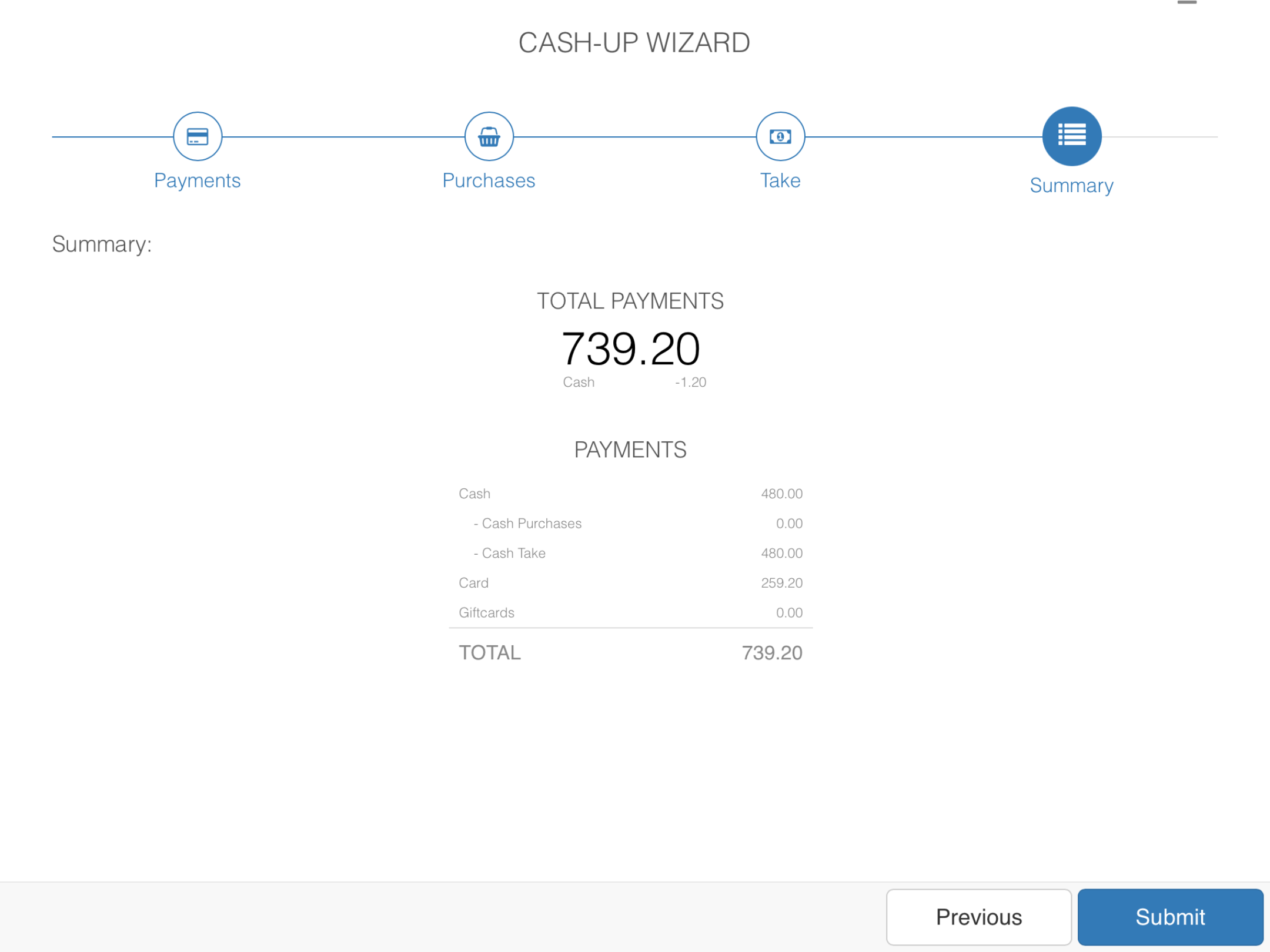
The final screen will bring you to the summary, which will summarise all the payment information you have declared for your individual EPOS.
Your variance will appear at the top of the screen under your total payments and will also detail where it has come from.
Press the blue Submit button to confirm your payment declaration. Your cash up will now be complete for the individual EPOS.
You can now run a full cash up.
Was this article helpful?
That’s Great!
Thank you for your feedback
Sorry! We couldn't be helpful
Thank you for your feedback
Feedback sent
We appreciate your effort and will try to fix the article