You can configure Z reports to be automatically emailed to one or more email addresses each time a cash up is completed. This enables you to share and review cash up figures without needing to log in to the back office.
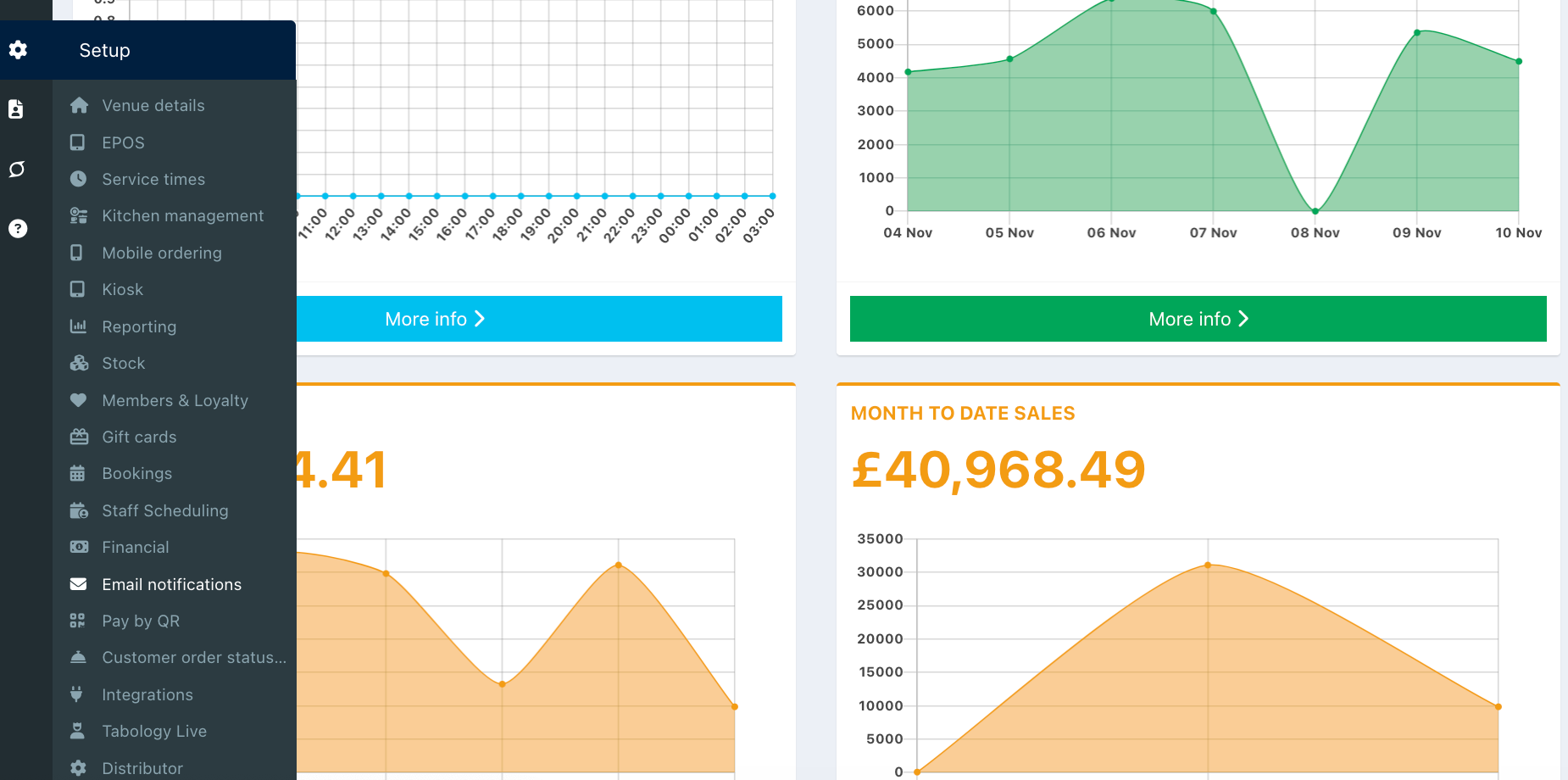
To set an email to receive Z reports, go into the back office and click Setup > Email notifications.
Locate the Z-report/Cashup email setting, enter the required email address in the field, then press Enter. Repeat for any additional email addresses you would like to receive the report.
Note: If you need to remove the email, click the white X to the left of the email.

Click the blue Save button at the bottom of the screen.

Was this article helpful?
That’s Great!
Thank you for your feedback
Sorry! We couldn't be helpful
Thank you for your feedback
Feedback sent
We appreciate your effort and will try to fix the article