Booking requests can be managed directly on your EPOS in both the List view and Grid view formats, as well as through the back office. You can check availability, accept or decline requests, and allocate bookings to tables.
Before you can manage booking requests on your EPOS you will need to ensure that Manage booking requests on EPOS is enabled in the back office.
You can see any new booking requests & upcoming bookings for the day under More > Bookings.
Bookings are indicated by:
- Green tick - confirmed booking
- Orange tab - confirmed booking with an open tab
- Blue message - booking request
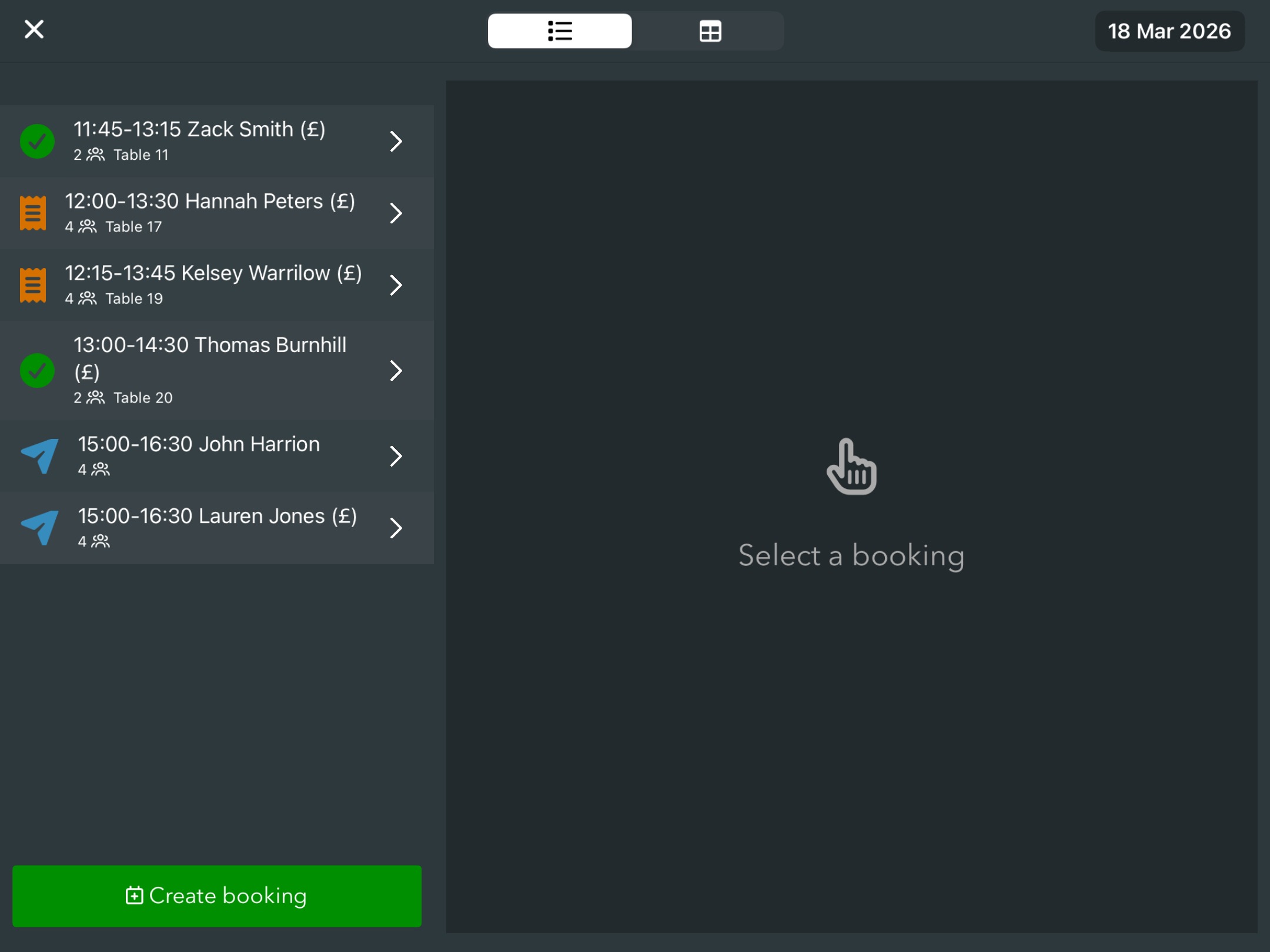
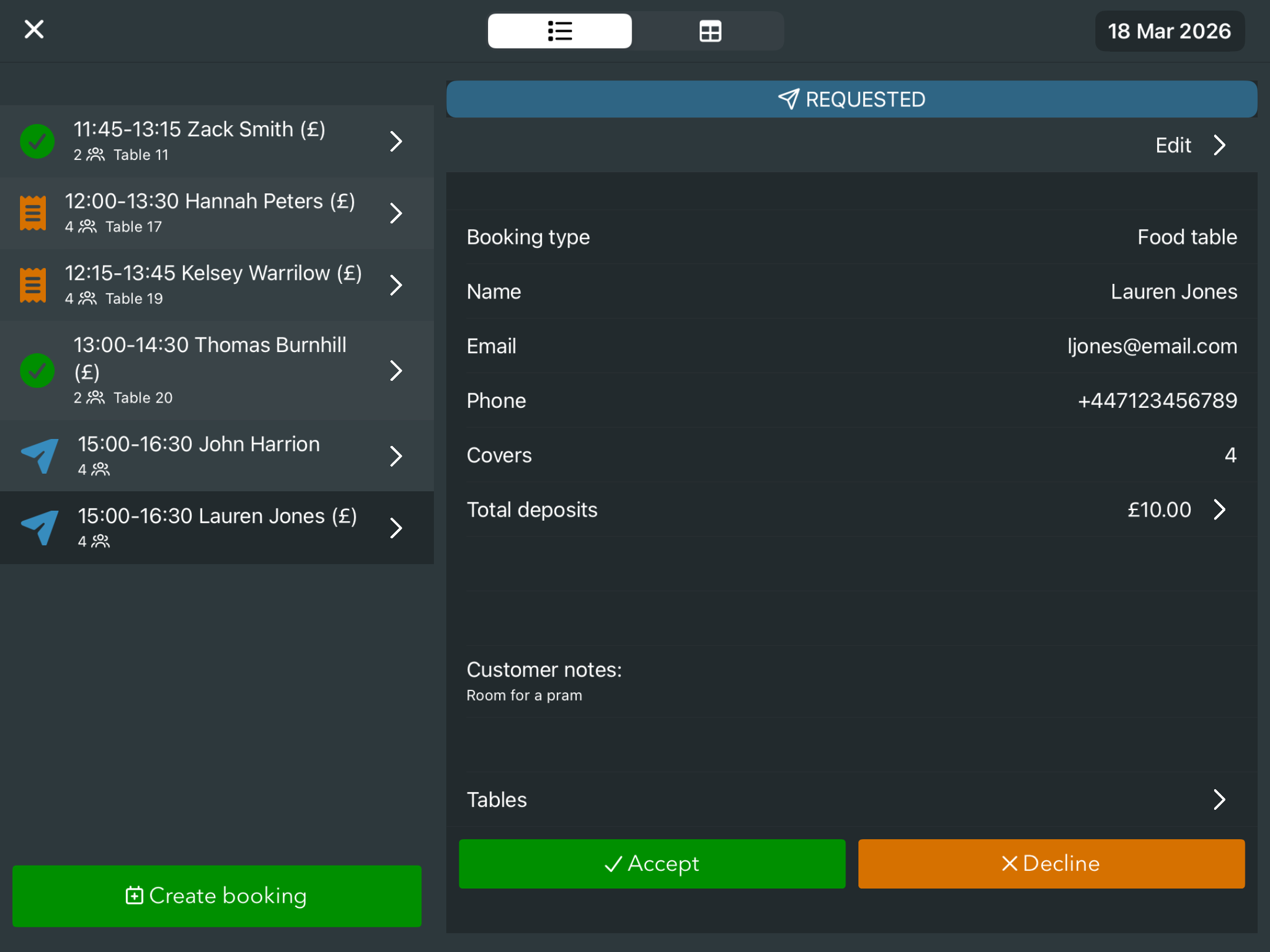
From the List view, click on a Booking request to open it. This will display to the right of the EPOS.
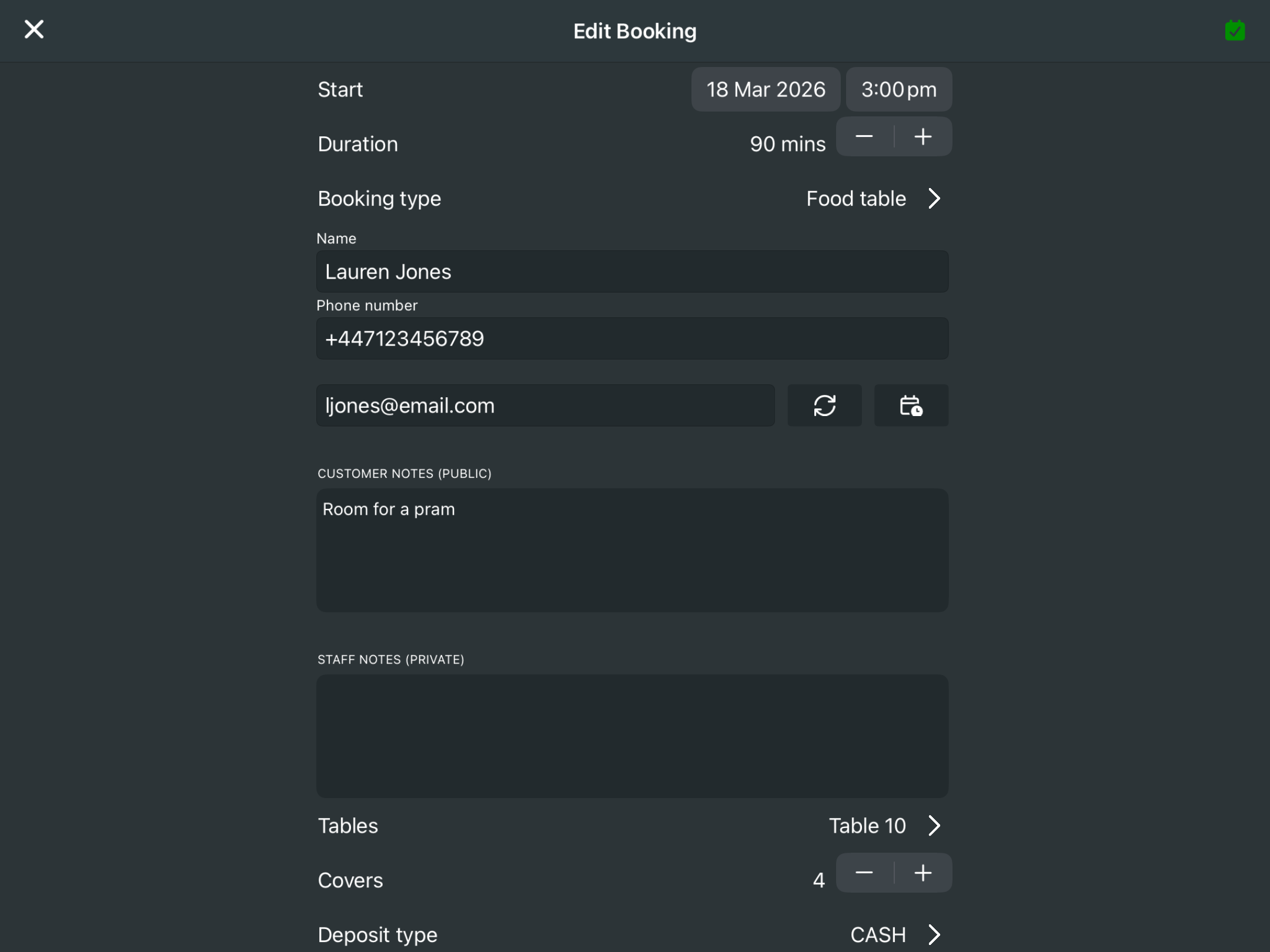
You can then check if you have an available table by clicking the Tables field, and if so allocate the booking request.
Note: If you are allocating a booking request for the current day, you will see if any tabs are currently linked to a table so you can avoid allocating the booking request to a table that is already occupied. You can still allocate the request to a table that has a tab linked if you are happy that it will be free by the time of the booking.
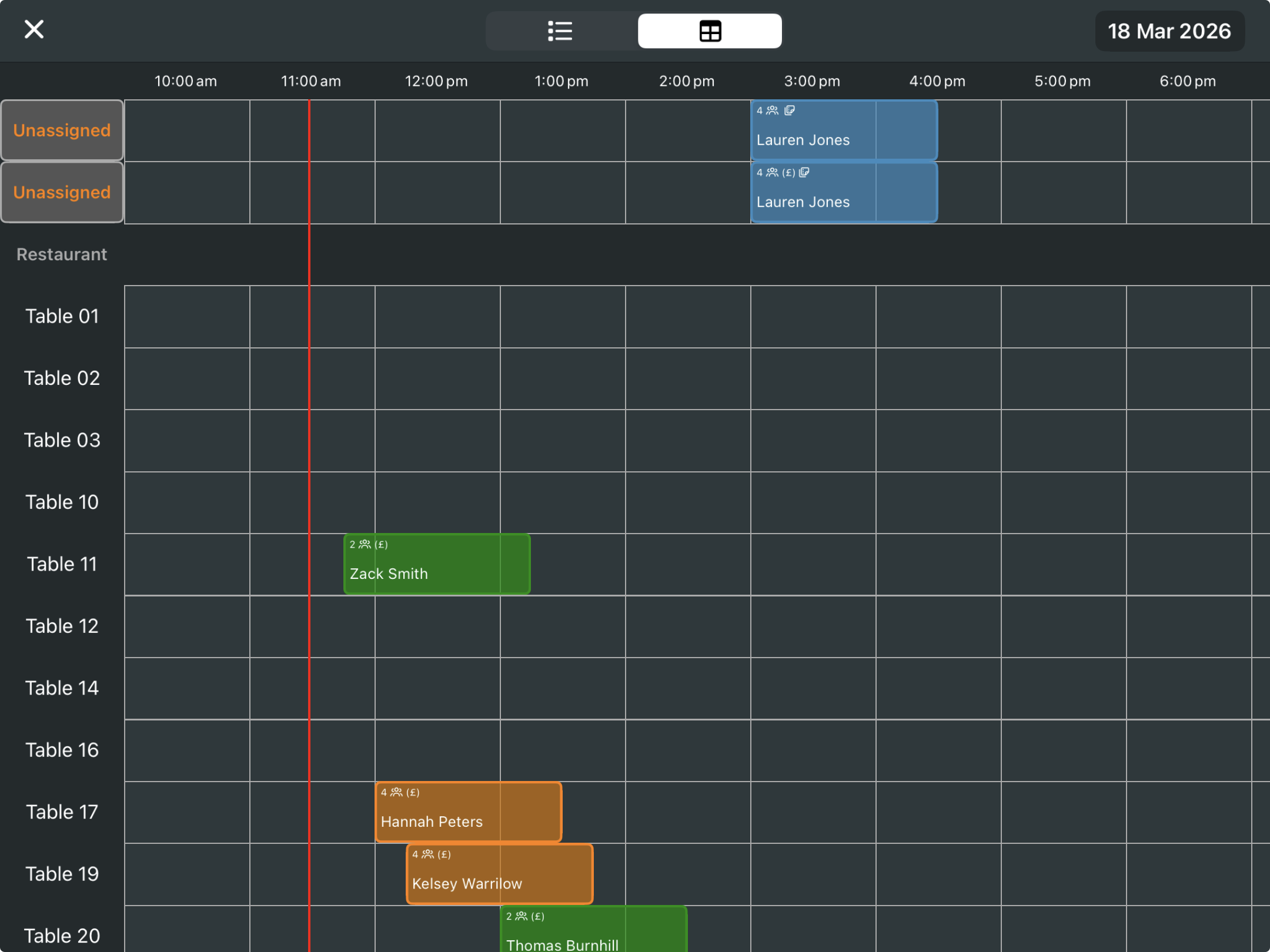
Alternatively, from the Grid view, any requests will be displayed in the Unassigned section.
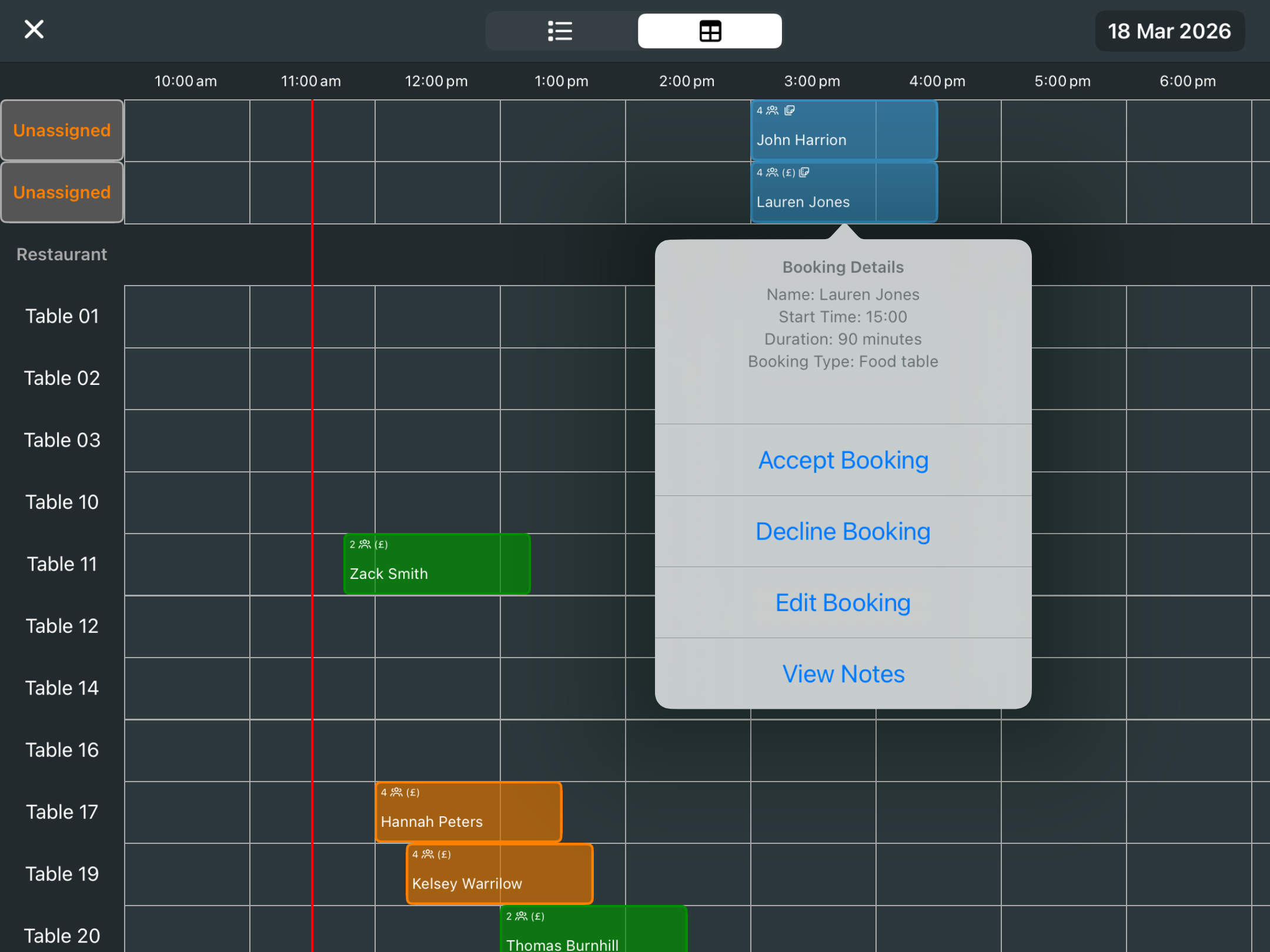
Click the Booking request in the Unassigned section and choose from the Accept or Decline options.
When the booking has been updated, you may then want to allocate the booking to a table from the Table field under Edit booking.
When a booking request is Accepted or Declined, this will notify the customer by the email they provided at the time of booking.
Note: Emails will use the booking confirmation template and be sent to the email on the booking.
Was this article helpful?
That’s Great!
Thank you for your feedback
Sorry! We couldn't be helpful
Thank you for your feedback
Feedback sent
We appreciate your effort and will try to fix the article