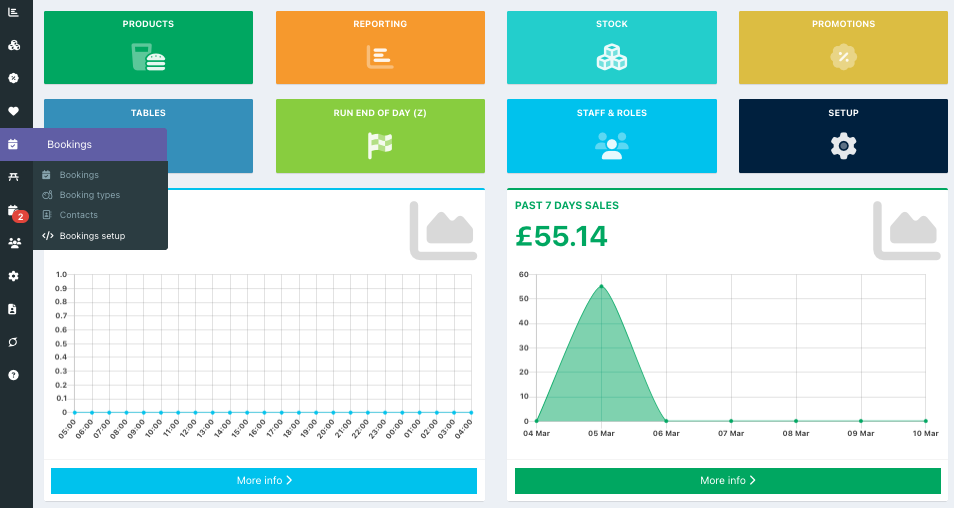
You can add a booking form to your website, where customers can make booking requests. To do this go into your back office and click Bookings > Bookings setup from the left hand navigation.
(You can also access this by clicking Setup > Bookings in the left hand navigation.)
The Widget tab will display. Toggle Enable booking widget to On.
Once opened, the Booking widget script will be displayed so you or your web developer can add it to your website.
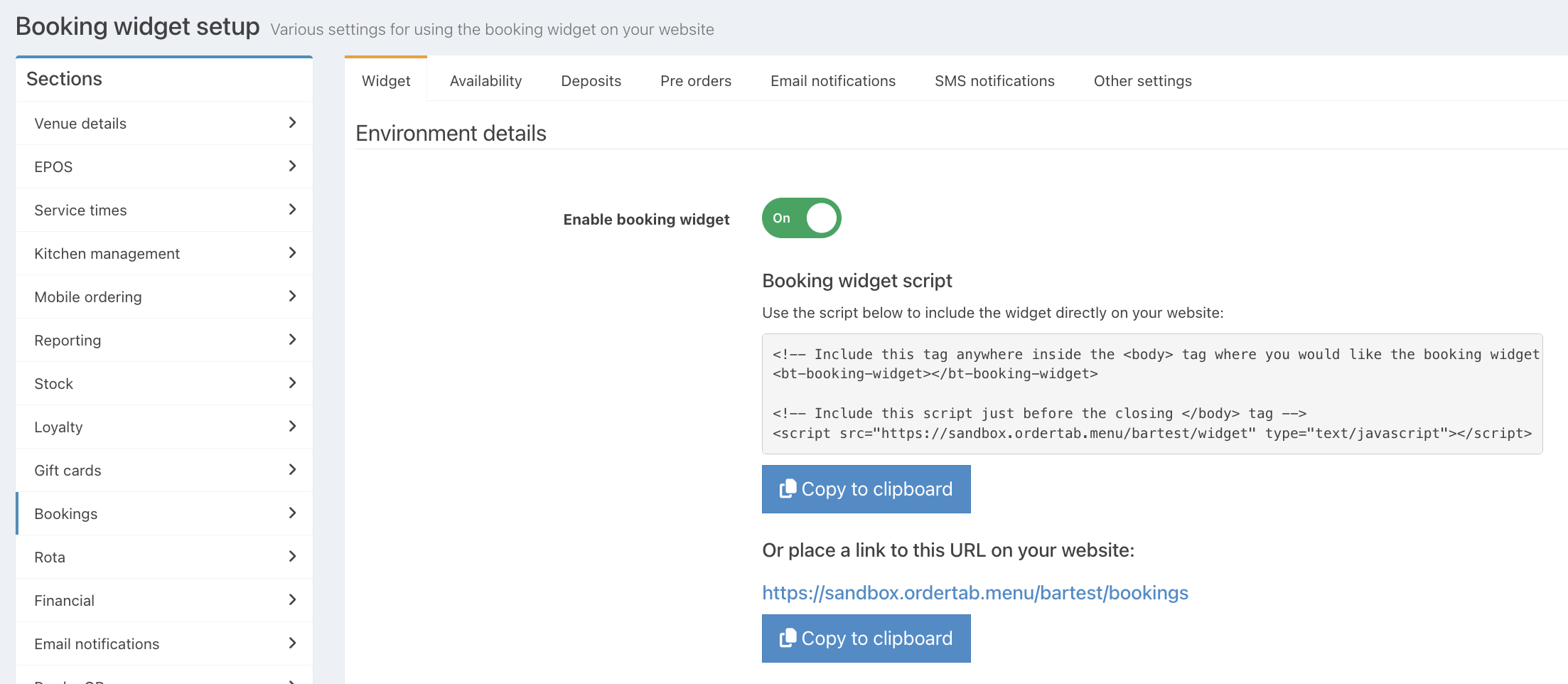
Alternatively you can link directly to your booking form URL from your website or social media accounts. Your booking URL also provides an easy way to place a test booking so you can see how these appear in your Back Office when customers make booking requests.
Venue details
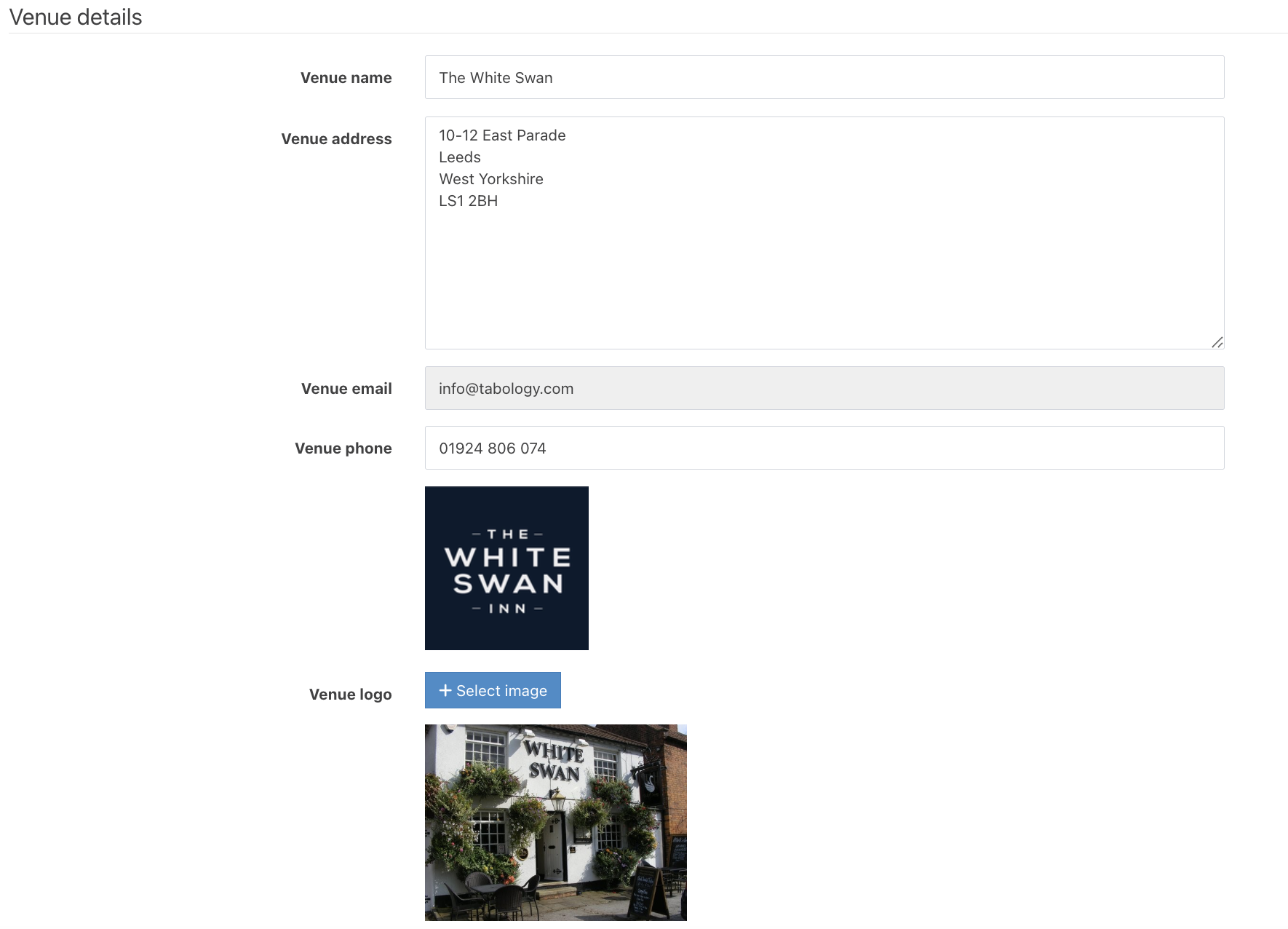
Below the widget, you will be able to add your Venue details which will display on your booking widget:
- Venue name
- Venue address
- Venue email (this will be pre-populated from the contact email set in Back office > Settings > Venue details)
- Venue phone number
- Venue logo
- Venue cover image
Form Details
You can now set up the Form details section to specify the form title, an introduction, and the submit button label.
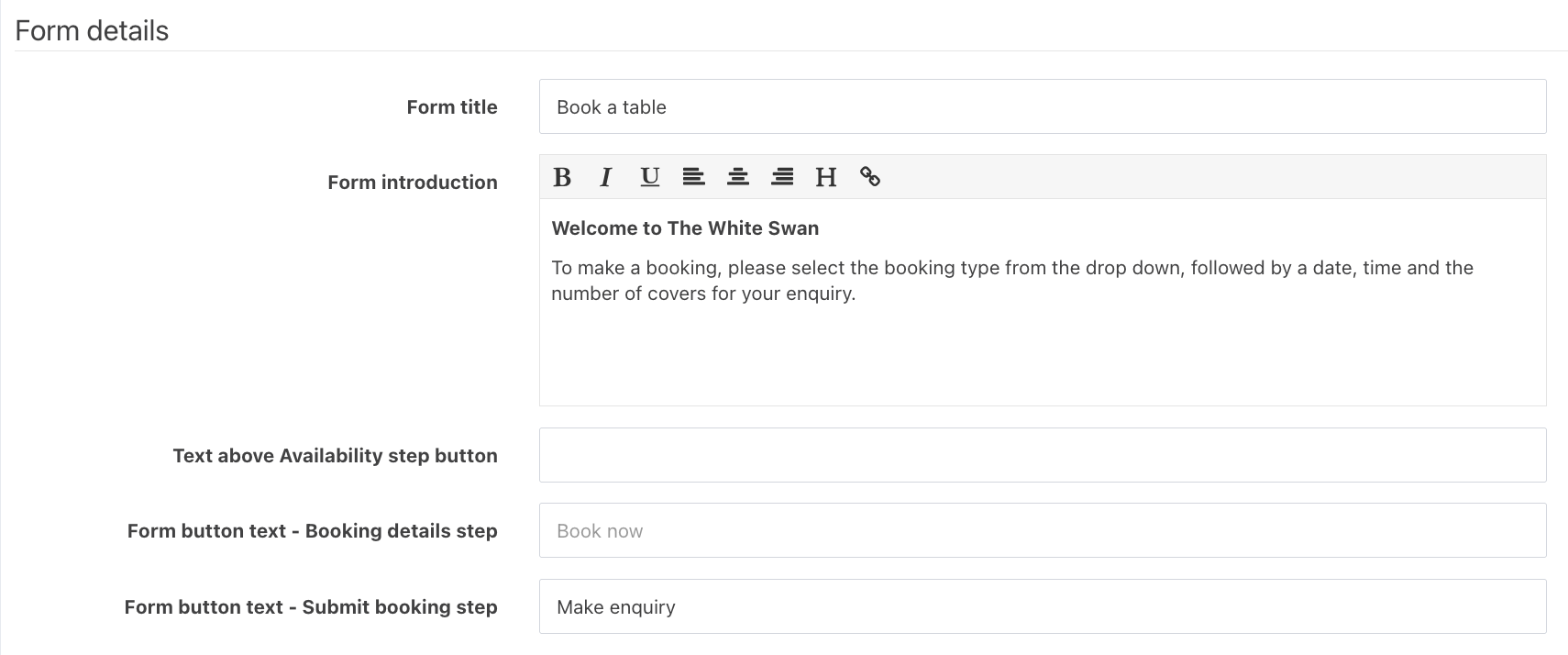
You can add a link in the form introduction. If you need to link your privacy policy or cancellation policy, it's a good idea to do so, alongside a statement that you may contact the customer in order to facilitate their booking.
To do this, press the link icon above the text field, paste your URL in the URL field, then press the tab key and type the text you want to display (e.g. 'privacy policy') in the link title field.
In this section you can also customise:
- The text above the button to progress from the availability check step
- The label of the button to progress from the availability check step
- The label of the button to submit the booking (or booking request)
Field configuration
In the Field configuration section, you can tailor your Booking form labels, descriptions and placeholders.
- Label - The label displayed next to the input field
- Description - A description of the field
- Placeholder - Text displayed within the input field
Note: Customer name and email will always be required fields. You can choose to also make Customer phone number a required field, by toggling this option to On.
Configuration
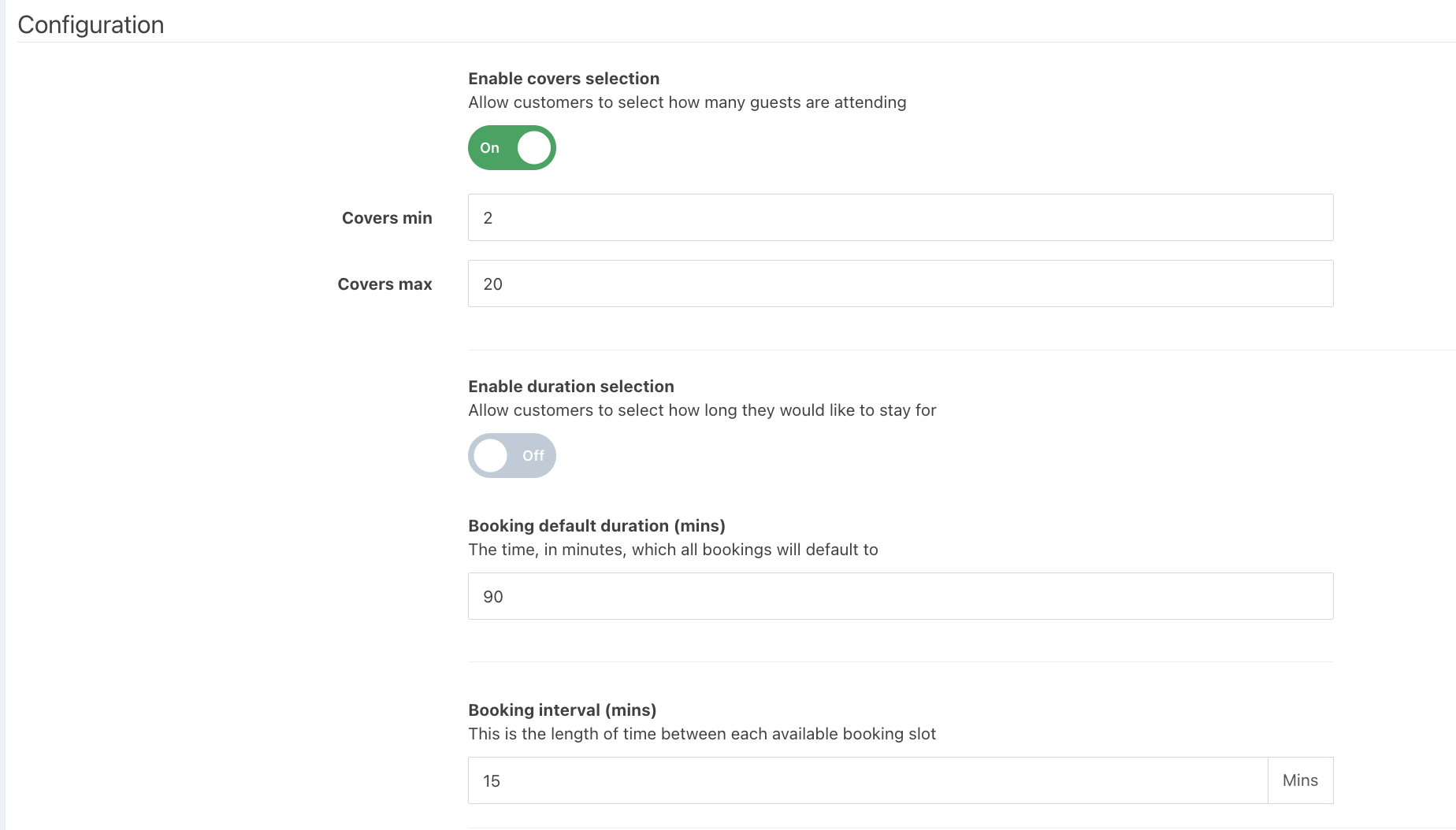
Next, you can select from a number of configuration options:
- Enable covers selection - Allows the user to select how many covers are in between the min and max you specify
- Enable duration selection - Allows the user to select the duration of their booking between the min and max you specify. If you turn off the duration selection, you will be prompted to enter a default duration for all bookings.
- Booking interval (mins) - the time interval between each booking slot that the customer can select
Marketing and loyalty
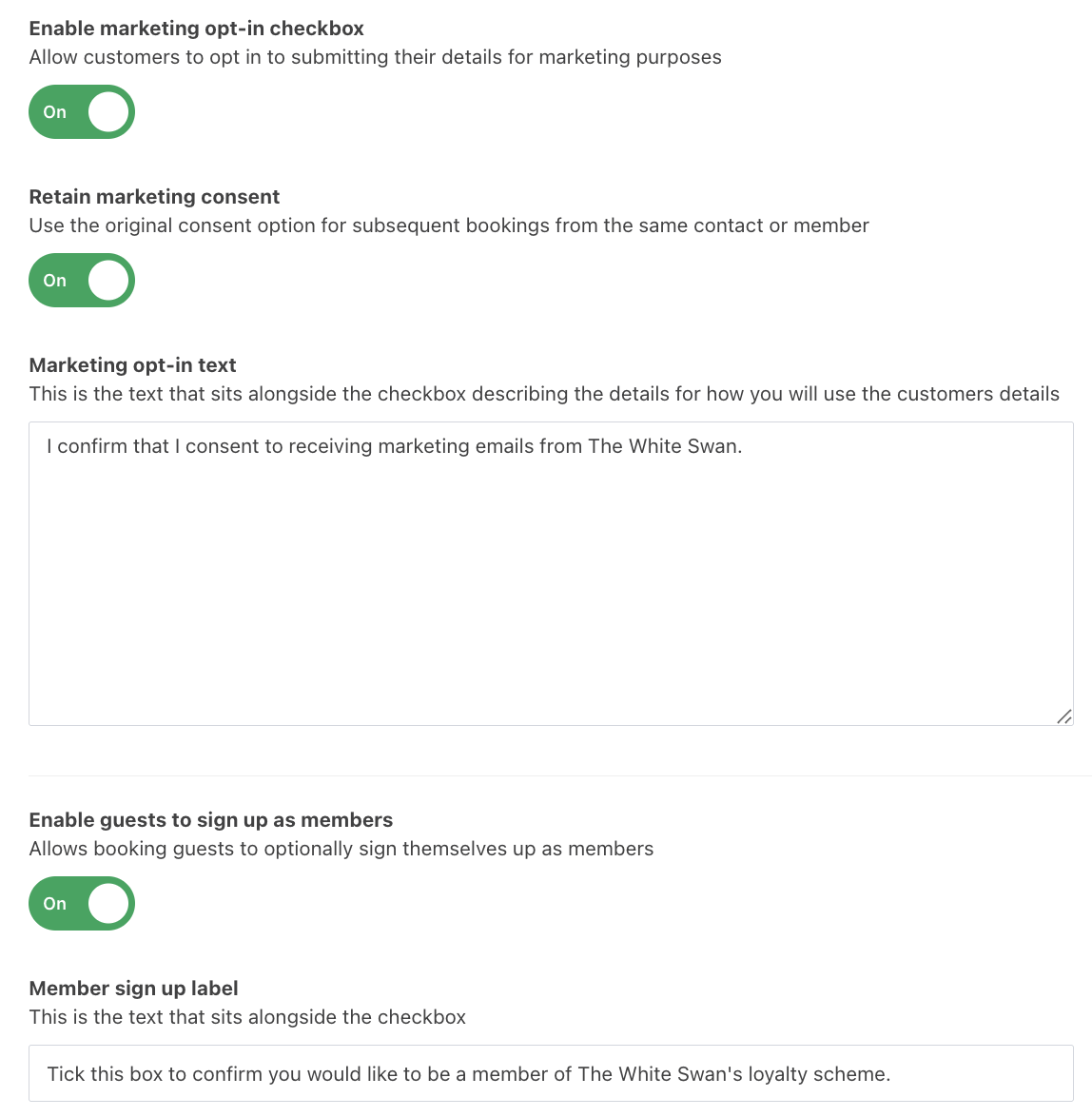
Finally, you can add a tick box for guests to agree to receive marketing from you, along with some text explaining what you would like to send them.
When enabled, another toggle for Retain marketing consent will display. This will use the original consent option for bookings under the same contact or member.
Note: The marketing checkbox will not determine whether customers receive confirmation, reminder or follow emails so you should not rely on explicit marketing consent to send these. It's a good idea to inform the customer (separately to the marketing checkbox text) that you can contact them in order to facilitate their booking.
Additionally, when users use your booking form, you can enable an option that lets customers sign up for your loyalty scheme and become members. You can also tailor the member sign up label.
Click the blue Save button at the bottom of the screen to save your booking form changes.
You can now configure your Booking availability on the next tab at the top of the screen
Was this article helpful?
That’s Great!
Thank you for your feedback
Sorry! We couldn't be helpful
Thank you for your feedback
Feedback sent
We appreciate your effort and will try to fix the article