Custom booking form introductions can be used across multiple booking types to ensure each reservation option includes clear, relevant information for customers.
Different booking types could have different menus, pricing or durations, for example. By adding a tailored introduction to each one, you can clearly explain what the booking includes and set expectations before the customer confirms their reservation.
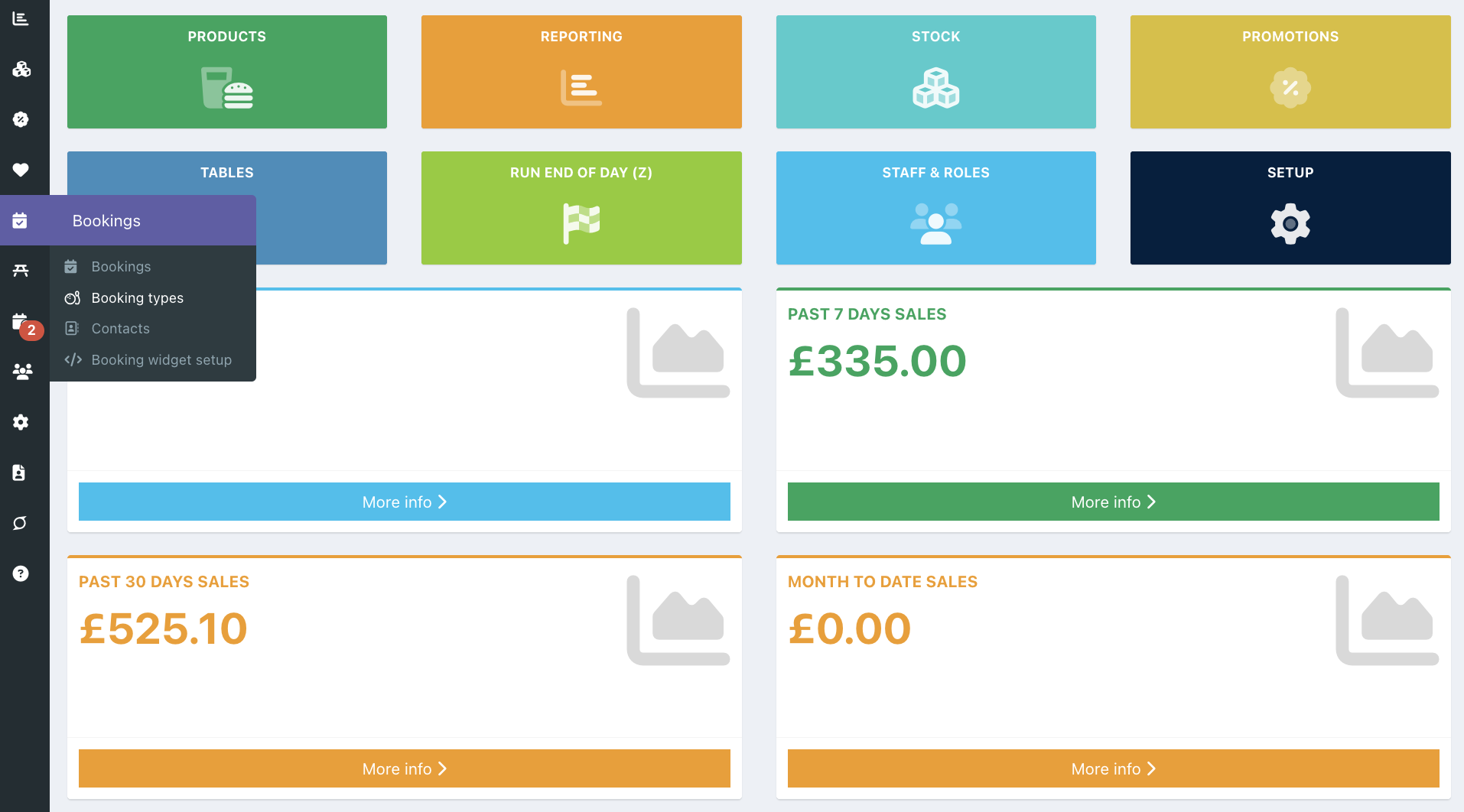
To add a custom booking form introduction to a booking type, go into your back office and select Bookings > Booking types.
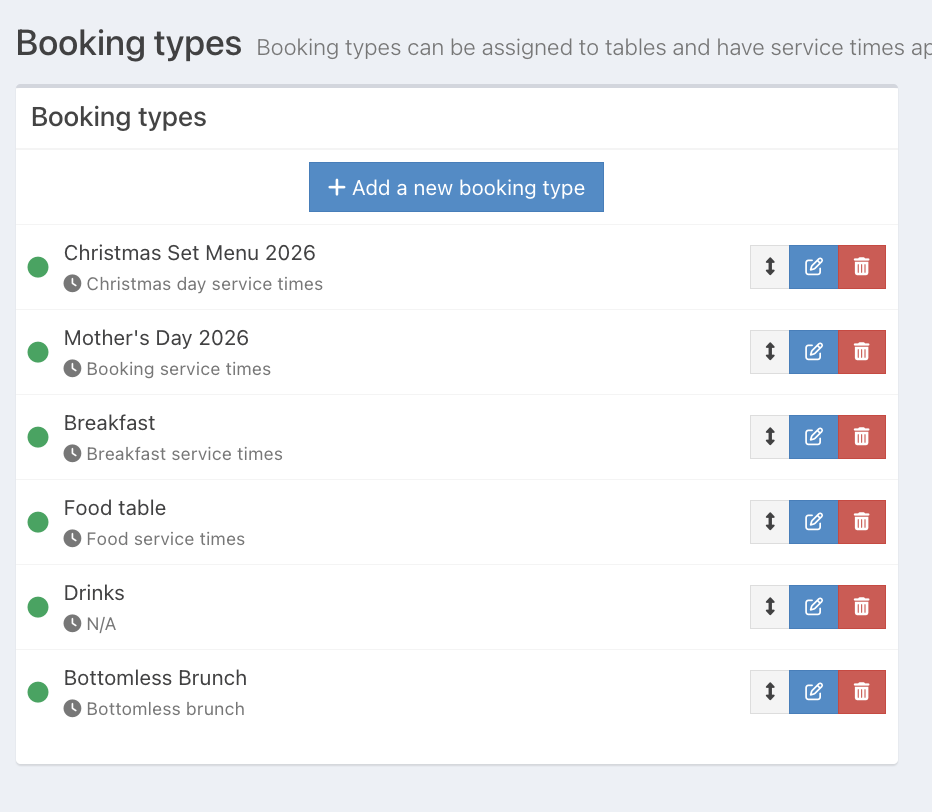
Locate the booking type from the available list on the left. Then click the blue Edit button at the end of the row. Alternatively, you can add a new booking type and give it a name.
The booking type will display on the right side of the screen. Click the Advanced settings tab.

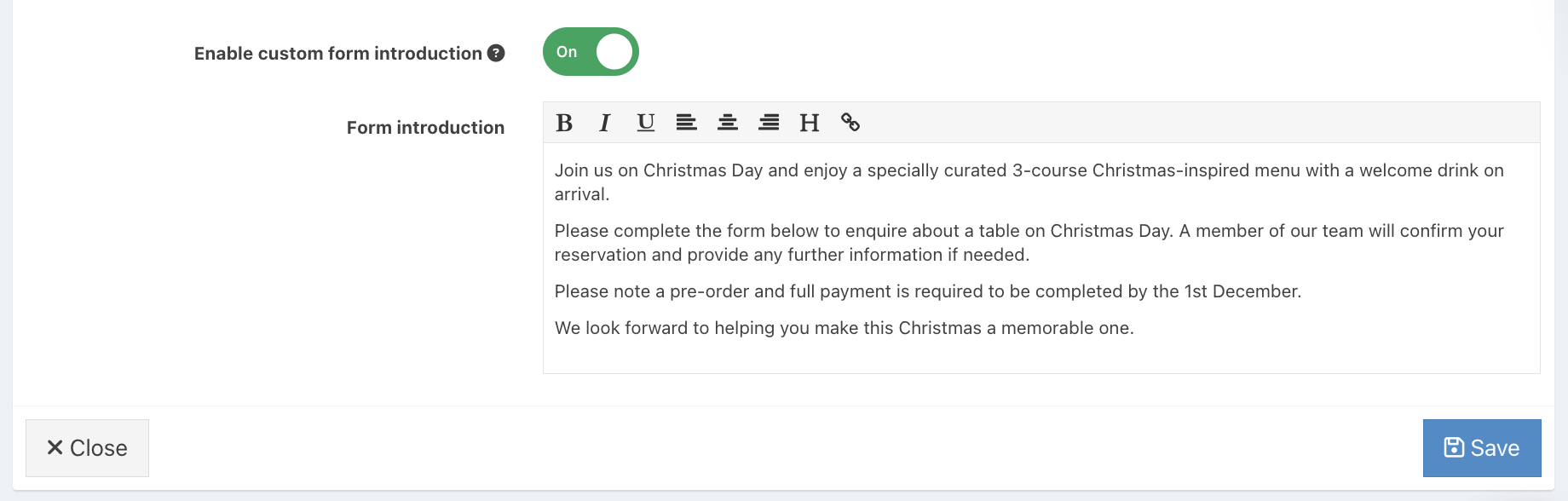
Locate the setting Enable custom form introduction. Toggle the setting to on.

The text field will display for you to enter your booking form introduction, then click the blue Save button.
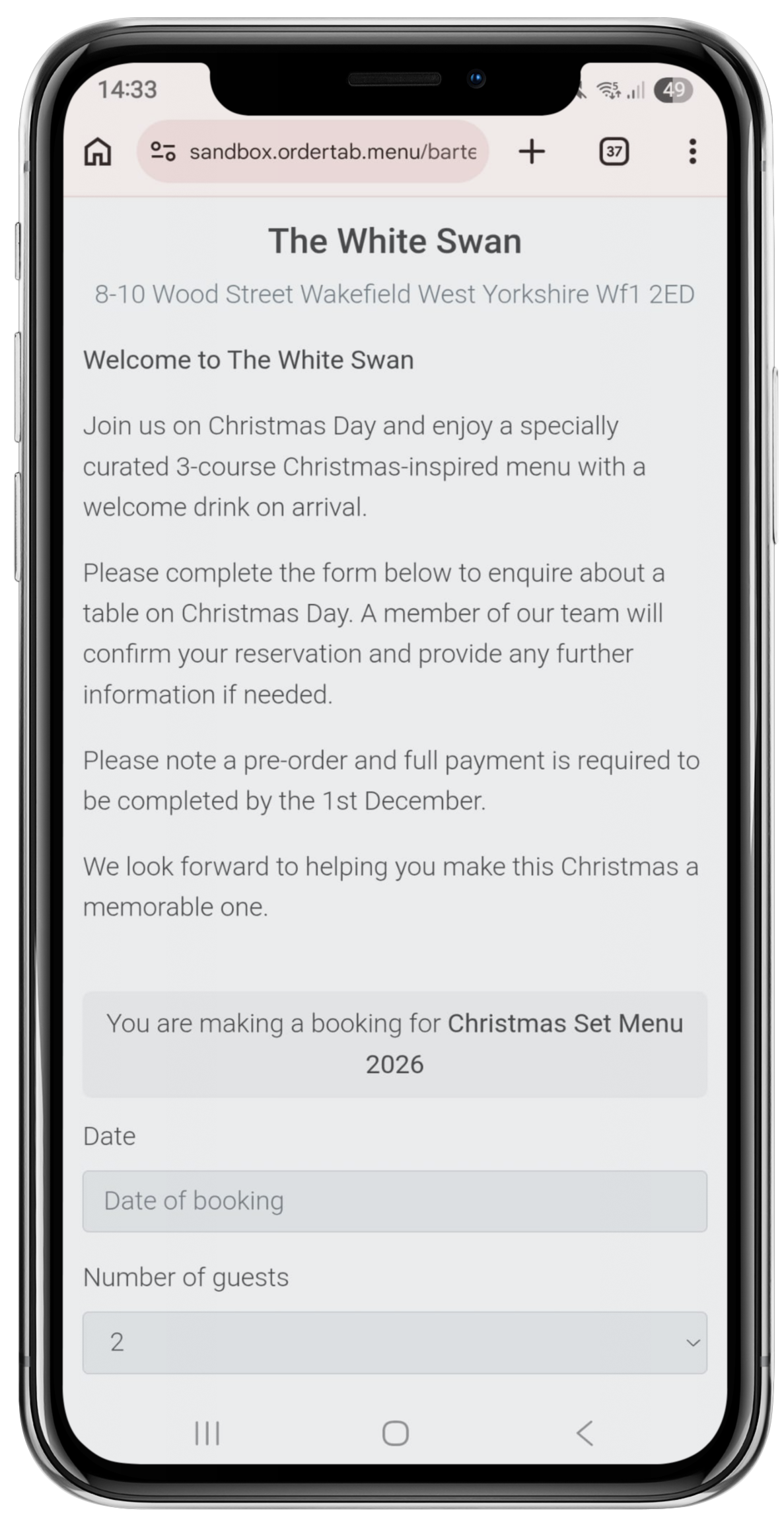
When your customer books online, they will now see an introduction to the booking type.
Note: Please be aware that if you added a global form introduction in the booking widget setup ('Welcome to The White Swan' in the example below), this will display above the custom form introduction for each booking type. If you don't want the global form introduction to display, go to Bookings > Booking widget setup and make sure the 'Form Introduction' box is blank
Was this article helpful?
That’s Great!
Thank you for your feedback
Sorry! We couldn't be helpful
Thank you for your feedback
Feedback sent
We appreciate your effort and will try to fix the article