As a new customer trialling the Tabology system, you can quickly and easily upload your existing menu using our AI tool. It's easily accessed from your back office, and will generate your products and categories automatically.
When your menu is uploaded, you should review the products individually, ensuring all the correct information is added to your product ready so you can start trying out the system.
Note: Menu uploads can be photos of your menu that you have taken, or a PDF upload in JPG or PNG format.
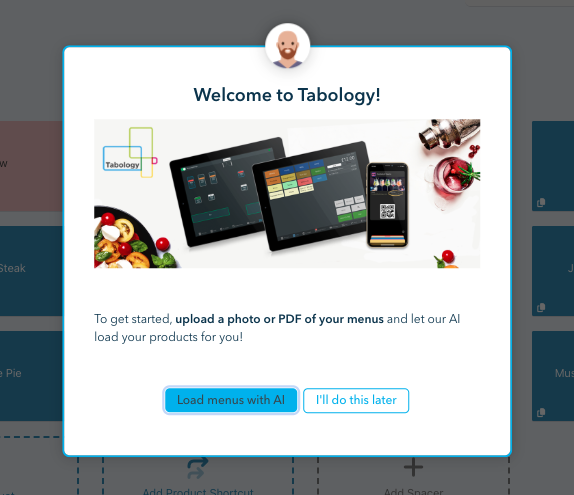
When you first log into the back office, you will see the Welcome to Tabology modal.
Click the blue Load menus with AI button.
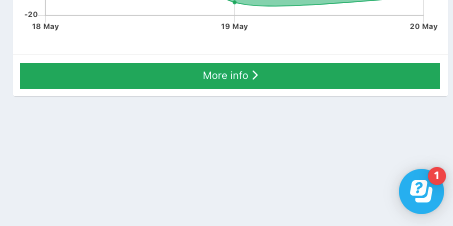
Alternatively, if you want to upload your menus later, you can access the AI menu uploader via the Help and Support userflow in the bottom-right of the Tabology back office.
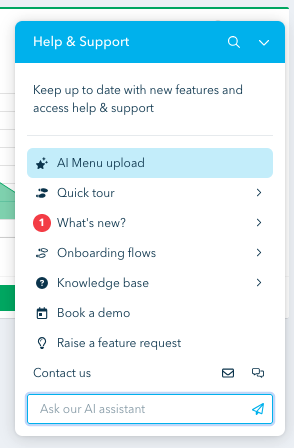
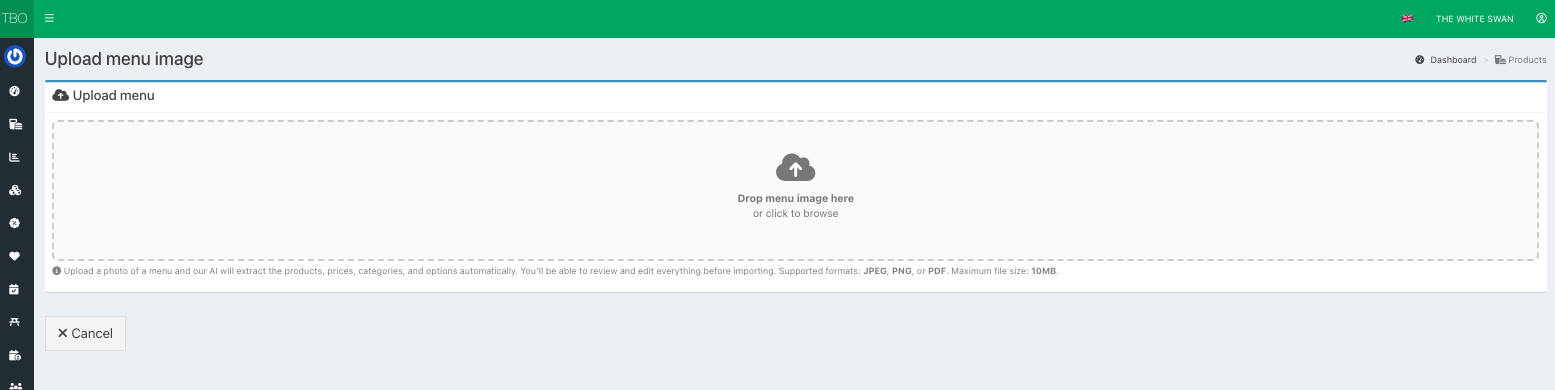
Click the AI menu upload button and you will be taken to the Menu uploader.
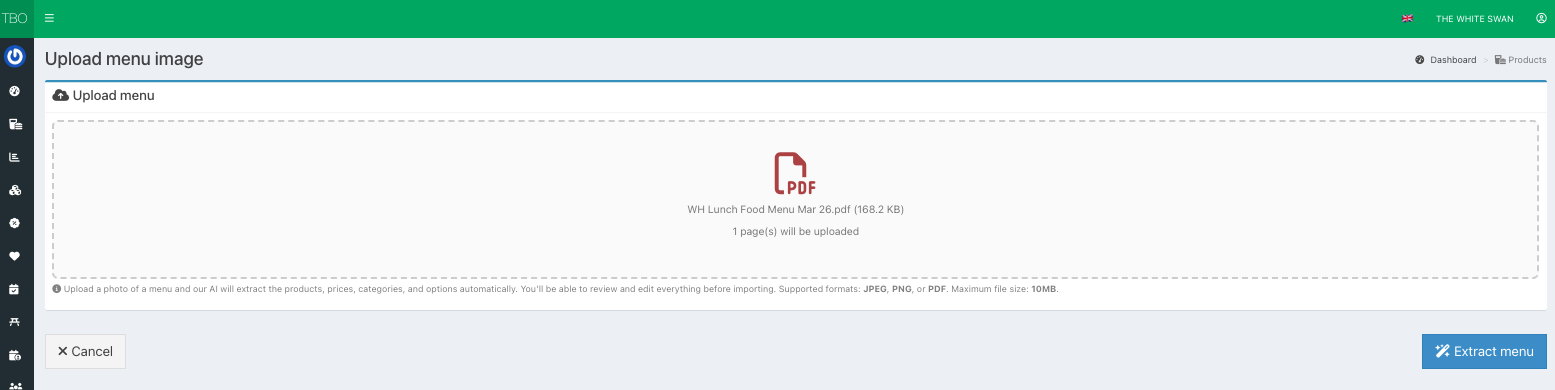
You can either drag and drop your menu from one of your folders on your computer, or browse through your folders by clicking in the Drop menu field.
When you have uploaded your menu, the blue Extract menu button will display in the bottom right. Click this button to extract your menu information for preview.
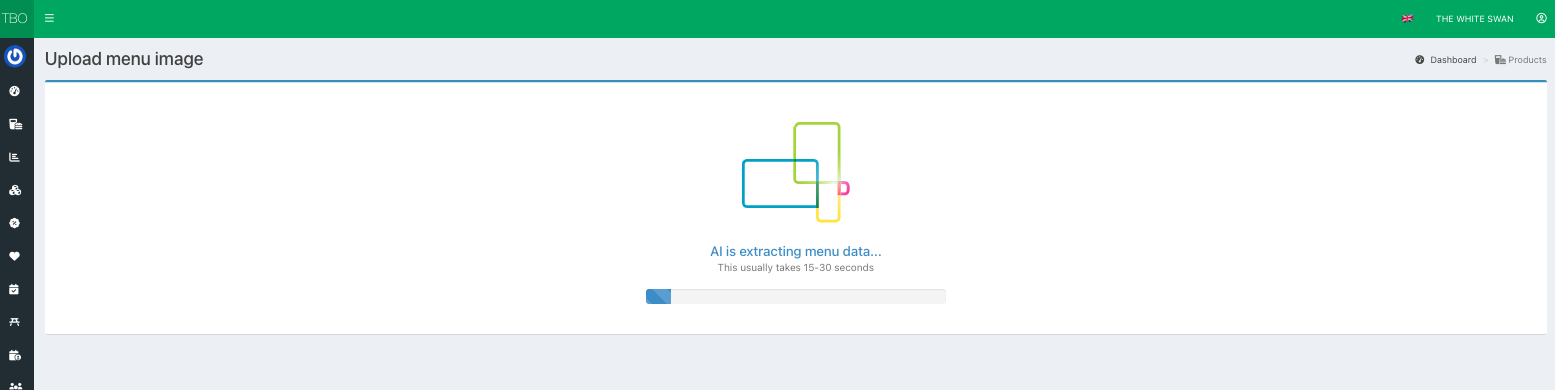
Your menu should take approximately 15-30 seconds to extract, depending on the size of your menu.
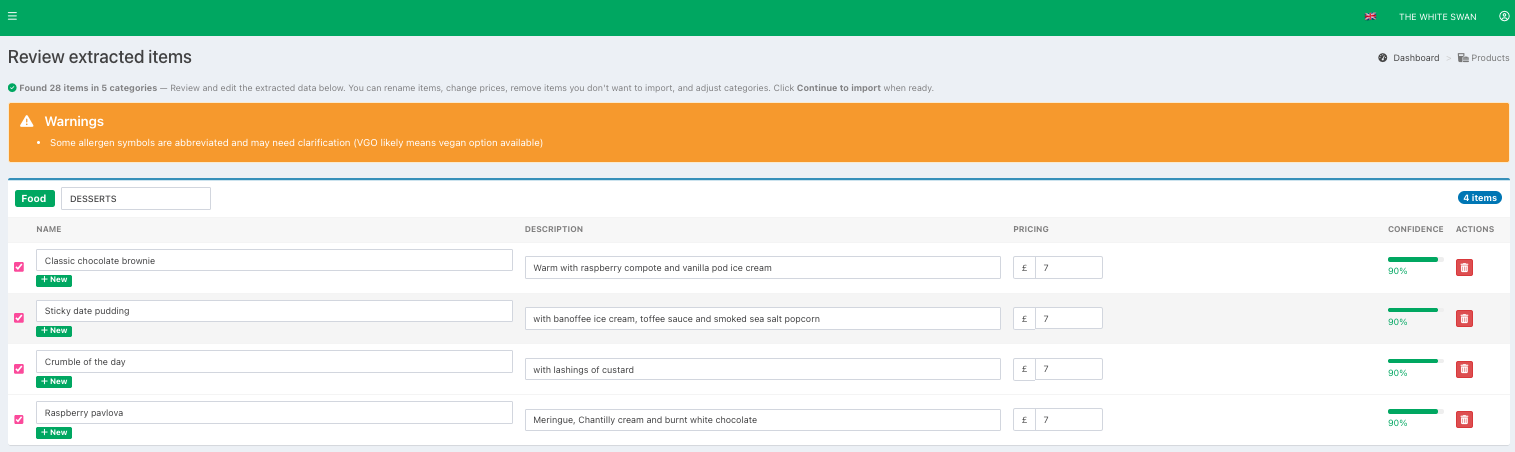
When that's done, at the top of the screen you will see how many products have been extracted across how many categories.
For each category extracted, you will see the name of the root category highlighted in green to indicate where this will be placed on your menu. To the right of the category header, the number of items extracted per category will display in blue.
Your can now review extracted products that have been pulled from your menu.
When reviewing you can:
- Edit the name of a product or category
- Edit the description of a product
- Change the pricing of the product
- Remove individual products from a category (click the red bin icon at the end of the product row or de-select for import)
With your first upload, all products will have a green New label under the name of the product. If you re-upload your menu at any point and some products could be duplicated, these will display with an orange Update label.
The Confidence column shows how closely the AI menu uploader thinks each item matches your menu. This is displayed as a colour-coded bar (red, amber, or green) alongside a percentage score. Lower scores can occur if the uploaded text was unclear or partially cut off, so be sure to check these items.
Claude responded: The confidence column shows how closely the AI thinks each item matches your menu — displayed as a colour-coded bar (red, amber, or green) alongside a percenta…
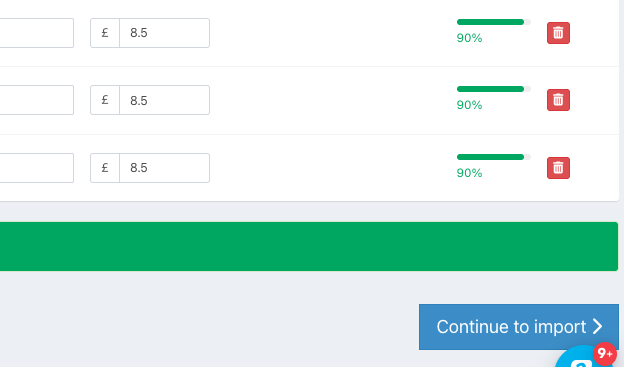
When you have reviewed all your products, scroll to the bottom of the screen, where you will be able to see the number of items selected for import.

Then click the blue Continue to import button.
At the next screen, you will Confirm and import the products that you previously selected.
Click the green Import button.
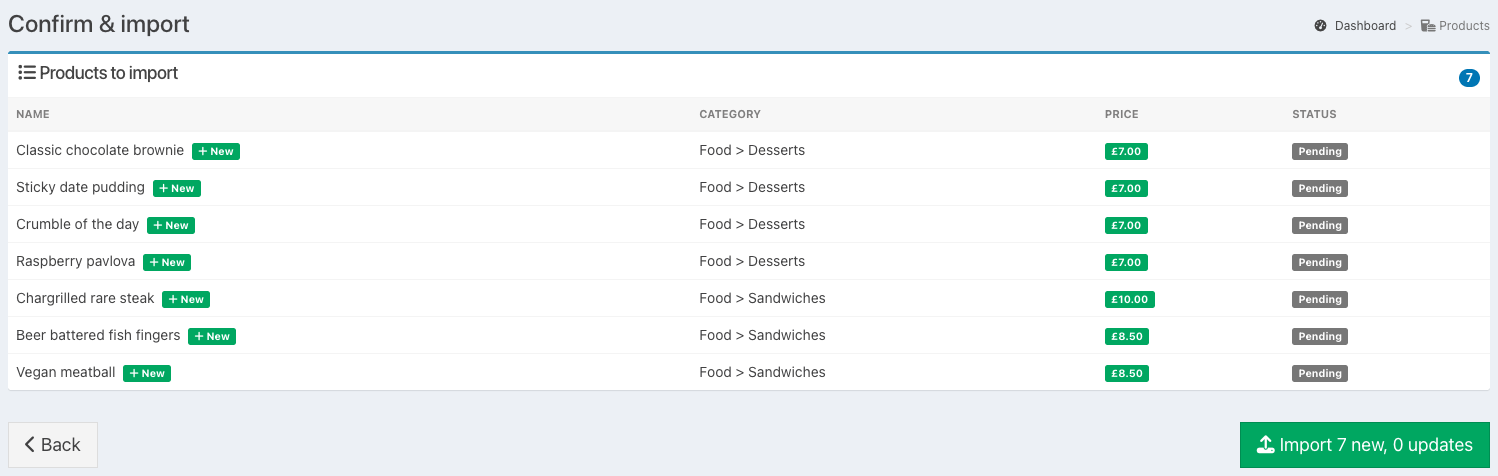
The Import prompt will display, indicating how many products will be imported. Click the blue Import button.
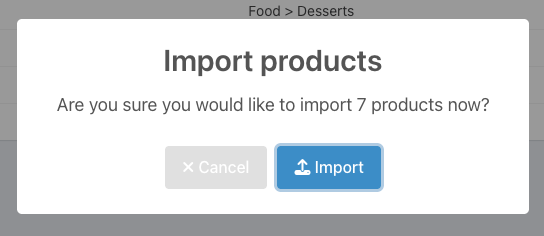
When successfully imported, the Uploaded menu modal will display.
You can now view your products by clicking the Viewing products button.
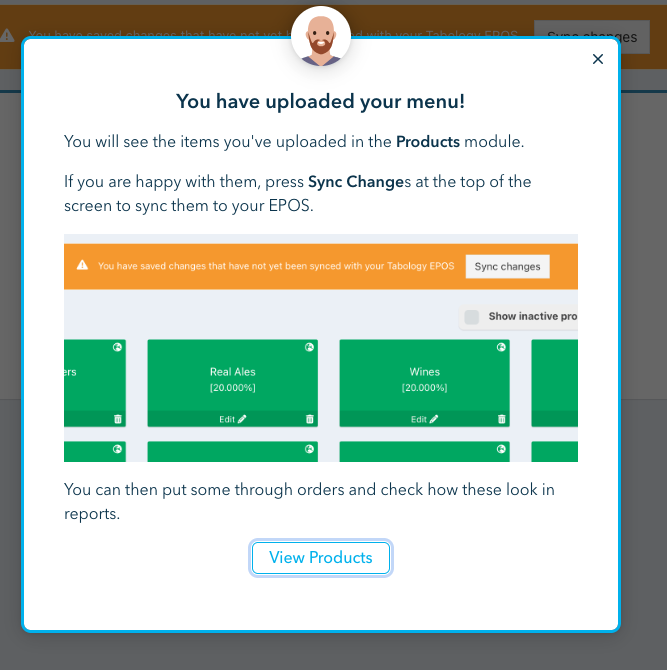
Reviewing your products
When you have successfully imported your products, you should review all products invdividually ensuring the product information is correct. The below articles will show you how to do this:
- Product Stock Settings
- Using measures (portions)
- Adding recipes to products
- Product options & modifiers
- Adding staff notes field
- Setting take out prices & tax rates
Was this article helpful?
That’s Great!
Thank you for your feedback
Sorry! We couldn't be helpful
Thank you for your feedback
Feedback sent
We appreciate your effort and will try to fix the article