You can view a list of the current live orders in the Management app, split by Bar orders and Kitchen orders.
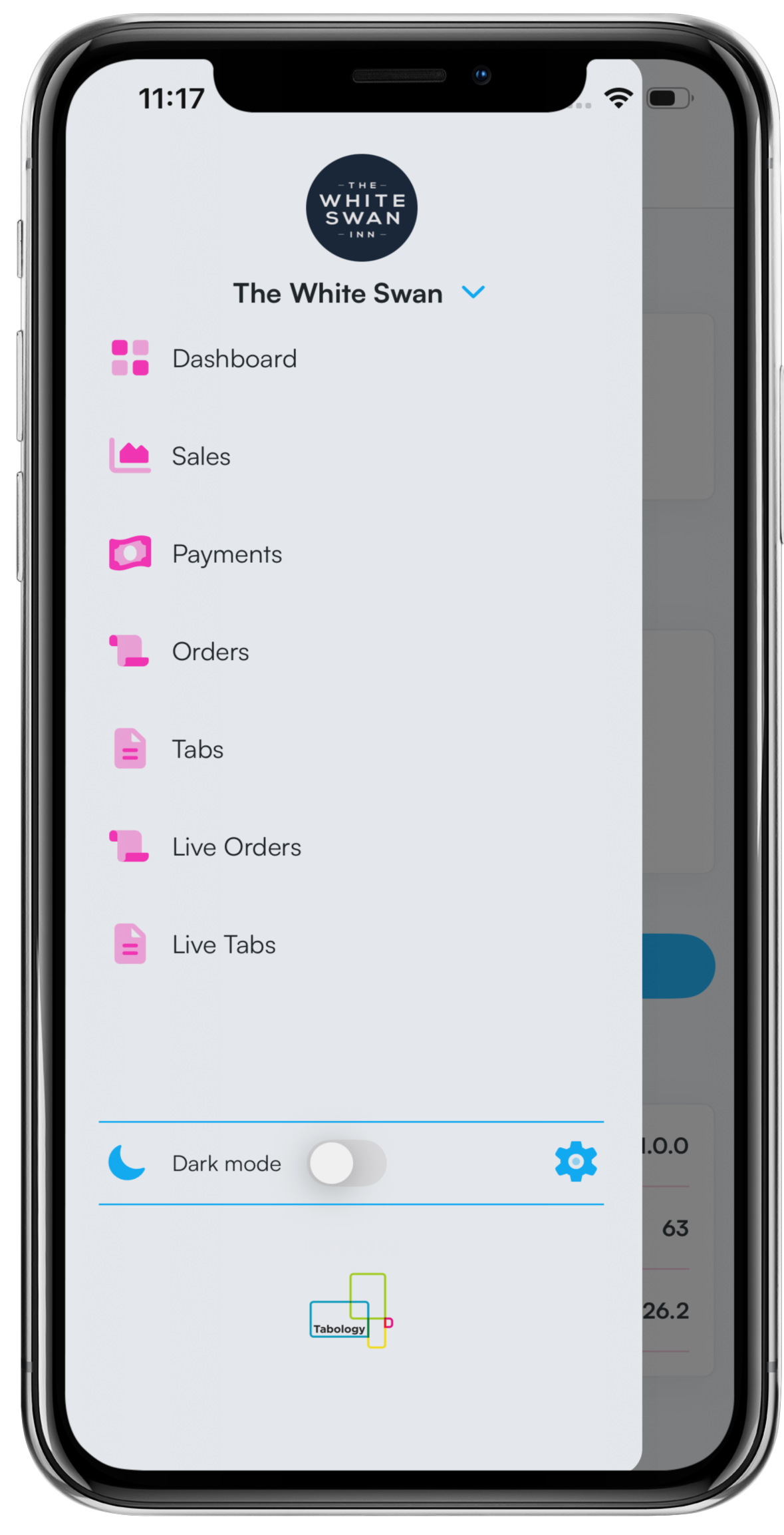
To view a list of Live orders, navigate to the Menu at the top of the dashboard, followed by Live orders.
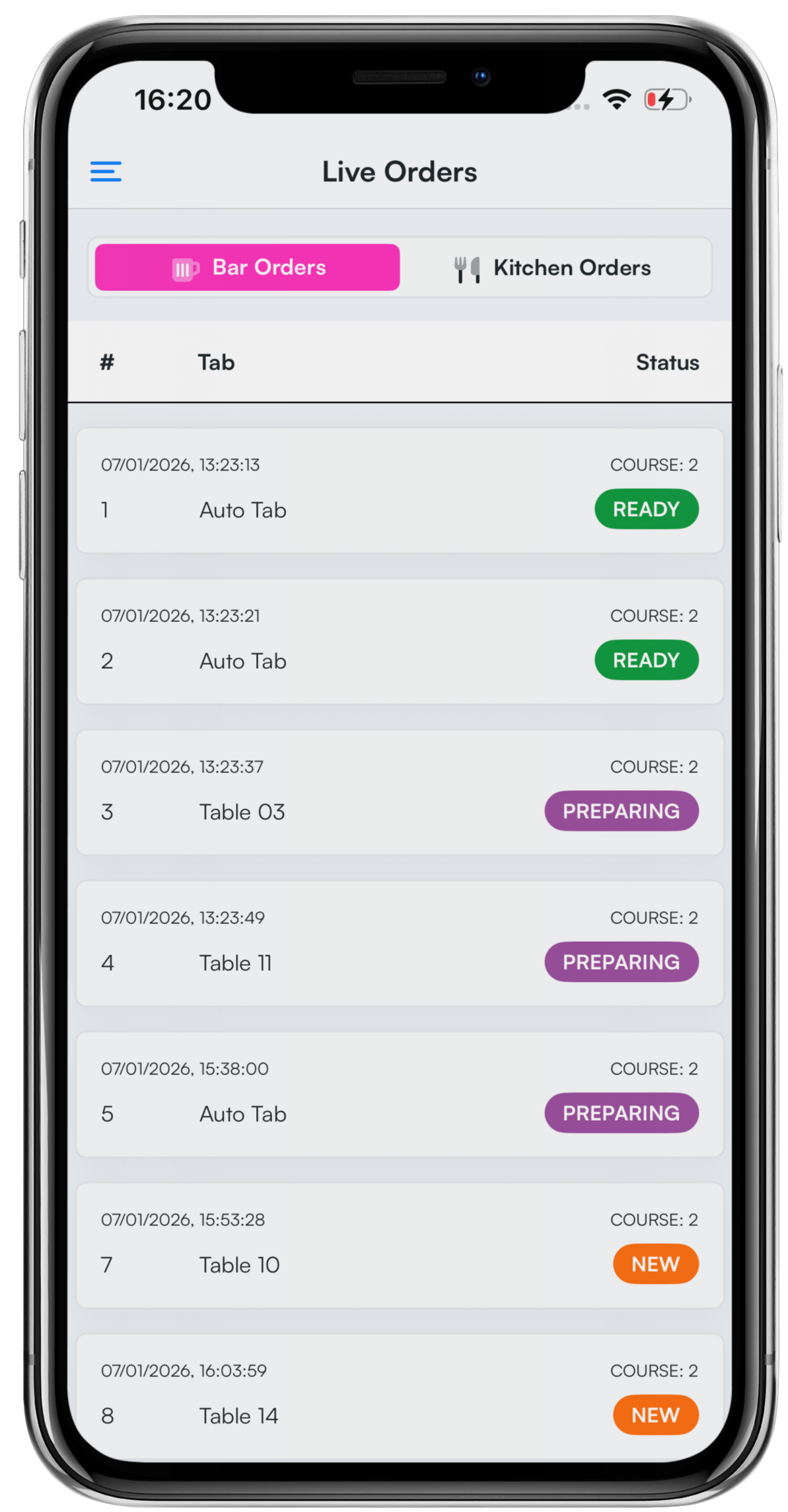
You will see a list of live Bar orders. You can select the Kitchen Orders tab at the top of the screen to see a list of Kitchen orders.
For each live order, you will be able to see:
- The date and time the order was placed
- The order number
- The tab name
- The status of the order
- The course number
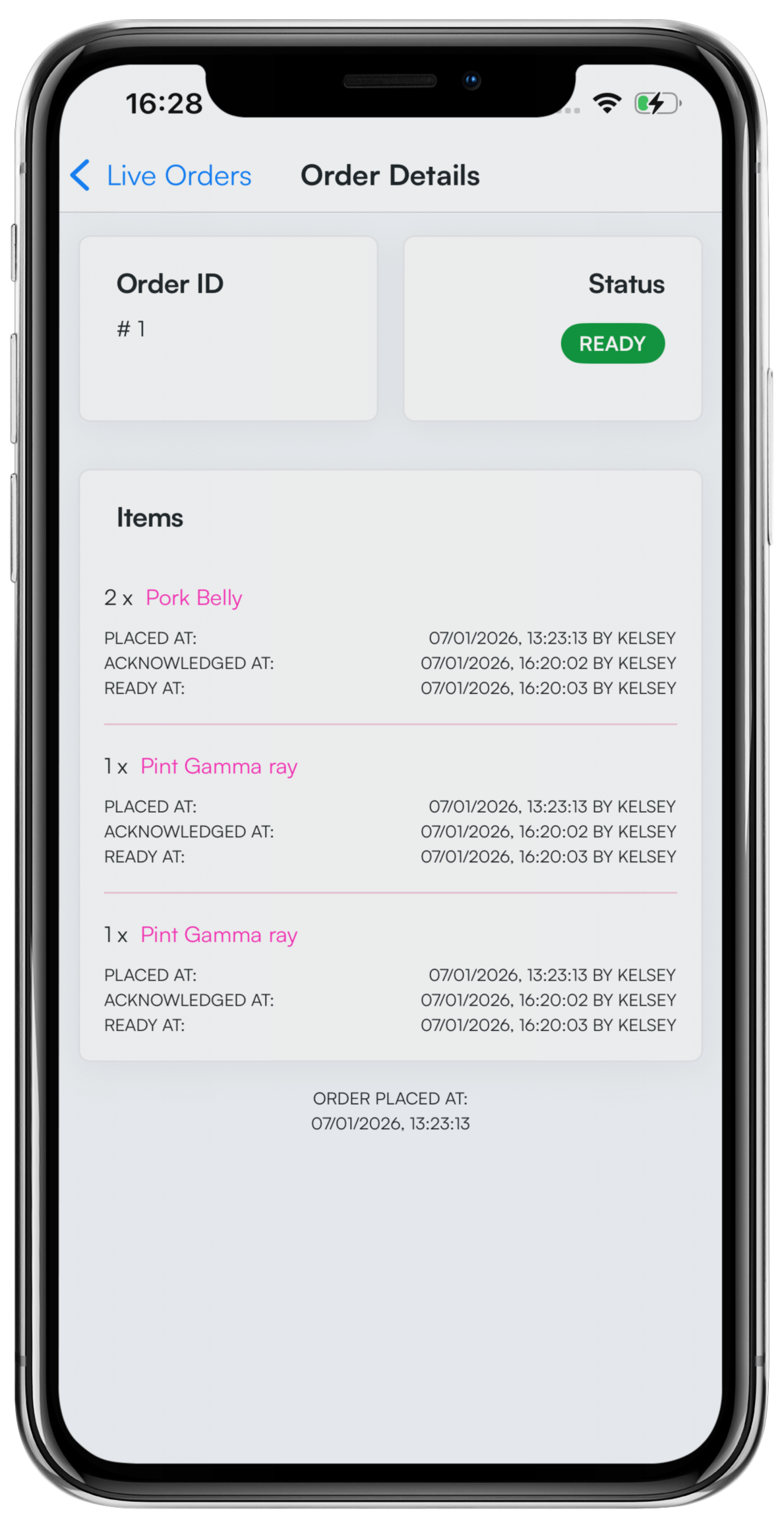
Click on an order row to view more details about the order. When viewing an order, you will be able to see:
- The order ID
- The status of the order
- Items on the order, and the order label timestamps
- The date and time the order was placed
Was this article helpful?
That’s Great!
Thank you for your feedback
Sorry! We couldn't be helpful
Thank you for your feedback
Feedback sent
We appreciate your effort and will try to fix the article