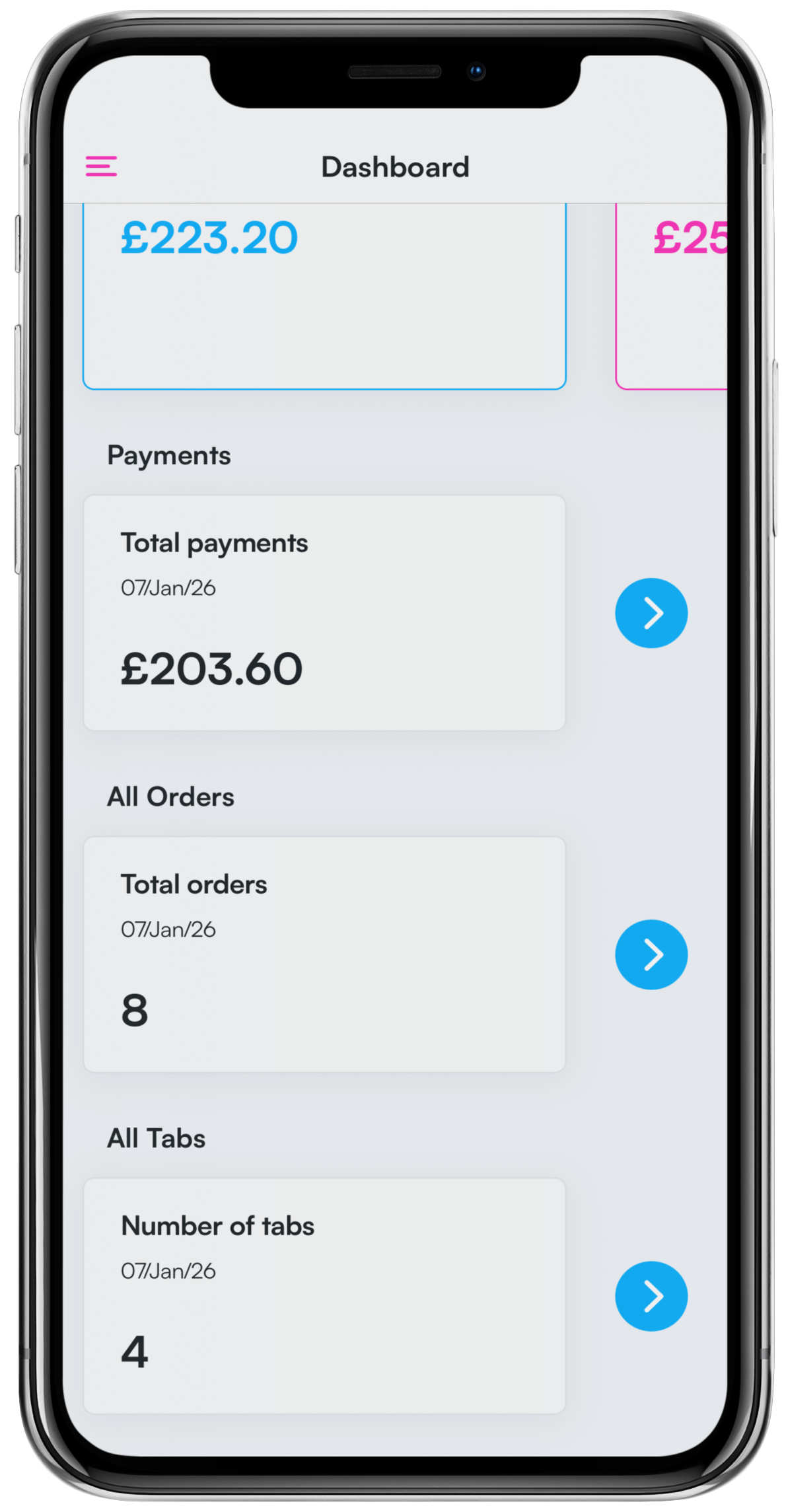
You can view All orders in the management app by clicking the blue Arrow next to the corresponding totals box, or by clicking Menu > Orders from the top left of the dashboard.
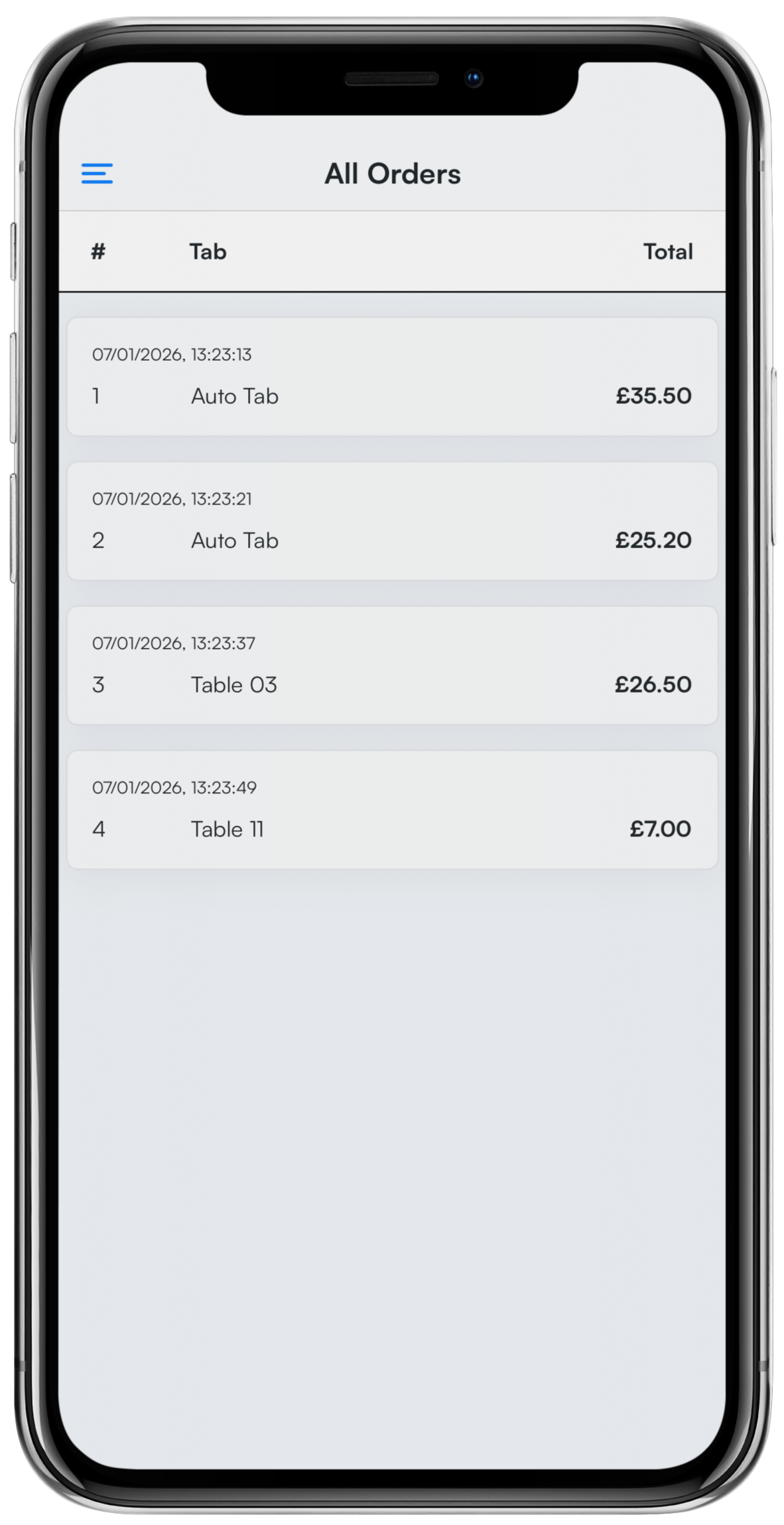
When in the All orders screen, you will be able to view all orders since your last cash up.
For all orders, you will be able to see:
- The order number
- The tab name
- The total value of the order
Orders will be ordered from oldest to most recent.
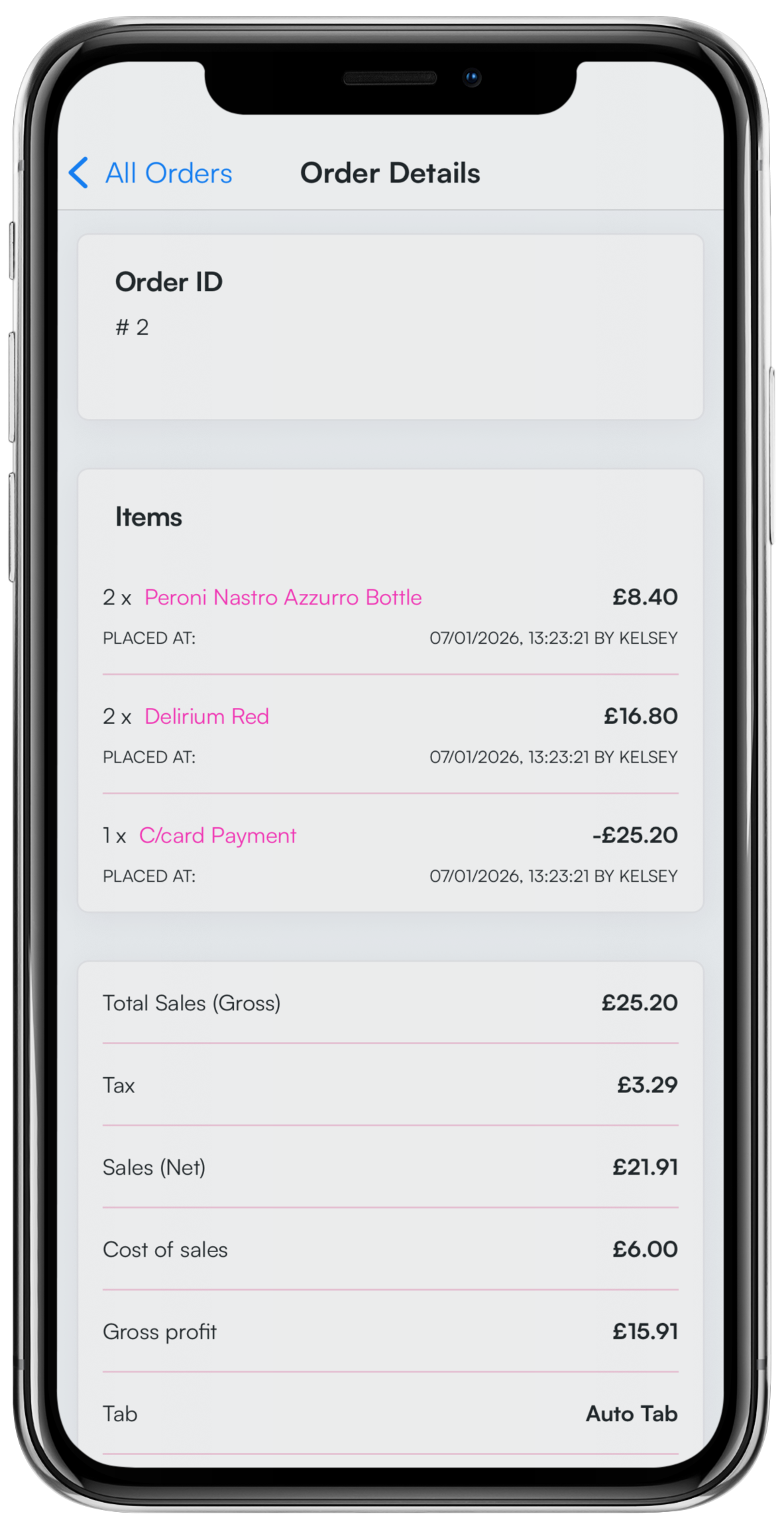
Click on an individual Order to view it.
You will be able to see:
- The order ID
- Items on the order
- Order label timestamps
- Sales information
- The device the order was placed on
- The date and time the order was placed at
Was this article helpful?
That’s Great!
Thank you for your feedback
Sorry! We couldn't be helpful
Thank you for your feedback
Feedback sent
We appreciate your effort and will try to fix the article