If you track leave within Tabology, you can use the Leave Allowances Report to view leave accrued, leave taken, and current leave remaining for each of your staff members.
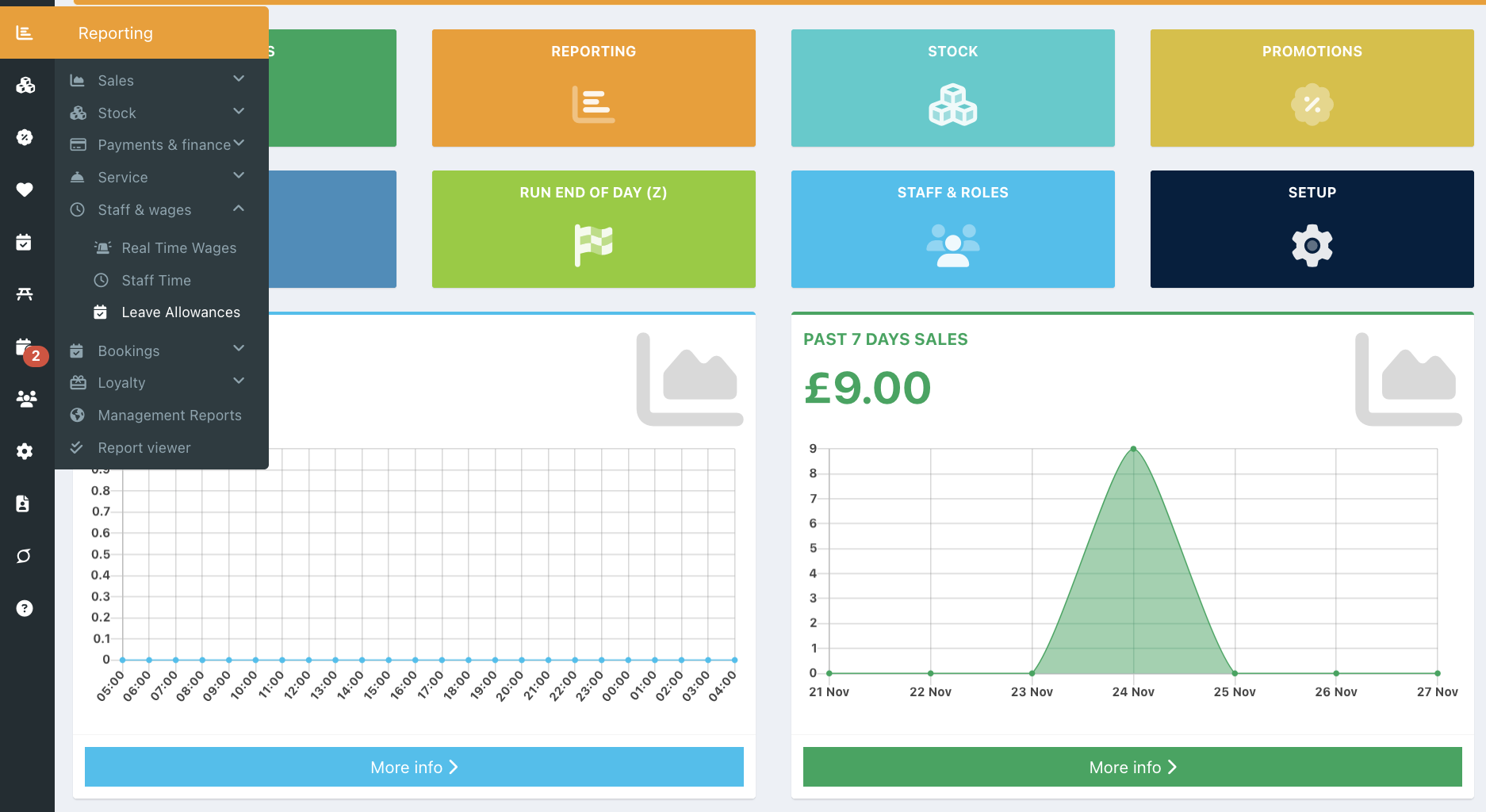
To view the Leave Allowance Report, go into your back office and hover over the Reporting icon. Then click on Staff & wages > Leave allowances.
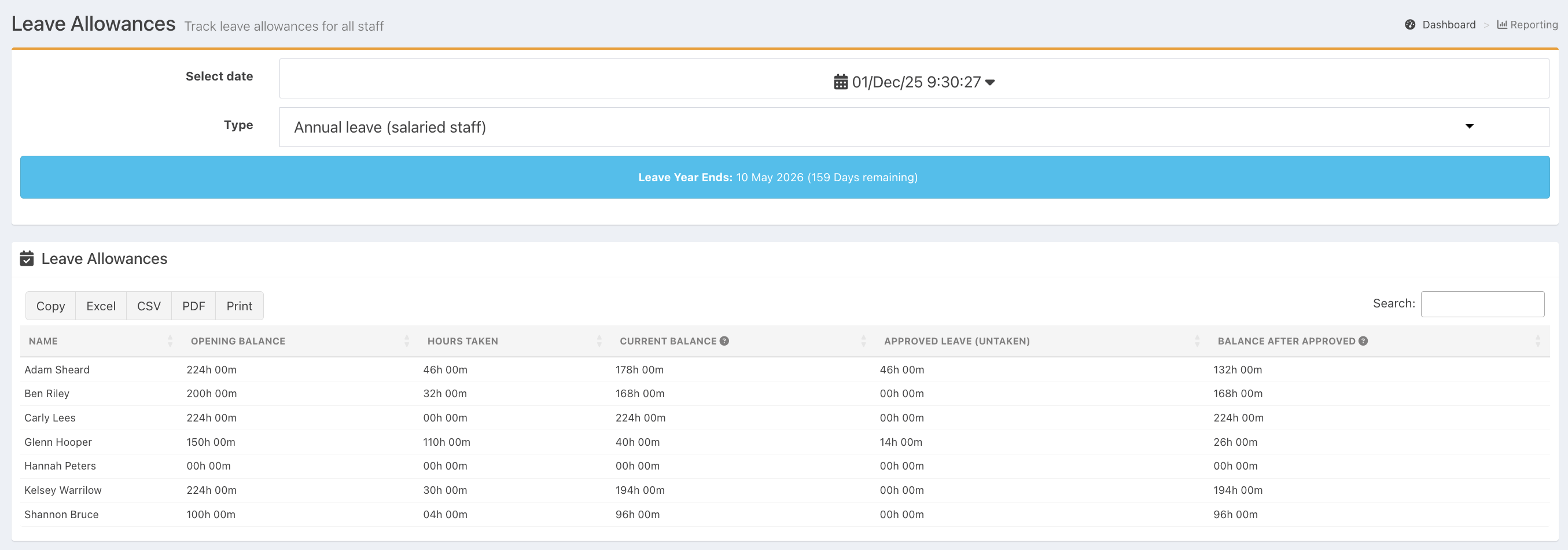
The Leave Allowances Report will display. By default this will display on Today's date, but can be changed by clicking in the Date range field.

From the Type dropdown, you can select from your list of Leave types available.
The blue banner under the Type dropdown, will also inform you of when your Leave year ends and how many days left of your Leave year are remaining.

Your report will now automatically generate for you to view and will be ordered alphabetically by staff name.
You will be able to see:
- Opening balance
- Hours accrued (this will column will display if your leave type uses the hourly accrual rate)
- Hours taken
- Current balance
- Approved leave (Untaken)
- Balance after approved
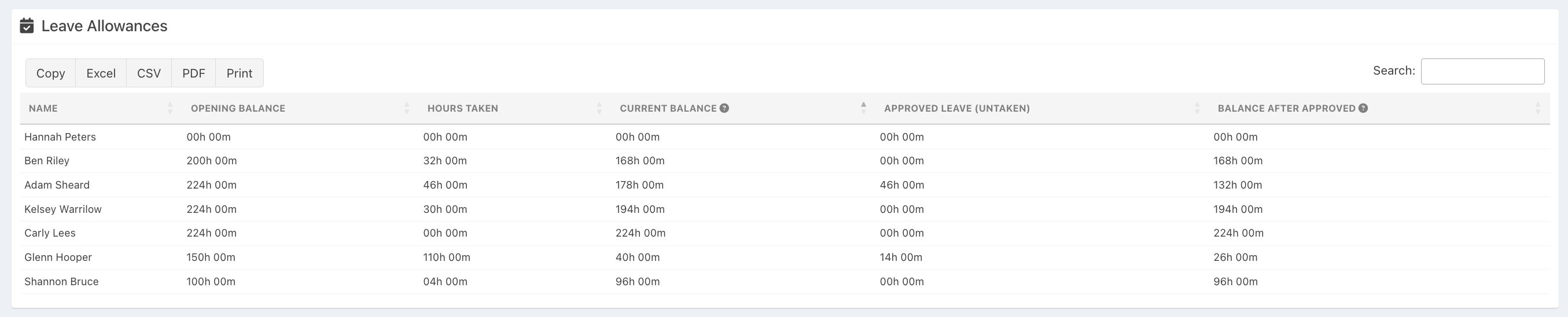
Sorting
If you would prefer to sort your report differently, click on the column headers to sort. A grey arrow will indicate whether it is in descending or ascending order, and you can click the column header to switch between the two.
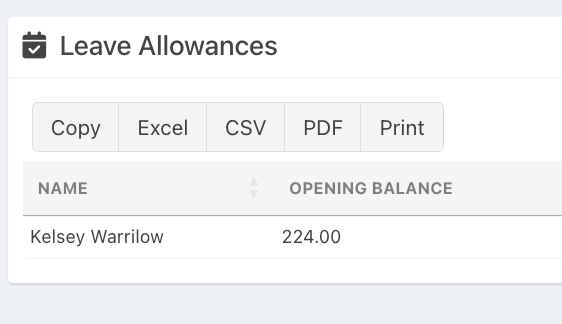
Searching
If you have a long list of staff members, you can use the Search function at the right of the screen to search for your staff member, or any data within the Leave Allowance Report.

Exporting
You can export your Leave Allowance Report either by copying to the clipboard, exporting to Excel or CSV, displaying as a PDF or printing.
Was this article helpful?
That’s Great!
Thank you for your feedback
Sorry! We couldn't be helpful
Thank you for your feedback
Feedback sent
We appreciate your effort and will try to fix the article