You can create multiple Member types to manage different categories of members, such as Students, Industry members, or different membership access levels.
When creating a Member Type, you can:
- Configure the Member type details (see below)
- Add an email template
- Create a wallet pass
- Add a subscription
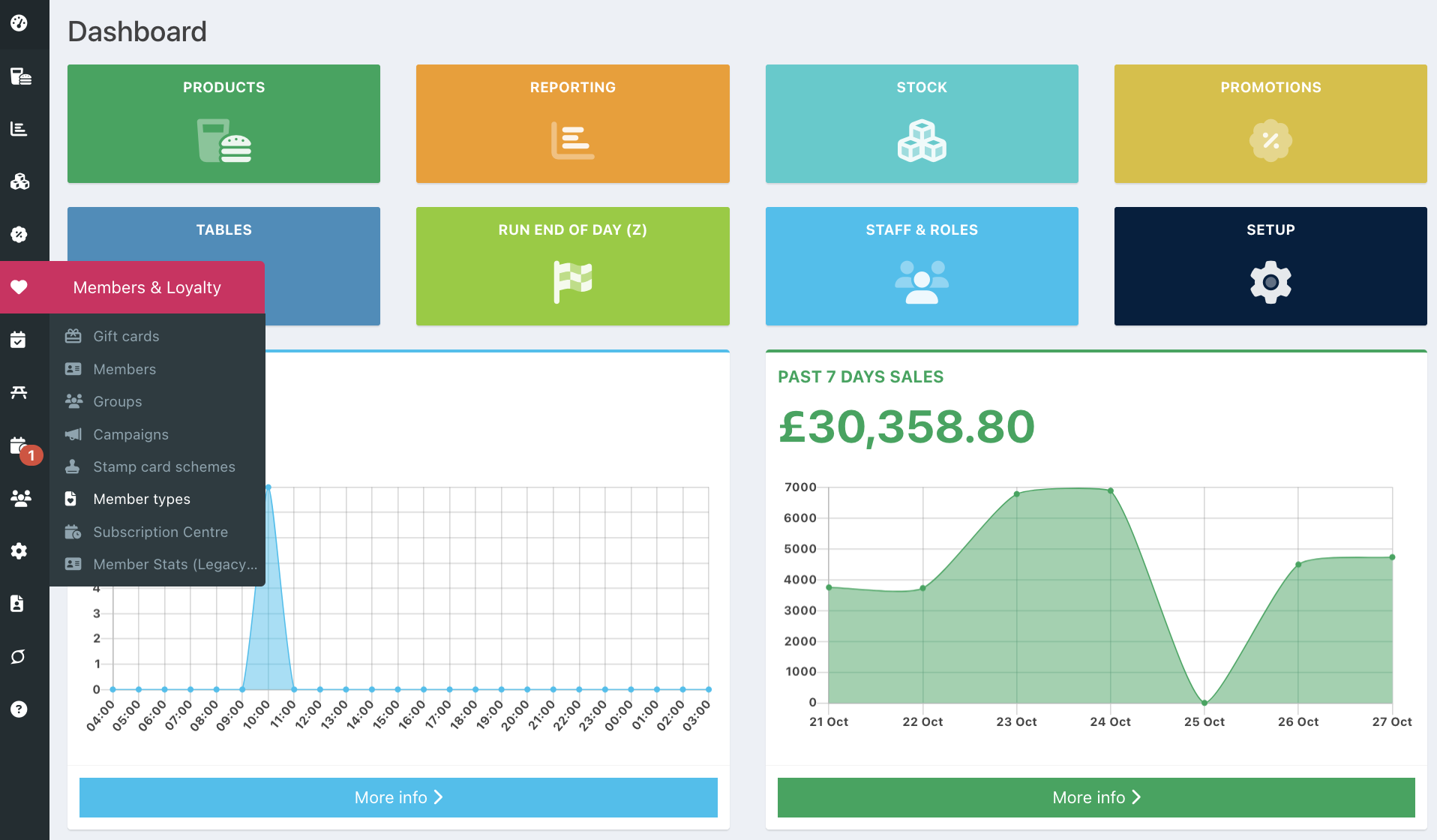
To add a new Member type, go into your back office and click Members & Loyalty > Member types, from the left-hand navigation.
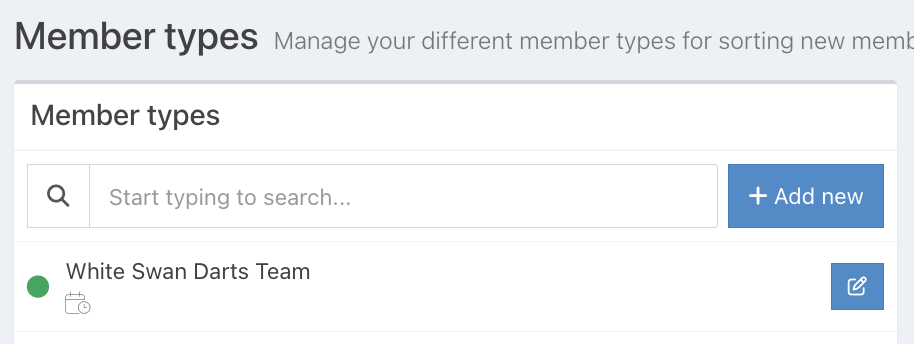
Click the blue Add new button.
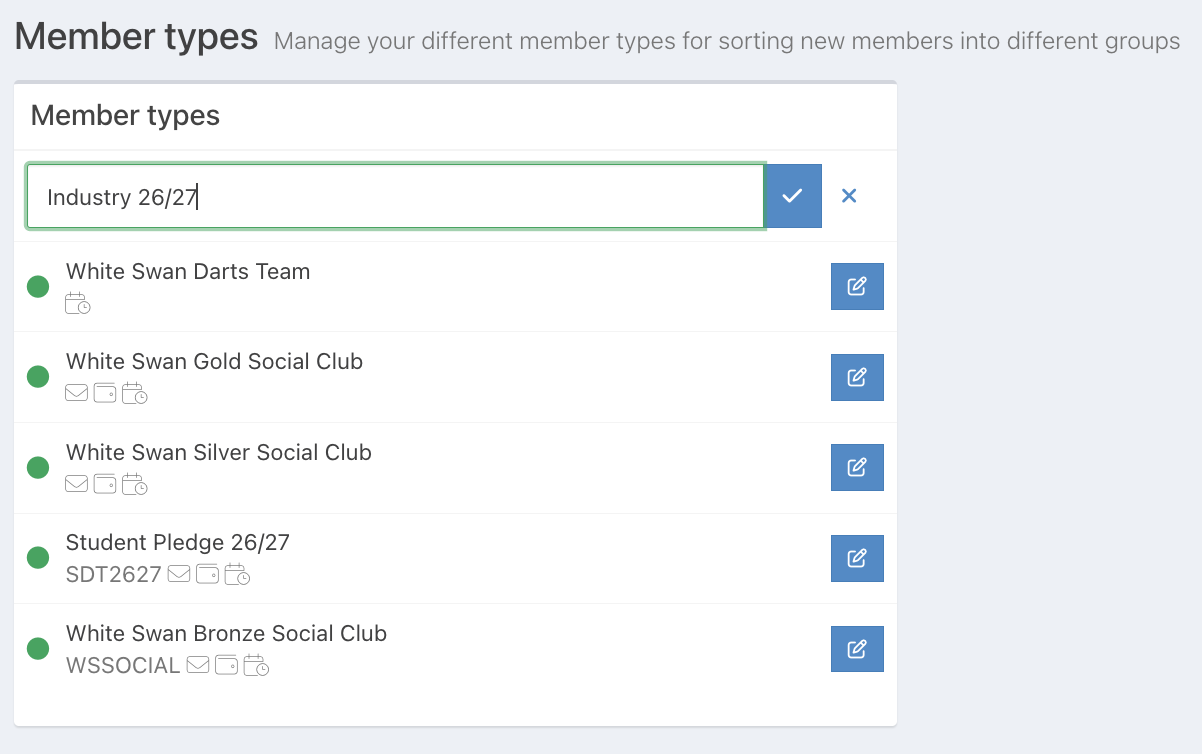
Enter the name for your Member type.
Then click the blue tick button at the end of the row to create your new Member type.
To the right of the screen, you will be able to add and edit additional areas of your Member type..
In the Details tab, you can:
- Edit the name of your Member type
- Provide a scheme code for your Member type, which your customers can enter on the member sign up form to sign up to
- Assign new members to a group - selecting a group will apply any new members to the group
- Activate and deactivate the Member type
- Copy a specific URL for a member sign up form that will sign new members up
Note: You can assign a group to your Member type so that new members are automatically added to it when they sign up. This allows you to give different Member types access to different promotions by assigning promotions to the relevant member group. For example, you could create a Student Member type and assign new members to a Student group, giving them access to student-only promotions.
If you want different Member types to earn loyalty points at different rates, you can set your core loyalty points scheme to earn zero points per £1 spent, then configure a separate points per £ promotion for each Member type.
As you create your Member type, you can see the status, which shows the steps you've completed. It will also show whether you have activated your Member type.
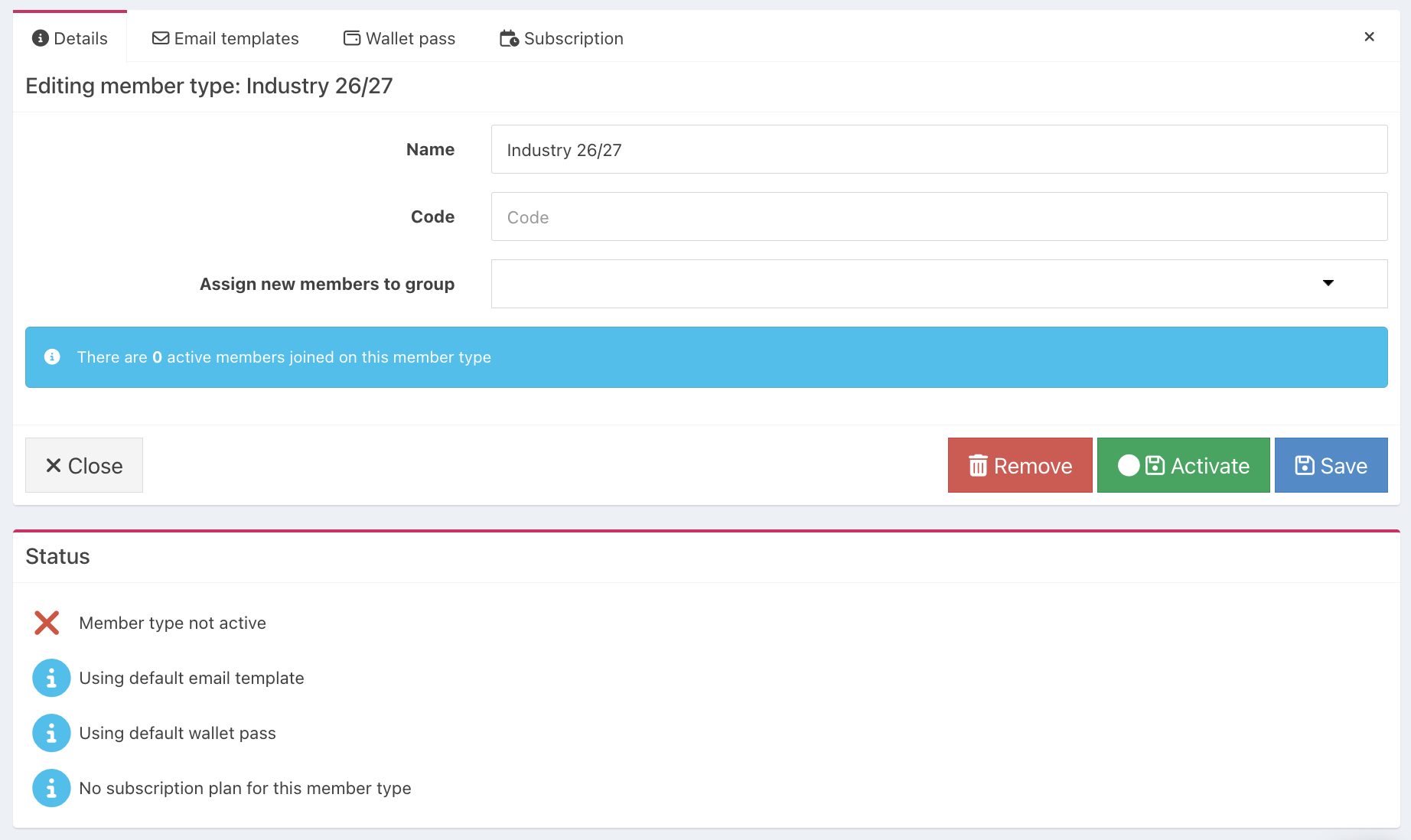
Click the blue Save button, to save your Member type.
If you don't need to add a default email template or wallet pass, you can activate your Member type now.
Note: If you add a scheme code to your Member type, it will display under the scheme name in the list of Member types.
Was this article helpful?
That’s Great!
Thank you for your feedback
Sorry! We couldn't be helpful
Thank you for your feedback
Feedback sent
We appreciate your effort and will try to fix the article