Setting sales forecasts in your system enables you to:
- View forecast wage percentage when you create your rota
- View reports on actual vs forecast sales
Any sales forecasts you set will automatically pull through to the rota you create for each week to calculate your forecast wage %. If you haven't set any sales forecasts for the week that a rota covers, you can set your forecasts on the Forecasts tab of the rota.
To set sales forecasts, log in to your back office and go to Staff scheduling > Forecasts.
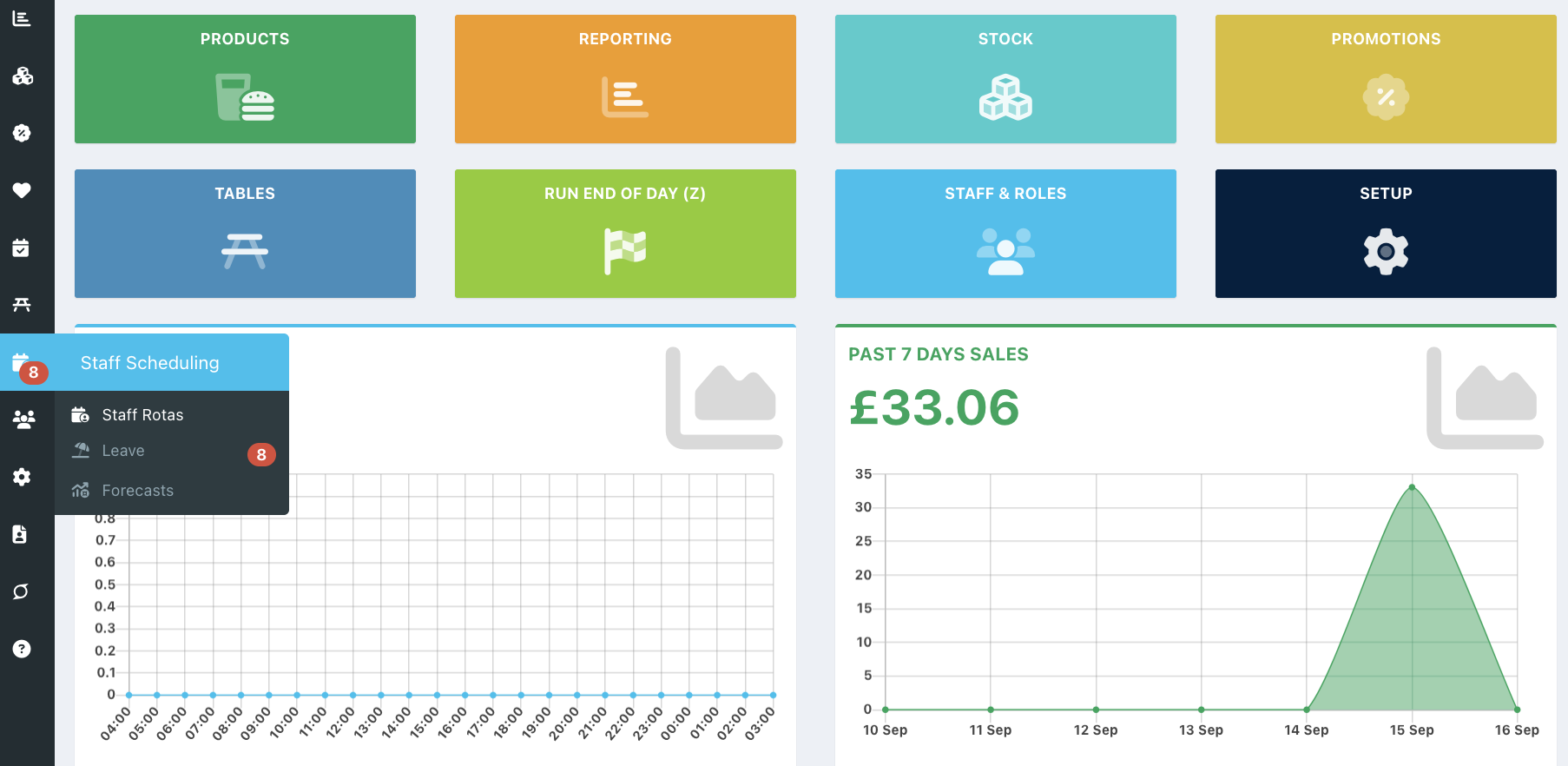
Here you can:
- Generate forecasts for the month using AI
- Enter forecasts manually
- Upload forecasts
If you have setup departments, you will be able to enter or generate Sales forecasts for each department into the corresponding column.
Generating forecasts using AI
If you have enabled AI Forecasts, you will see the orange Generate forecasts button. Click this button to generate forecasts for the current month.
Note: If you haven't yet enabled AI forecasts, you can switch the Enable AI Forecasts toggle in the top right of the screen to On. It can take up to 15 minutes to train the model before you can generate your first forecasts and you will need at least 14 days worth of sales.
Manually entering forecasts
To manually enter your forecasts, click in the sales forecast field for the corresponding date to enter your daily sales forecast.
If you take bookings, you will see the total covers booked in for each day next to the date. You can use this information to help with your manual forecasts.
To change the month, click the blue Previous month button or the Next month button.
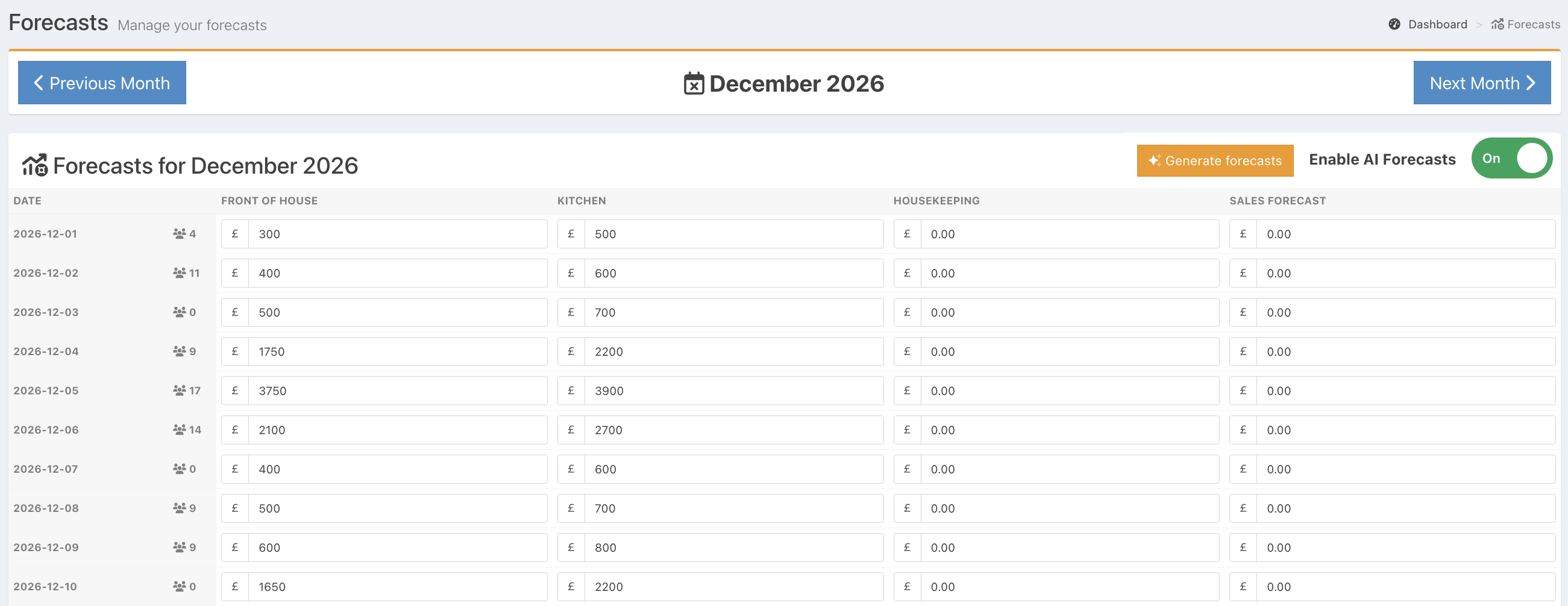
When you have entered your sales forecast, scroll down to the bottom of the page and click the blue Save button in the bottom right of the screen.
Note: You will not be able to edit any rows that relate to a rota that is already published.

You can also upload a spreadsheet containing your forecasts.
Was this article helpful?
That’s Great!
Thank you for your feedback
Sorry! We couldn't be helpful
Thank you for your feedback
Feedback sent
We appreciate your effort and will try to fix the article