The gift card module enables you to view any gift cards created on the EPOS, along with their redemptions and remaining balances.
In the gift cards module, you can also select a date in the past to view the total balance outstanding on that date.
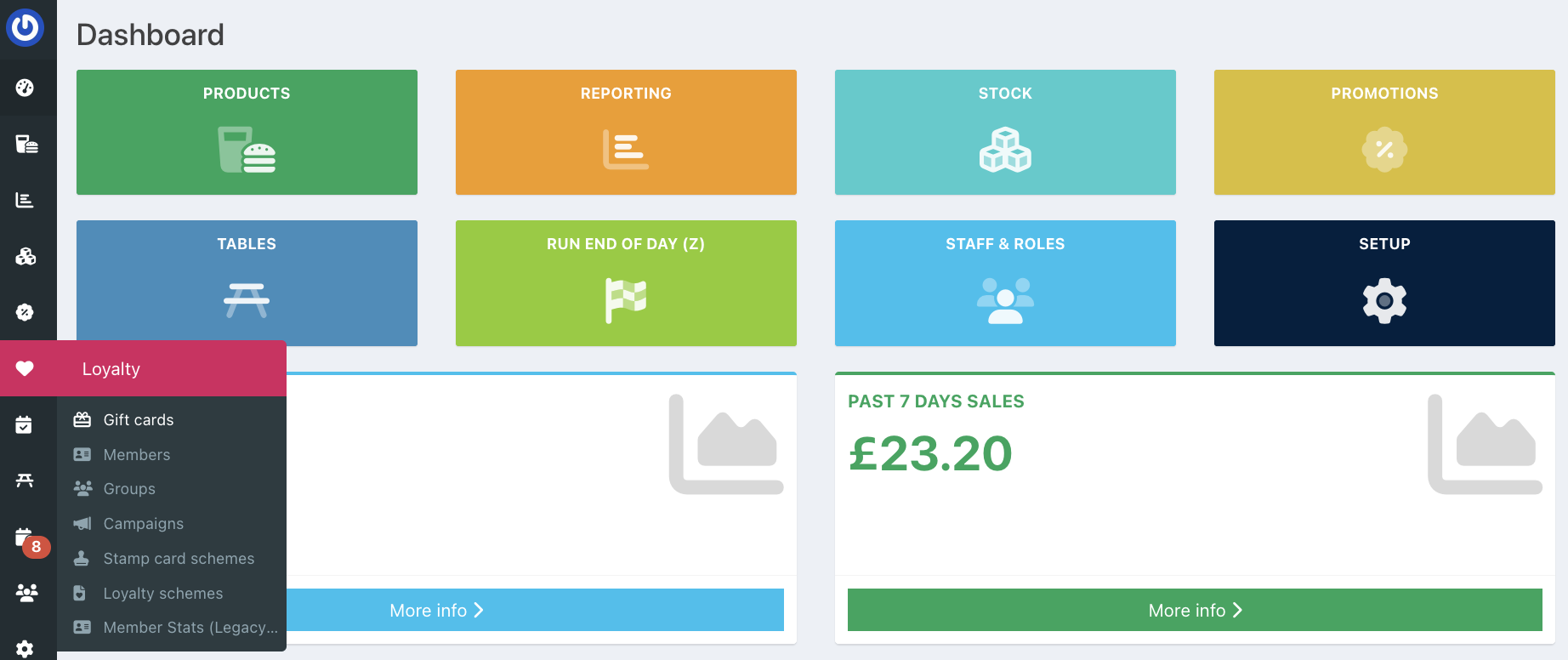
To access the gift cards module, log in to your back office dashboard and select Loyalty > Gift cards from the left-hand navigation.
A list of all valid gift cards along with the value, amount redeemed, and any remaining balance will display.
At the top of the screen, you will see total boxes for:
- Number of gift cards issued
- Total value
- Total redeemed
- Total balance
You can choose to include expired or deleted gift cards in the list by switching the corresponding toggle to On.
If you want to see the total balance on a given date, such as the end of an accounting period, you can select a date from the Show balances on field.
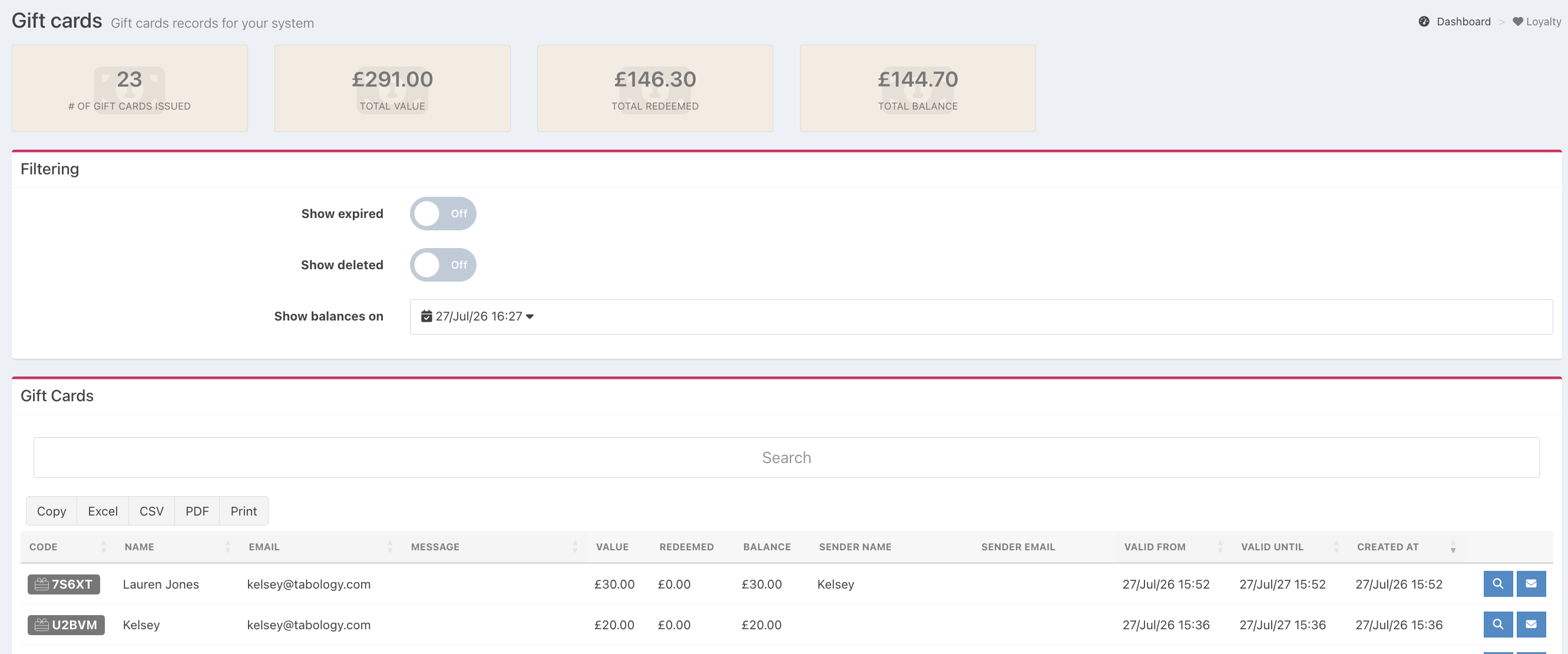
If you need to resend a gift card, click the Email icon at the end of the relevant gift card row.
Searching
The search bar at the top of the report will filter the report by any search term you type. This makes it easy to find a gift card by name or email address.

Sorting
You can sort gift cards by any of the columns. Click the column header and the table will alternate between ascending and descending order.
Exporting
You can copy the sales to your clipboard, display them in a printable format, or export them to Excel or CSV.
Was this article helpful?
That’s Great!
Thank you for your feedback
Sorry! We couldn't be helpful
Thank you for your feedback
Feedback sent
We appreciate your effort and will try to fix the article