You can add allergen and nutritional information to your products to help customers make informed choices when ordering.
This information can be:
- viewed by customers on your mobile ordering menus or kiosks
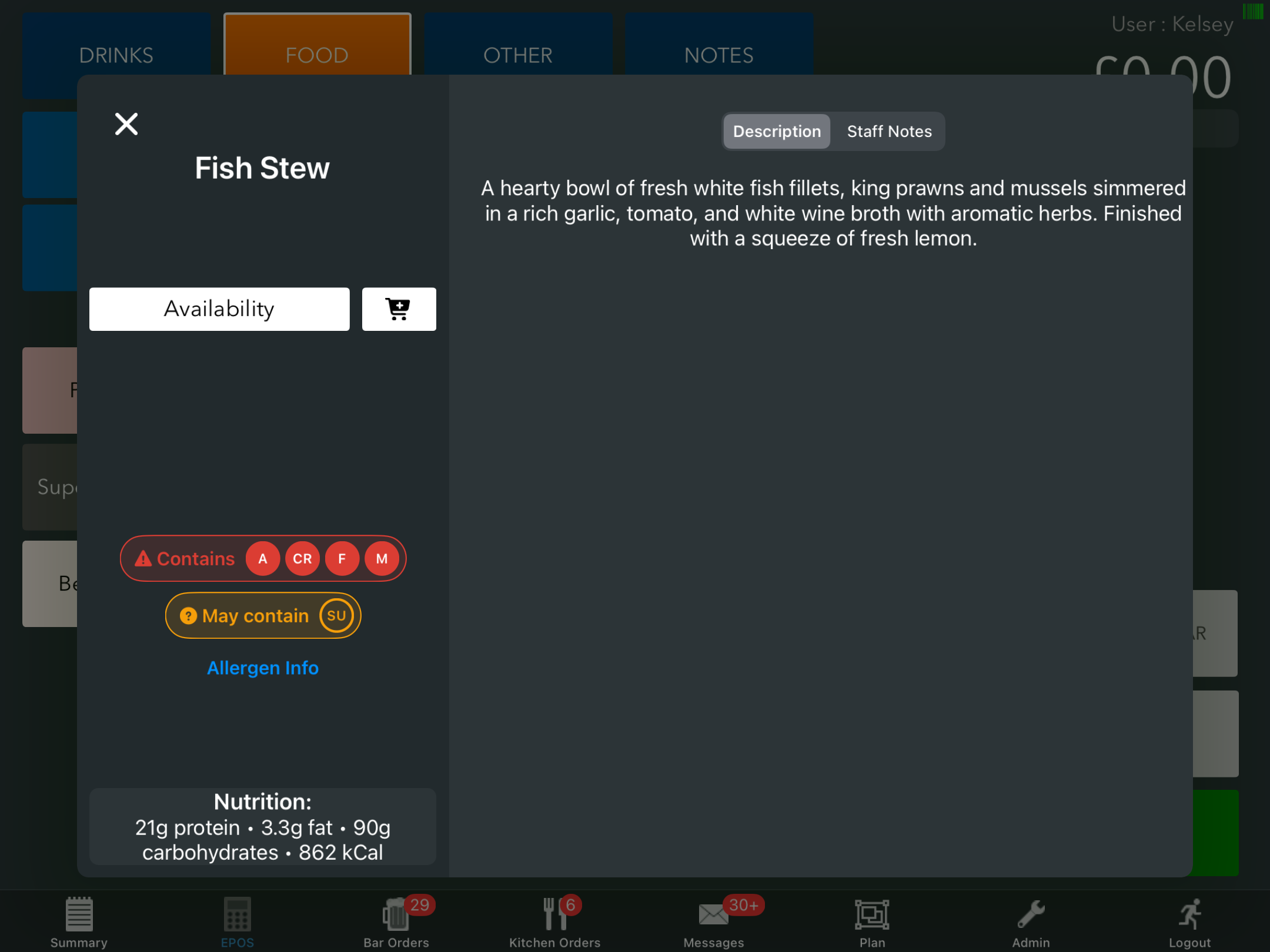
- accessed by staff on the EPOS by pressing and holding a product button
You can specify which allergens a product contains, may contain or is free from, as well as indicate whether a product is suitable for vegans or vegetarians.
If required, you can edit the pre-defined allergen and dietary labels.
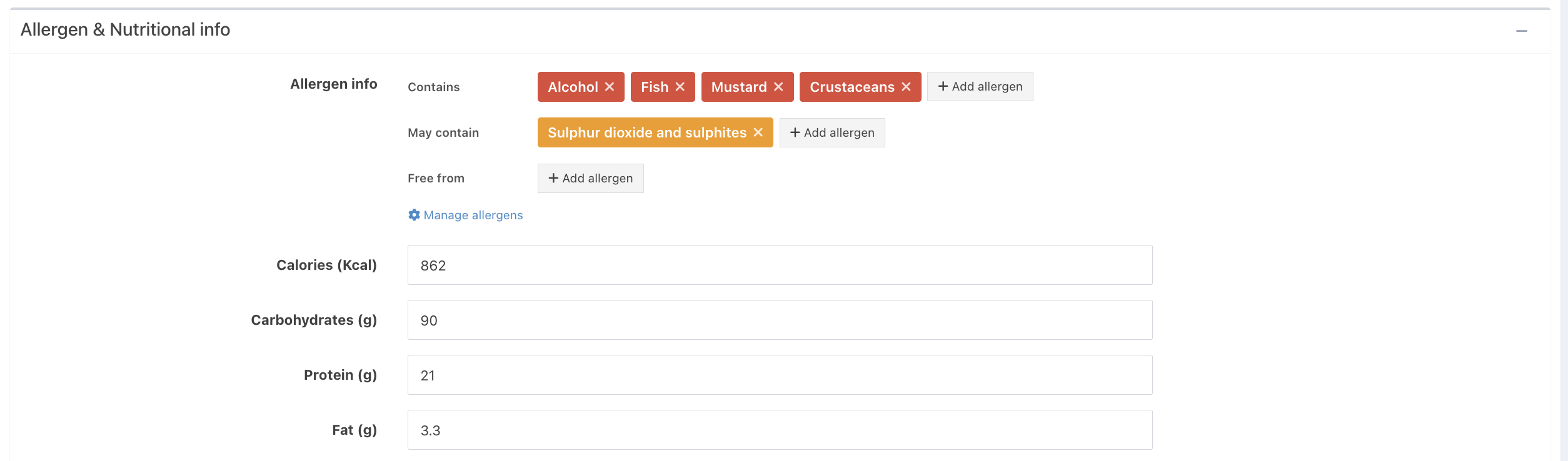
To add allergen and nutritional information, go to the product you want to update, select the Advanced tab and scroll down to Allergen & Nutritional info.
You can add allergen and dietary labels for:
- Contains - Select any allergens that will be present in the product
- May contain - Select any allergens that may be present in the product, for example due to cross-contamination
- Free from - Select any allergens that the product is confirmed not to contain. You can also use this option to identify products as Vegan or Vegetarian.
Below the allergen information, you can enter the nutritional values for the product.
Click the blue Done button at the bottom of the screen, followed by Syncing changes to your EPOS.
Staff can then access the allergen and dietary information by long-pressing the product button on the EPOS.
Was this article helpful?
That’s Great!
Thank you for your feedback
Sorry! We couldn't be helpful
Thank you for your feedback
Feedback sent
We appreciate your effort and will try to fix the article