Your network receipt printer’s IP address identifies it on your local network.
You may need this when adding a printer to the Tabology EPOS or when troubleshooting a printer that cannot be found.
These instructions apply to the Star Micronics TSP143IIILAN network receipt printer. They do not apply to printers connected directly to an iPad using USB.
Before you begin
Confirm that:
The printer contains an 80mm thermal paper roll
The Ethernet cable is connected to the printer’s LAN port
The other end of the Ethernet cable is connected to your router or network switch
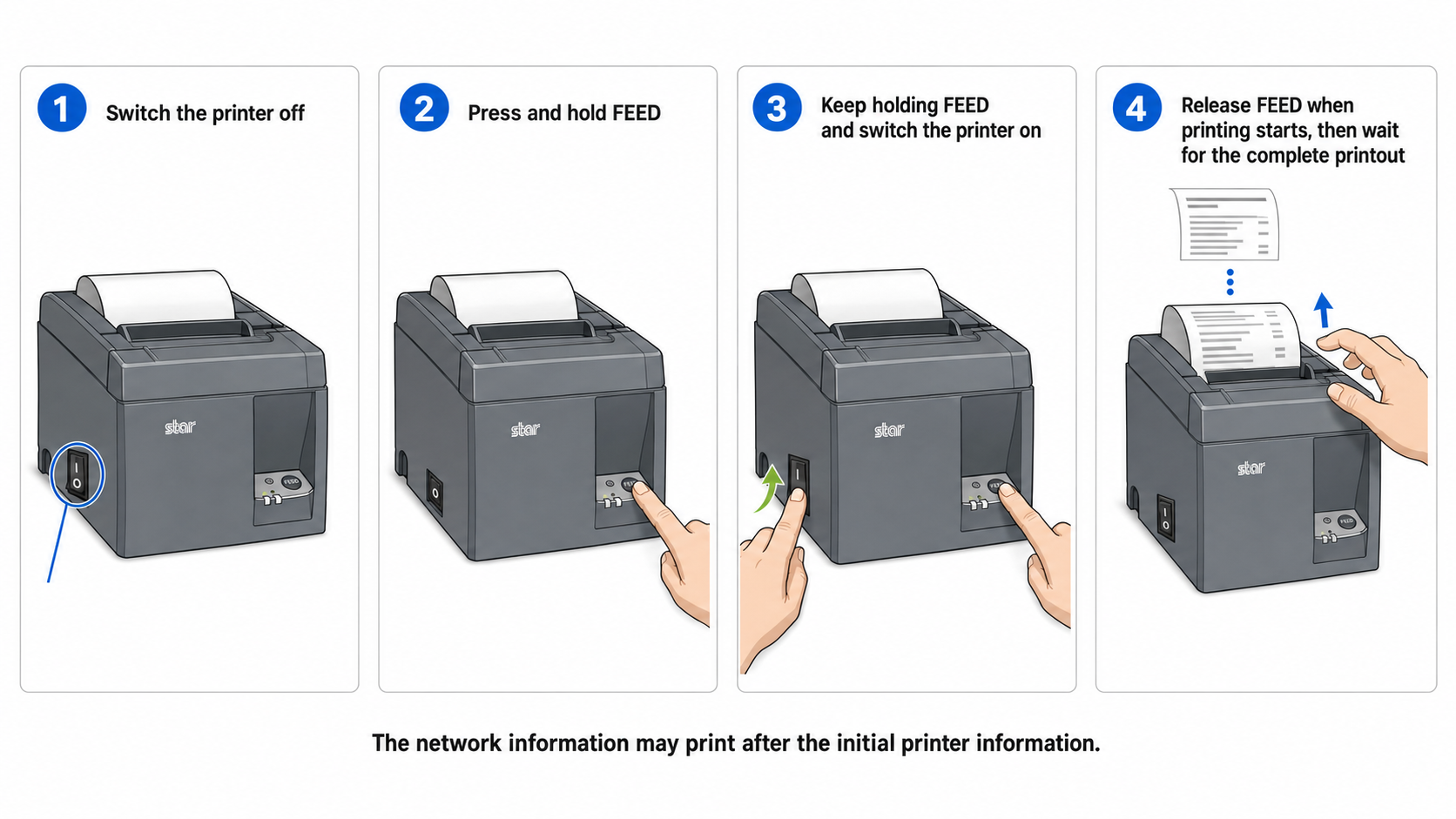
Print the Network information
Switch the printer off.
Press and hold the FEED button.
While continuing to hold FEED, switch the printer on.
Release the FEED button when the printer begins printing.
Wait for the complete self-test to finish.
The printer may first display its general printer information, then its network information. There may be a short pause between the two sections.
Do not switch off the printer after the first section has printed.
Find the IP address
On the Network information printout, locate the section titled Current IP Parameters Status.
The IP address will be shown underneath this heading.
A working address will usually resemble one of these examples:
192.168.1.25192.168.0.4510.0.0.18
Note: The address shown by your printer will be different.
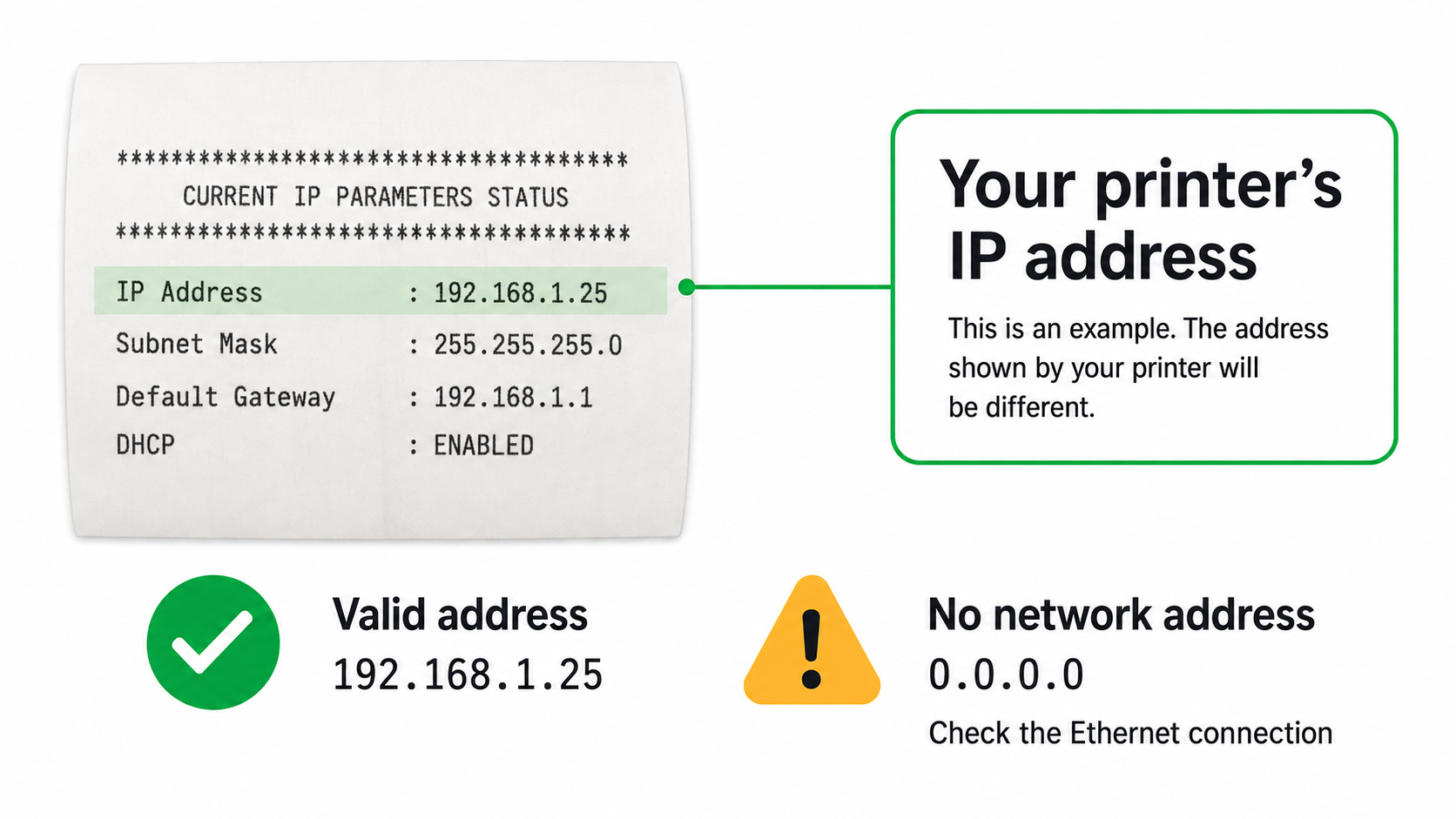 You can use the IP address to identify the correct printer when adding or managing printers on the Tabology EPOS.
The IP address is blank or displays 0.0.0.0
This means the printer has not received a valid IP address from your network. Until the printer receives an IP address, it cannot connect to the Tabology EPOS.
Check the following:
- Confirm that the Ethernet cable is securely connected at both ends.
- Try a different Ethernet port on the router or network switch.
- If available, try another Ethernet cable.
- Switch the printer off.
- Wait approximately 10 seconds.
- Switch the printer back on.
- Allow approximately 30 seconds for it to connect.
- Print the network information again.
Customers using a BT Hub
Some BT Home Hub and BT Business Hub configurations can prevent Star Micronics printers from automatically receiving an IP address.
If you are using a BT Hub and the printer continues to display 0.0.0.0, contact Star Micronics Technical Support for assistance:
Telephone: +44 (0)1494 471111
Opening hours: Monday to Friday, 9:00am–5:30pm
When contacting Star Micronics, have the following information available:
- Printer model
- Printer serial number
- BT Hub model
- A copy of the printer’s network self-test
Customers using another network provider
If you are not using a BT Hub and the printer still displays 0.0.0.0, contact:
- Your network management or IT team, if you have one
- Your internet or network provider
- Star Micronics Technical Support
The printer must receive a valid IP address before it can be added to the Tabology EPOS.
Once the printer displays a valid IP address, contact Tabology Support if it still cannot be found or added within Tabology EPOS.
The printer has an IP address but does not appear in Tabology EPOS
Confirm that:
The iPad is connected to the same local network as the printer.
The iPad is connected to the venue’s normal Wi-Fi rather than a guest network.
Local Network access is enabled for Tabology EPOS under Settings → Privacy & Security → Local Network.
Any VPN running on the iPad has been temporarily disconnected.
On some app versions, Tabology EPOS may appear as Tabology in the iPad’s settings.
If the printer still cannot be found, your network may be preventing wireless and wired devices from communicating. Contact your network provider or Tabology Support.
Was this article helpful?
That’s Great!
Thank you for your feedback
Sorry! We couldn't be helpful
Thank you for your feedback
Feedback sent
We appreciate your effort and will try to fix the article