Face login is a faster and more secure way to log in to the EPOS. The EPOS device will recognise a staff members face, removing the need to key in a a PIN every time.
You can configure Face login to:
- Present a single login button to the user as soon as their face is recognised. The user presses the single button to log in. This is the default option.
- Automatically log a user in when their face is recognised. This can lead to even faster logins, but could also lead to false logins when a user is in view of the camera without intending to log in. A configurable delay is added after logging out, to prevent a user from being immediately logged in again.
To enable Face login for the EPOS, go into your back office and select Setup > EPOS from the left-hand navigation.
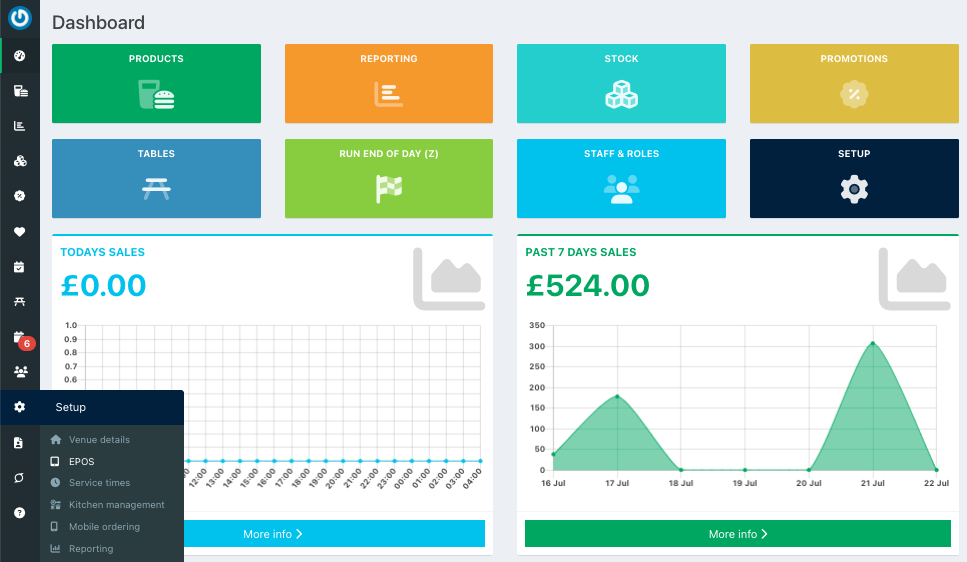
From EPOS settings & setup, click the Other settings tab at the end of the tab row.

Locate the setting Enable face login and toggle the setting to On.

Click the blue Save button at the bottom of the screen.

Face login will now be enabled. To start using it, you need to add photos of your users to the EPOS.
You can add them from the EPOS Admin screen. Alternatively, your users can do this themselves through their User profile.
If you would like users to be automatically logged in without a button press, you can configure Face auto login.
After uploading user photos, your users will be able to login.
Was this article helpful?
That’s Great!
Thank you for your feedback
Sorry! We couldn't be helpful
Thank you for your feedback
Feedback sent
We appreciate your effort and will try to fix the article