By default, when Face Login is enabled, a Login button is displayed as soon as a face is detected.
If you would like users to be immediately logged in once their face is recognised, you can enable auto face login.
Enabling Auto face login, will remove the need to tap the Login in as button and will automatically detect the users face and log them in. It will also apply a delay after a user logs out to prevent them from being immediately logged in again. This is 1 second by default, but can be increased if needed.
Note: Auto face login may result in staff logging in unintentionally when standing in front of an EPOS device. If this causes issues in service, you can disable face auto login and go back to the default single-button login.
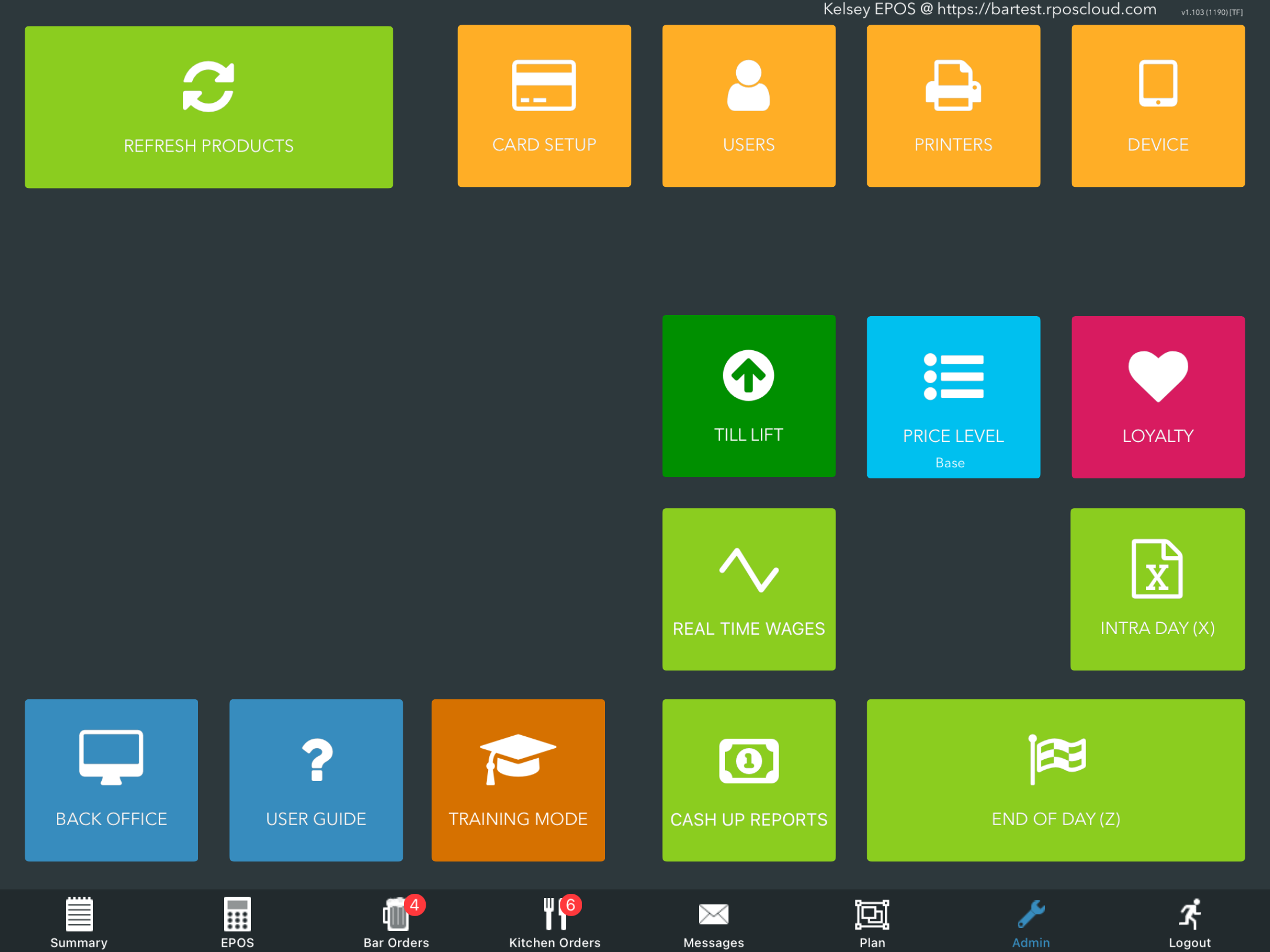
To enable Auto-face login, go onto your EPOS and select Admin from the bottom navigation. Then select the orange Device button from the top right.
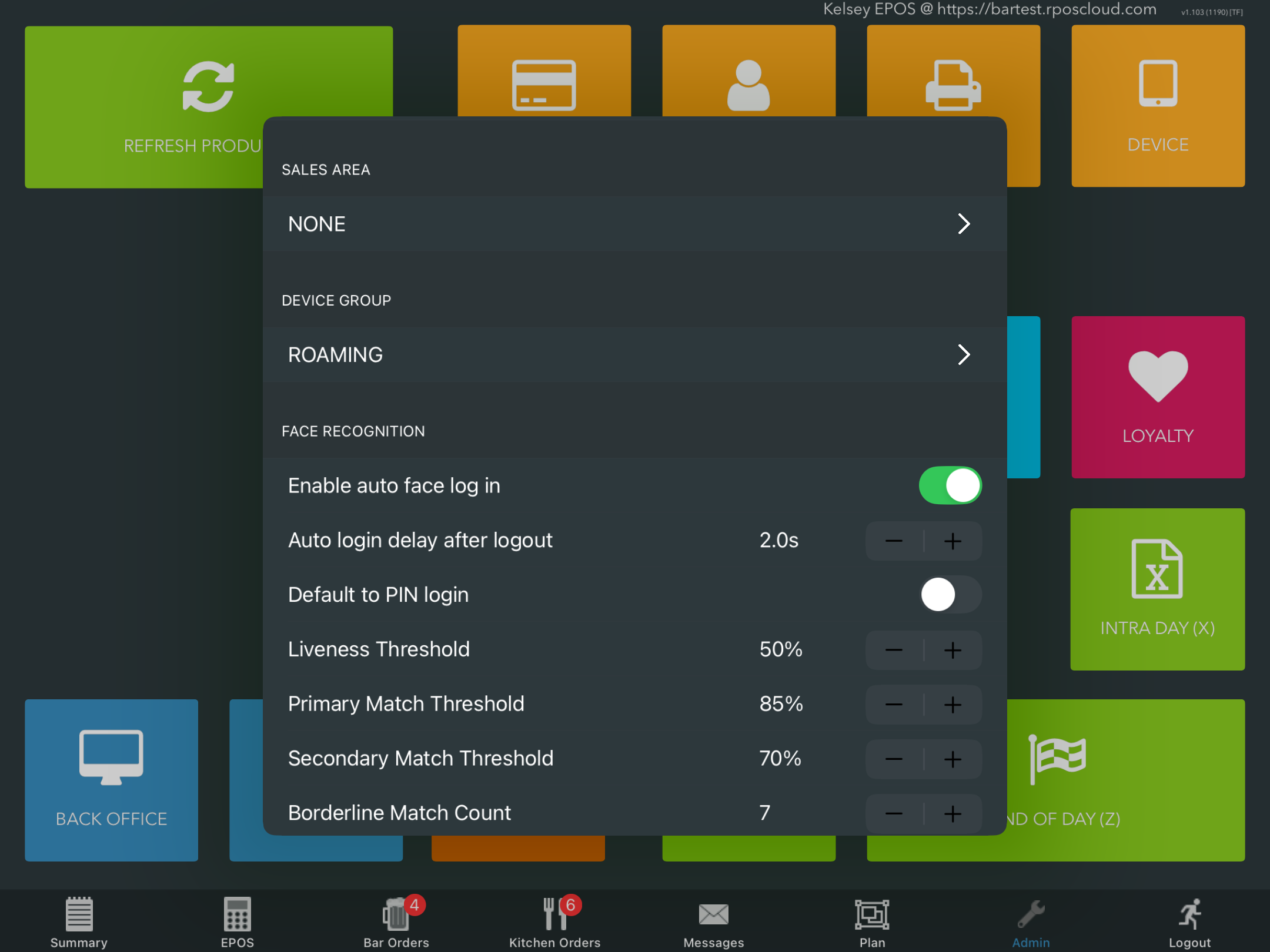
Locate the Face recognition section. Toggle the setting Enable auto-face login to On.
You may want to adjust the Auto login delay after logout to a value that consistently prevents users from being logged back in after logging out.
Click the White X at the top of the Devices modal to exit. Auto-face login will now be enabled.
Was this article helpful?
That’s Great!
Thank you for your feedback
Sorry! We couldn't be helpful
Thank you for your feedback
Feedback sent
We appreciate your effort and will try to fix the article